TL;DR
💡 Quick Summary: To access Instagram Direct (IG Direct), open the Instagram app and tap the message icon in the top-right corner of your home screen, or simply swipe left. You can also manage messages on a desktop browser via Instagram.com or the Meta Business Suite. Upgrading to a free Professional Account unlocks dual folders (Primary vs. General), Saved Replies, and advanced sorting to organize your chat ecosystem like a pro.
In the modern digital landscape, communication happens fast. While Instagram started its journey as a simple, visual-first square photo-sharing application, it has transformed into a robust, multi-faceted communication ecosystem. At the beating heart of this ecosystem is Instagram Direct—commonly referred to by its billions of users as IG Direct or simply the DM inbox.
Whether you are looking to catch up with friends, save a trending video sent by a family member, manage client communications, or scale an e-commerce empire using sophisticated conversation funnels, knowing how to navigate, troubleshoot, and optimize your Instagram Direct inbox is a foundational skill.
This guide is designed to be the absolute, definitive playbook for Instagram Direct. We will break down everything from basic mobile and desktop navigation to hidden interface settings, privacy controls, troubleshooting bugs, and advanced business automation using official Meta API-compliant workflows. Let’s dive straight in.
Tier 1: Core Navigation & Interface Basics

1. The Mobile Method: Step-by-Step Guide to Accessing IG Direct on iOS and Android
For the vast majority of creators, casual users, and business managers, the primary access point for Instagram is a mobile device. While the mobile interfaces of Apple iOS and Google Android look strikingly similar, slight variations exist in navigation layout, system permissions, and gesture controls. Here is how to access your IG Direct inbox on any modern smartphone:
Step-by-Step Navigation for Mobile Devices:
- Launch the Instagram App: Tap the Instagram app icon on your device's home screen or app library. Ensure you are logged into the specific account whose messages you want to check.
- Land on the Home Feed: By default, opening the app places you on your main home feed, where you see stories at the top and posts from accounts you follow below. If you are on your profile page or the explore tab, tap the Home icon (the house symbol) in the bottom-left corner of the navigation bar.
- Locate the Messaging Icon: Look toward the absolute top-right corner of your screen. There, you will find the universal gateway to your inbox. This icon will appear either as a stylized paper airplane or a rounded speech bubble containing a lightning bolt.
- Tap and Enter: Tap this icon once. Your screen will transition seamlessly into your direct messaging dashboard.
Pro-Tips for Fast Mobile Navigation:
- The Swipe Shortcut: Did you know you don't actually have to tap the tiny icon in the top corner? From anywhere on your primary home feed, simply place your thumb on the right edge of your screen and swipe firmly to the left. This smooth gesture instantly pulls your IG Direct inbox into view like a sliding door.
- Notification Badges: If you have unread messages waiting for you, a bright red badge displaying the number of unread message threads will overlay the messaging icon. On many operating systems, long-pressing the main Instagram app icon on your phone’s home screen will also display a quick-action shortcut directly to your messages.
2. Desktop Access: How to View and Reply to Instagram Messages on a Web Browser
For a long time, Instagram intentionally restricted its desktop version, forcing users to interact almost exclusively on mobile. However, as the platform matured into a primary business tool, Meta introduced complete messaging parity to the web ecosystem. If you spend your workday sitting in front of a computer, managing your DMs via a desktop browser is significantly faster, more ergonomic, and allows for efficient multi-tasking.
Accessing IG Direct via Instagram.com:
- Open your preferred desktop browser (such as Google Chrome, Apple Safari, Mozilla Firefox, or Microsoft Edge) and navigate to www.instagram.com.
- Log into your account using your username, email, phone number, or linked Facebook credentials.
- Once your home feed loads, take a look at the navigation sidebar located on the left side of the screen (on wider displays) or the top-right toolbar.
- Click on the Messages option, which is accompanied by the familiar speech bubble icon.
- The interface will split into a clean, two-column layout: your active message threads will populate on the left panel, while your currently selected conversation will expand fully in the large right-hand pane.
Accessing IG Direct via Meta Business Suite:
If you manage a Business or Creator account that is linked to a professional Facebook Page, utilizing the standard web interface can feel limiting. Instead, you should leverage the powerful, centralized Meta Business Suite:
- Go to business.facebook.com and log into your business management panel.
- Navigate to the Inbox tab on the left-hand sidebar menu.
- Here, you will see a unified inbox that aggregates comments and direct messages from both Facebook and Instagram simultaneously. This interface allows you to assign conversations to specific team members, add descriptive customer labels, and track response times comprehensively.
3. The Icon Evolution: Understanding the Difference Between the Paper Airplane and the Messenger Bubble
If you look at old tutorials or listen to long-time platform users, they will frequently tell you to "click the paper airplane." However, if you look at your own phone right now, you might see a cross-platform Facebook Messenger bubble instead. This visual split causes a surprising amount of confusion for users trying to locate their inbox. Let’s demystify why this happened and what it means for your user experience.
Originally, the paper airplane icon represented the pure, standalone infrastructure of Instagram Direct. It was a nod to sending quick, lightweight notes across the digital ether.
In late 2020, Meta began rolling out a massive infrastructure update aimed at merging the backend communication pipelines of Facebook Messenger and Instagram Direct. If your account has been transitioned to this integrated network, your icon automatically updates to the speech bubble containing a lightning bolt.
What Changes Besides the Visual Icon?
When your inbox updates to the Messenger-powered framework, you gain a massive suite of features that were previously impossible on legacy Instagram infrastructure:
- The ability to search across your entire friend list on both platforms simultaneously.
- Seamless access to advanced custom chat themes, interactive gradients, and specialized chat backgrounds.
- The capability to react to individual text bubbles with any emoji in your phone's catalog, rather than just the default double-tap heart.
- Enhanced stability for group video calls and high-fidelity voice note transmissions.
If your app still displays the paper airplane, it typically indicates either a pending regional update, an outdated app version, or that you are using an account tier that hasn’t opted into the optional Meta Account Center link. Rest assured, regardless of which graphic shows up on your screen, both icons serve the exact same primary function: opening your gate to IG Direct.
4. Navigating the Primary vs. General Tabs: How the Dual-Inbox Layout Works

Once you upgrade your Instagram presence from a standard personal profile to either a Creator or Business account, your direct messaging interface undergoes a functional upgrade. Instead of a single, chaotic stream of chronological chats, your inbox splits into two distinct operational tabs: Primary and General.
The Primary Tab: Your High-Priority Workspace
The Primary tab is designed to hold conversations that require immediate attention, frequent follow-ups, or deep engagement. By default, every message from your close contacts, family, friends, and active customers belongs here. Most importantly, notifications are turned on by default for the Primary tab. When an account sitting in this category sends you a message, your phone will ping instantly.
The General Tab: Your Low-Priority Holding Zone
The General tab is your filter for secondary noise. It is ideal for storing group chats that you don't need to monitor constantly, conversations that have already concluded, or cold inquiries from accounts you don't know well. The magic of the General tab lies in its notification structure: notifications are turned off by default for the General tab. Messages will still land cleanly inside the thread, and an unread dot will appear, but your phone will not buzz or disrupt your day.
How to Move Chats Between Tabs:
Organizing your inbox is an ongoing process. To move a conversation from one folder to another:
- Open your IG Direct inbox and locate the specific chat thread.
- On iOS, swipe left across the message row to reveal the options menu, then tap General or Primary. On Android, long-press on the chat thread until a pop-up window surfaces, then select Move to General or Move to Primary.
- For bulk management, tap the three-dot option icon in the top-right corner of your inbox list, select multiple chats simultaneously, and move them to their destination folder with a single tap.
5. The Hidden "Message Requests" Folder: Where Missing DMs from Non-Followers Land
Have you ever had a customer or acquaintance tell you, "I sent you an important message days ago, but you never replied," yet when you look at your inbox, there is absolutely nothing there? The culprit is almost certainly the hidden Message Requests folder.
To protect users from harassment, spam, and unsolicited links, Instagram automatically segregates incoming messages from people you do not follow back. These messages do not generate standard notifications, nor do they appear in your Primary or General streams. Instead, they sit quietly inside a small text link labeled Requests, located on the far right side of your inbox header menu.
Navigating the Request Sub-Folders:
When you tap into the Requests folder, you will find that Instagram has further categorized your incoming filtering:
- All Requests: A general chronological list of messages from real human users who are attempting to connect with you for the first time.
- Hidden Requests: This is Instagram's ultimate filtration layer. Powered by an advanced internal algorithm, this folder automatically sweeps away messages containing known spam phrases, explicit text, scam-like financial promises, or accounts flagged for suspicious behavior.
How to Process a Message Request:
When you open a thread inside the Requests folder, you enter a "stealth preview" mode. The sender cannot see that you have read their message. You are presented with three clear choices at the bottom of the screen:
- Accept: This moves the conversation out of requests and pushes it into your primary inbox. This enables normal notification delivery and allows the sender to see future read receipts.
- Delete: This completely removes the message thread from your view. The sender is not explicitly notified that you deleted their note; to them, it simply looks like a pending, unread message.
- Block / Report: If the message is abusive, promotional spam, or a phishing attempt, selecting this option permanently prevents that user from messaging you ever again and alerts Meta's moderation team.
6. Mastering the Search Bar: How to Instantly Find Old Conversations, Keywords, and Media
As you use Instagram over months and years, your inbox will naturally accumulate hundreds of individual message threads. Scrolling manually down your feed to find a specific piece of information from a year ago is an exercise in frustration. Fortunately, the search feature at the top of your IG Direct interface is highly advanced.
Multi-Layered Search Functionality:
When you tap the search bar located at the baseline top of your inbox dashboard, you can search across multiple data points:
- Searching by Username/Name: Typing a name immediately surfaces matching user accounts you have interacted with, making it easy to open a fresh or existing chat thread.
- Searching by Specific Keyword: Type a distinct word or phrase (e.g., "Contract design," "Tracking number," or "Dinner recipe"). Instagram will index the text contents of your conversations and present a comprehensive list of every historical message block where that exact word was typed. Clicking the search result drops you perfectly into that historical point in the chat timeline, complete with highlighted text.
- Filtering by Media & Assets: Advanced versions of the interface allow you to tap categories right under the search bar to filter your past chats based purely on shared links, photos, videos, or voice transcripts. This turns your inbox into a functional database of your collaborative shared history.
Tier 2: Hidden Features & Chat Customization
7. How to Trigger Vanishing Mode: Sending Disappearing Messages Safely
Privacy and temporary communication are increasingly critical components of modern social media usage. Whether you are sharing sensitive log-in credentials with a trusted contractor, exchanging a playful private joke, or simply wanting to ensure a conversation leaves no lasting digital footprint, Instagram’s Vanishing Mode provides a secure, self-destructing canvas.
Activating Vanishing Mode:
- Open an existing direct message thread with a single user (Vanishing Mode is currently restricted to 1-on-1 chats and is not available in group threads).
- Place your finger at the bottom of the chat window near the text input field.
- Swipe upward firmly toward the top of your screen until you see an animated circle fill up and text appear stating "Release to turn on Vanish Mode."
- Release your finger. The chat interface will instantly transform: your background will turn to a dark tone, and a cascade of falling shush-emoji graphics will float down the screen.
Operational Rules of Vanishing Mode:
- Self-Destruction Mechanism: Messages, links, photos, and voice notes sent while Vanishing Mode is active will remain visible while the chat is open. The absolute second you or the recipient closes the chat window or navigates back to the main inbox, every viewed message vanishes permanently.
- Screenshot & Screen Recording Alerts: Security is paramount. If the recipient attempts to take a screenshot or initiate a screen recording while Vanishing Mode is active, Instagram will instantly inject a bold, un-deletable text notification into the middle of the chat bubble timeline stating: [Username] took a screenshot.
- Toggling it Off: To return to the safety of your standard permanent chat history, simply perform the same motion: swipe up from the bottom of the chat and release. Your normal thread will reappear exactly as you left it.
8. Personalizing the Inbox: How to Change Chat Themes and Custom Emoji Reactions
Your inbox doesn't have to look like a clinical, monochromatic messaging board. If you have updated to the modern Messenger-integrated infrastructure, you can fully express your mood, brand identity, or relationship dynamic by customizing individual chat themes and mapping your favorite default emoji reactions.
Customizing Your Chat Theme:
- Open the specific 1-on-1 or group chat thread you wish to personalize.
- Tap the Account Name / Group Name located at the absolute top of the screen. This action opens the detailed management settings panel for that individual conversation.
- Look for the menu item labeled Theme and tap it.
- A large scrollable menu will appear featuring two main design categories:
- Thematic Artworks: These are fully realized visual backgrounds dedicated to pop culture phenomena, seasonal changes, artistic illustrations, or major events (such as Cyberpunk, Astrology, Ocean, or Minimalism).
- Color Gradients: If you prefer clean aesthetics over busy backgrounds, scroll down to the solid gradient section. These options create beautiful, shifting color transitions (like Berry, Citrus, or Neon) that colorize the actual text bubbles as you scroll through your chat history.
- Tap your choice. The setting applies instantly for both you and the recipient.
Remapping Custom Emoji Reactions:
By default, double-tapping a message bubble instantly drops a heart reaction, and long-pressing it surfaces a small bar of basic emojis. If you frequently use other reactions—such as a checkmark (✅), a fire symbol (🔥), or a rocket ship (🚀)—you can easily customize your quick-access bar:
- Long-press on any message bubble inside a chat until the default emoji panel appears.
- Tap the small plus icon (+) at the far end of the floating bar.
- This opens your device's entire native emoji menu. Tap the Customize button.
- Tap the specific default emoji you want to replace, then select your new favorite emoji from the master list. Click Done to save your operational shortcut layout.
9. The Silent Sent: Sending Messages Without Triggering a Push Notification (@silent)

We live in an era of constant digital distractions. Sometimes, you want to send someone a piece of information—a non-urgent link, an answer to an old question, or a funny video—late at night or during their busy workday. However, you don't want to wake them up, interrupt a critical meeting, or force them to look at their phone out of obligation. For this exact situation, Instagram includes a brilliant, native feature called The Silent Sent.
How to Execute a Silent Message:
- Open the IG Direct chat thread of the recipient.
- Tap into the text box and type the word @silent.
- As soon as you finish typing the token, a small pop-up label will appear confirming that you are about to send a message without a notification banner.
- Hit the spacebar and type your actual message immediately following the tag (e.g., @silent Here is that article we discussed earlier, no need to look at it until Monday!).
- Tap Send.
The Recipient’s Experience:
When the message arrives, the recipient’s phone will remain completely quiet. No banner will drop from the top of their screen, no lock-screen alert will pop up, and their smart watch will not vibrate. The message will simply rest invisibly inside their app until the next time they manually decide to open their Instagram Direct inbox, where they will see an unread badge indicating new content is waiting.
10. Voice Notes and Video Calls: Moving Beyond Text Inside the Direct Interface
Text is incredibly efficient for quick exchanges, but it lacks tonal nuance and can easily lead to misunderstandings in personal and professional relationships. To build a comprehensive communication suite, Meta has fully integrated dynamic multi-media tools natively inside the IG Direct dashboard.
Master the Voice Note:
Voice messaging has skyrocketed in popularity because it allows people to speak freely while walking, driving, or working without formatting text.
- Recording a Note: Inside any chat, look at the bottom input bar. You will see a small microphone icon. Tap and hold this icon to begin recording your thoughts.
- Hands-Free Lock: If you have a long thought to share, holding your finger down can cause hand fatigue. To lock the recording, simply press the microphone icon and slide your finger vertically up toward the lock icon graphic. You can now release your thumb and speak indefinitely.
- Review Before Sending: Once you lock the recording, a visual audio waveform populates. You can tap the stop button, listen back to your recording to ensure it sounds professional, and choose to either tap the trash can to wipe it or the blue arrow to send it.
Native HD Video and Audio Calling:
If a conversation requires a real-time, face-to-face deep dive, you can pivot instantly from text to live calling without leaving the application environment:
- In the top-right corner of your specific chat thread, you will find a phone receiver icon (for audio-only calls) and a video camera icon (for face-to-face video calls).
- Tapping either icon initiates a crisp, high-definition call over your internet connection (Wi-Fi or cellular data).
- Interactive Shared Screening: During a live video call, you can tap the Media icon at the bottom of your call window. This allows you and the recipient to browse your saved posts, explore feeds, and watch Instagram Reels together in real time, creating an immersive, shared co-viewing experience.
11. Sharing Content Directly: How to Send Reels, Posts, and Stories via the Quick-Share Menu
Instagram thrives on viral content loops. When you discover an educational infographic, an inspirational quote, or a hysterical piece of video content, your immediate instinct is to pass it along to your circle. The platform has optimized this sharing pipeline down to a fraction of a second via the Quick-Share Menu.
Leveraging the Share Arrow:
Beneath every public feed post and on the right-hand vertical rail of every Instagram Reel, you will see a prominent paper airplane symbol known as the share icon.
- Tap the share icon. A sleek pop-up drawer will gracefully slide up from the bottom of your mobile display.
- This drawer surfaces a grid of your most frequently contacted friends and recently opened group chats.
- Tap the Send button next to one or multiple names. The media asset is instantly injected into their IG Direct thread as an interactive, rich preview box.
The Pro Shortcut: The Long-Press Power Move
If you want to be a true power user, you can bypass the pop-up drawer menu entirely.
- Instead of just tapping the share icon beneath a post, press and hold it down continuous for one full second.
- A small radial dial of your top four closest friends’ avatars will magically manifest around your thumb.
- Without lifting your finger off the screen, simply slide your thumb directly over the avatar of the person you want to send it to and release. The post is sent instantly, and the drawer snaps closed automatically.
Tier 3: Troubleshooting & Inbox Management
12. Why is My IG Direct Icon Missing? How to Fix Common Interface Glitches

Technology is wonderful when it works, but app updates, operating system conflicts, and corrupted cache data can occasionally cause your IG Direct inbox to glitch or disappear completely. If you open your app and find that your top-right icon is missing, grayed out, or crashing upon interaction, do not panic. Follow this systematic checklist to restore your messaging capabilities:
Step 1: Force Close and Cold Restart
Apps can easily enter an unresponsive background state.
- On iOS: Swipe up from the bottom of your screen to enter the app switcher, find the Instagram pane, and flick it upward to kill the process completely.
- On Android: Go to Settings → Apps → Instagram → tap Force Stop.
- Relaunch the app to check if the database re-indexes the icon.
Step 2: Clear Application Cache (Android Specific)
Corrupted temporary files can cause UI layouts to render incorrectly.
- Open your phone's main Settings menu.
- Navigate to Apps & Notifications and select Instagram.
- Tap into Storage & Cache and click the button labeled Clear Cache.
Step 3: Check for Network Restrictions or Outages
Sometimes the app is fine, but Meta’s central data servers are experiencing technical difficulties.
- Pull up a web browser and check a service aggregator like Downdetector.com to verify if Instagram is experiencing a widespread global or regional server outage.
- If servers are operational, toggle your phone's airplane mode on for 10 seconds and off again to force a clean handshake with your cellular network towers.
Step 4: Perform a Clean Reinstallation
If an internal file structure has been corrupted during a background software update, a fresh install is required.
- Long-press the Instagram app icon on your home screen and select Uninstall/Delete.
- Restart your phone completely to clear temporary memory buffers.
- Head back into the Apple App Store or Google Play Store, download a fresh copy of Instagram, log back into your account, and allow the app a few minutes to download your messaging database from the cloud securely.
13. Managing Read Receipts: How to Turn Off the "Seen" Label for Ultimate Privacy
For many years, Instagram forced absolute transparency onto its messaging user base. The second you clicked into a chat and read a message, a small grey "Seen" notification was applied underneath the text block, alerting the sender that you had viewed it. This often creates intense social pressure to reply immediately, even if you are tired, busy, or need time to formulate a proper response.
Thanks to updates, Instagram has officially introduced a native global and individual toggle to turn off read receipts completely.
How to Globally Turn Off Read Receipts for All Chats:
- Open your main Instagram application profile tab by tapping your avatar photo in the bottom-right corner.
- Tap the three horizontal lines (Hamburger Menu) in the top-right corner to open your master account settings panel.
- Scroll down until you find the section titled Messages and story replies and tap it.
- Locate the option explicitly labeled Show read receipts.
- Tap the toggle switch to move it to the OFF position.
- Once deactivated, you can browse any message thread on the entire platform at your leisure. The senders will never see a "Seen" label; to them, it will simply look like a delivered, unopened message.
Turning Off Read Receipts for a Single Specific Conversation:
If you want your friends to see when you read their notes, but you want to maintain deep boundaries with a specific acquaintance or client, you can manage settings at the individual thread level:
- Open the specific chat thread you want to adjust.
- Tap the person's name at the top of the interface.
- Select Privacy & Safety.
- Toggle off the Read Receipts switch inside this specific menu.
14. How to Unsend a Message: Step-by-Step on Retracting a Sent DM (and What the Recipient Sees)
We have all been there: you type a message in a moment of frustration, send an embarrassing typo, or accidently send a private note to the wrong group chat window. Fortunately, Instagram features one of the most forgiving retraction tools in the messaging industry via the Unsend function.
Step-by-Step Message Retraction:
- Open the specific IG Direct thread containing the message you want to pull back.
- Locate the precise text bubble, photo, or voice note you wish to delete.
- Press and hold your finger down on that specific asset for two seconds. A floating options toolbar will appear next to it.
- Tap the option explicitly labeled Unsend.
- A confirmation modal will appear briefly explaining that the message will be removed for everyone in the chat. Confirm by tapping Unsend again.
What Exactly Does the Recipient See?
The mechanical execution of the unsend tool is incredibly clean, but its real-world visibility depends entirely on timing:
- If they haven't seen it yet: If you unsend a message before the recipient opens the app, the notification banner is forcefully pulled back from their phone’s operating system lock screen. It vanishes into thin air like it was never typed.
- If they have the app open: If they are actively staring at the chat screen when you hit unsend, they will see the text bubble dissolve smoothly into an animated cloud graphic and disappear.
- The Notification Footprint: Unlike platforms like WhatsApp or Slack, which explicitly replace deleted text with a permanent placeholder text saying "This message was deleted," Instagram leaves absolutely no permanent footprint. The remaining text blocks snap upward to close the blank gap smoothly. However, bear in mind that if the recipient has high-fidelity lock screen notifications turned on, they might have read the preview text on their phone's lock screen before you had a chance to execute the extraction.
15. Muting vs. Restricting vs. Blocking: Controlling Loud Group Chats and Unwanted Interventions
When your audience or social circle grows, your inbox can quickly become overwhelming. Not every negative or distracting user experience requires the nuclear option of a permanent block. Instagram provides a nuanced, multi-tier system of moderation controls to protect your mental health and keep your inbox focused. Let's compare Muting, Restricting, and Blocking to help you choose the right level of boundary enforcement:
- Muting: Silences notifications from loud friends or spammy group chats. Messages arrive cleanly, but your phone never pings. The chat remains exactly where it is in your Primary/General tabs. Senders can see your stories and posts normally.
- Restricting: Distances yourself from subtle bullies or overly aggressive commenters without them knowing. Silenced completely. Their DMs automatically move out of your main inbox and hide deep in Message Requests. You enter stealth mode: you can read their messages, but they can never see a "Seen" tag. They believe everything is normal. They can comment on your posts, but their comments are visible only to them.
- Blocking: Permanently severs connections and creates total platform invisibility. No notifications possible because the connection ceases to exist. The entire historical thread is hidden or completely archived out of view. Your profile appears completely blank, deleted, or missing to them.
How to Deploy Each Control:
- To Mute: Tap the chat header name at the top of a conversation and toggle on the switches for Mute Messages, Mute Calls, or Mute Game Notifications.
- To Restrict: Go to the target user’s public profile, tap the three-dot icon in the top-right corner, select Restrict, and confirm.
- To Block: Navigate to their profile, tap the three dots, select Block, and choose whether to block just that individual account or all future linked accounts they may create.
Tier 4: Creator & Business Optimization
16. Unlocking the Professional Inbox: The Messaging Benefits of Switching to a Creator or Business Account
If you are running an online shop, offering coaching services, creating digital content, or managing local brick-and-mortar clients, using a standard personal Instagram account is actively costing you revenue. Transitioning your account tier to a professional level is 100% free, takes less than two minutes, and completely overhauls your IG Direct interface into an enterprise-grade customer relationship management (CRM) platform.
Step-by-Step Conversion Process:
- Navigate to your Instagram profile page and click the three lines (Hamburger Menu) in the top right corner.
- Go to Settings and scroll down to the bottom and select Account type and tools.
- Tap Switch to professional account.
- Select the category that best describes your daily operations (e.g., Digital Creator, Entrepreneur, Health/Beauty, or E-commerce Store).
- Choose between Creator (ideal for individual influencers and personal brands) or Business (ideal for local businesses, brands with physical locations, and companies using external software integrations).
The Advanced Features Unlocked Inside Your Inbox:
- Advanced Multi-Tab Sorting: As detailed in Tier 1, your inbox immediately splits into Primary and General channels to compartmentalize your customer leads away from casual social chat.
- Inbox Insights and Analytics: You unlock detailed data tracking showing how many new messaging conversations were started over a trailing 7, 30, or 90-day window, your peak messaging hours, and your median customer response times.
- Sort & Filter by Status: A professional inbox gains a powerful funnel filter button. With one tap, you can hide all read messages and isolate only Unread conversations, or filter specifically for Flagged high-value threads that require custom managerial follow-ups.
17. Saved Replies (Keyboard Shortcuts): How to Set Up One-Tap Answers for Frequently Asked Questions

When your brand starts scaling on Instagram, you will quickly notice a recurring pattern: your audience asks the exact same set of questions over and over again. Whether it's "What are your shipping times?", "Can I get a link to your pricing page?", or "Where are you located?", manually typing out the same multi-sentence paragraphs fifty times a day is a massive waste of valuable human resources.
To solve this, professional Instagram accounts gain access to Saved Replies (formerly known as Quick Replies)—a system of custom keyboard text expansion shortcuts built natively into the IG Direct infrastructure.
How to Create a Saved Reply Blueprint:
- Open your IG Direct inbox and enter any active chat thread.
- Look at the right side of the bottom message input bar. Tap the small plus icon (+) to expand the advanced toolbar panel, then tap the icon that looks like a speech bubble containing three dots.
- Tap the plus sign (+) in the top-right corner of this submenu to build a new template.
- Complete the two required fields:
- Shortcut: Type a short, single-word trigger keyword (e.g., prices, hours, or support).
- Message: Type the complete, comprehensive response block you want your customers to receive, including links, emojis, and professional formatting.
- Tap Save in the top right corner.
How to Deploy a Saved Reply in Seconds:
The next time a prospect slips into your DMs asking an FAQ:
- Tap into the empty text input box and simply type your shortcut word (e.g., hours).
- The instant your typed text matches a saved shortcut blueprint, a small blue speech bubble icon will manifest inside the input bar.
- Tap that blue icon once. Your short code word is instantly wiped out and replaced with your complete, beautifully formatted multi-paragraph response template.
- Hit Send. What used to take two minutes of manual typing now takes less than three seconds.
18. Scaling the Inbox with Official Automation: Introduction to Meta-Approved API Funnels
While Saved Replies are an incredible step forward for manual productivity, they still require a human being to physically sit down, look at the notification, type the shortcut code, and hit send. If your content starts going viral, or if you launch a major paid ad campaign, you can easily receive thousands of DMs an hour. Humans cannot scale to meet that demand; this is where official, Meta-approved API automation completely revolutionizes your business model.
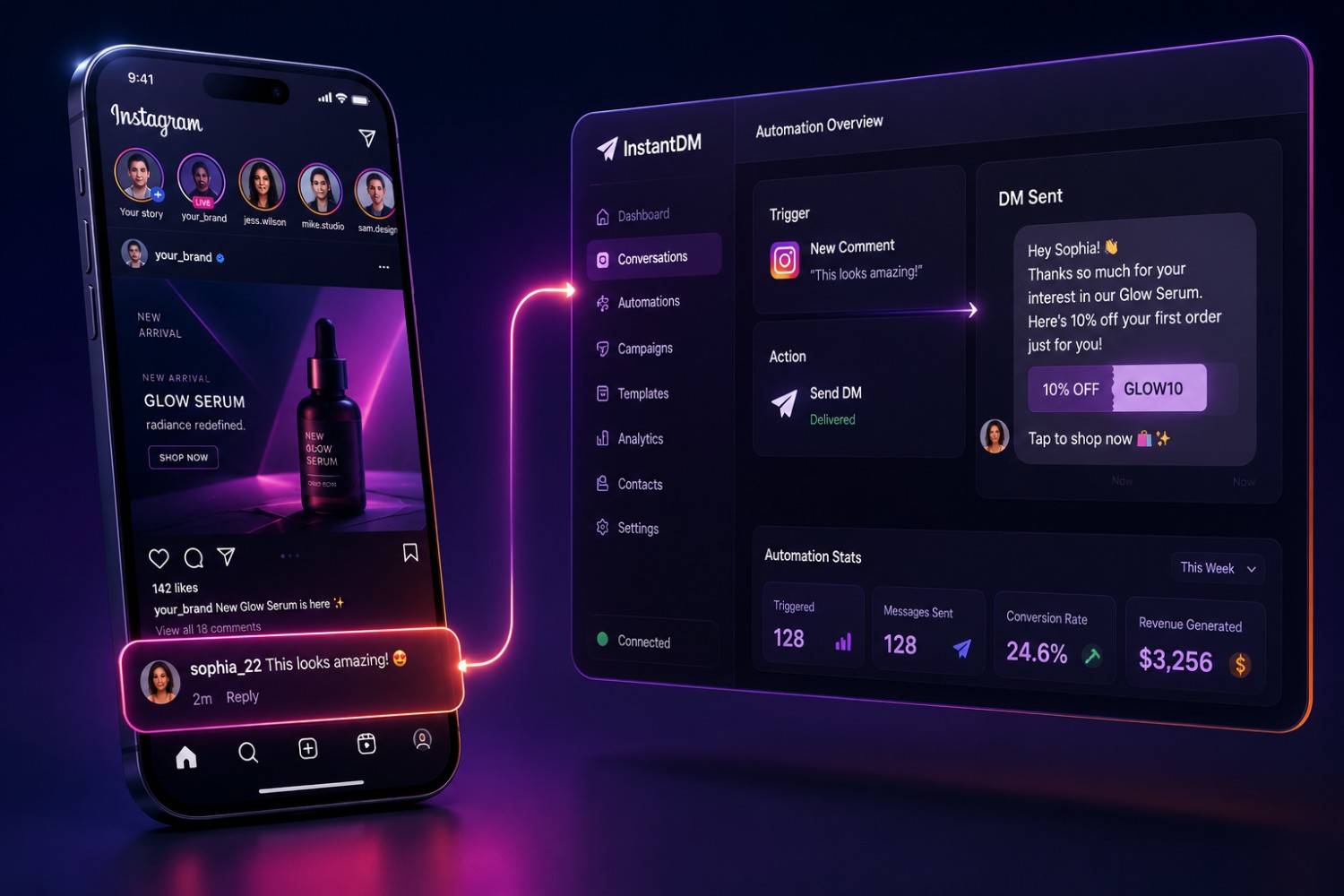
By connecting your Instagram account to an official, Meta-compliant messaging automation framework (such as InstantDM.com), you turn your IG Direct inbox into an automated conversion engine that runs flawlessly 24 hours a day, 7 days a week.
The Core Conversational Funnel Frameworks:
- The Comment-to-DM Trigger Pattern: This is the single most powerful conversion mechanism available on modern social media. Instead of posting a link in your bio and begging users to leave the app (which Instagram’s algorithm penalizes by lowering your content's organic reach), you use an interactive call-to-action (CTA) inside your video or caption.
The Script: *"Comment the word GUIDE below, and I’ll instantly send you the complete step-by-step PDF blueprint to your inbox!"
Supercharge Your IG Direct Inbox Today!
Manually answering hundreds of customer DMs and FAQs is a bottleneck that stops your business from scaling. Why do the heavy lifting yourself when you can automate your entire chat funnel safely and securely?
Turn your Instagram inbox into a 24/7 automated sales machine with Get Started from InstantDM. Automatically trigger instant message delivery when users comment on your posts, qualify leads, and scale your brand effortlessly using Meta-approved API workflows.