TL;DR
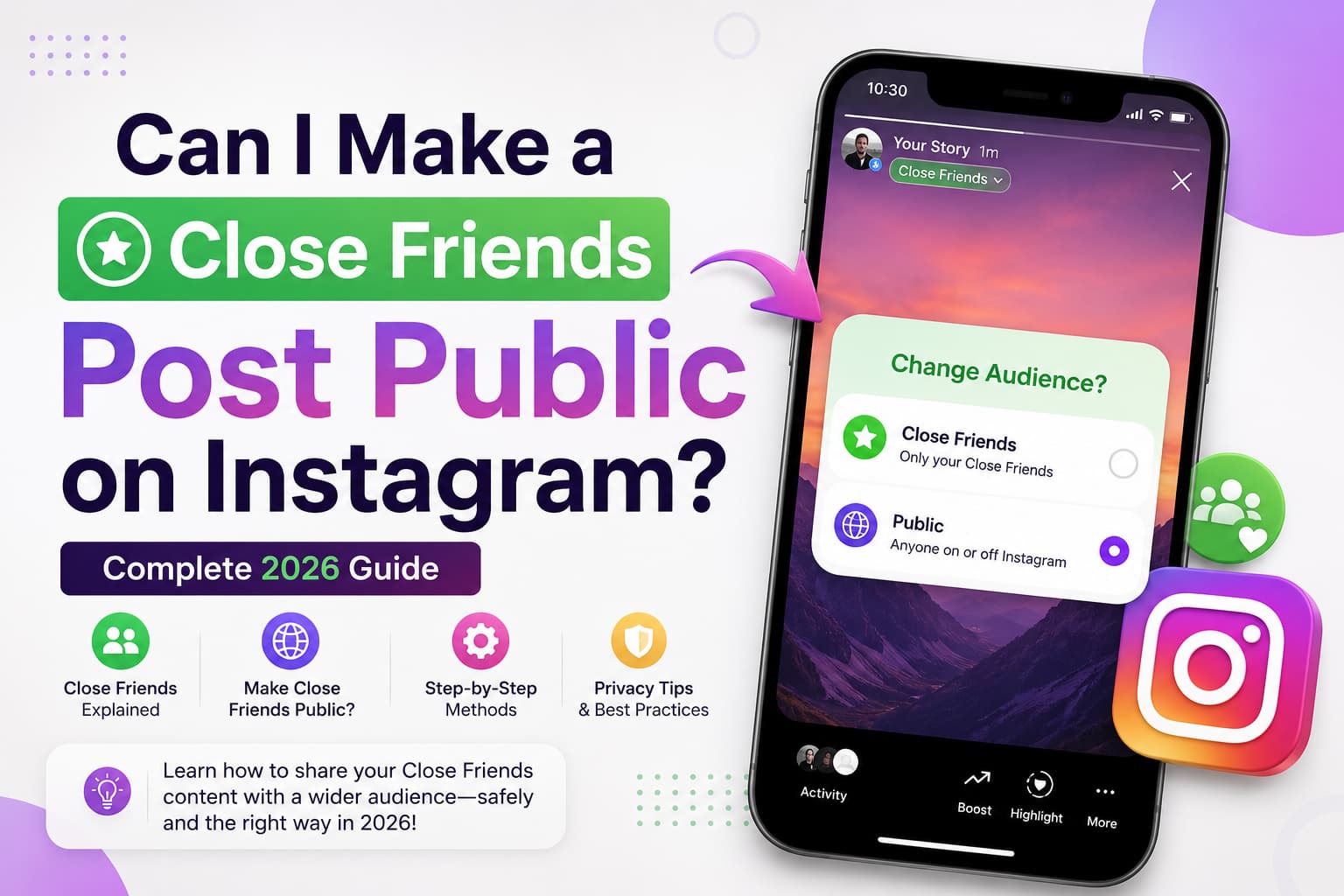
No, you cannot make a Close Friends post public after posting it on Instagram. Once you share a post or Story to your Close Friends list, it stays restricted to that audience. However, you can delete the Close Friends post and repost it as a regular public post. For Stories, you can save Close Friends Stories to Highlights, but they remain visible only to Close Friends list members.
This guide covers exactly how Close Friends posts work, the workaround to make them public, and everything you need to know about Close Friends privacy.
Adding every follower to Close Friends does not make the content public. It only enlarges the private list, and the green ring stays. Some Reels can be moved to Drafts instead of deleted, but the audience still cannot be edited on the live Reel.
What Is Instagram Close Friends
Instagram Close Friends is a feature that lets you share Stories and feed posts with a select group of people instead of your entire follower list. When you post to Close Friends, only the people you have added to your Close Friends list can see that content.
The feature was originally launched in 2018 for Stories only. In late 2023, Instagram expanded it to include feed posts and Reels, allowing you to share any type of content with just your Close Friends list.
How Close Friends Works
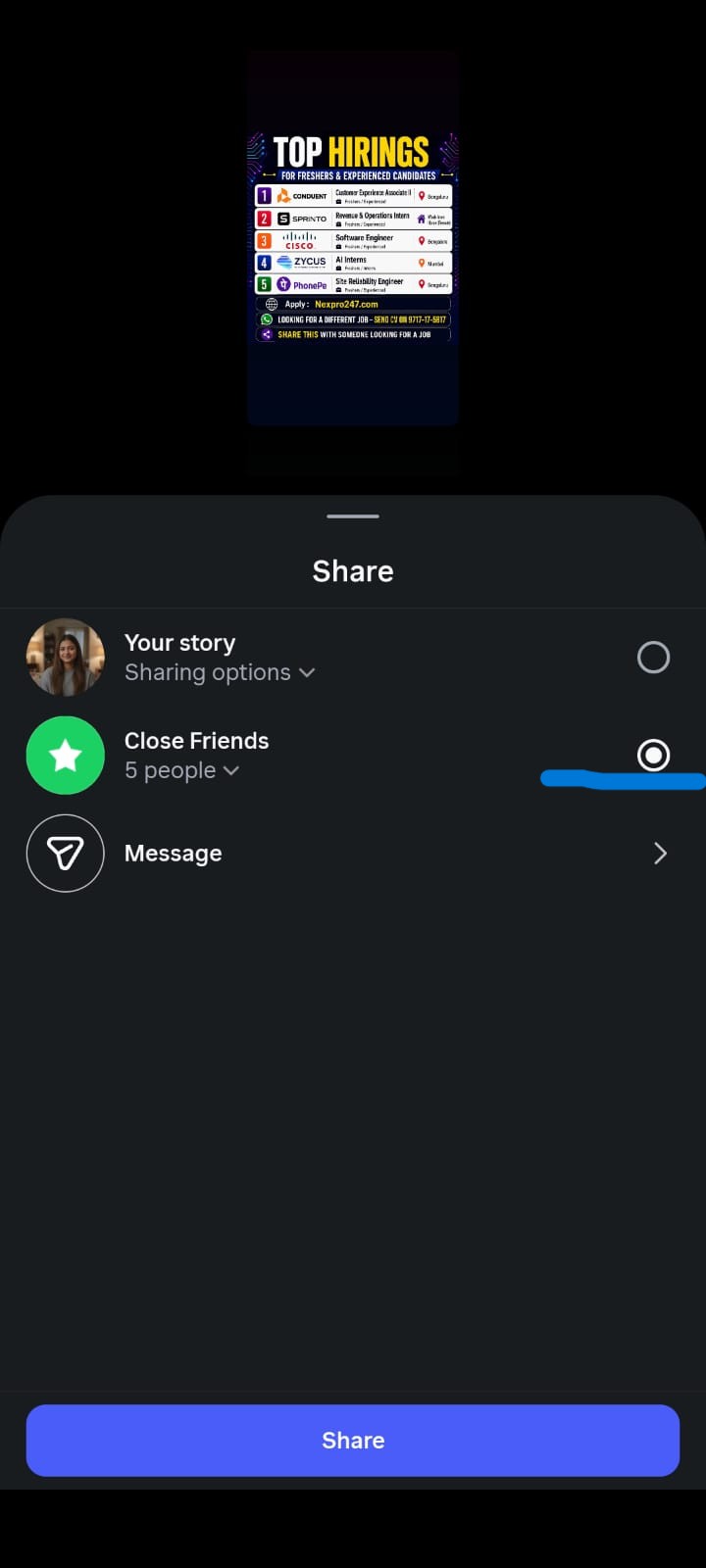
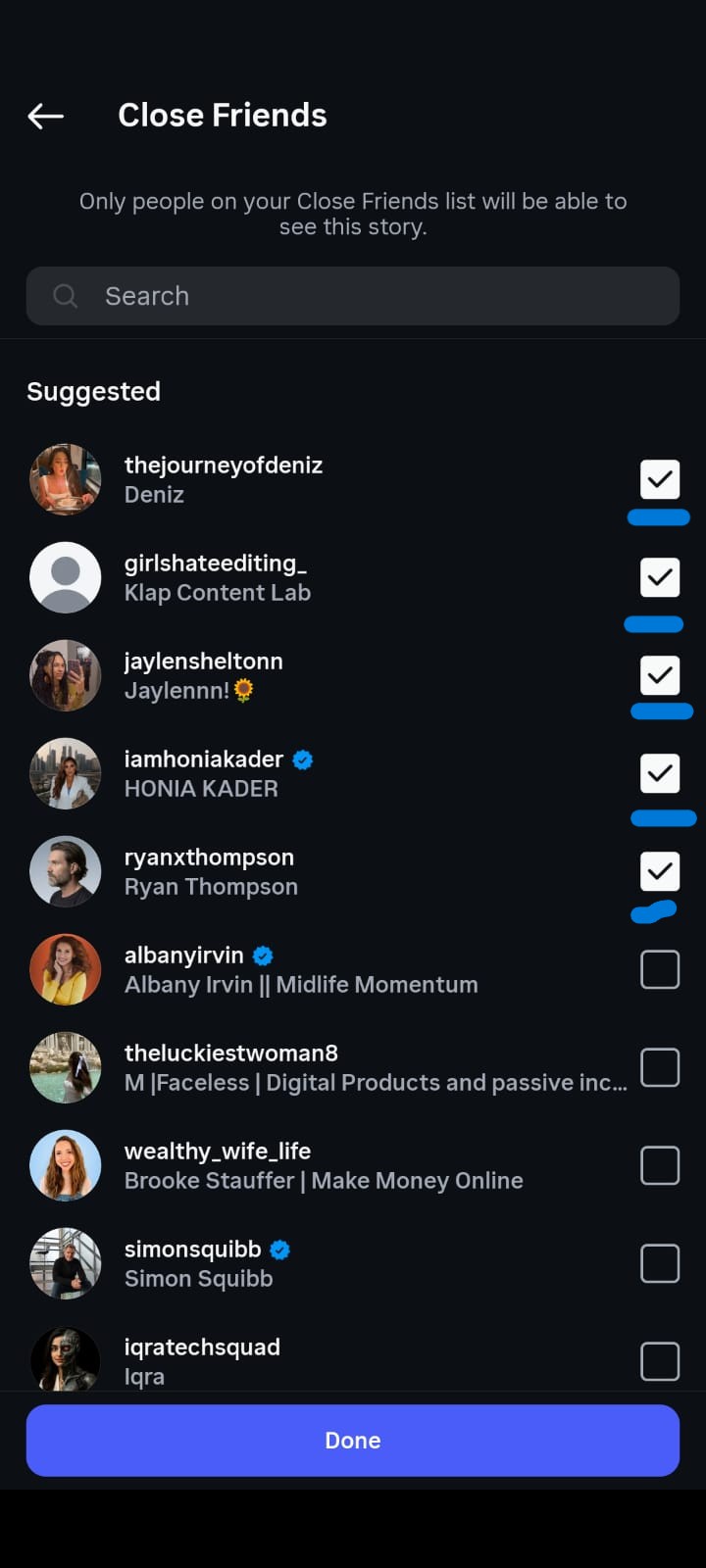
- You create a Close Friends list from your Instagram settings
- When posting a Story, Reel, or feed post, you can select "Close Friends" as your audience
- Only people on your list can see the content
- People on your list know they are seeing a Close Friends post because it has a green star icon or green ring around it
- Nobody can see who else is on your Close Friends list
- Members of your list cannot see each other
Can You Make a Close Friends Post Public After Posting
No.
You cannot change a Close Friends post to public after you have already posted it. Instagram does not offer an option to switch the audience of an existing post from Close Friends to public.
Once a post is shared to Close Friends, it stays restricted to that audience permanently. There is no toggle, setting, or button to make it public after the fact.
Why Instagram Does Not Allow This
Instagram designed Close Friends as a privacy feature. The purpose is to give users control over who sees specific content. If creators could suddenly make a Close Friends post public, it would violate the trust of people who engaged with that content thinking it was private.
For example, if someone replied to a Close Friends Story with a personal message, making that Story public would expose their reply to everyone. Instagram prevents this to protect user privacy.
What You Can Do Instead
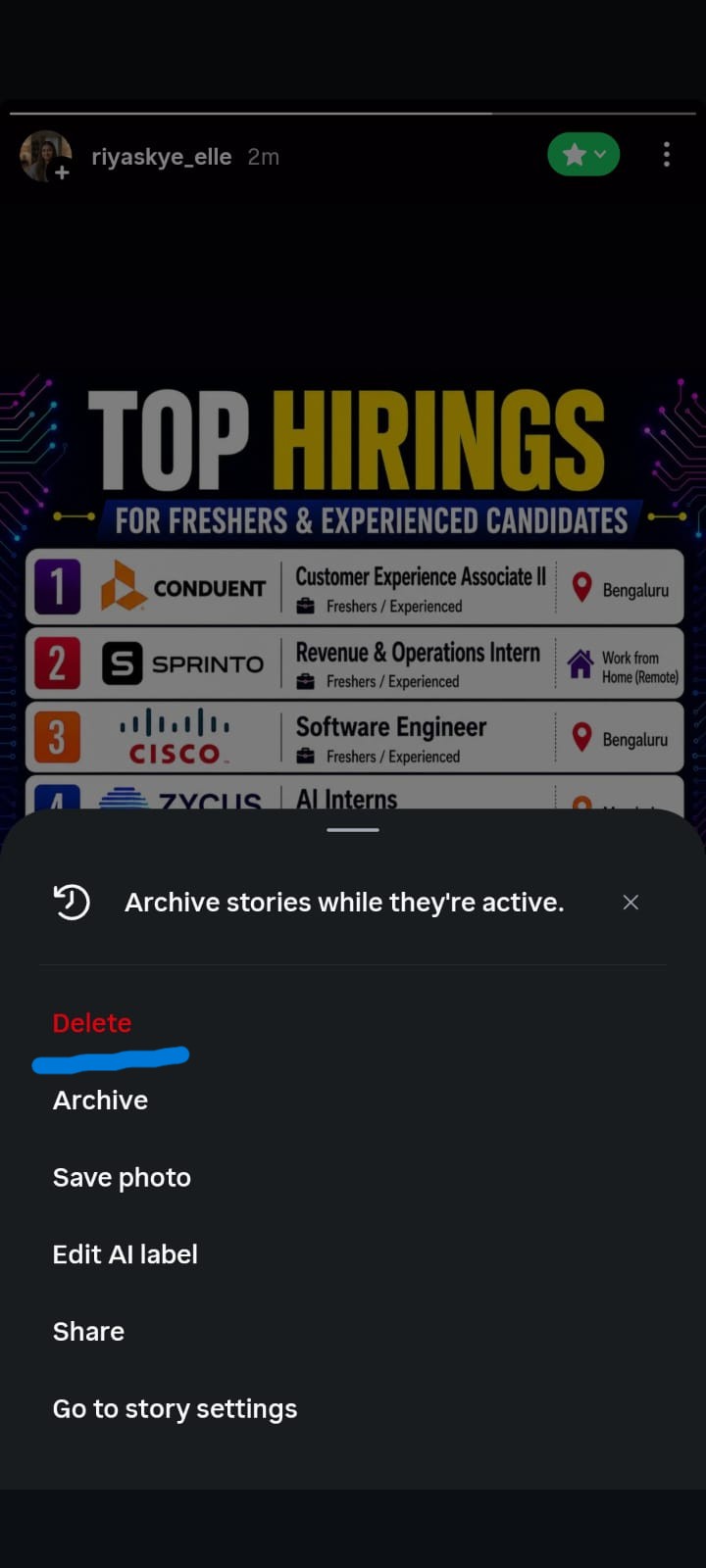
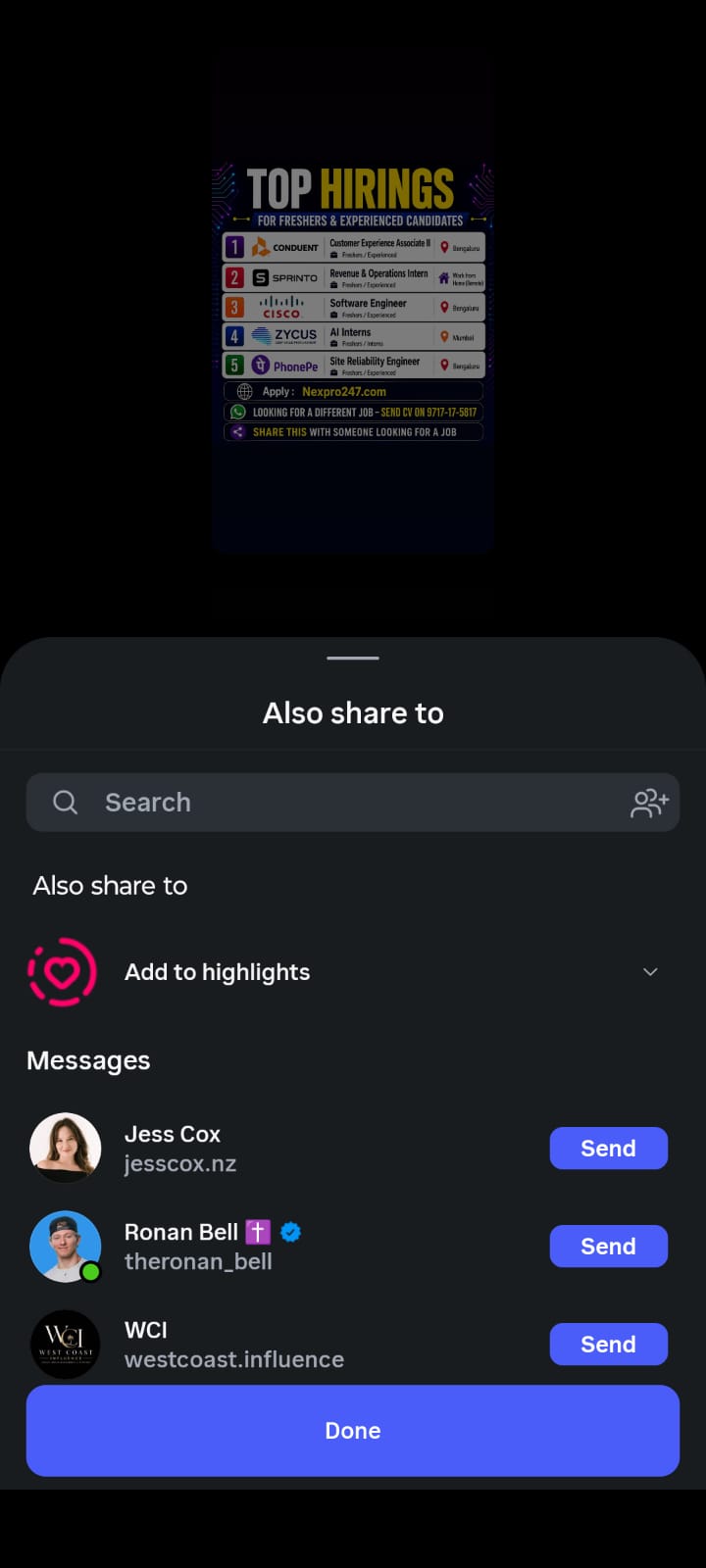
If you want to share a Close Friends post with your full audience, your only option is to delete the original post and repost it as a public post. Here is how:
- Go to your profile and find the Close Friends post
- Tap the three dots (menu) on the post
- Select Delete
- Create a new post with the same content
- When selecting the audience, choose Everyone (or your regular audience) instead of Close Friends
- Post it
Important: When you delete the original Close Friends post, all likes, comments, and engagement on that post are lost. The new public post starts from zero.
Can I Make a Close Friends Post Public Without Deleting It?
No. Instagram does not let you edit the audience of a Close Friends post, Reel, or Story after you tap Share.
There is no toggle, Edit Audience button, or third-party tool that converts the original post to public. Facebook can change audience after posting. Instagram cannot.
What you can do instead:
What you want | What actually works | What you lose |
|---|---|---|
Feed post to public | Delete the Close Friends post, then post again to Everyone | Likes, comments, date, grid position |
Reel to public | Delete it, or if the app offers Move to Drafts, open Drafts and share to Everyone | Views and comments on the old Reel |
Live Story to everyone | Save the Story, delete it, repost to Your Story | View count and replies |
Live Story to more people, keep it up | Add those people to Close Friends | It is still Close Friends (green ring). It is not public |
Old Close Friends Highlight to public | Reupload as a public Story, archive it, add it to a new public Highlight | Original date. The old Highlight cannot be flipped |
If your goal is a public post that can appear in Explore, you must publish a new public object. Expanding the Close Friends list is not the same thing.
How to Change a Close Friends Story to Public
Just like feed posts, you cannot change a Close Friends Story to public after posting it. However, there are workarounds:


Workaround 1: Delete and Repost as Public Story
- Open your Close Friends Story
- Tap the three dots (menu) at the bottom right
- Select Delete
- Create a new Story with the same content
- When selecting the audience, choose Your Story (public) instead of Close Friends
- Post it
Workaround 2: Save to Highlights First, Then Repost
If you want to keep the Close Friends Story accessible while also sharing it publicly:
- Add the Close Friends Story to a Highlight (it stays visible to Close Friends only)
- Delete the Close Friends Story
- Create a new public Story with the same content
The Highlight retains the original, and your new public Story reaches everyone.
Workaround 3: Screenshot or Screen Record
- Take a screenshot or screen record the Close Friends Story
- Create a new public Story using the screenshot or recording
- Delete the original Close Friends Story
This is useful if the Story contains text overlays, stickers, or edits that would be difficult to recreate.
Does Adding All Followers to Close Friends Make the Story Public?
No. This only adds more people to the private list.
Many tutorials show this method because it keeps the current Story in the tray:
- Open the live Close Friends Story.
- Tap the green star or Close Friends control at the top.
- Add the rest of your followers.
- Tap Done.
What this does:
- The people you just added can now see that Story.
- The Story still shows the green ring.
- It still will not count as a normal public Story.
- It still will not go to Explore as public content.
- Every future Close Friends post also goes to that larger list until you remove people.
Use this only when you posted to the wrong list a few minutes ago and you do not want to rebuild stickers or text. After the Story expires, clean the list. If you leave hundreds of followers on Close Friends, you no longer have a private list.
Can You Make Close Friends Stories Public in Highlights
No.
When you add a Close Friends Story to Highlights, it remains visible only to people on your Close Friends list. Non Close Friends members cannot see Close Friends Stories in your Highlights.
How Close Friends Highlights Work
- Close Friends Stories saved to Highlights show a green circle around the Highlight
- Only Close Friends list members can tap and view the content inside
- Non Close Friends members see the Highlight but cannot open it
- The green circle indicates it contains Close Friends content
Can Everyone See Your Highlights?
Regular Highlights are visible to anyone who visits your profile (if your account is public). However, Highlights that contain Close Friends Stories are only accessible to your Close Friends list members.
If your account is private, only your approved followers can see your Highlights. If a Highlight contains Close Friends content, only your Close Friends list members within your followers can view it.
Can I Make an Old Close Friends Highlight Public?
No. A Highlight keeps the privacy of the Story you saved into it. A Close Friends Story stays Close Friends inside Highlights.
People who are not on your list may see a green-ring Highlight on your profile and still cannot open it.
Clearing your Close Friends list does not make that Highlight public. An empty list usually means nobody else can view it.
If you need the same content on a public Highlight:
- Open the Close Friends Highlight and save the photo or video (three dots → Save).
- Leave the old Highlight as it is, or delete it if you do not want the green bubble.
- Post the saved file to Your Story (public), not Close Friends.
- Add that new public Story to a new Highlight.
- If you do not want it sitting in the Story tray, archive the new Story after it is inside the Highlight.
The public Highlight is a new object. The original Close Friends Highlight cannot be switched.
For the full Highlight privacy rules, see our guide on Close Friends Highlights.
Can You Change a Post from Close Friends to Public
No.
Instagram does not allow you to change the audience of an existing post. Once a post is shared to Close Friends, it cannot be switched to public.
The only way to make the content public is to delete the Close Friends post and create a new public post with the same content.
Step by Step: Delete and Repost as Public
- Open Instagram and go to your profile
- Find the Close Friends post you want to make public
- Tap the three dots (menu) in the top right corner of the post
- Select Delete and confirm
- Tap the + button to create a new post
- Select the same photo or video
- Edit the caption, tags, and location as needed
- On the audience selection screen, choose Everyone
- Tap Share
Note: The new post will appear as a new entry in your feed. It will not retain the likes, comments, or engagement from the original Close Friends post.
Can I Change a Close Friends Reel to Public?
Not on the live Reel. Instagram does not include audience as an edit option after a Reel is posted.
Try this order.
Option 1: Move to Drafts (only if your app shows it)
- Open the Close Friends Reel.
- Tap the three dots.
- Tap Delete.
- If you see Move to Drafts, choose that instead of permanent delete.
- Open Drafts, open the Reel, set Audience to Everyone, then share.
This option is not on every phone or app version. If you only see Delete, use option 2.
Option 2: Save and repost
- Save the Reel to your camera roll.
- Delete the Close Friends Reel.
- Create a new Reel from the saved file.
- On the last screen, tap Audience and choose Everyone, not Close Friends.
- Share.
You will not keep the original view count or comments either way.
Can Close Friends See Each Other
No.
Instagram does not reveal who is on your Close Friends list to anyone. Members of your Close Friends list cannot see each other. The only person who can see the full list is you.
What Close Friends Can See
- They can see that they are on your Close Friends list (green ring indicator)
- They can see your Close Friends Stories and posts
- They can see that the content is marked as Close Friends (green star icon)
- They cannot see who else is on your list
- They cannot see if other people viewed the Close Friends Story
How to Know If You Are on Someone's Close Friends List
The only way to know if you are on someone's Close Friends list is if you see their Story with a green ring instead of the usual purple ring. The green ring indicates it is a Close Friends Story.
There is no notification when someone adds you to their Close Friends list. You only find out when they post a Close Friends Story and you see the green ring.
Can Someone See If You Screenshot a Close Friends Story
No.
Instagram does not notify users when someone screenshots a Close Friends Story. Unlike Snapchat, Instagram does not have screenshot notifications for Stories, regardless of whether they are public or Close Friends.
However, Instagram does notify users in some specific cases:
- Vanishing DM photos/videos: If someone sends a disappearing photo or video via DM, Instagram notifies them if you screenshot it
- Regular Stories: No screenshot notification
- Close Friends Stories: No screenshot notification
- Feed posts: No screenshot notification
How to Protect Your Close Friends Content
Since screenshots are possible, here are some tips to protect your Close Friends content:
- Only add people you trust to your Close Friends list
- Be mindful of what you share, even in Close Friends
- Remove people from your list if you no longer trust them
- Remember that anything shared online can potentially be screenshotted
Close Friends vs Public Posts: What's the Difference
Close Friends Posts
- Audience: Only people on your Close Friends list
- Visibility: Green star icon or green ring indicator
- Engagement: Only Close Friends can like, comment, or reply
- Discovery: Cannot appear in Explore or hashtag searches
- Algorithm: Does not count toward public engagement metrics
- Privacy: Members cannot see each other
Public Posts
- Audience: All your followers (and anyone if your account is public)
- Visibility: Regular appearance in feed and Stories
- Engagement: Anyone can like, comment, or reply
- Discovery: Can appear in Explore, hashtag searches, and recommendations
- Algorithm: Counts toward public engagement metrics
- Privacy: Visible to everyone
When to Use Close Friends vs Public Posts
When to Use Close Friends
- Sharing personal or behind the scenes content
- Testing content before posting publicly
- Creating exclusive content for VIP followers
- Sharing early access or previews
- Posting sensitive or niche content
When to Use Public Posts
- Building your brand and reach
- Growing your follower count
- Maximizing engagement metrics
- Appearing in Explore and recommendations
- Reaching new audiences
Managing Your Close Friends List
How to See Who Is on Your Close Friends List
You can view and manage your Close Friends list at any time:
- Open Instagram and go to your Profile
- Tap the menu icon (three lines) in the top right
- Tap Close Friends
- You will see your full Close Friends list. You can add or remove people from this screen.
How to Add Someone to Close Friends
- Go to Profile -> Menu -> Close Friends
- Search for the person you want to add
- Tap Add next to their name (They will not receive a notification that you added them)
Alternatively, you can also add someone to Close Friends directly from their profile:
- Go to the person's profile
- Tap the three dots (menu)
- Select Add to Close Friends
How to Remove Someone from Close Friends
- Go to Profile -> Menu -> Close Friends
- Find the person you want to remove
- Tap Remove next to their name (They will not receive a notification that you removed them)
Important: When you remove someone from your Close Friends list, they lose access to all your previous Close Friends Stories and posts. They can no longer see any Close Friends content you have shared.
How to Post to Close Friends on Instagram
Posting a Story to Close Friends
- Open Instagram and tap + at the top or swipe right
- Create your Story (take a photo, record video, or upload from gallery)
- Add stickers, text, drawings, or effects
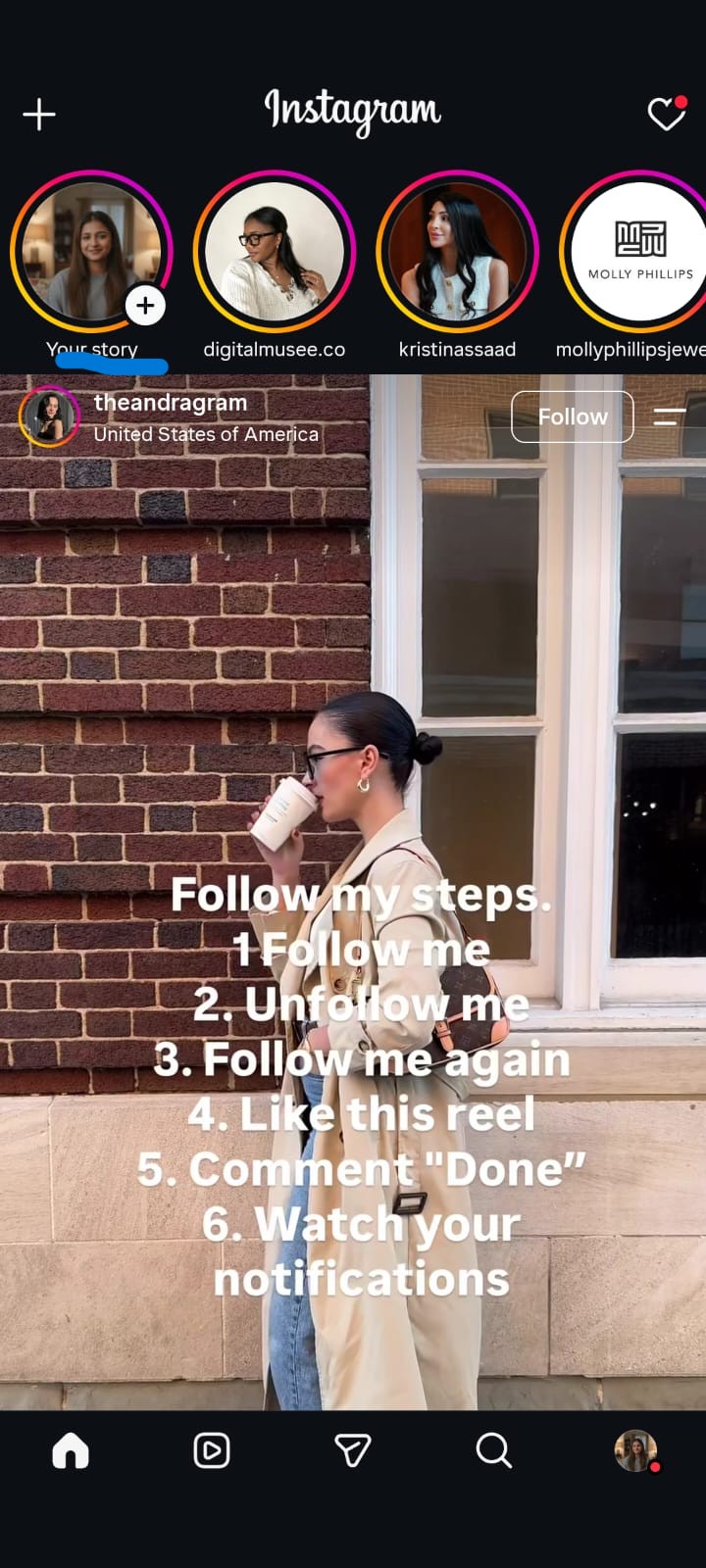
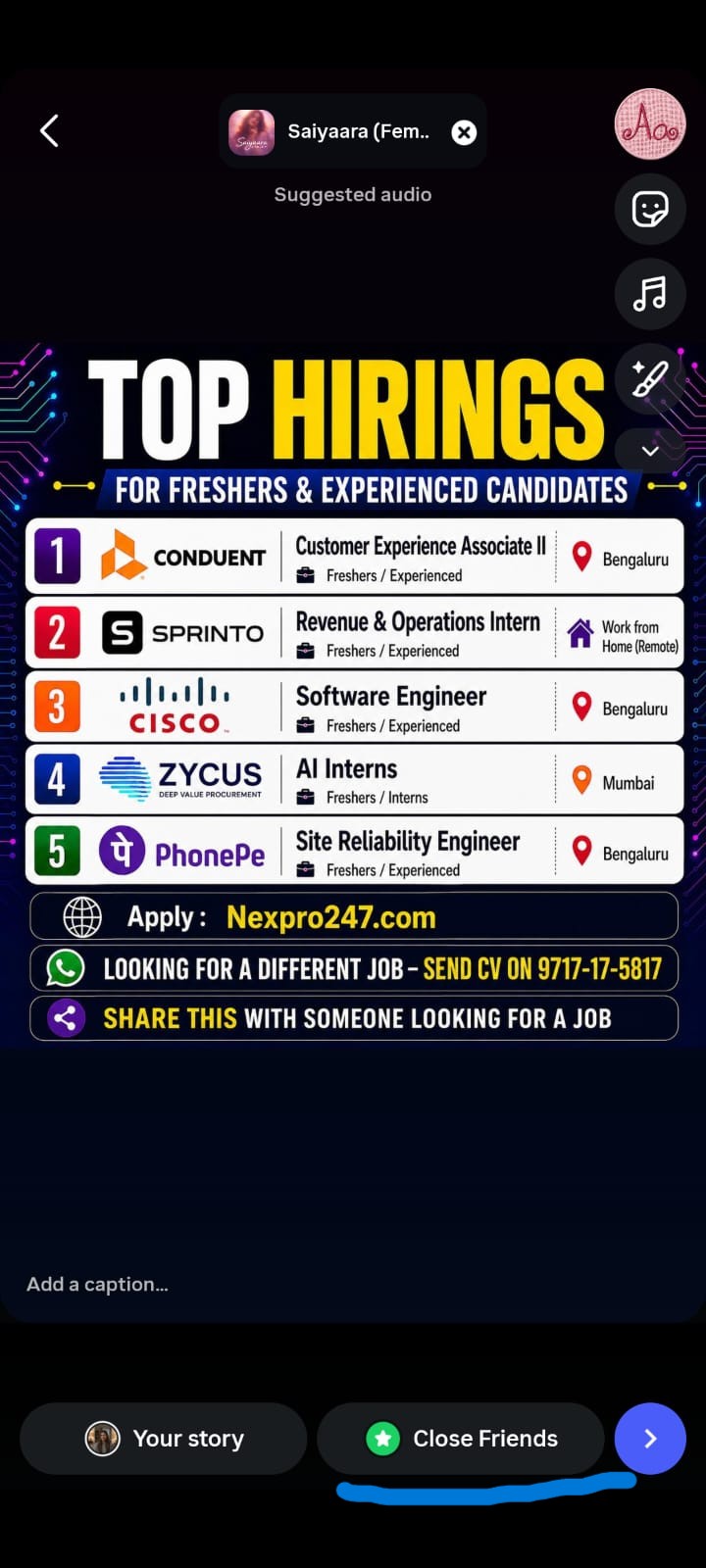
- Before posting, tap the Close Friends button (green star icon) at the bottom
- Your Story will be shared only to your Close Friends list
Posting a Feed Post to Close Friends
- Open Instagram and tap + at the bottom
- Select the photo or video you want to post
- Edit and add filters as usual
- Write your caption and add tags
- On the audience selection screen, tap Close Friends
- Tap Share
Posting a Reel to Close Friends
- Open Instagram and tap + -> Reel
- Record or upload your Reel
- Edit with effects, music, and text
- On the audience selection screen, tap Close Friends
- Tap Share
How Do I Stop Posting to Close Friends by Accident?
- Before you shoot a Story, check whether Close Friends or Your Story is selected.
- Tap the audience control and set it to Your Story if you usually post publicly.
- For feed posts and Reels, open Audience on the last share screen every time. Instagram can remember Close Friends from the previous post.
- After you share, look for the green star or green ring. If you see it and you meant public, delete or save-and-repost immediately.
Close Friends Privacy: What Others Can and Cannot See
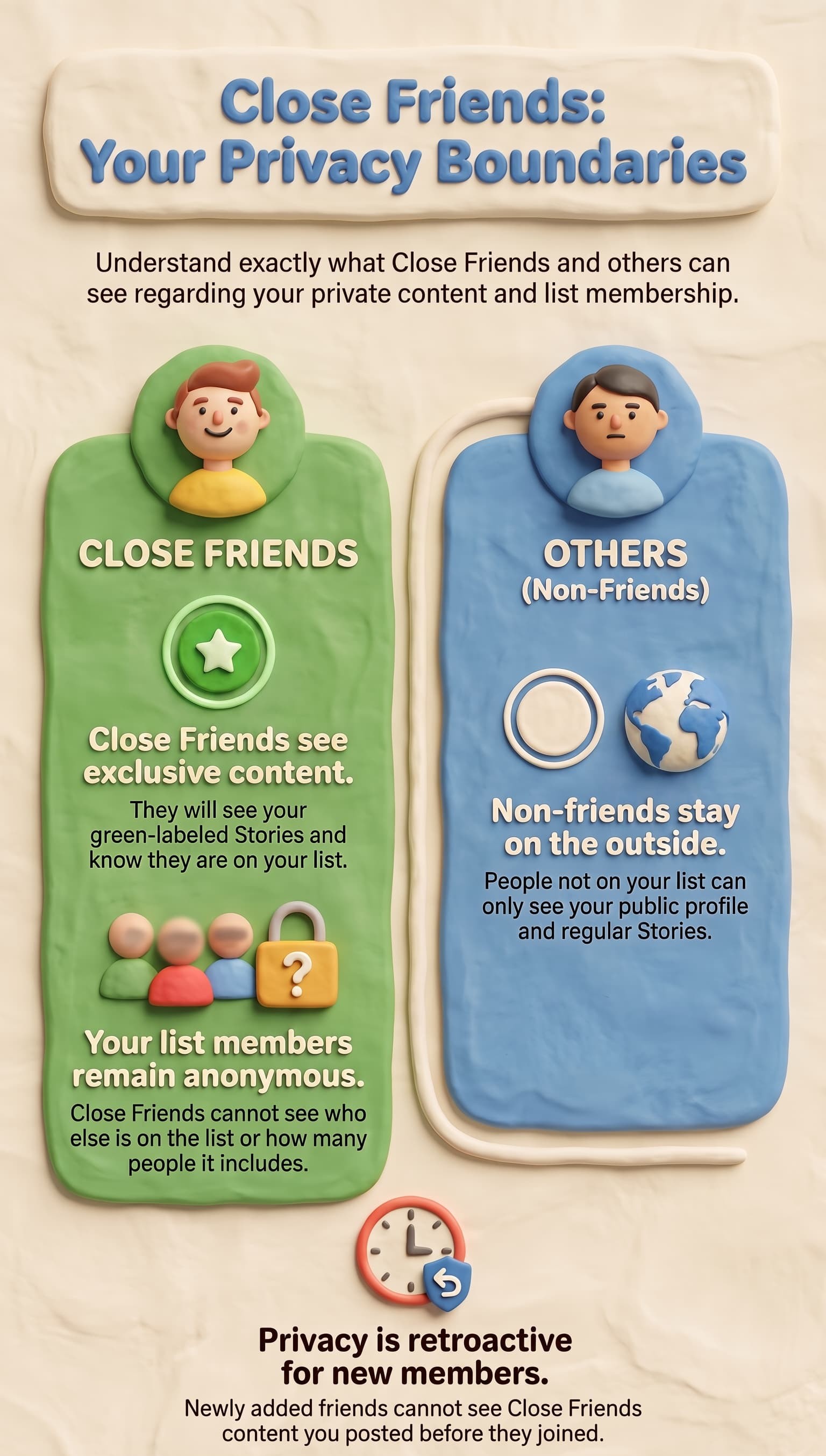
What Close Friends CAN see
- Your Close Friends Stories and posts
- That the content is marked as Close Friends (green indicator)
- That they are on your Close Friends list
What Close Friends CANNOT see
- Who else is on your Close Friends list
- How many people are on your Close Friends list
- If other people viewed the Close Friends Story
- Your previous Close Friends content (if they were recently added)
What Non Close Friends CAN see
- Your regular (public) Stories and posts
- Your profile and public Highlights
- That you have a Close Friends list (they just cannot see the content)
What Non Close Friends CANNOT see
- Your Close Friends Stories or posts
- Close Friends content in your Highlights
- Who is on your Close Friends list
Troubleshooting: Close Friends Not Working
Close Friends Story Shows to Everyone
If your Close Friends Story appears to non Close Friends members:
- Check if you accidentally posted to Your Story instead of Close Friends
- Delete the Story immediately if it was posted to the wrong audience
- Repost it with the correct Close Friends audience
Cannot Add Someone to Close Friends
If you cannot add someone to your Close Friends list:
- Make sure you are following each other (required for private accounts)
- Check if the person has blocked you
- Update your Instagram app to the latest version
- Clear the app cache and try again
Close Friends Green Ring Not Showing
If you are on someone's Close Friends list but don't see the green ring:
- Update your Instagram app
- Clear the app cache
- Log out and log back in
- Ask the person to re-add you to their Close Friends list
Close Friends Posts Not Appearing in Feed
If Close Friends posts from someone you follow are not showing up:
- Make sure you are on their Close Friends list
- Check if their account is still active
- Refresh your feed
- Visit their profile directly to see if Close Friends content is visible
How Creators and Businesses Can Use Close Friends Strategically
Close Friends is not just a privacy feature. Creators and businesses can use it strategically to build deeper relationships with their audience.
Strategy 1: VIP Content for Top Followers
Use Close Friends to share exclusive content with your most engaged followers:
- Behind the scenes content
- Early access to new products or announcements
- Exclusive discounts or promo codes
- Personal updates and stories
Strategy 2: Test Content Before Going Public
Use Close Friends as a testing ground:
- Share a new content idea with Close Friends first
- Get feedback before posting publicly
- See how your most engaged audience reacts
- Refine the content based on their responses
Strategy 3: Build a Gated Community
Create a sense of exclusivity:
- Offer Close Friends access as a reward for engagement
- Use it as a perk for customers or subscribers
- Create a tiered content strategy (public for everyone, Close Friends for VIPs)
Strategy 4: Automate Close Friends Engagement
If you are using Close Friends for business, managing replies and engagement can be time consuming. InstantDM lets you automate DM responses when someone replies to your Close Friends Story, so you never miss an engagement opportunity.
Start automating your Instagram engagement with InstantDM for free.
How to Download Instagram Close Friends Stories
Instagram does not have a built in feature to download other people's Stories. However, you can download your own Close Friends Stories before they expire:
- Open your Close Friends Story
- Tap the three dots (menu)
- Select Save or Save to Gallery
- The Story will be saved to your phone's gallery
For saving other people's Stories (with their permission), you can use Instagram's built in bookmark feature or third party tools.
Additional Account Rules & Limits
Can You Add Someone to Close Friends Without Following Them?
No. You can only add people to your Close Friends list if they follow you (for private accounts) or if you follow them. Instagram requires some form of connection before allowing Close Friends access. For public accounts, you can add any follower to your Close Friends list. For private accounts, the person must be an approved follower.
Is There a Limit to Close Friends List Size?
Instagram has not officially disclosed a maximum limit for the Close Friends list. However, users have reported being able to add hundreds or even thousands of people to their list. Keep in mind that the purpose of Close Friends is to share with a smaller, more intimate audience. Adding too many people defeats the purpose of the feature.
Final Thoughts
Instagram Close Friends is a powerful privacy feature that lets you control who sees specific content. While you cannot make a Close Friends post public after posting, the workaround is simple: delete the post and repost it as a public post.
For creators and businesses, Close Friends offers a unique opportunity to build deeper relationships with your most engaged followers. Use it strategically for VIP content, early access, and gated community building.
If you want to automate your Instagram engagement and never miss a reply to your Close Friends Stories, try InstantDM for free. InstantDM helps you capture leads from DM conversations, automate replies, and turn engagement into real business results.