How to React on Instagram Story: Complete Guide (2026)
You can react on an Instagram story in four ways: send an emoji reaction by swiping up on the story and tapping an emoji, reply with a DM by typing in the text box at the bottom, leave a public comment by tapping the comment icon (if the creator has it enabled), or share the story to someone else. Each interaction type has different visibility, reach, and engagement impact.
This guide covers every method step by step, explains the difference between reactions, replies, comments, and DMs, and shows you how to automate Story engagement to grow your audience faster.
What Does "React on Instagram Story" Mean
When someone says "react on Instagram story," they are referring to any way you interact with someone else's Instagram Story. This includes:
- Emoji reactions — Quick emoji responses that appear as a notification to the Story creator
- DM replies — Private text messages sent directly to the Story creator's inbox
- Public comments — Visible comments below the Story (a newer feature introduced in 2025)
- Story shares — Sharing someone's Story to your own Story or via DM
Each type of reaction serves a different purpose and has different visibility. Understanding these differences helps you engage more effectively and grow your presence on the platform.
How to React on Instagram Story with Emoji Reactions
Emoji reactions are the fastest way to react to an Instagram Story. They take less than a second and let the creator know you saw and appreciated their content.
Steps to Send an Emoji Reaction
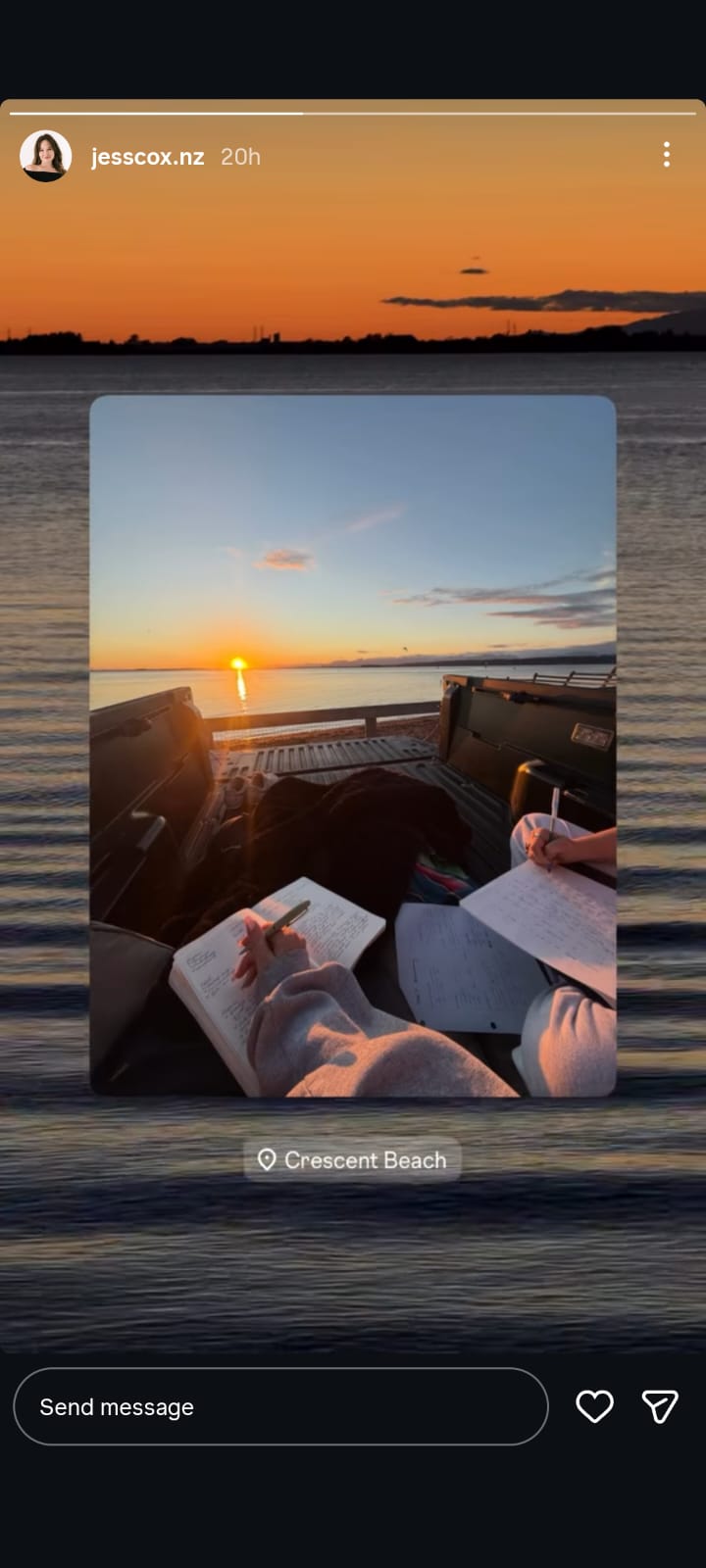
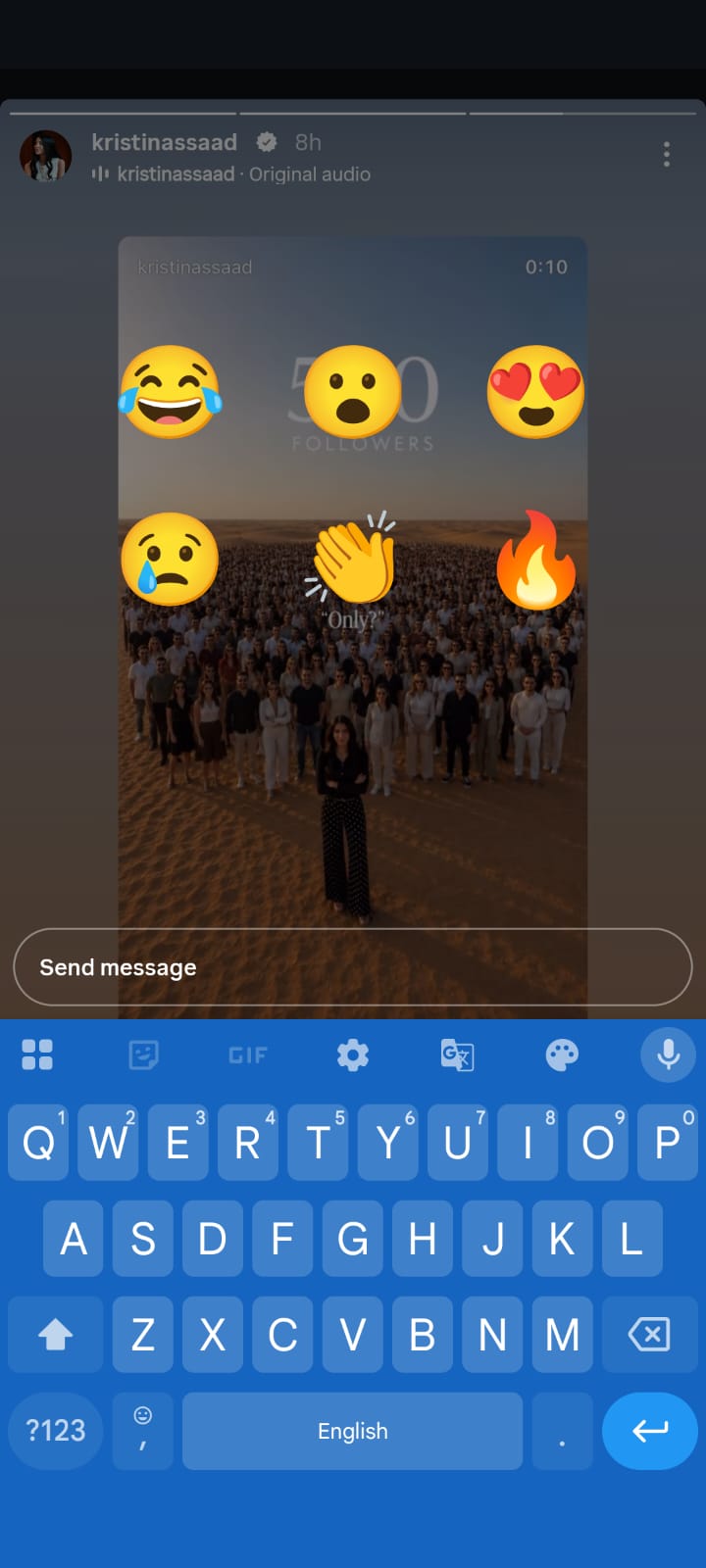
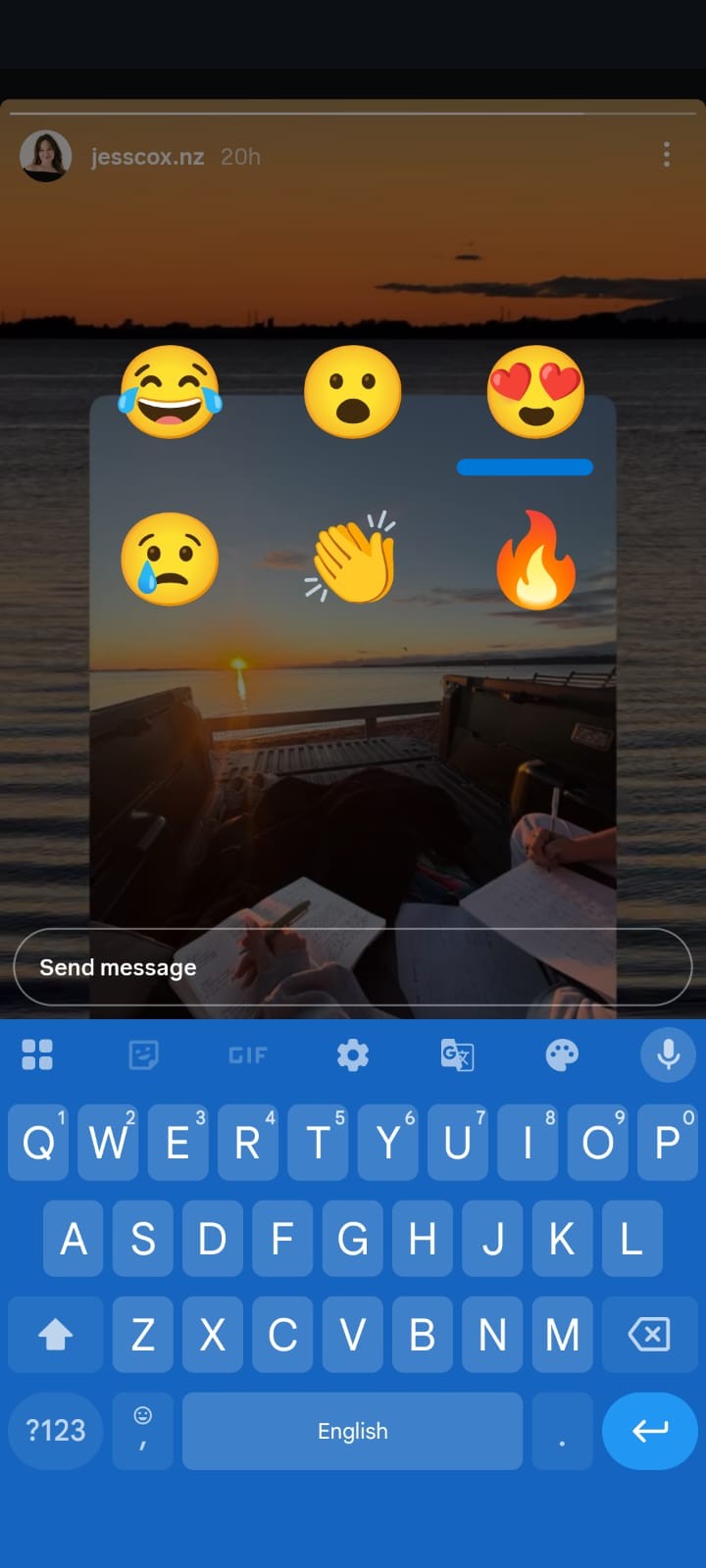
- Open Instagram and tap on someone's Story at the top of your feed
- While viewing the Story, swipe up on the screen (or tap the emoji reaction bar at the bottom)
- You will see a row of emoji options: (heart), (laugh), (wow), (sad), (angry), (clap), (fire), and (party)
- Tap the emoji you want to send
- The emoji will animate on screen and the creator will receive a notification
How to React with Any Emoji (Not Just the Default 8)
Instagram also lets you send any emoji as a reaction, not just the default eight:
- Swipe up on the Story (or tap the reaction bar)
- Tap the emoji icon on the left side of the reaction bar (the smiley face with a plus sign)
- This opens your full emoji keyboard
- Search or scroll to find any emoji you want
- Tap the emoji to send it as a reaction
Can the Creator See Your Emoji Reaction
Yes. When you send an emoji reaction on an Instagram Story, the creator receives a notification in their DM inbox. The reaction appears as a message with just the emoji, along with a preview of the Story you reacted to. The creator can see:
- Which emoji you sent
- Which Story you reacted to
- Your username and profile picture
- The time you sent the reaction
However, emoji reactions are private — only the Story creator can see them. Other followers cannot see who reacted or what emoji was used.
How to Reply to an Instagram Story via DM
Replying to a Story via DM sends a private message directly to the creator's inbox. This is the most common way people interact with Stories and is the primary method for starting conversations.
Steps to Reply to a Story
- Open the Story you want to reply to
- Tap the text box at the bottom of the screen (it says "Send message")
- Type your reply
- You can also add a photo or video from your camera roll by tapping the gallery icon
- Tap Send
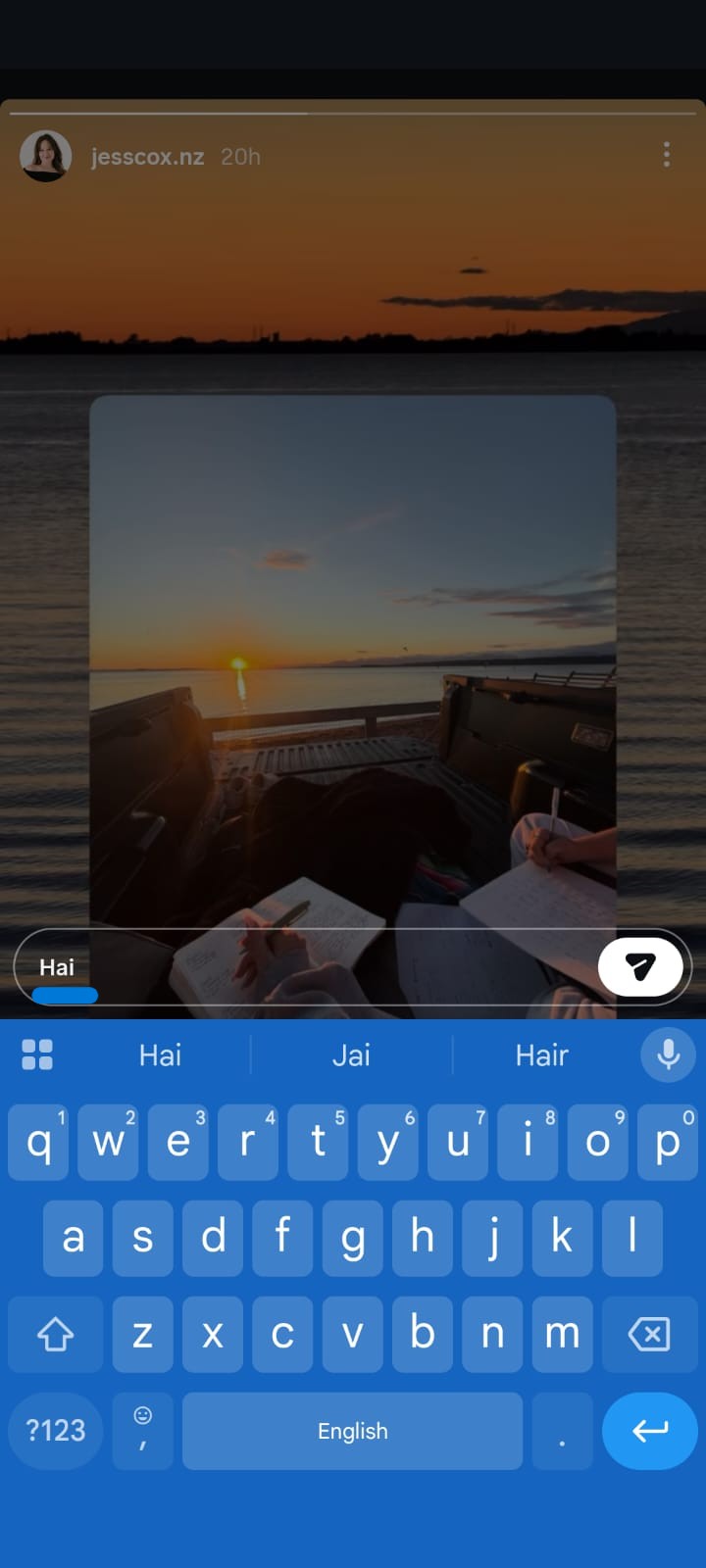
The reply appears in the creator's DM inbox as a regular message, along with a thumbnail of the Story you replied to.
What Happens When You Reply to a Story
- The creator receives your message in their DM inbox
- The message includes a preview of the Story you replied to
- The reply is private — only you and the creator can see it
- If the creator has DM filters enabled, your message might go to a "Message Requests" folder instead of their main inbox
- The creator can reply to your message, starting a conversation
Can You Reply to Someone's Story if You Don't Follow Them
It depends on their privacy settings:
- Public accounts: You can reply to their Stories even if you don't follow them, but your message will go to their Message Requests folder
- Private accounts: You can only reply if they follow you back or have approved your follow request
- Restricted accounts: If someone has restricted you, your replies will go to their Message Requests and they won't receive a notification
What if you don’t follow them? (Message Requests)
Short answer: You can still react to many public Stories. The emoji or reply still goes to the creator. If you are not mutual followers, a typed reply often lands in Message Requests, not the main inbox. That is why a good reply can go unseen for days.
- Public account + replies set to Everyone - they can receive it, often in Requests.
- They set replies to “People you follow” - your reply bar may be hidden.
- Private account - you cannot react unless they accept your follow request.
- Restricted or blocked - the reaction may fail or never notify them.
Emoji reactions follow the same delivery path as a tiny DM. They are not public to other viewers.
For the full “who can see what” matrix, see Instagram Story replies: are they private?.
How to Comment on an Instagram Story (Public Comments)
In 2025, Instagram introduced public comments on Stories. This is a newer feature that allows followers to leave visible comments below a Story, similar to how comments work on regular posts.
Steps to Comment on a Story
- Open the Story you want to comment on
- Look for the comment icon (speech bubble) at the bottom of the screen
- Tap the comment icon
- Type your comment in the text field
- Tap Post or the send arrow
Your comment will be visible to anyone who views the Story, not just the creator.
Who Can See Story Comments
Unlike DM replies, Story comments are public:
- Anyone viewing the Story can see the comments
- The creator can pin comments to the top
- Comments are visible for as long as the Story is live (24 hours)
- After the Story expires, comments are no longer visible
- The creator can delete comments on their Stories
How to Enable or Disable Story Comments
Creators can control whether comments are allowed on their Stories:
- Go to your Profile > Settings > Privacy
- Tap Story
- Find the Comments option
- Toggle Allow Comments on Stories on or off
You can also control this on a per Story basis when posting:
- Create your Story
- Before posting, tap the settings icon (gear)
- Toggle Allow Comments on or off for that specific Story
Reactions vs Replies vs Comments vs DMs: What's the Difference
Understanding the difference between all four interaction types helps you choose the right one for each situation.
Emoji Reactions:
- Visibility: Private (only creator sees)
- Speed: Instant (one tap)
- Content: Single emoji
- Best for: Quick acknowledgment, showing appreciation
- Notification: Creator gets a DM notification
DM Replies:
- Visibility: Private (only you and creator)
- Speed: Takes a few seconds to type
- Content: Text, photos, videos, GIFs
- Best for: Starting a conversation, asking questions, sharing feedback
- Notification: Creator gets a DM notification
Public Comments:
- Visibility: Public (anyone viewing the Story can see)
- Speed: Takes a few seconds to type
- Content: Text only
- Best for: Public engagement, boosting visibility, community interaction
- Notification: Creator gets a notification
Story Shares:
- Visibility: Depends on where you share
- Speed: Instant
- Content: The entire Story
- Best for: Spreading content, supporting creators
- Notification: Creator gets a notification that you shared
Which Interaction Type Has the Most Impact
For creators and brands, here is how each interaction type affects engagement:
- Emoji reactions signal to the algorithm that the content is engaging, but have less impact than replies or comments
- DM replies have the highest impact because they start conversations, which Instagram's algorithm values highly
- Public comments boost visibility because they are visible to other viewers and encourage more engagement
- Story shares have the highest reach impact because they expose the content to new audiences
If you are a creator looking to maximize engagement, encourage your followers to reply via DM or leave public comments rather than just sending emoji reactions.
Story reaction types at a glance
Action | Where it goes | Who sees it | Creator notified? | Stays after 24 hours? | Best used for |
|---|---|---|---|---|---|
Emoji reaction | Creator’s DMs | Only the creator | Yes | Yes, in DMs | Fast “I saw this” |
Typed reply | Creator’s DMs or Message Requests | Only the creator | Yes | Yes, in DMs | Starting a conversation |
Photo / video reply | Creator’s DMs | Only the creator | Yes | Yes, in DMs | A personal response |
Public comment | On the Story frame | Anyone who can view that Story | Yes | No, unless saved as a Highlight | Public social proof |
Share to Story or DM | Your Story or a chat | Your audience or that chat | Often yes | 24 hours on your Story | Amplifying their content |
Poll, quiz, or slider | Creator’s sticker results | Creator (not other viewers) | Yes | With the Story or Highlight | Easy engagement |
Emoji = acknowledgement. Reply = conversation. Comment = public. Share = distribution.
How to See Who Reacted to Your Instagram Story
If you are a creator and want to see who reacted to your Story, here is how:
Viewing Emoji Reactions
- Open your Story
- Swipe up on the screen (or tap the Activity icon)
- You will see a list of people who viewed your Story
- Emoji reactions appear as messages in your DM inbox, not in the Story viewer list
Viewing DM Replies
- Go to your DM inbox (paper airplane icon)
- Replies to your Stories appear as regular messages
- Each reply includes a thumbnail of the Story they replied to
Viewing Public Comments
- Open your Story
- Tap the comment icon at the bottom
- You will see all public comments on that Story
- You can pin, delete, or reply to comments from here
How to unsend an Instagram Story reaction
Short answer: Yes. Open the DM thread, long-press the reaction (“You reacted to their story”), tap Unsend. Instagram does not send them an unsend notification. If they already opened the chat, they may still remember it.
- Tap the paper-plane DM icon.
- Open the chat with the account whose Story you reacted to. The reaction is usually near the top.
- Long-press the emoji or “You reacted to their story” message.
- Tap Unsend and confirm.
This works for emoji reactions and typed Story replies. There is no separate “unlike this Story” button for emoji reactions. Unsend is the undo. Blocking them after the reaction arrives does not reliably hide a message that already delivered.
How to react to a Close Friends Story
Short answer: Use the same gestures — emoji, reply, or photo. Only people on the Close Friends list can see that Story. Your reply is still a private DM. Other Close Friends cannot read what you sent.
A reaction on a green-ring Story usually feels more personal because the audience is small. A specific reply stands out more than a fire emoji.
Why Can't I React to Someone's Instagram Story (Troubleshooting)
If you are unable to react to someone's Instagram Story, here are the most common reasons and fixes:
Reason 1: They Have Reactions Disabled
Some creators turn off emoji reactions on their Stories. If you don't see the reaction bar at the bottom, the creator has disabled this feature.
Fix: You can still reply via DM or leave a public comment (if enabled).
Reason 2: You Are Restricted or Blocked
If the creator has restricted your account, you may not be able to interact with their Stories. If you are blocked, you won't see their Stories at all.
Fix: Check if you can view their profile. If you see "No Posts Yet" but they have a post count, you may be restricted.
Reason 3: Your App Is Outdated
Older versions of Instagram may not support newer features like Story comments or certain emoji reactions.
Fix: Update Instagram to the latest version from the App Store or Google Play.
Reason 4: Instagram Glitch or Cache Issue
Sometimes Instagram's system has temporary glitches that prevent interactions from working.
Fix:
- Close and reopen the Instagram app
- Clear the app cache (Android: Settings > Apps > Instagram > Storage > Clear Cache)
- Log out and log back in
- Uninstall and reinstall the app
Reason 5: Account Privacy Settings
If your account is new or has been flagged for spam behavior, Instagram may temporarily restrict your ability to interact with Stories.
Fix: Wait 24-48 hours for the restriction to lift. Avoid rapid, repetitive interactions.
Instagram Story Reactions Not Working: How to Fix
If your emoji reactions are not going through or the Story reply feature is not working, try these fixes:
Fix 1: Check Your Internet Connection
Poor internet connectivity is the most common reason for reactions not working. Switch between WiFi and mobile data to test.
Fix 2: Update the Instagram App
Go to the App Store (iOS) or Google Play (Android) and check if there is an update available. Install it and try again.
Fix 3: Clear Instagram Cache
Android:
- Go to Settings > Apps > Instagram
- Tap Storage
- Tap Clear Cache
- Restart the app
iOS:
- Go to Settings > General > iPhone Storage
- Find Instagram
- Tap Offload App (this clears cache without deleting data)
- Reinstall the app
Fix 4: Check if the Feature Is Available in Your Region
Some Instagram features roll out gradually. Story comments, for example, may not be available in all regions yet.
Fix 5: Report the Problem to Instagram
- Go to your Profile > Settings
- Tap Help
- Tap Report a Problem
- Describe the issue and submit
How to control who can react or reply to your Stories
Short answer: You can limit Story replies without hiding the Story itself.
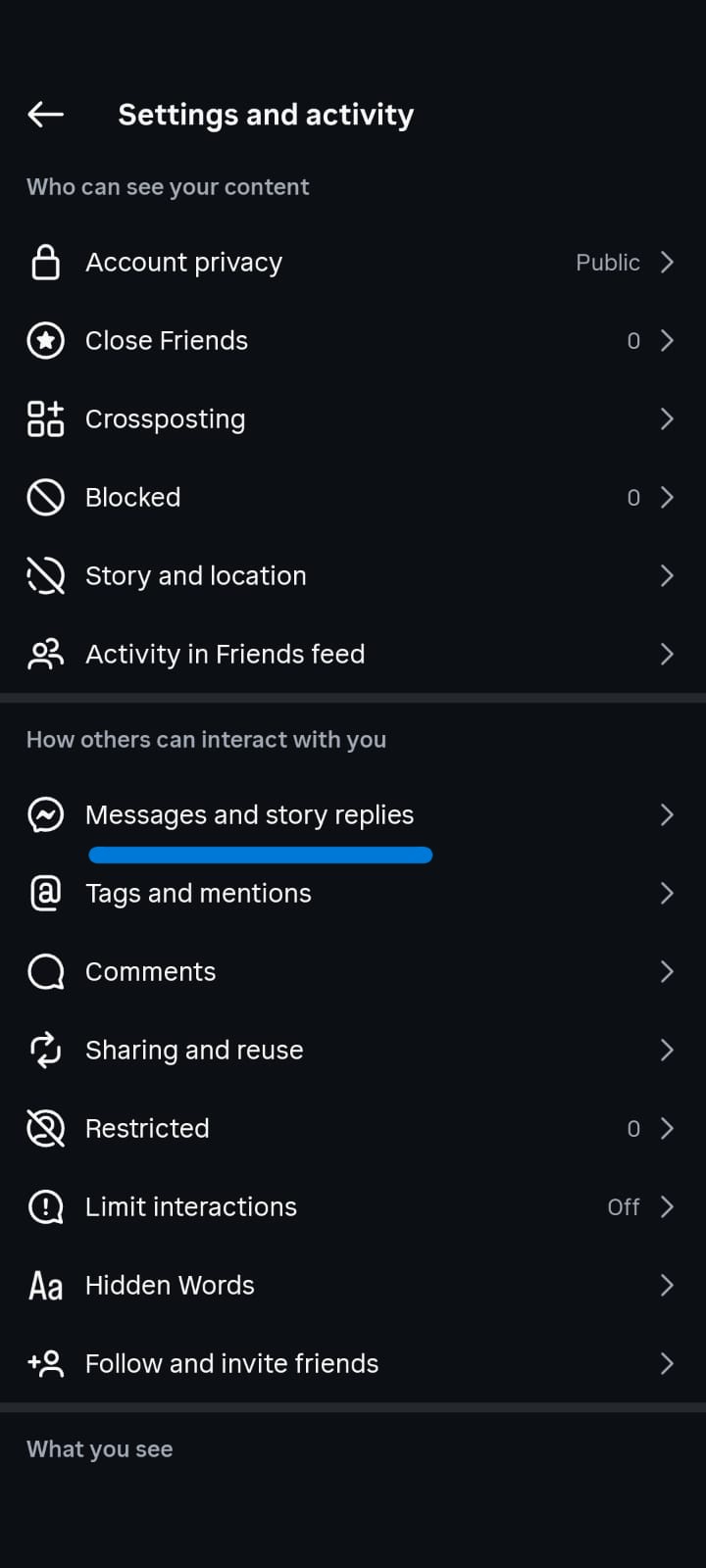
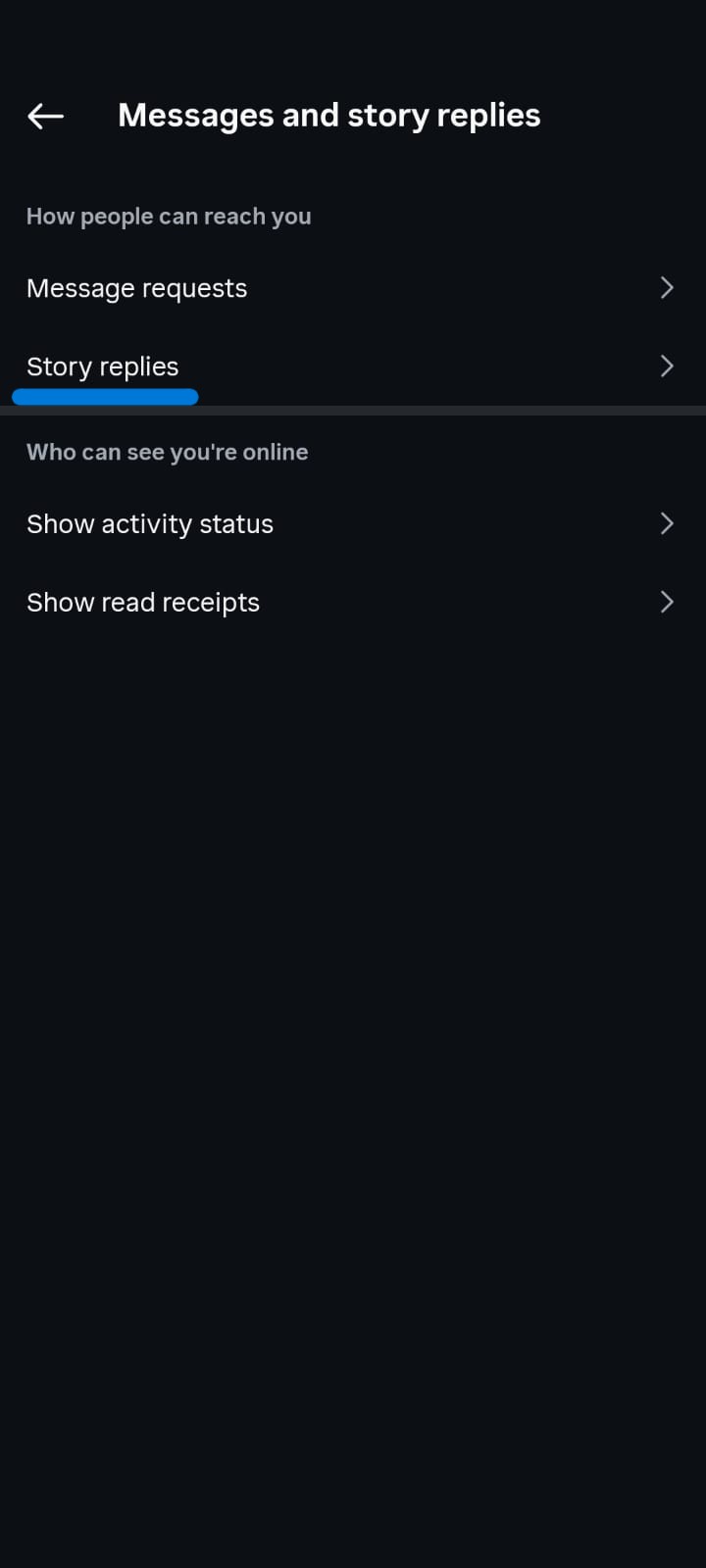
In the 2026 app the path is:
- Profile → three lines - Settings
- How others can interact with you
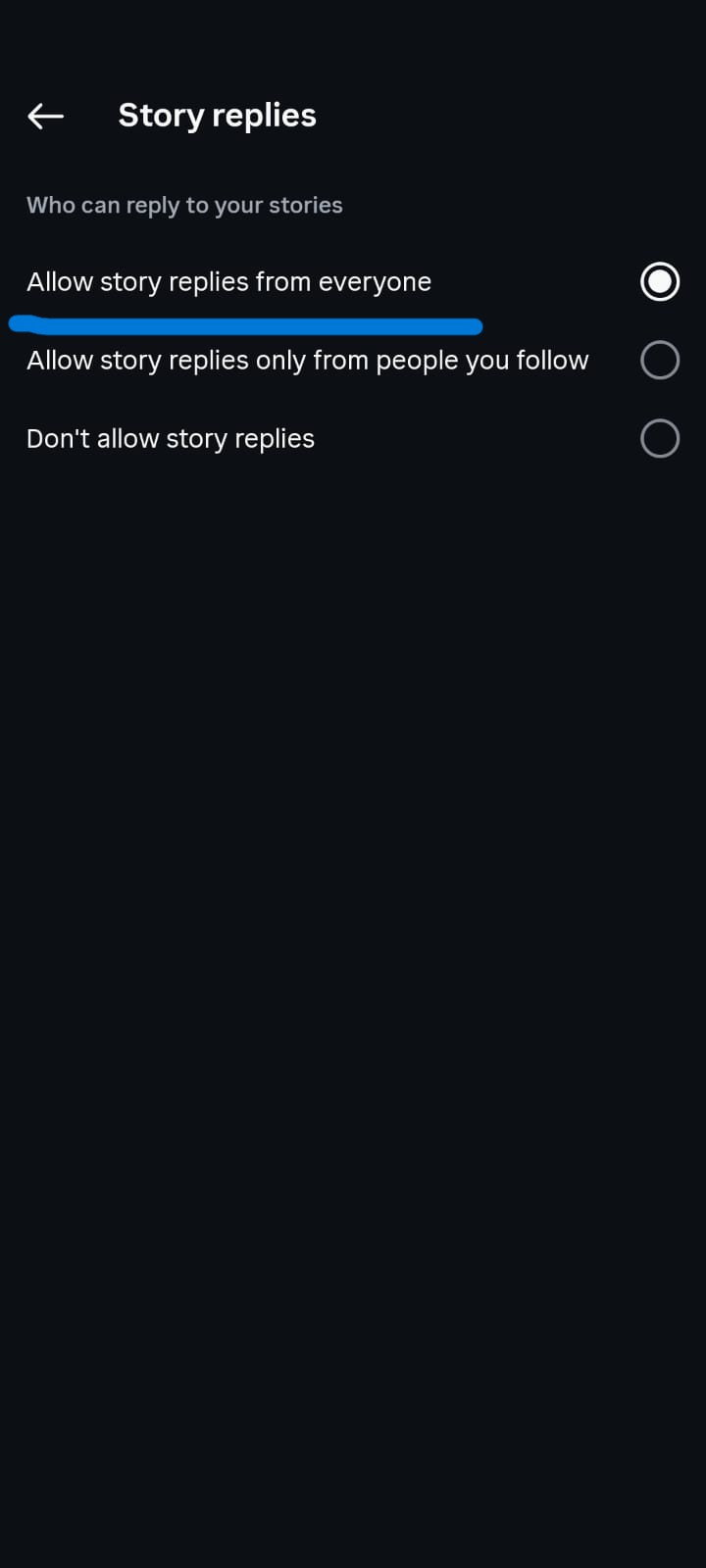
- Messages and story replies - Story replies
- Choose Everyone, People you follow, or Off
Story comments are a separate control. Turning replies off hides the message bar for viewers. It does not stop people from viewing the Story.
How Instagram Algorithm Rewards Story Interactions
Instagram's algorithm in 2026 values Story interactions more than ever. Here is how different interaction types affect your visibility:
How the Algorithm Uses Story Interactions
- Story replies are the strongest signal. When someone replies to your Story, Instagram interprets this as high engagement and shows your future Stories to that person more frequently
- Public comments also boost visibility because they create visible social proof that encourages others to engage
- Emoji reactions are a moderate signal. They show interest but don't carry as much weight as replies or comments
- Story shares expand your reach to new audiences, which Instagram rewards with higher placement in the Story tray
What This Means for Creators
If you want your Stories to appear higher in your followers' Story trays:
- Encourage replies by asking questions in your Stories
- Use polls, quizzes, and question stickers to drive interaction
- Enable public comments to increase visible engagement
- Create content that people want to share (tips, quotes, relatable content)
- Reply to every DM and comment to encourage more interaction
What This Means for Brands
For businesses using Instagram for marketing:
- Stories with high reply rates get shown to more of your followers
- Public comments create social proof that builds trust
- Emoji reactions are easy to get but less impactful for algorithm visibility
- Automating Story replies can help you respond faster and maintain engagement
When to react, reply, or just watch
Short answer: It is not rude to watch a Story without reacting. An emoji is a nod. A reply is a conversation. Match the effort to the relationship and the content.
- Close friend + personal Story - a short reply beats
- Creator or brand + product Story - reply with the keyword they asked for, or one specific question
- Acquaintance + random selfie - watch, or one emoji
- Wrong emoji - unsend immediately
- You want a reply back - do not send only an emoji. An emoji gives them nothing to answer
Watching still counts as a view. That is enough when you have nothing useful to say.
How to get more Instagram Story reactions and replies
Short answer: Replies come from an easy next action, not from posting more Stories. Polls and question stickers get more responses than a static photo.
- Ask one specific question. “Which color should I ship first?” beats “Thoughts?”
- Put the CTA on the Story. “Reply PRICE and I’ll send the link.”
- Reply to replies. Instagram treats that loop as engagement.
- Use a question sticker, then follow up in DMs.
- If volume is high, automate the first reply and handle the second message yourself.
Viewing a Story is not permission to message someone. A reaction or reply is.
How to Automate Instagram Story Replies with InstantDM
If you are a creator or brand getting dozens or hundreds of Story replies, responding manually is time consuming. InstantDM lets you automate Story reply responses so you never miss an engagement opportunity.
Reaction automation vs reply automation
An emoji reaction is one tap and high volume. A typed Story reply is higher intent. Both can open a user-initiated 24-hour messaging window when you use Meta’s official API.
- Emoji reaction trigger — good for “thanks + link or a qualifying question.”
- Typed reply trigger — good for keyword routing (price, link, demo).
- Do not auto-DM people who only viewed the Story. View ≠ permission.
- Keep the first automated message short and tied to that Story. Pitch on the second turn.
Test the flow by reacting to your own Story from a second account before you turn it on. Official API only — see what Instagram actually permits.
Why Automate Story Replies
- Speed: Respond within seconds instead of hours
- Consistency: Every follower gets a response
- Lead capture: Turn Story replies into DM conversations that drive sales
- Time savings: Focus on creating content instead of replying to messages
How InstantDM's Story Reply Automation Works
- Connect your Instagram account to InstantDM
- Set up automated reply rules based on keywords or triggers
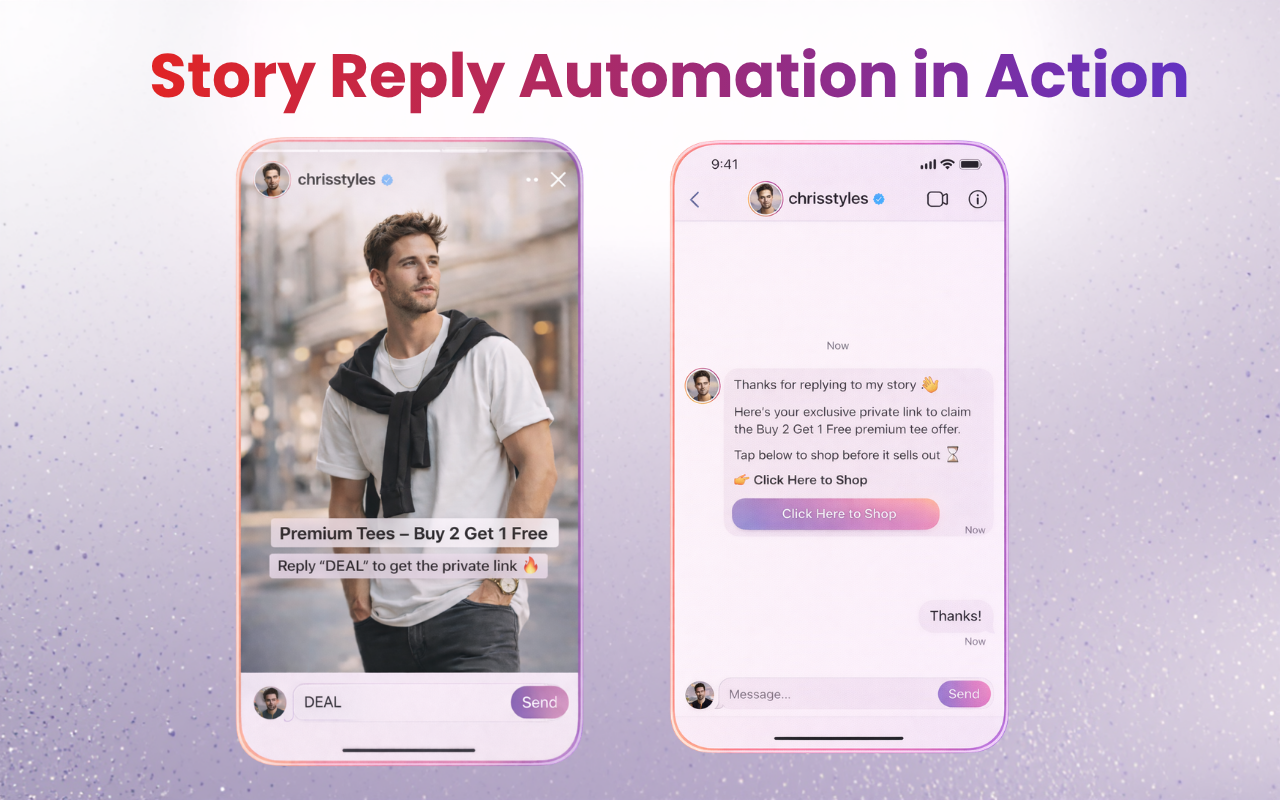
- When someone replies to your Story, InstantDM sends an automated response
- The response can include text, links, or lead capture forms
- You can set up different responses for different Story types
Example Use Cases
- Product launch Story: Auto reply with a link to purchase
- Question Story: Auto reply with an FAQ answer
- Behind the scenes Story: Auto reply with a discount code
- Poll Story: Auto reply with follow up content based on their answer
Start automating your Story replies with InstantDM for free
How to React on Instagram Story from Desktop
You can also react to Instagram Stories from your computer using the Instagram website.
Steps to React from Desktop
- Open instagram.com in your browser
- Log in to your account
- Stories appear at the top of your feed
- Click on a Story to view it
- To send an emoji reaction: click the emoji bar at the bottom
- To reply: type in the text box and press Enter
- To comment: click the comment icon (if available)
Limitations of Desktop Reactions
- The emoji keyboard may be limited compared to mobile
- Some features (like GIF replies) may not be available on desktop
- Story creation is not available on desktop (only viewing and reacting)
How to React on Instagram Story with a Photo or Video
Instagram lets you reply to Stories with a photo or video from your camera, not just text.
Steps to Reply with a Photo or Video
- Open the Story you want to reply to
- Tap the text box at the bottom
- Tap the camera icon on the left side of the text field
- Take a photo or record a video
- You can add stickers, text, or drawings before sending
- Tap Send
This is a great way to create more personal, engaging responses that stand out in the creator's inbox.
Final Thoughts
Reacting on Instagram Stories is one of the simplest ways to engage with content and build relationships on the platform. Whether you send a quick emoji reaction, reply with a thoughtful DM, or leave a public comment, every interaction helps the algorithm understand what content you enjoy and who you want to see more from.
For creators and brands, Story interactions are gold. They signal to Instagram that your content is engaging, which means your Stories get shown to more people. The key is to make it easy for your audience to react — ask questions, use interactive stickers, and respond to every reply you receive.
Story replies already land in DMs; for feed comments, send the resource via comment-to-DM instead of a bio link. That workflow stays allowed only on Meta’s official API — see what Instagram actually permits.