Updated 26 September 2026
Direct answer
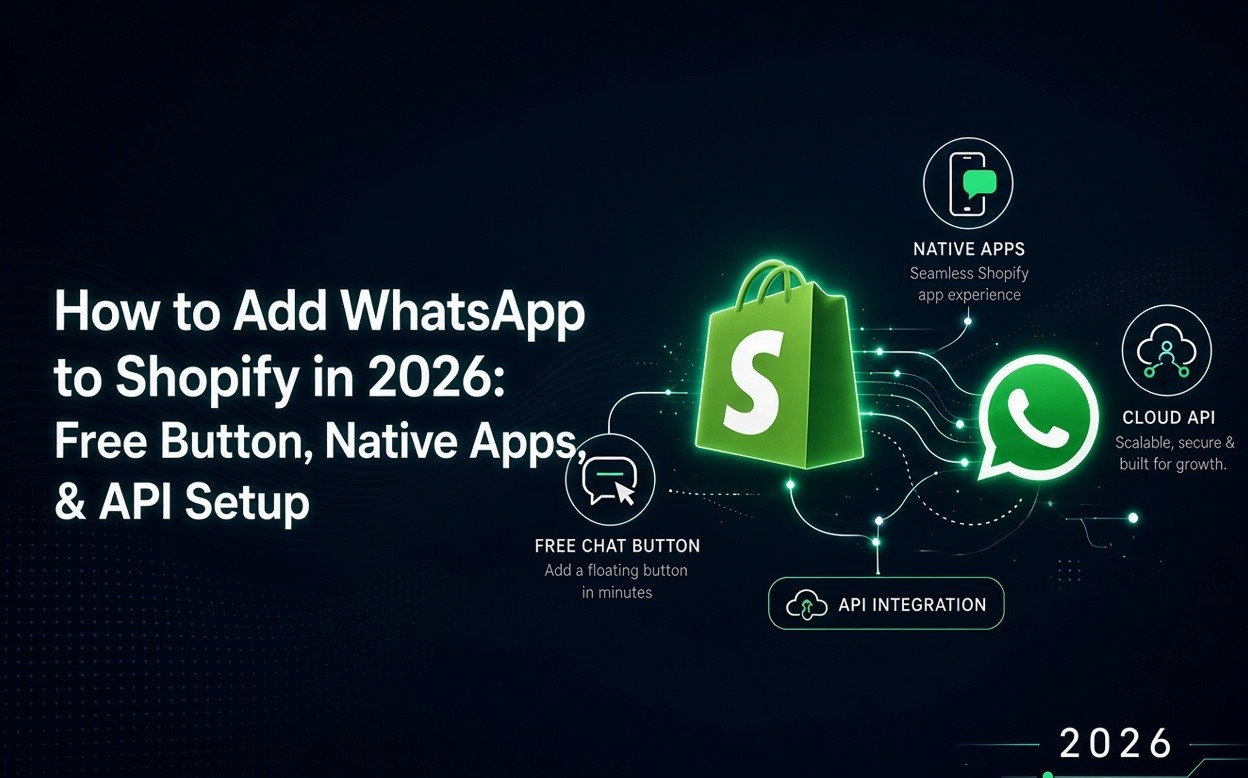
You add WhatsApp to Shopify in four ways: a free chat button, Meta’s official order-update app, Shopify Messaging campaigns with checkout or Forms opt-in, and the WhatsApp Business API through a Shopify app. A button is free and takes about 15 minutes. Shopify now has native WhatsApp for consent and campaigns. Abandoned cart recovery, COD confirmation, a shared team inbox, and broadcasts still need the WhatsApp Business API, explicit opt-in, and Meta-approved templates.
A WhatsApp button on Shopify is free. Official apps can be free to install. Meta still charges for many delivered messages. Full automation is not free.
Start here: add a button plus official order updates. Add the API only when the store needs to message customers — not just the other way around. For the official API capabilities and limits, see the WhatsApp Business Platform documentation.
Verdict: Which WhatsApp + Shopify Setup to Use
| If this is the real problem | Use this | Time | Typical cost |
| Shoppers cannot reach you on WhatsApp | Free button or widget | 10–15 min | Free |
| Customers keep asking where their order is | Meta official app and/or API order templates | 30–90 min | Free to install + Meta message fees |
| You want campaigns and a clean consent record | Shopify Messaging + Forms WhatsApp opt-in | 1–2 hrs | Native tools + Meta fees |
| Carts drop off, COD orders fake-confirm, team chat is chaos | WhatsApp Business API via a Shopify app | Half a day + template approval | App fee + Meta per-message |
| You sell on Instagram too and need one inbox | API platform with WhatsApp + Instagram | Same as above | Platform fee |
What “add WhatsApp to Shopify” actually means
Adding WhatsApp to Shopify means connecting a customer-facing WhatsApp number to your storefront, checkout, or order data. Shoppers can message you, or your store can send them updates and campaigns. Those are different builds.
| Shopper can tap Chat | Store can send updates | Store can recover carts and run campaigns |
| Chat button or widget | Meta official app or Shopify Messaging | WhatsApp Business API + opt-in + templates |
If you only need the first column, you do not need an API vendor. If you need the third column, a green button will not do it.
Quick start
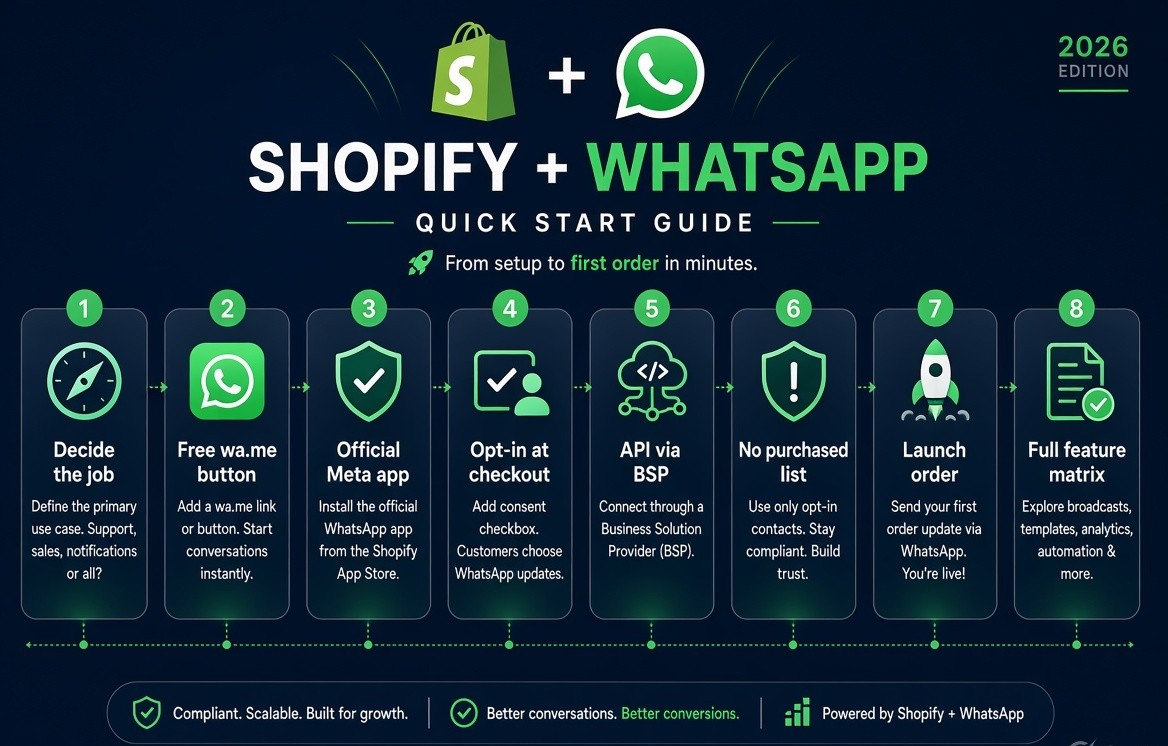
- Decide the job: inbound chat, order texts, marketing campaigns, or full automation.
- For inbound chat, add a wa.me button with a theme App embed. Do not edit theme.liquid unless you have to.
- For order updates, install Meta’s official WhatsApp app or connect WhatsApp inside Shopify Messaging.
- For campaigns and consent, turn on WhatsApp opt-in at checkout and in Shopify Forms.
- For abandoned carts, COD confirmation, a shared inbox, and AI support, connect the WhatsApp Business API through a Business Solution Provider app.
- Do not message a buyer list just because they purchased. A purchase is not WhatsApp consent.
- Launch in this order: button > opt-in > utility templates > cart / COD > broadcasts last.
- If you want the full feature matrix from Meta, review the WhatsApp Business API overview.
Which method you actually need
| If this is the real problem | Use this | Time | Typical cost |
| Shoppers cannot reach you on WhatsApp | Free button or widget | 10–15 min | Free |
| Customers keep asking where their order is | Meta official app and/or API order templates | 30–90 min | Free to install + Meta message fees |
| You want campaigns and a clean consent record | Shopify Messaging + Forms WhatsApp opt-in | 1–2 hrs | Native tools + Meta fees |
| Carts drop off, COD orders fake-confirm, team chat is chaos | WhatsApp Business API via a Shopify app | Half a day + template approval | App fee + Meta per-message |
| You sell on Instagram too and need one inbox | API platform with WhatsApp + Instagram | Same as above | Platform fee |
New store: button + checkout opt-in + Meta order updates.
20+ orders a day, especially COD: use the API, or you will staff WhatsApp by hand until it breaks.
Add a free WhatsApp button to Shopify
To add a WhatsApp button to Shopify, create a wa.me link with your country code and number, then enable it as a theme App embed. No API is required. Setup takes about 15 minutes. Editing theme.liquid is optional and often breaks on theme updates.
The shopper’s phone opens WhatsApp with your number and an optional pre-filled message. There is no monthly fee and no broadcasts.
What you do not get: abandoned cart sequences, order lookup, a shared inbox, or real analytics.
Build the wa.me link
A wa.me link is WhatsApp’s official click-to-chat URL:
https://wa.me/[COUNTRYCODE][NUMBER]?text=[URL-ENCODED MESSAGE]
Rules that break most first attempts:
- Country code first
- No plus sign, no spaces, no dashes
- Prefill text must be URL-encoded (Hi I need help becomes Hi%20I%20need%20help)
Examples:
- India: https://wa.me/919876543210?text=Hi%2C%20I%20have%20a%20question%20about%20my%20order
- US: https://wa.me/14155552671?text=Hi%2C%20I%20need%20help
- UK: https://wa.me/447911123456?text=Hi%2C%20I%20have%20a%20question
Product-page version:
https://wa.me/919876543210?text=Hi%2C%20I%20am%20asking%20about%20PRODUCT_NAME
If you paste Liquid yourself, use ['['[']']['['[']'] product.title | url_encode [']'][']']. Most button apps can insert the product title automatically.
Option A — App embed (preferred)
Shopify themes use App embeds. The button survives theme updates. Editing theme.liquid often does not.
- In Shopify admin, go to Apps and open the App Store.
- Search for a WhatsApp chat button app. Choose one that uses an App embed.
- Open the app. Enter the number in international format with no +.
- Add a short default message. “Hi, I have a question about my order” works better than “Hello”.
- Go to Online Store > Themes > Customize > App embeds.
- Toggle the WhatsApp embed on. Save.
Option B — Manual button, no extra app
Use this when you do not want another app, or you want a footer / product-page button you control.
Online Store 2.0 path:
- Online Store → Themes → Customize.
- Add a Custom Liquid block in the footer, or on the product template under the buy buttons.
- Paste a link styled as a button.
Product page example:
liquid
<a
  href="https://wa.me/919876543210?text=Hi%2C%20I%20am%20asking%20about%20['['[']']['['[']']product.title |url_encode [']'][']']"
  target="_blank"
  rel="noopener"
  style="display:inline-flex;align-items:center;gap:8px;background:#25D366;color:#fff;padding:12px 18px;border-radius:999px;text-decoration:none;font-weight:600;"
>
  Chat on WhatsApp
</a>
Floating button example:
HTML
<a
  href="https://wa.me/919876543210?text=Hi%2C%20I%20have%20a%20question"
  target="_blank"
  rel="noopener"
  style="position:fixed;bottom:20px;right:20px;z-index:9999;background:#25D366;color:#fff;padding:14px 18px;border-radius:999px;text-decoration:none;font-weight:600;box-shadow:0 8px 24px rgba(0,0,0,.18);"
>
  WhatsApp us
</a>
theme.liquid path (last resort): Online Store > Themes > Edit code > layout/theme.liquid > paste the floating link before . This often breaks or vanishes on theme updates. Prefer App embeds.
If the button does not show
- Number stored as +91 98765 43210 inside the URL. Use 919876543210.
- Personal WhatsApp already registered on that number — pick a dedicated business number before you scale.
- Button hidden under a sticky Add to Cart bar. Raise z-index or move it left on mobile.
- App embed installed but never turned on in the theme editor.
- Prefill text with an unescaped & or quotes, which truncates the URL.
A button is the right first step. It is the wrong last step if you sell on COD, run ads, or have more than one person answering chat.
Does Shopify have a native WhatsApp integration?
Yes. In 2026 Shopify has native WhatsApp: Meta’s official order-update app, WhatsApp inside Shopify Messaging, and WhatsApp consent in Shopify Forms. Native tools do not run abandoned-cart or COD automation. That still needs the WhatsApp Business API. Shopify’s own guide covers WhatsApp marketing with Shopify Messaging, including setup steps and requirements.
Meta’s official WhatsApp app for order updates
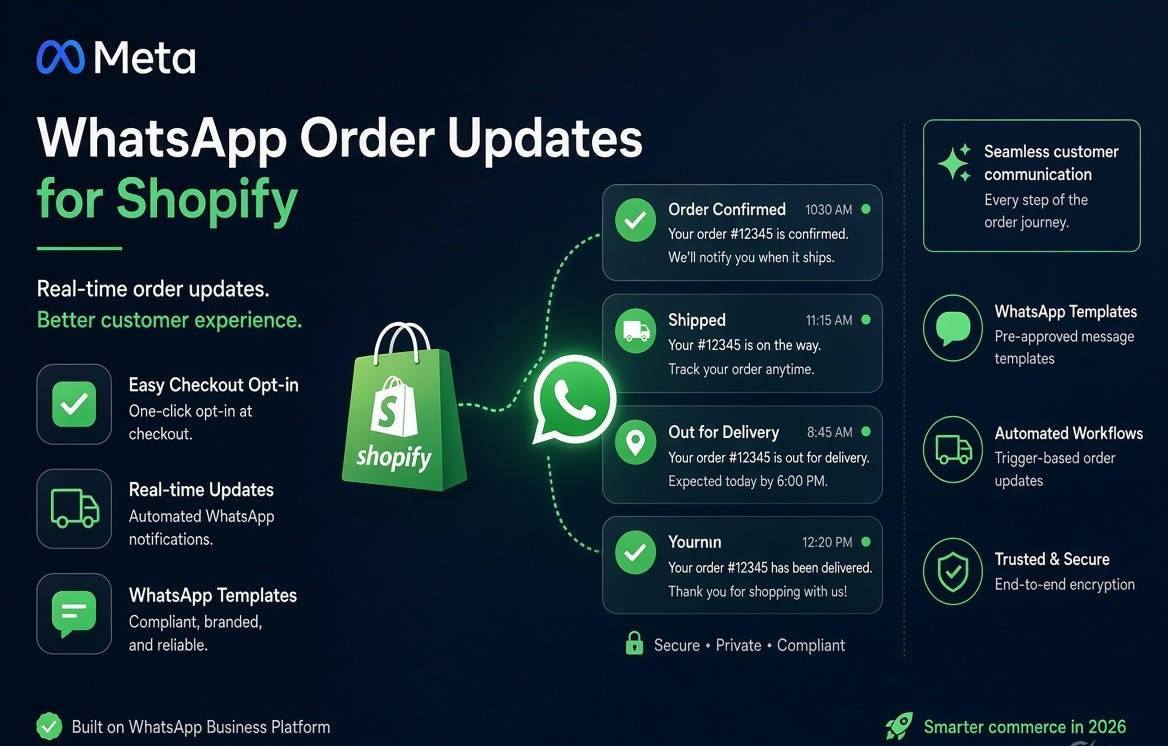
Meta publishes a free-to-install WhatsApp app on the Shopify App Store. At checkout, the customer can opt in to receive order updates on WhatsApp. You send pre-written templates as the order moves.
This is Shopify’s official path for order texts. It is not a full marketing platform.
Use it for
- Checkout opt-in for order status
- Confirmation, shipping, and delivery updates
- Stores that do not want a third-party provider yet
Do not expect
- Abandoned cart sequences
- Marketing broadcasts
- A shared team inbox
- AI support that looks up the order inside the thread
- Instagram and WhatsApp in one inbox
Setup:
- Open the Shopify App Store listing for WhatsApp by Meta and install it.
- Connect a WhatsApp Business Account. Use a number that is not tied to someone’s personal WhatsApp if you plan to grow.
- Complete Meta’s embedded signup and display-name checks.
- Turn on the checkout option so customers can choose WhatsApp order updates.
- Pick the pre-written templates. Do not add sale copy to a shipping template.
- Place a test order and confirm the customer receives the thread.
The Shopify install can be free while Meta still charges for delivered messages. Check current rates in Meta before you go live.
Use this when the only job is telling the buyer what happened to the order.
Shopify Messaging and Forms
Shopify added WhatsApp as a campaign channel inside Shopify Messaging in late July 2026, and WhatsApp marketing consent inside Shopify Forms on 6 August 2026. Consent can now live on the Shopify customer record without a third-party popup app.
Shopify Messaging WhatsApp is the native admin flow under Apps > Messaging > Settings > WhatsApp. You connect a WhatsApp Business Account through Meta embedded signup and send campaigns to people who accepted WhatsApp marketing.
Connect WhatsApp in Messaging
- Shopify admin > Apps > Messaging > Settings.
- In the WhatsApp section, click Connect WhatsApp.
- Choose Set up a new WhatsApp account or connect an existing WhatsApp Business Account.
- If the existing account is tied to another provider and already has a payment method, Shopify currently asks you to create a new account.
- Enter the WhatsApp Business Account name and business category.
- Add a number: a WhatsApp-provided number, your own business number, or a number from a provider such as Twilio or Infobip.
- Verify the number by SMS or call.
- Wait for Meta to confirm the connection.
Meta business verification is optional and useful. Verified businesses usually get faster template approval and higher messaging limits.
Collect consent the way WhatsApp requires
Checkout marketing opt-in: after WhatsApp is connected, enable the WhatsApp marketing opt-in so checkout shows a subscribe option. This is the highest-intent capture point because the shopper is already typing a phone number.
Shopify Forms: open Shopify Forms, add a Phone field, and turn the WhatsApp toggle on under marketing consent. Shopify stores that consent on the customer. In WhatsApp-first regions it collects WhatsApp consent instead of treating the phone as SMS-only.
You can import existing subscribers with an “Accepts WhatsApp marketing” column only if those people actually opted in for WhatsApp. Importing an email list into WhatsApp is how numbers get limited.
What native Messaging can and cannot do
It can:
- Connect a WhatsApp Business Account inside Shopify
- Capture WhatsApp marketing consent
- Send WhatsApp campaigns
- Add keyword replies
It cannot, by itself, replace a full API stack for:
- Multi-step abandoned cart logic with product images and checkout links
- COD confirm / cancel buttons tied to order tags
- Multi-agent inbox with assignment
- Store-trained support that looks up live orders and then hands off
Use native Shopify tools for consent and simple campaigns. Use an API app when WhatsApp has to read Shopify events and act on them.
Do you need the WhatsApp Business API for Shopify?
No, not for a chat button.
Yes, if you want automated abandoned carts, template campaigns, a shared inbox, order lookup in chat, COD confirmation, or broadcasts outside the 24-hour window.
The WhatsApp Business API (Cloud API) is Meta’s business messaging platform. A dedicated number sends and receives messages at scale. You access it through Meta or through a Business Solution Provider. The consumer WhatsApp Business app on a phone is not the API.
A Business Solution Provider (BSP) hosts your number on the API, submits templates, and usually ships the Shopify app that maps store events to messages.
For the official definition and capabilities, see the WhatsApp Business Platform documentation.
For guidance on choosing WhatsApp alongside SMS and RCS for customer service, see Gartner’s research on WhatsApp vs. RCS vs. SMS: Select the Best Messaging Channels
What the integration does
Shopify fires an event (checkout started, order paid, fulfillment created). The app catches that event. If the customer opted in, the app sends an approved template, or a free-form reply if the customer already messaged you inside the service window. Replies land in a shared inbox instead of one employee’s phone.
That is a Shopify WhatsApp integration. A floating icon is not.
Setup sequence
- Pick a dedicated number. It cannot stay logged into personal WhatsApp.
- Verify Meta Business Manager. Keep documents ready. This is the delay most stores underestimate.
- Install the provider’s Shopify app. Grant orders, customers, checkouts, and fulfillment scopes.
- Connect the WhatsApp number through the app’s embedded signup.
- Map events before you write copy:
- Order created > order confirmation
- Fulfillment created > shipped + tracking
- Checkout abandoned > cart reminder
- COD order created > confirm / cancel
- Submit templates. Utility templates often clear in hours. Marketing templates can take longer and fail on promotional tone.
- Place real test orders. Abandoned-checkout tests fail when you never reach the contact step, because there is no phone to message.
- Only then turn on live traffic.
Apps in this category include platforms such as Zoko, WATI, Interakt, Spur, Kanal, and others. Compare Shopify event coverage, template workflow, inbox quality, and whether they stay on the official Cloud API.
The API is the right tool when WhatsApp is a revenue and support channel. It is extra cost when you only needed a button.
Is a Shopify purchase enough WhatsApp consent?
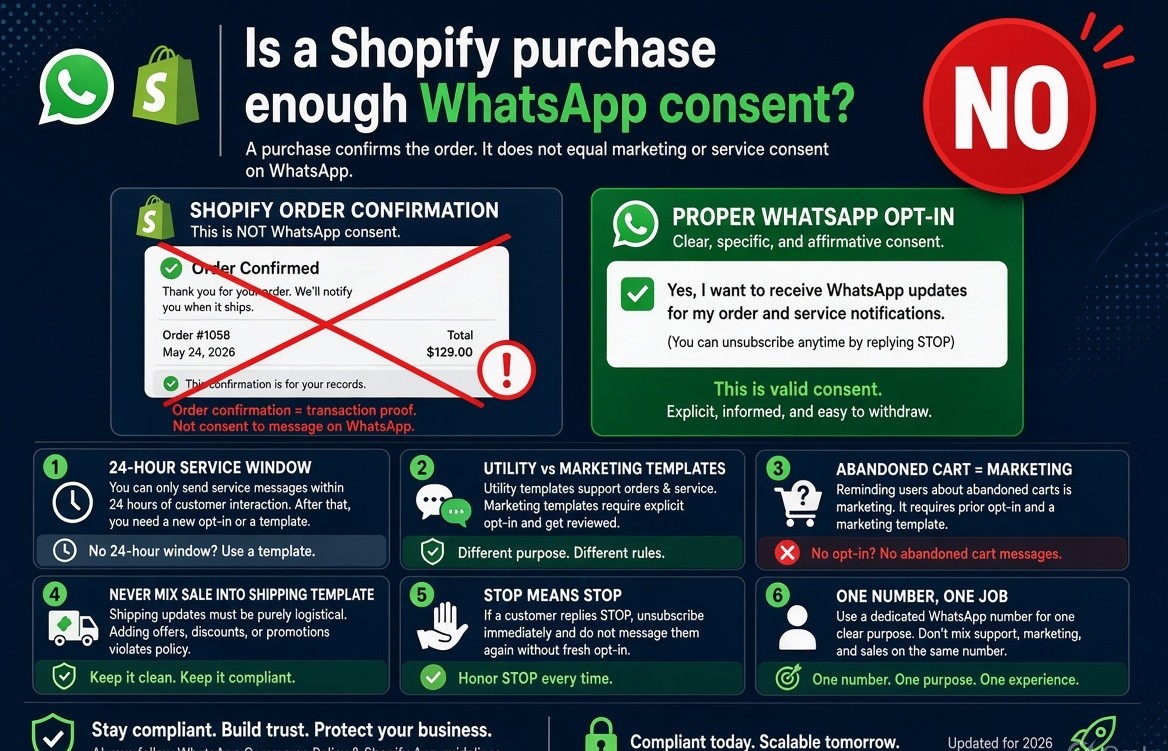
No. A purchase is not WhatsApp consent. WhatsApp allows business messages only when the person gave you their number and opted in to hear from you on WhatsApp. An order confirmation email list is not that opt-in. “Subscribe to marketing” is not that opt-in if WhatsApp was never named.
Use language that names the channel and the exit:
I agree to receive order updates, cart reminders, and offers on WhatsApp from [Brand]. Reply STOP to opt out.
Put that at checkout, on Forms, and on any popup that collects a number for WhatsApp.
The 24-hour window.
When a customer messages you first, you may reply in free-form for 24 hours from their last message. Outside that window, you start a conversation only with a Meta-approved template.
Templates have categories.
Utility covers order and shipping updates. Marketing covers offers, winbacks, and most abandoned cart reminders. Authentication is OTPs. Service replies inside an open customer-care window are not the same as a campaign you start.
Abandoned cart is usually marketing.
Do not file a cart reminder as utility to pay less. Category mismatch gets templates rejected or recategorized.
Do not mix a sale into a shipping template.
“Your order shipped. Tracking: X. Shop 20% off new arrivals” is how a utility template becomes marketing, or gets declined.
STOP means stop.
Unsubscribe on STOP, stop, unsubscribe, and the local equivalent. Keep a suppression tag. Messaging people who opted out is how quality rating falls and throughput gets capped.
Keep AI on-store.
Store-specific support with a human handoff is the safe pattern. Do not treat the thread as a general-purpose chatbot.
One number, one job.
Do not run the founder’s personal chat, the support queue, and marketing broadcasts on the same consumer app. Move to the API before the phone becomes the bottleneck.
WhatsApp message templates: categories, rules, and examples
When you write copy, follow Meta’s message template guidelines and categories (utility, marketing, authentication).
Keep variables numbered (['['[']']['['[']']1[']'][']'], ['['[']']['['[']']2[']'][']'], ['['[']']['['[']']3[']'][']']) and keep the tone transactional unless the template is honestly marketing. The examples below show the message body you would submit in WhatsApp Manager or via your provider. On your website, show them as examples like this; in your actual WhatsApp templates, you will use the same ['['[']']['['[']']1[']'][']'], ['['[']']['['[']']2[']'][']'], ['['[']']['['[']']3[']'][']'] syntax.
Order confirmation — utility
textHi ['['[']']['['[']']1[']'][']'], your order ['['[']']['['[']']2[']'][']'] is confirmed. We will message you when it ships. Track it here: ['['[']']['['[']']3[']'][']'].
['['[']']['['[']']1[']'][']']= customer first name['['[']']['['[']']2[']'][']']= order number['['[']']['['[']']3[']'][']']= tracking / order status URL
Shipped — utility
textYour order ['['[']']['['[']']1[']'][']'] is on the way. Tracking: ['['[']']['['[']']2[']'][']']. Reply here if the address or delivery window is wrong.
['['[']']['['[']']1[']'][']']= order number['['[']']['['[']']2[']'][']']= tracking number or tracking link
Delivery / “where is my order” — utility or open service window
textOrder ['['[']']['['[']']1[']'][']'] shows as ['['[']']['['[']']2[']'][']']. Tracking: ['['[']']['['[']']3[']'][']']. If that looks wrong, reply and a person will check the carrier.
['['[']']['['[']']1[']'][']']= order number['['[']']['['[']']2[']'][']']= current status (e.g. “Out for delivery”)['['[']']['['[']']3[']'][']']= tracking link
COD confirm — utility
textHi ['['[']']['['[']']1[']'][']'], please confirm your cash-on-delivery order ['['[']']['['[']']2[']'][']'] for ['['[']']['['[']']3[']'][']']. Reply 1 to confirm or 2 to cancel.
['['[']']['['[']']1[']'][']']= customer first name['['[']']['['[']']2[']'][']']= order number['['[']']['['[']']3[']'][']']= order amount with currency
Abandoned cart — marketing
textHi ['['[']']['['[']']1[']'][']'], you left ['['[']']['['[']']2[']'][']'] in your cart. Finish the order here: ['['[']']['['[']']3[']'][']']. Reply if you want help with size, shipping, or payment.
['['[']']['['[']']1[']'][']']= customer first name['['[']']['['[']']2[']'][']']= product name or cart summary['['[']']['['[']']3[']'][']']= checkout URL
Back in stock — marketing
text['['[']']['['[']']1[']'][']'] is back in stock. Buy it here: ['['[']']['['[']']2[']'][']'].
['['[']']['['[']']1[']'][']']= product name['['[']']['['[']']2[']'][']']= product / checkout URL
Review request — service or marketing (depending on wording)
textHi ['['[']']['['[']']1[']'][']'], how was ['['[']']['['[']']2[']'][']']? You can leave a short review here: ['['[']']['['[']']3[']'][']']. Reply if something was off and we will fix it.
['['[']']['['[']']1[']'][']']= customer first name['['[']']['['[']']2[']'][']']= product name or order number['['[']']['['[']']3[']'][']']= review form URL
Why templates get rejected
Templates commonly get rejected when they include:
- Sale or promotional language inside a utility template
- Missing or unused variables (e.g.
['['[']']['['[']']3[']'][']']in the body but never defined) - Shortened links that look like phishing (bit.ly, tinyurl, etc.)
- ALL CAPS urgency (“ORDER NOW”, “LAST CHANCE”)
- A brand name that does not match the verified WhatsApp display name
Use these examples as a starting point, then adapt the wording to your brand while staying within the correct category (utility vs marketing vs authentication).
Can Shopify send order updates and abandoned cart messages on WhatsApp?
Yes. Shopify can send order updates and abandoned cart reminders on WhatsApp if the customer opted in. Order and shipping texts use utility templates. Cart reminders are usually marketing templates. The free WhatsApp Business phone app cannot send these from Shopify events. Shopify’s own walkthrough explains how to create WhatsApp marketing campaigns with Shopify Messaging.
Build in this order so quality rating stays healthy.
1. Order confirmation and shipping (utility)
Trigger on order paid / fulfillment created. Include order number and tracking. Most “where is my order” chat is a missing tracking link.
2. COD confirmation
Send minutes after the order, not the next morning. Use two buttons or a 1 / 2 reply. If they do not confirm, do not ship. Tag the order. Cancel on a clear no. Measure your own confirm rate and return-to-origin for two weeks instead of copying vendor percentages.
Checkout must collect a real phone number. If phone is optional, the flow cannot run.
3. Abandoned cart (marketing)
A working sequence:
- 30–60 minutes: you left this, need help?
- 8–12 hours: reduce friction (size, shipping, payment)
- 20–24 hours: a small incentive only if the first two messages did not convert
Stop the sequence on purchase, on opt-out, and on a customer who replies “not now.” Three messages is enough.
Cart recovery only fires when Shopify has a phone number and WhatsApp consent. Guest checkouts that die before the contact step cannot be messaged.
For a full walkthrough of cart flows on email and SMS, see our guide to [Shopify abandoned cart recovery]
4. Order-status replies in the inbox
Once utility templates are live, let the inbox or AI fetch order status when someone pastes an order number. Hand refunds, damaged parcels, and angry delivery threads to a person.
Leave winback campaigns and catalog broadcasts until these four are clean. Broadcasts on a new number with a weak quality rating stall the channel you just built.
What it costs
There is no single WhatsApp-for-Shopify price. There are three lines.
- Shopify app or provider subscription — $0 for a button or Meta’s official app install; commonly tens to a few hundred dollars a month for API platforms.
- Meta per-delivered message — billed by destination country and category (marketing, utility, authentication). Service messages inside an open customer-care window are treated differently from a campaign you start.
- Extras — extra users, extra numbers, AI credits.
An India-heavy store sending mostly utility order updates plus a modest cart-reminder volume often spends more on Meta’s message line than on the app once volume is real. A US/UK store pays a different per-message table. Check Meta’s current rate card the week you launch.
Do not compare vendors only on the monthly SaaS number. A cheap app that files cart reminders under the wrong category, or uses an unofficial route, costs more after one quality-rating event. For current per‑conversation rates by country and category, check Meta’s WhatsApp API pricing overview (2026).
Fix the setup when something is silent
Button missing on the live store. Theme editor preview is not the live theme. Publish, then hard-refresh mobile. Confirm the App embed is on for the published theme.
Chat opens to the wrong person. The number in the widget is still a personal account. Change the number.
API connected, no order texts. Template not approved, event not mapped, or the test order used an email-only customer. Check the app’s delivery log before you rebuild the flow.
Cart messages never send. No phone on the checkout, no WhatsApp opt-in flag, or the reminder is waiting on a marketing template still in review.
Customers get the message, then report it. Copy is too salesy for the category, frequency is too high, or you messaged people who only agreed to order updates.
Theme update wiped the button. You pasted into theme.liquid. Move to an App embed.
30-day rollout
Days 1–3. Add the button. Connect Meta’s official app or Messaging. Write the opt-in sentence. Make phone easy to enter at checkout if you run COD.
Days 4–7. Submit utility templates. Verify the business if you have not. Decide whether Messaging campaigns are enough or you need an API provider.
Days 8–14. Turn on order confirmation and shipping. Watch support tickets about missing tracking.
Days 15–21. COD confirm if you need it. Then abandoned cart, two or three steps, with stop conditions on.
Days 22–30. Read the numbers. Only then add a back-in-stock or review template. Do not start weekly broadcast blasts on a number that is still warming up.
What to measure
- Button tap-through (a UTM on the wa.me link is enough)
- Opt-in rate at checkout
- Template acceptance vs rejection
- Delivery and read rate
- Cart recovery rate and recovered revenue
- COD confirm rate and return-to-origin
- “Where is my order” tickets before vs after shipping templates
- Opt-out rate — if this climbs, stop adding campaigns
If recovered revenue does not clear Meta fees plus the app, fix timing and copy before you buy a bigger plan.
Final take
Adding WhatsApp to Shopify is not one toggle.
A button solves discovery.
Official Meta and Shopify Messaging tools solve consent and basic updates.
The API solves silent carts, fake COD orders, and a support queue trapped on one phone.
Build in that order. Check Meta rates and Shopify Messaging screens when you implement — both moved in 2026 and will move again. Clear method, legal opt-in, utility templates first, campaigns last.
For implementation details, see the WhatsApp Business Platform docs, Shopify Messaging WhatsApp guide, and your BSP’s docs (e.g. Twilio WhatsApp API or 360dialog WhatsApp API).
For a strategic view of WhatsApp Business updates and conversational customer service, see Gartner’s analysis of WhatsApp Business Updates Enable Richer Conversational Commerce
About The Author:
Aravindh Kumar is an Ecommerce and Instagram growth expert with 8+ years of experience in online selling. He has worked with 500+ brands - including Forbes-listed companies - He has helped 200+ Instagram businesses grow their online presence.