Last updated: 26September 2026
TL;DR — How to get WhatsApp API
To get WhatsApp API access, use Meta’s official WhatsApp Cloud API (WhatsApp Business API).
- Create a Meta Business Portfolio with your legal business name.
- Choose direct Cloud API in Meta Developer, or Embedded Signup with a Meta-authorized BSP.
- Add a phone number and verify it by SMS or voice OTP.
- Complete Meta business verification and display-name review.
- Submit a utility template, then send from the API or the BSP inbox.
Same-day setup is possible. Verification usually takes 1–10 business days. There is no WhatsApp API key. Unofficial QR-login tools are not Cloud API.
How to get WhatsApp API
You get WhatsApp API by connecting a phone number to a WhatsApp Business Account (WABA) on Meta’s Cloud API. You can do that yourself in Meta Developer and Business Suite, or through Embedded Signup inside a Business Solution Provider (BSP). You need a Meta Business account, a number that can receive OTP, and documents that match your legal name. The consumer WhatsApp app is not an API.
This is also how you get WhatsApp Business API and WhatsApp Cloud API. In 2026 those names refer to the same official platform.
Quick glossary
| Term | Meaning |
| WhatsApp Cloud API | Official API hosted by Meta. See the WhatsApp Business Platform overview for the platform’s main components. |
| WABA | WhatsApp Business Account that owns numbers, templates, and limits. |
| Embedded Signup | Meta’s official partner flow that creates or connects a WABA inside a BSP. |
| BSP | Meta-authorized Business Solution Provider. Optional inbox and tooling. |
| Coexistence | Business App and Cloud API on the same number at the same time. |
| Display name | The name customers see in the chat header. |
| Access token | Credential used instead of an “API key.” Temporary for tests; System User token for production. |
WhatsApp Business App vs WhatsApp Business API
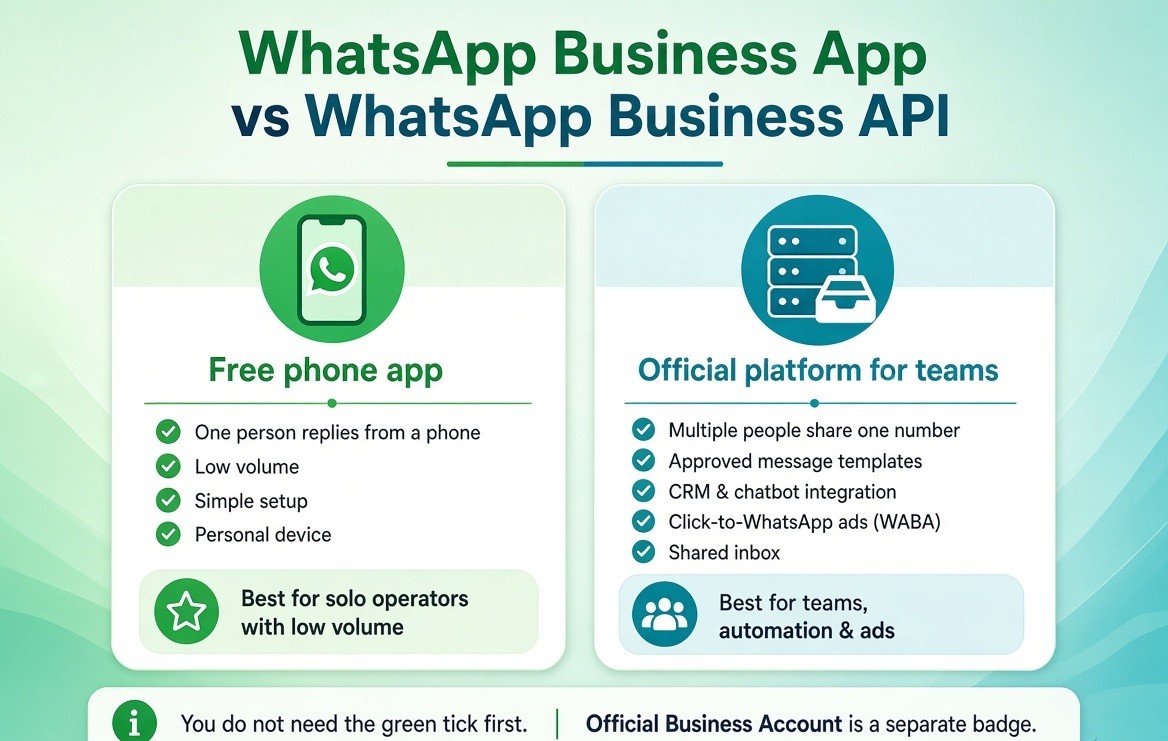
WhatsApp Business App is the free phone app. WhatsApp Business API (Cloud API) is the official platform for teams, templates, automation, and a shared inbox.
Use the app if one person replies from a phone and volume is low.
Use the API if several people must share one number, you need approved templates, CRM or chatbots, or you run Click-to-WhatsApp ads on a WABA.
You do not need the green tick first. Official Business Account is a separate badge.
Who can get WhatsApp API access
Registered businesses can apply, including sole proprietors with GST, Udyam, Shop and Establishment, or equivalent proof. A personal Facebook profile with no business documents usually fails verification.
Meta blocks or limits categories under the WhatsApp Commerce Policy. A BSP cannot override a prohibited category.
You do not need to be an enterprise. You need a legal identity that matches the website and the documents you upload.
What do I need to get WhatsApp API?
Before you apply or register, have:
- A Meta Business Portfolio you admin
- Legal business name identical to your documents
- A live website that shows that name and contact details (a privacy policy helps)
- A business email, preferably on your domain
- A phone number that can receive SMS or voice OTP
- Before registering, review Meta’s business phone-number requirements, including number registration and display-name rules.
- That number free of consumer WhatsApp / Business App, unless you will use coexistence
- A display name that is the real brand, not a slogan
- One official proof of the business
Turn on 2FA on the Meta account. Keep the two-step PIN Meta sets on the number.
Documents for India
| Business type | Documents that usually work |
| Sole proprietor | GST, Udyam, or Shop and Establishment, plus PAN or bank proof |
| Partnership | Partnership deed + GST + firm PAN |
| LLP | LLP incorporation + GST + LLP PAN |
| Private Limited | Certificate of Incorporation + GST + company PAN |
| Extra address proof | Utility bill or business bank statement in the same name |
A website is not always listed as mandatory on every Meta screen. In practice, reviewers use it to confirm the legal name. DLT registration is not required. DLT is for SMS in India, not WhatsApp Cloud API.
How to get WhatsApp Cloud API: two official methods
There are two official ways to set up WhatsApp API.
| Method | Best for | You build | You pay |
| Direct Cloud API (Meta) | Teams with a developer | Webhooks, inbox, tokens | Meta message rates + engineering |
| BSP Embedded Signup | Most businesses | Little or no code | Meta message rates + platform plan |
Businesses that want a no-code inbox, broadcasts, automation flows, or AI agents can use a WhatsApp automation platform instead of building the integration themselves. Compare features, subscription fees, message-credit models, and Meta charges before choosing a provider. See our guide to the top WhatsApp automation tools for 2026
.Both create official API access on Cloud API. On-Premises API is not used for new numbers.
Can I get WhatsApp API directly from Meta?
Yes. You can register and set up WhatsApp Cloud API in Meta Developer without a BSP. Follow Meta’s Cloud API getting-started guide for the official setup sequence.
How to set up WhatsApp Business API on Meta
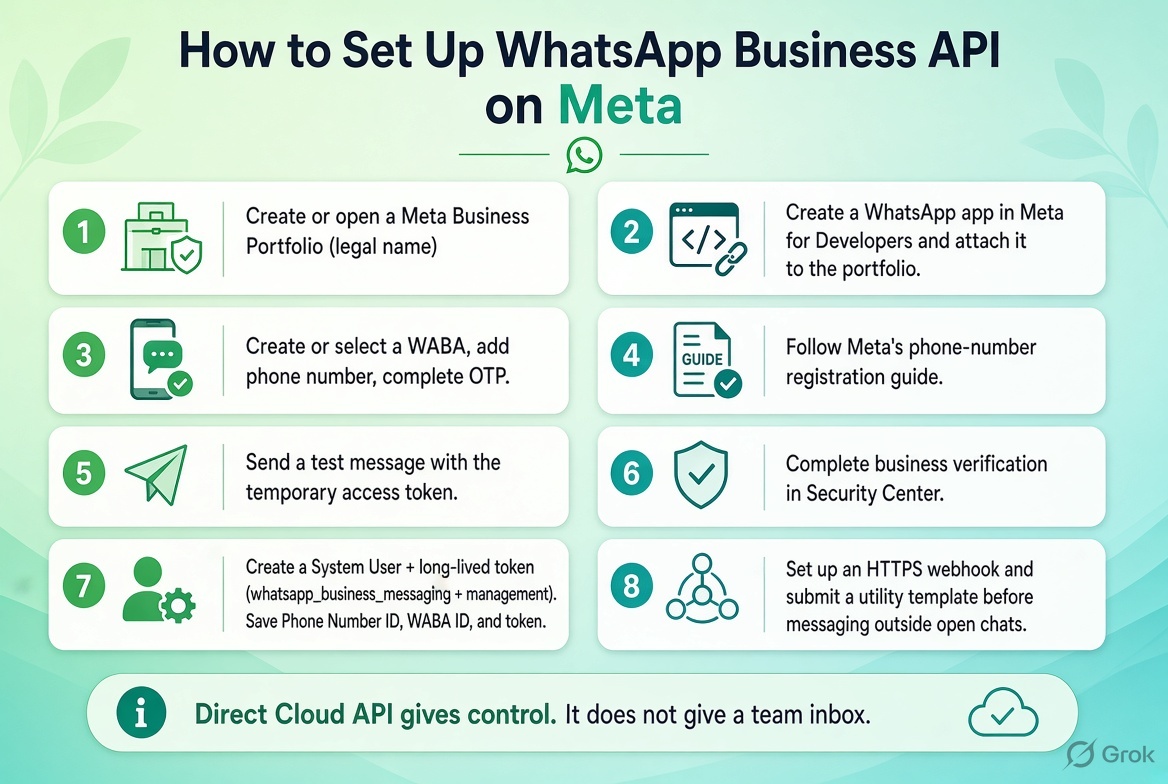
- Create or open a Meta Business Portfolio at business.facebook.com using the legal name.
- In Meta for Developers, create an app and choose the WhatsApp customer-messaging use case, or add the WhatsApp product to a Business app. Attach the app to the portfolio.
- In WhatsApp API Setup / Quickstart, create or select a WABA, add the phone number, and complete OTP.
- Follow Meta’s phone-number registration guide when adding and verifying the number.
- Send a test message with the temporary access token. That only proves the test setup works.
- Complete business verification in Business Settings > Security Center.
- Create a System User and a long-lived token with whatsapp_business_messaging and whatsapp_business_management. Save Phone Number ID, WABA ID, and token on the server.
- Put an HTTPS webhook in place. Submit a utility template before you message people outside an open chat.
Direct Cloud API gives control. It does not give a team inbox.
Do I need a BSP to get WhatsApp API?
A BSP is optional for API access. If you choose a partner, onboarding usually uses Meta’s official Embedded Signup documentation flow.
How to apply for WhatsApp API through a BSP
- Choose a Meta-authorized partner. Confirm you stay admin of the WABA in Business Manager.
- Create the BSP account and start Embedded Signup. Sign in as the portfolio admin.
- Create or select the WABA, add the number, verify OTP, and submit the display name.
- Add profile photo, about text, and website. Submit one utility template.
- Add a payment method on the Meta portfolio for message charges. Pay the BSP plan separately if they charge one.
Signup can finish quickly when the portfolio is already clean and the number is free. Plan extra time for verification.
You can get official WhatsApp API without a developer by using Embedded Signup. Meta still checks the number, display name, and documents.
Can I use my existing WhatsApp number?
Yes, in two official ways.
- Leave the app: delete the number from consumer WhatsApp or the Business App, then register it on Cloud API. Chat history does not move over as a full API archive.
- Keep the app: turn on WhatsApp coexistence so the Business App and Cloud API share the number.
The exact process depends on whether the number is registered in WhatsApp Messenger, the WhatsApp Business App, or another Business Account. Check Meta’s existing-number migration guide before moving it.
Or use a new mobile or landline that can receive OTP. That is the simplest path for a team inbox.
Can I use the WhatsApp Business App and API on the same number?
Yes. That is WhatsApp coexistence.
Keep the Business App on the phone and attach Cloud API for templates, extra agents, and automation. Open the app on a regular schedule so the account stays active.
Coexistence is not the same as a dedicated API number. Groups and some app tools do not sync to the API the same way. History sync is limited. Some calling and official-account features may be unavailable. Throughput is often lower than a Cloud API-only number. If nobody will use the phone app, register a dedicated API number instead.
How long does it take to get WhatsApp API?
| Step | Fast | Typical | Delay |
| Portfolio + signup | Under 2 hours | Same day | Wrong Facebook user, no 2FA |
| Number OTP | Minutes | Same day | Number still on WhatsApp |
| Display name | Hours | 1–2 days | Slogan or name mismatch |
| Business verification | 1–2 days | 3–10 days | Website or documents don’t match |
| First utility template | Hours | 1 day | Submitted as marketing |
Signup is the short part. Verification is the long part.
Is WhatsApp API free?
Meta’s current charges and included message categories can change, so check the official WhatsApp Business Platform pricing before publishing a cost estimate.
Getting WhatsApp API access is free. Meta does not charge a license to create the app or WABA.
Sending is not unlimited free. From 1 July 2025 Meta bills per delivered template message by category (marketing, utility, authentication) and by the customer’s country. Check Meta’s live WhatsApp Business Platform rate card for current prices and any free allowances on service or in-window utility messages. Those rules have changed through 2025–2026.
You can get WhatsApp API for free in the sense that access has no license fee. That does not mean free mass broadcasts. A BSP plan, if you use one, is a separate bill.
What happens after you get WhatsApp API access
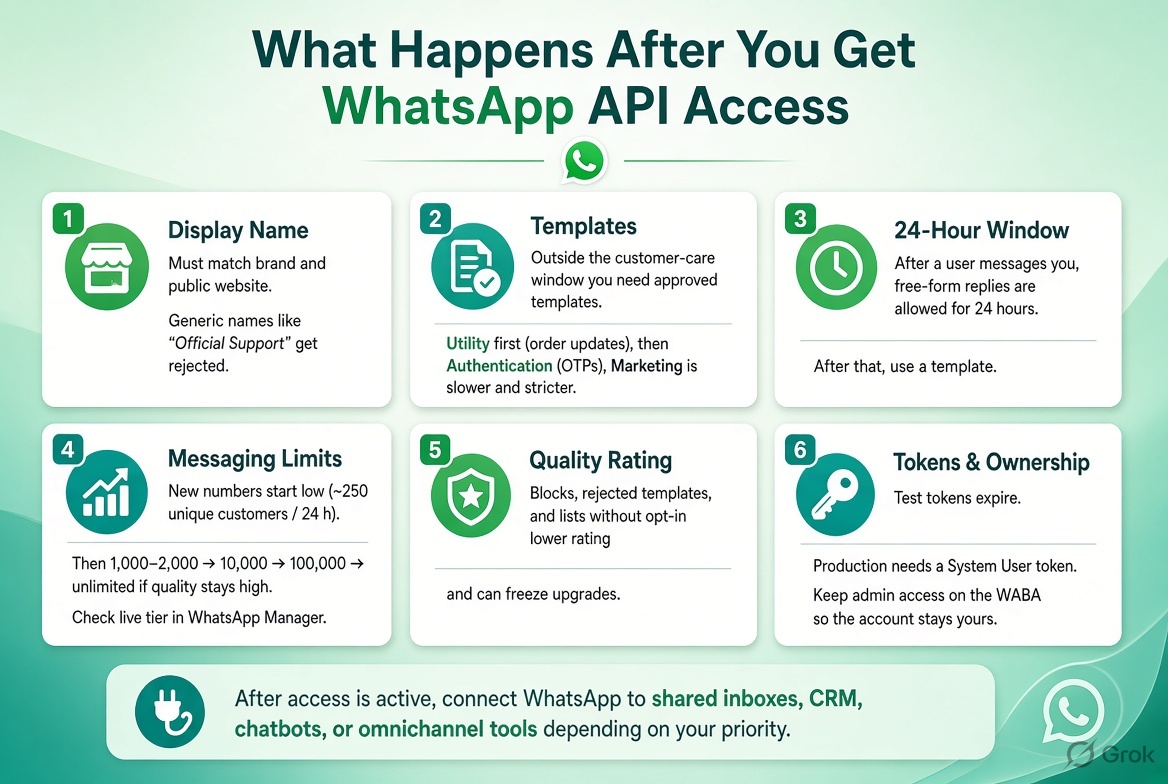
Display name. Must match the brand and public website. Generic lines such as “Official Support” or “Best Deals” get rejected. Fix and resubmit; the WABA stays.
Outside the customer-service window, use an approved template that follows Meta’s rules. See the WhatsApp message-template documentation before submitting utility, authentication, or marketing templates.
Templates. Outside the customer-care window you need an approved template. Start with utility (order update, reminder). Authentication is for OTPs. Marketing is slower and stricter.
For a direct integration, configure an HTTPS endpoint and subscribe to message events using the Cloud API webhook documentation.
24-hour window. After a user messages you, you can send free-form replies for a limited session. The standard window is 24 hours. After that, use a template.
Messaging limits. New numbers start on a low unique-customer cap. In 2026 that is commonly about 250 unique customers per 24 hours before full verification, then 1,000–2,000, then 10,000, 100,000, and unlimited if quality stays high. Check the live tier in WhatsApp Manager before you plan volume.
Quality. Blocks, rejected templates, and lists without opt-in lower rating and can freeze upgrades.
Tokens. Test tokens expire. Production needs a System User token. If you use a BSP, keep admin access on the WABA in Business Manager so the account stays yours.
After API access is active, businesses may connect WhatsApp to chat funnels, shared inboxes, CRM workflows, and other channels. The right tool depends on whether your priority is WhatsApp automation, Instagram messaging, website chat, or omnichannel customer support. See our comparison of the best chat funnel tools in 2026
WhatsApp API Opt-In and Messaging Rules
Getting WhatsApp API access does not give you permission to message any phone number. Before sending business-initiated messages, collect clear customer opt-in for WhatsApp communication and explain what type of messages the customer will receive.
You can collect opt-in through a website form, checkout page, customer-support request, click-to-WhatsApp ad, QR code, keyword, or another clear customer action. Keep a record of when and how each customer gave consent.
Do not upload purchased lists or send unsolicited campaigns. Unwanted messages can lead to blocks, reports, lower quality ratings, rejected templates, and messaging restrictions.
The 24-hour customer-service window
When a customer messages your business, a 24-hour customer-service window begins or refreshes. During this window, you can generally reply with free-form messages.
After the window closes, use an approved WhatsApp message template to send a business-initiated message. Templates are used for marketing, utility, and authentication messages. See Meta’s Cloud API message-sending guide for the current sending rules.
Use the correct template category
Choose the category that matches the purpose of the message:
- Utility: Order updates, appointment reminders, account notices, shipping information, and other specific customer-requested updates.
- Authentication: One-time passwords, login codes, and identity-verification messages.
- Marketing: Offers, promotions, product recommendations, announcements, and re-engagement campaigns.
Do not submit a promotional message as utility content. A template that does not match its stated purpose may be rejected, reclassified, or affect your messaging quality.
Add an opt-out process
Give customers a clear way to stop receiving messages. If a customer replies with “STOP,” “UNSUBSCRIBE,” or an equivalent request, suppress future marketing messages for that customer unless they later provide valid consent again.
Monitor blocks, reports, opt-outs, and template quality. If customers do not expect your messages, stop the campaign, review the opt-in source, and update the consent language before sending again.
Example WhatsApp opt-in text
☐ I agree to receive order updates, service notifications, and relevant offers from [Business Name] on WhatsApp. I can opt out at any time by replying “STOP.” Message frequency may vary. WhatsApp and carrier charges may apply.
Use this as a starting example, not as universal legal language. Adapt it to your business, message categories, privacy notice, and applicable local requirements.
Important compliance note
WhatsApp API access is a technical capability, not a permission to send spam. Use the API only for messages that customers have agreed to receive, follow Meta’s WhatsApp Business and Commerce Policies, and keep your templates, opt-in records, and opt-out process under review.
How to increase WhatsApp API messaging limits
New WhatsApp API numbers do not start unlimited. Meta caps how many unique customers you can message in 24 hours. The cap rises only if the number stays high quality and the business is verified.
Check your live tier in WhatsApp Manager. Do not plan campaigns from a blog table. In 2026 partner docs commonly describe a ladder like this: about 250 unique customers per 24 hours before full verification, then 1,000–2,000, then 10,000, 100,000, and unlimited. Your WABA may differ.
Verification first. An unverified portfolio stays on the lowest cap. Finish Meta business verification before you try to scale. Display name should already be approved so customers see a real brand, not a placeholder.
Quality rating is the switch. Meta looks at blocks, reports, and how people respond to templates. If rating falls to low, limits freeze or drop even after you were upgraded. If rating stays high and you use most of the current cap with real conversations, Meta can move the number up automatically. There is no “request unlimited” button that skips quality.
Use the right template category. Utility is for orders, reminders, and account updates. Authentication is for OTPs. Marketing is for offers and broadcasts. A promo filed as utility gets rejected or hurts rating. One rejected blast is enough to stall an upgrade.
Stay inside the 24-hour window when you can. When a customer messages you, reply in that session with a normal chat. That is customer care, not a cold template. Save templates for when you must write first.
Opt-in before you send. Cloud API is not a license to upload a purchased sheet. People must expect WhatsApp from you: a form tick, a click-to-WhatsApp ad, a keyword, or a checkout box. No opt-in is the fastest way to blocks and a locked tier.
Warm the number. First days: verify, send a test template to your own phone, handle real inbound chats, then small utility batches. Do not spend the whole cap on marketing on day one.
One number, one job. Shared portfolios can share some limit logic across WABAs. A second dirty number in the same portfolio can pull quality down. Keep test and production separate when you can.
If the cap does not move. Confirm verification is complete, rating is High or Medium (not Low), templates are approved, and you are actually approaching the current unique-customer cap with wanted messages. If rating is Low, stop marketing templates, fix opt-in, and answer inbound chats until it recovers. A BSP cannot override a Meta quality lock.
Limits exist to stop spam. Treat the first two weeks as a trust period: verified business, clean templates, real opt-in, real replies. That is how a new WhatsApp API number moves off the starting cap.
Why applications stall
- Legal name on Meta does not match GST or incorporation papers.
- Website is empty or uses a different name.
- Display name is a slogan.
- Number is still logged into WhatsApp.
- Embedded Signup ran as a user who is not portfolio admin.
- Category is not allowed under WhatsApp Commerce Policy.
- A promo template was filed as utility.
- Documents are cropped or unreadable.
Fix the mismatch, then resubmit. Uploading the same file again does not help.
Unofficial WhatsApp APIs
Tools such as Baileys and whatsapp-web.js automate the consumer or Business App. They are not how you get official WhatsApp API. They do not provide official templates or official ads access, and they conflict with WhatsApp’s terms.
Official access is only Cloud API on Meta, or Cloud API through a Meta-authorized BSP.
How to get WhatsApp API in India
Use the same Cloud API steps. Prepare GST as the main file; keep Udyam or a Certificate of Incorporation ready. Put the GST legal name on the Business Portfolio and the website. Use any Indian mobile or a landline that can take OTP. Sole proprietors can apply. You do not need DLT.
First week after you register
Day 1: Create the portfolio, choose Meta or a BSP, and complete OTP.
Days 2–4: Finish verification, display name, and one utility template.
Day 5: Send a test template to your own phone. Confirm the reply in your webhook or BSP inbox.
Days 6–7: Write opt-in text for forms and ads. Do not upload a bought list.