
TL;DR
- The Shift: Remember the old Creator Studio? As of 2026, it’s completely gone. Meta Business Suite is now your mandatory, all-in-one hub for cross-platform management.
- The Features: You’re getting a centralised command centre for scheduling content weeks in advance, tracking deep audience analytics, managing your monetisation payouts, and answering messages across both Facebook and Instagram from a single screen.
- The Gap: While the native tools are fantastic for planning and organizing, the built-in inbox is painfully slow for scaling high-volume sales. Manual typing just doesn't cut it anymore.
- The Solution: To truly scale, creators are pairing the organizational power of Meta Business Suite with third-party comment automation like InstantDM. Connecting approved tools helps capture leads instantly, bypassing the dreaded "link in bio" friction.
Introduction: The End of an Era and the Beginning of a New Workflow
Let’s be honest for a second. If you’ve been managing social media for a few years, you probably had a love-hate relationship with Instagram Creator Studio. It was straightforward, sure, but it always felt a bit disconnected. You’d plan your Instagram posts there, but then you’d have to scramble over to a completely different Facebook tab to manage ads, and grab your phone to actually reply to direct messages effectively.
It was exhausting. Meta knew it, and creators certainly felt it.
Meta's push to unify its massive ecosystem meant that Creator Studio had to be phased out. It’s officially retired. In its place stands the Meta Business Suite—the new, undisputed command center for brands, agencies, and solo creators alike.
Change is rarely comfortable. When the switch first happened, plenty of social media managers were pulling their hair out trying to find where their saved drafts went. But once you get past that initial learning curve, this transition actually unlocks a dramatically more powerful dashboard. You now have the ability to schedule content, analyze deep audience metrics, and manage your unified inbox across both Facebook and Instagram without juggling a dozen open browser tabs.
In this massive, definitive guide, we are going to break down every single corner of the Meta Business Suite. We’ll look at how to navigate the new interface, how to squeeze every drop of value out of its native tools, and crucially, how to plug the glaring gaps in Meta’s ecosystem using smart automation so you can stop leaving money on the table.
1. The Evolution: Why Meta Replaced Creator Studio
To understand how to use the new tools, you have to understand why the old ones were thrown out. For years, digital marketers operated in a deeply fragmented ecosystem. Facebook and Instagram felt like two completely different companies that just happened to share a parent organization.
The Drive for Omnichannel Management
The modern consumer doesn’t just stick to one app, and therefore, neither can a modern brand. If you spend three hours editing a highly engaging video, you are going to post it as an Instagram Reel, a Facebook Reel, and probably a YouTube Short. Meta replaced Creator Studio because keeping Facebook and Instagram fragmented was actively hurting creators' reach.
Meta’s ultimate goal was to build an omnichannel hub. They wanted a space where cross-platform management felt completely native. Instead of logging into Facebook Page settings to check your ad spend and then opening the Instagram app to reply to a comment, everything needed to live under one roof.
Phasing Out the Old Dashboard
This wasn't an overnight, flip-the-switch situation. Meta handled the sunsetting process in phases. First, they migrated the scheduling tools. A few months later, the insights dashboards were merged. Finally, the inbox was integrated. By forcing this consolidation, Meta reduced the server load on their end while drastically streamlining the workflow for us.
To streamline your workflow, you should master Meta Creator Studio as a desktop control centre to schedule content and manage engagement across both Instagram and Facebook from a single dashboard.
2. Navigating the New Dashboard: A Beginner's Walkthrough
Okay, let’s get into the software itself. Opening Meta Business Suite for the first time can feel like stepping into the cockpit of an aeroplane. There are menus, sub-menus, graphs, and notification bells everywhere. Let’s demystify it.
The Home Screen Command Center
Think of the Home tab as your morning newspaper. When you log in with your coffee, this is where you start. You get a quick snapshot of your most recent posts and their initial performance. More importantly, you get a prioritized "To-Do" list. If you have unread messages, flagged comments, or tasks assigned to you by a team member, they show up right here.
The Content and Planner Tabs
If you miss the old Creator Studio "Content Library," you’ll find its DNA split between two new sections.
- The Content Tab: This is your ledger. It’s a massive list of everything you have ever published, complete with individual metrics. Need to see how a post from six months ago performed? You search for it here.
- The Planner Tab: This is for the future. It’s a highly visual, calendar-based view of your scheduled content. You can view it by week or by month, dragging and dropping posts to optimize your timeline.
Locating Your Insights
Data is the lifeblood of social media growth. The Insights tab is tucked away on the left-hand navigation menu. The beauty of this new setup is the toggle feature. You can seamlessly flip between Facebook page data and Instagram profile data, or view them side-by-side.
To manage all your social interactions in one place, you should link your Instagram account to your Facebook Page within Meta Business Suite to enable unified messaging and cross-platform scheduling.

3. How to Schedule Reels, Stories, and Posts Like a Pro
Posting "on the fly" is a rookie mistake. It leads to typos, missed prime-time slots, and burnout. One of the absolute best features of Meta Business Suite is its robust, native scheduling engine.
Planning Your Content Calendar Step-by-Step
- Open the Planner tab and click on the date you want to target.
- Select "Create Post," "Create Reel," or "Create Story."
- Upload your media assets from your desktop.
- Write your caption.
- Here is where it gets good: Click on Active Times. Meta’s algorithm will analyze when your specific followers are online and suggest the exact hour you should publish for maximum initial reach.
Saving Drafts and Team Collaboration
If you manage an account with a team, or if you need a client to approve a post before it goes live, you don't have to schedule it immediately. You can upload the creative, write the copy, add your hashtag blocks, and hit "Save as Draft." This allows an editor to come in, review the work, and hit publish only when it’s approved.
Platform-Specific Customization
A major mistake brands Make is posting the exact same caption to Facebook and Instagram. Instagram relies heavily on hashtags; Facebook doesn't. When scheduling in the Suite, toggle the customization option. You can strip the hashtags out of the Facebook version and change the call-to-action, while keeping the Instagram version optimized for that specific app—all from a single upload.
4. Deep Dive into Instagram Analytics and Insights
If you are only looking at "Likes," you are looking at the wrong data. In 2026, vanity metrics don't pay the bills. You need to understand retention, reach, and user behavior to actually refine your strategy.
Tracking Reach vs. Impressions
Navigate over to the Results tab within Insights. You need to understand the difference between these two metrics:
- Reach: The number of unique individual accounts that saw your content.
- Impressions: The total number of times your content was displayed on a screen.
- If your impressions are significantly higher than your reach, it means people are watching your content multiple times. That’s a massive green flag for the algorithm.
Audience Demographics
Who is actually looking at your stuff? The Audience tab breaks down your followers by age group, gender, top cities, and top countries. Imagine you run a brick-and-mortar cafe in Chicago. If your analytics show your biggest audience is suddenly located in London because a Reel went globally viral, that's cool for the ego, but bad for foot traffic. You would need to pivot your content strategy back to local, hyper-targeted content.
Mastering Video Retention
For Reels, retention is everything. Click into an individual Reel’s insights and look at the audience retention graph. This visualizes exactly at what second people are swiping away. If you notice a massive 60% drop-off at the 3-second mark, it tells you one very specific thing: your visual hook is boring.

5. Managing the Unified Inbox: Pros and Cons
Community management can eat up your entire day if you aren't careful. The Inbox tab is Meta’s attempt to fix this by putting all your communications in one place.
The Major Benefits
The primary pro is centralization. Before, you’d have your phone open for Instagram DMs and your laptop open for Facebook messages. Now, you can reply to a Facebook post comment, an Instagram direct message, and a reaction to an Instagram Story without ever leaving the browser.
You can also set up basic automated responses. If you get asked "What are your business hours?" twenty times a day, you can set up a quick FAQ automation to instantly answer that specific question. You can also assign conversations to different team members, ensuring customer service requests don't slip through the cracks.
The Glaring Drawbacks
However, the native inbox is not perfect. It is still built around manual, human typing. If you post a piece of content that goes viral, you might wake up to 4,000 comments. You and your team physically cannot type out replies to 4,000 people fast enough. Furthermore, the native inbox acts as a communication tool, not a sales funnel. It can't easily capture an email address and push it to your Mailchimp account.
6. Monetization Tools and Payout Settings
If you are actively trying to make a living through content creation, Meta Business Suite is where your financial backend is managed.
Under the Monetization tab, you get a clear breakdown of your eligibility for various Meta programs. You can track your progress for Instagram Subscriptions (where followers pay a monthly fee for exclusive content), Reels Bonuses (if they are active in your region), and Stars.
This is also where the boring, but essential, administrative work happens. The Payouts section acts as your financial ledger. You can update your bank routing numbers, download your yearly tax forms, and track exactly when your revenue payouts are scheduled to hit your checking account.
When deciding between management platforms, creators and influencers often prefer the minimal interface of Creator Studio, while brands and agencies benefit from the robust, multi-account capabilities of Meta Business Suite.

7. Sound Collection and Copyright-Free Music
There is nothing quite as frustrating as editing a masterpiece of a video, uploading it, and immediately getting slapped with a copyright strike that mutes your audio. While trending audio tracks are heavily pushed on the Instagram app, using that same trending track on a Facebook ad or cross-posting it elsewhere can land your brand in hot legal water.
Meta Business Suite solves this with the Sound Collection. This is a massive, searchable library containing thousands of high-quality audio tracks, beats, and sound effects. Every single piece of audio in this library is 100% copyright-cleared for use across Meta platforms.
You can filter the library by genre, mood, tempo, and whether or not there are vocals. It takes the guesswork out of audio selection and ensures your account stays in good standing.
Meta Business Suite has evolved into a one-stop shop for managing organic marketing and paid advertising across Facebook, Instagram, and WhatsApp from a single dashboard.
8. Desktop Platform vs. Mobile App: Which is Better?
Meta provides both a robust browser-based desktop experience and a standalone Meta Business Suite mobile application. You shouldn't be asking which one is better; you should be asking when to use which.
The Platform Comparison Breakdown
| Feature or Task | Desktop Browser Version | Mobile App Version | The Ideal Use Case |
|---|---|---|---|
| Content Scheduling | Full access to bulk uploads, detailed caption formatting, and precise time adjustments. | Functional, but the small screen makes bulk planning incredibly tedious and prone to errors. | Sit at your desktop once a week to batch-schedule your primary content. |
| Analytics Dive | Deep data visualisation, exportable CSV reports for clients or stakeholders. | High-level overviews of the last 7 or 28 days. Hard to see granular data. | Use a desktop for end-of-month reporting; use mobile for a quick daily health check. |
| Inbox & Community | Great for typing out long, thoughtful replies to complex customer service issues. | Real-time push notifications allow for instant, brief replies to casual comments. | Use mobile while commuting or watching TV to keep community engagement high. |
| Monetization Setup | Complete access to tax documentation uploads and bank routing setups. | Severely limited. Mostly just a read-only view of current earnings. | Desktop is virtually mandatory for initial financial setups. |
| Media Library | Seamless drag-and-drop from your hard drive or cloud storage folders. | Relies entirely on whatever happens to be saved to your phone's local camera roll. | Use desktop if you work with professional cameras and video editors. |
The Verdict: Treat the desktop version as your heavy-lifting workspace. Use it for planning, strategy, and reporting. Keep the mobile app installed simply to answer urgent messages and monitor activity when you are away from your desk.
9. Common Glitches in Meta Business Suite and How to Fix Them
No software ecosystem of this magnitude is going to operate flawlessly 100% of the time. Meta Business Suite is somewhat notorious for a few recurring bugs. Don't panic when they happen; just use these fixes.
Glitch 1: The Account Desync
Suddenly, your Instagram account appears to have disconnected from your Facebook page. You can’t cross-post, and your Instagram analytics show up blank.
- The Fix: Do not try to fix this from the mobile app. Go to your Facebook Page Settings on desktop, click on "Linked Accounts," manually unlink your Instagram profile, clear your web browser’s cache, and then link it again. It acts as a hard reset.
Glitch 2: The Silent Scheduling Failure
You schedule a high-quality video for 9:00 AM. At 9:15 AM, you check your profile, and it’s not there. The Suite didn't give you an error; it just failed to publish.
- The Fix: This is almost always a file size or aspect ratio issue. Meta has strict limits. If you try to push a massive 4K video file through the scheduler, it often times out. Run your video through a compressor, bring it down to 1080p, ensure it is in a 9:16 ratio for Reels, and reschedule.
Glitch 3: The "Ghost" Message Notification
Your inbox tab shows a red "1" indicating an unread message, but when you click it, the inbox is empty.
- The Fix: Navigate to the "Spam" or "Done" folders within the inbox. Often, a bot message gets automatically filtered to spam, but the notification badge still triggers on the main screen. Mark all spam as read to clear the badge.
10. The Big Limitation: Why Meta’s Native Inbox Isn't Enough for Scaling
We need to talk about the reality of consumer behavior in the current digital landscape. The native inbox inside Meta Business Suite is fantastic for reading messages, but it is a terrible tool for converting sales at scale.
The Brutal 5-Minute Rule Sales data shows a harsh truth regarding consumer patience. According to a landmark lead response study published in the Harvard Business Review, you are roughly 21 times more likely to qualify a lead if you respond to their inquiry within five minutes. If a user comments on your product video asking for the price, and you take 45 minutes to reply manually, that person is gone. Speed is everything in modern marketing.
The Friction of "Link in Bio" Let's map out the "link in bio" user journey: The user has to stop watching your highly engaging video, click your profile name, read your bio, click the link tree, scan through buttons to find the product, and wait for the website to load. Industry research from the Baymard Institute shows that nearly 70% of consumers abandon a purchase when there is too much friction involved. You are actively losing money by making your followers hunt for your links.
11. Supercharge Your Meta Inbox with Comment Automation Strategies
This is where the savviest creators separate themselves from the amateurs. They recognise the limits of Meta's native tools and introduce third-party automation to bridge the gap.
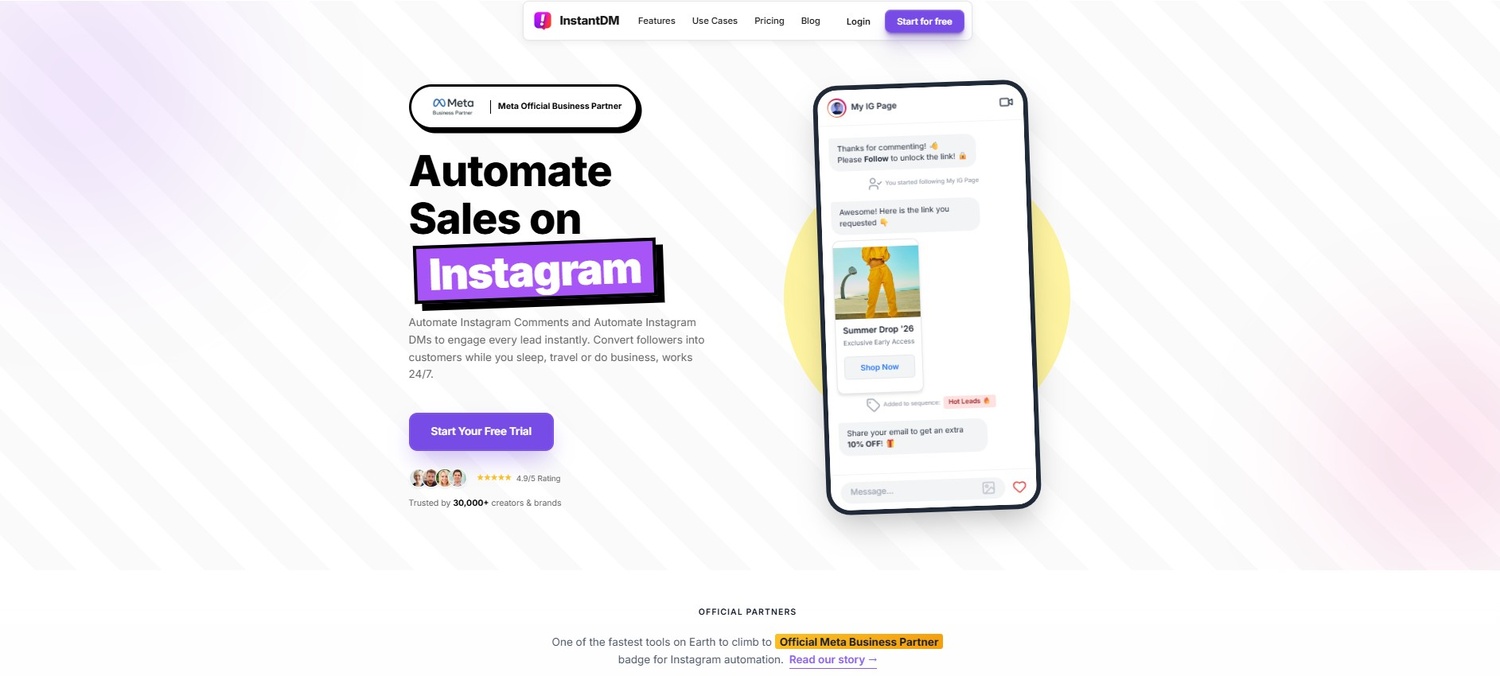
If you want to turn your comment section into a revenue engine, you need to implement a "Comment to Auto-DM" strategy. Instead of telling people to check your bio, your call to action becomes: "Comment the word 'SHOP', and I’ll send the link directly to your inbox."
When the user types that specific keyword, an approved software partner takes over immediately. The system automatically likes the user's comment and replies publicly (e.g., "Just sent it to your DMs! Check your requests!"), and privately messages them the direct checkout link.
This happens in less than a second. You eliminate all friction. The buyer goes from watching your video to looking at the checkout page instantly.
When choosing a platform to handle this, InstantDM is an official Meta Business Partner. You want a tool that integrates flawlessly through the official API to keep your account safe from shadowbans. For instance, many top creators are shifting toward software like InstantDM because it handles these instant replies and lead captures beautifully without the clunky setup of older bot tools. By implementing this style of workflow, your account is working, replying, and selling for you 24 hours a day, 7 days a week, even while you sleep.
To save time and streamline your social media marketing, you should connect your Instagram account to Meta Business Suite to manage and schedule posts for both platforms from a single dashboard.
12. Advanced Content Synergy: Scheduling Posts Linked with Automated DM Workflows
Creating a post is only half the battle; the other half is building the funnel behind it. True synergy happens when you combine the scheduling power of Meta Business Suite with advanced DM workflows.
The "Set It and Forget It" Architecture
Imagine this scenario: It's Tuesday morning. You are planning your content for Friday evening—a prime time for your audience, but a time when you want to be offline having dinner with your family.
Using InstantDM, you can schedule the Instagram post. But with advanced automation integration, you can schedule the video and the entire conversational funnel attached to it. You set the rules on Tuesday: When this video goes live on Friday at 6 PM, anyone who comments 'GUIDE' will get a DM with a link to my PDF. If they don't click the link within 3 hours, send a follow-up message."
The Role of AI in Humanizing Conversations
One of the main reasons brands used to avoid automated DMs was the fear of sounding robotic. Nobody wants to talk to a stiff, predefined menu. Today, cutting-edge tools use AI agents behind the scenes. When a follower asks a nuanced question in the DMs, the AI can read the context, answer naturally, and guide them to a sale, making the interaction feel deeply personal.
Understanding the Cost of Scaling
As you implement these strategies, you have to be mindful of overhead costs. Older automation tools charge per contact. That means if you have a video unexpectedly go viral and gather 50,000 comments, you might wake up to a massive, unexpected software bill for thousands of dollars. This is why the industry is pivoting. Smart creators are seeking out platforms with flat, transparent pricing. A system like InstantDM offers flat monthly rates—like unlimited automation plans for around ten bucks—meaning you are actually encouraged to go viral without being financially penalised for your own success. It changes the entire ROI equation of your marketing strategy.
13. Final Verdict: Building a Future-Proof Instagram Strategy
The digital landscape is unforgiving to those who refuse to adapt. Trying to run a modern, high-volume brand on social media using entirely manual methods is a guaranteed recipe for burnout.
First, you must lean into the Meta Business Suite for what it does best: macro-level organization. Use the Planner tab to batch your content weeks in advance. Rely on the Insights dashboard to understand demographic shifts and audience retention. Utilize the Sound Collection to keep your account legally protected from copyright strikes.
But second, you must protect your time and maximize your conversions by handling the micro-interactions with automation. By letting an approved partner handle the heavy lifting of immediately delivering links, answering repetitive questions, and qualifying leads, you free up your mental energy to focus on what actually moves the needle: creating incredible, high-value content for your audience.
Stop grinding in the comment section. Organize your strategy at the top level with Meta, and automate the ground-level execution.
Conclusion
Switching from Instagram Creator Studio to Meta Business Suite will take some getting used to, but ultimately it provides a more powerful set of tools to manage your digital presence. As you master the native analytics, scheduling and monetisation features you build a solid foundation for your brand.
However, the real secret to dominating Instagram today is recognizing where Meta’s native tools stop and where smart automation begins. By pairing the organizational power of Meta Business Suite with the rapid, 0.5-second conversion capabilities of tools like InstantDM, you can stop leaving money on the table, eliminate the link-in-bio friction entirely, and turn your comment section into a 24/7 sales engine.