Last updated: 31 October 2026
Facebook Business Verification is Meta’s free process to confirm that your Business Portfolio in Meta Business Suite belongs to a real, legally registered company and that you are allowed to represent it. You complete it in Security Center. Enter the legal name, address, phone, and HTTPS website exactly as they appear on official records. If Meta cannot match you automatically, upload accepted documents. It does not give a blue badge — that is Meta Verified, a paid subscription. WhatsApp API can start without it; verification is what you complete to scale limits, add numbers, or apply for Official Business Account. Review can take up to 14 business days.
| Question | Verdict |
| What is it? | A free legal-entity check of your Business Portfolio in Security Center |
| Blue tick? | No. Meta Verified is a different, paid product |
| Need it for WhatsApp API on day one? | No. Need it to scale limits, numbers, and Official Business Account |
| Official path? | Meta Business Suite → Security Center → Start verification |
| How long? | Often 1–3 days; Meta allows up to 14 business days |
| Most common fail? | Name/address mismatch, bad scan, or website not on HTTPS |
What is Facebook Business Verification?
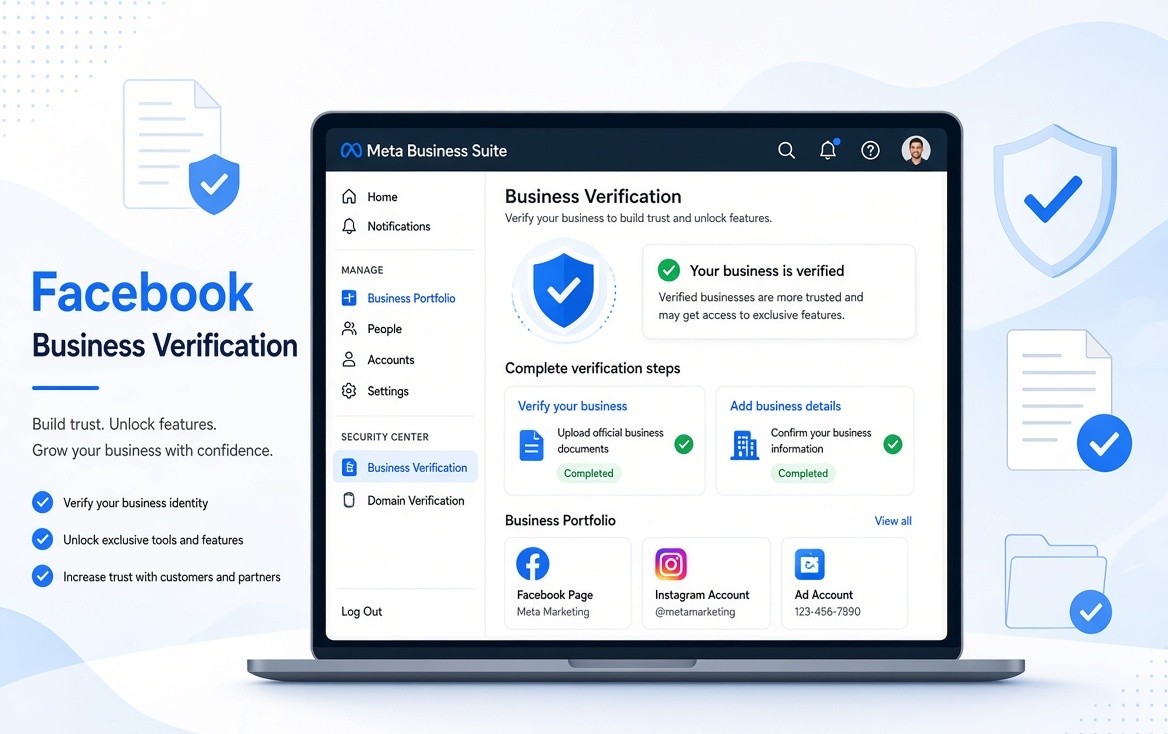
Facebook Business Verification is Meta’s process for confirming that a Business Portfolio belongs to a legitimate, legally registered business or organization, and that the person submitting the request is authorized to represent it.
You complete it in Security Center. Meta checks that the legal name, address, and phone (or domain) match public records or official documents. If the records match, you may not need to upload files. If they do not, you upload proof.
Meta states that verifying your business in Meta Business Suite is different from Meta Verified for businesses and will not give you a verified badge. See Meta’s overview: About business verification in Meta Business Suite.
People still search “Facebook Business Verification” even though the product UI now says Meta Business Suite or Business Portfolio. The button is still in Security Center.
If Meta asked you to “verify your business,” this is the process. If you want a blue tick on a Page or Instagram profile, that is a different product.
Facebook Business Verification vs Meta Verified vs a Page badge vs a WhatsApp tick
This mix-up sends people to the wrong form.
| Process | What Meta is checking | Badge? | Cost | Where you do it |
| Facebook / Meta Business Verification | The Business Portfolio is a real legal entity | No | Free | Security Center |
| Meta Verified (Business) | Identity + paid subscription on a Page or professional account | Yes, blue badge | Paid monthly | Meta Verified settings |
| Legacy / notable Page verification | Public notability (invite-only for most brands now) | Blue badge if granted | Free if invited | Not the Security Center flow |
| WhatsApp Official Business Account | Policy + verified portfolio + display name + other OBA rules | WhatsApp official mark | Free on the API path if you qualify | WhatsApp Manager after Business Verification |
Facebook Business Verification does not put a blue tick next to your Page name. It unlocks trust and product access inside Meta’s business tools.
If you want the badge, use Meta Verified. If WhatsApp limits, ads, or Security Center blocked you, stay on this page.
Do you need Facebook Business Verification for WhatsApp Business API?
You can connect a WhatsApp Business API number and start messaging without Facebook Business Verification. You complete verification when you need to scale.
On the unverified / entry path, Meta has historically capped business-initiated conversations (template outreach to new contacts) at a low unique-contact limit — commonly cited as 250 unique contacts in a rolling window — while replies to people who message you first stay more open. Exact tier names change. The principle does not: unverified accounts start small.
Complete verification when you want to:
- Move off the entry messaging tier
- Add more than the starter number of phone numbers on the WhatsApp Business Account
- Raise template capacity (display name approval is part of that path)
- Become eligible to apply for Official Business Account status
- Use advertising, developer (Advanced Access), billing, or spending options that Meta gates behind a verified portfolio
WhatsApp API signup no longer forces verification on day one. Verification is the gate for more messages, more numbers, and official-account eligibility — not the gate for sending the first compliant template.
Basic Facebook Page comment replies and Private Replies also do not wait on this check. That setup is covered separately in Facebook comment automation. Finish Business Verification first only when Meta or your WhatsApp partner says the portfolio must be verified.
Who should complete it in 2026
Complete Facebook Business Verification if any of these is true:
- Security Center shows Start verification
- A WhatsApp Business Solution Provider told you limits will not rise until the portfolio is verified
- You need Advanced Access on a Meta app
- Ads, billing, or spending options are blocked pending verification
- You want to add more WhatsApp numbers or apply for Official Business Account
If Security Center shows Ineligible for verification, you may not need this flow. Meta says not every business must complete it. You may still be asked later from another product (Commerce Manager, ads, a partner email). Follow that notice.
Sole proprietors, partnerships, private limited companies, and GST-registered Indian businesses can all verify if the legal name on the portfolio matches the legal name on the document. Trading names fail. Example: Business Info says “Sharma Decor” and GST says “Sharma Traders Pvt Ltd.”
Facebook Business Verification requirements
Do this before you click Start verification. Most first-try failures start here.
1. Full control of the Business Portfolio
Only an admin with full control can start verification. A Page admin on a personal profile is not enough.
2. Business Info already filled
Legal business name, registered country, street address, business phone, business email, website. Copy from the document, not from your Instagram bio.
3. Website that loads on HTTPS
The URL must start with https://, load without an error page, and preferably show the same legal name in the footer or contact page. A parked domain, a “coming soon” page, or an HTTP-only site is a common official rejection reason.
4. Phone or email you can actually receive
The confirmation code goes to the business phone or to an email on the same domain as the website. founder@gmail.com next to www.yourbrand.com is a mismatch.
5. Two-factor authentication on the admin’s personal account
Reviews stall when the person clicking Submit cannot prove they own the admin login.
6. At least one asset on the portfolio
A Page, an ad account, a WhatsApp Business Account, or a catalogue. Empty portfolios often hide or grey out the button.
What documents does Meta accept for Facebook Business Verification?
Meta wants two facts: legal name and address or phone. One strong document can cover both. Two do Official accepted types and languages: Upload official documents to verify your business.
Documents that usually prove legal name
- Certificate / Articles of Incorporation (Certificate of Incorporation in India)
- Business registration or license
- Government-issued business tax document (GST / VAT / EIN-style letters)
- Partnership deed with official registration, where that is the legal form
Documents that usually prove address or phone
- Utility bill in the business name (electricity, water, internet, gas)
- Business bank statement dated within about the last three months
- License or tax certificate that already prints the address and number
What Meta does not want
- Personal Aadhaar, passport, or driving licence as the only file (admin ID is a later ask, not the business proof)
- Invoices, letterheads, visiting cards, screenshots of a website
- Self-filled forms with no government or bank stamp
- Cropped photos, glare, missing corners, expired papers
- A document in an unsupported language with no stamped translation
File rules: PDF or clear JPEG/PNG, all four corners visible, text readable, no filters, no editing the name. If Meta asks for government ID of the admin, photograph it on a flat surface, full document, no fingers over the number.
Documents that work in India
| What you are proving | Strong options | Weak options |
| Legal name | Certificate of Incorporation + CIN, GST certificate, Udyam / MSME, Shop & Establishment, partnership deed | Visiting card, MSME acknowledgement without the legal name, cancelled cheque only |
| Address / phone | GST certificate with principal place of business, business current-account statement (last 90 days), utility or phone bill in the company name | Unstamped rent receipt, personal electricity bill, Gmail screenshot |
| Admin identity (only if asked) | Aadhaar / PAN / passport, full frame | Cropped Aadhaar, a phone photo of an ID on a bed |
Put the GST legal name into Business Info exactly — including “Private Limited”, punctuation, and spelling. Upload the GST PDF plus the Certificate of Incorporation. If the phone number is not on either file, add a bank statement that shows the same name and number.
Do not invent a shorter brand name in Business Info because it looks cleaner. Reviewers match strings.
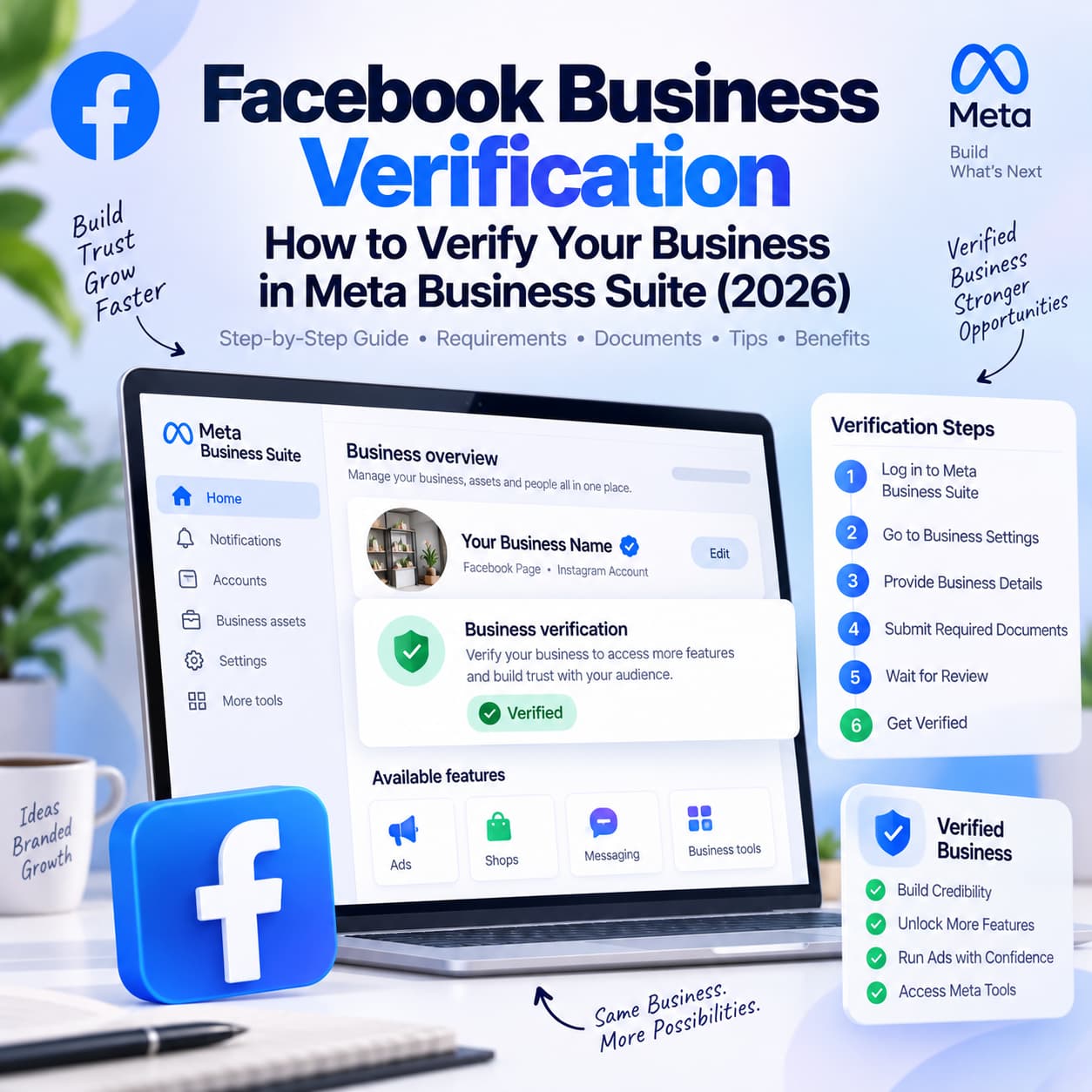
How to verify your business on Facebook (Meta Business Suite)
Use a desktop browser. Mobile Business Suite often hides or relabels Security Center.
- Sign in at business.facebook.com with the personal account that has full control of the portfolio.
- Open All Tools (gear) and select Security Center. Older menus said Business Settings → Security Centre. Same destination.
- On the Business Verification card, click Start verification. If you see Ineligible for verification, do not complete this card unless another Meta product emails you a different flow.
- Confirm country of legal registration and business type (sole proprietor, partnership, registered company). Pick what the document says.
- Enter legal name, address, phone, and website. Check every character against the PDF on your desk.
- If Meta lists matching public records, select your business. If nothing matches, choose My business isn’t listed or None of these match. That is normal for many Indian and small entities. It is not a failure.
- Upload the document(s) the screen asks for. Name proof first. Address or phone proof second if asked.
- Choose how to confirm you control the business: email, SMS, phone call, WhatsApp message, or domain verification (meta tag or DNS) if the domain is already verified.
- Enter the code. Domain verification can skip the code.
- Submit. Do not edit Business Info the minute after you submit.
The official flow is Security Center → Start verification → exact legal details → match or upload documents → confirm email/phone/domain → Submit. Meta’s step-by-step is here: Verify your business in Meta Business Suite.
If WhatsApp Embedded Signup started this, you may see a partner-led path instead of this classic flow. Both end at the same verified portfolio.
What if my business is not listed?
Meta searches public records using the name and country you typed. Many real companies never appear in that list.
Choose None of these match / My business isn’t listed. Then upload official documents. Do not pick a similarly named company just to continue. That is how people get rejected for claiming a business they do not own.
After you select “not listed,” Meta still needs a confirmation channel you control. Prefer a mailbox on your website domain.
Start Verification is greyed out or missing — what do you do?
The button stays locked when Meta does not yet treat the portfolio as eligible, not because your company is illegal.
Work through this order:
- Confirm you are logged in as a full-control admin, not an employee role.
- Fill every Business Info field. Save. Refresh Security Center.
- Attach at least one asset (Page, ad account, or WhatsApp number). Empty portfolios hide the card.
- For WhatsApp-driven verification, connect the WABA / phone first, then return to Security Center. Some providers only surface the card after Embedded Signup.
- Wait 24–48 hours on a brand-new portfolio. New portfolios often have no button on day one.
- Turn on two-factor authentication on the admin’s Facebook login.
- If you need developer features anyway, create a Business type app in the Meta Developer dashboard and link it to the portfolio. This does not replace documents. It sometimes makes Security Center treat the portfolio as a business that might need verification.
- If the card still says ineligible, you may not need this flow. Watch for a product-specific email instead.
A grey Start Verification button is a setup problem: wrong admin, empty Business Info, no asset, or a portfolio that is too new. Fix those. Do not pay anyone who says they can “verify your BM” by selling you a document pack.
How long does Facebook Business Verification take?
Meta states a decision may take up to 14 business days. Clean packets that match public records often finish in 1–3 days. Manual document review commonly lands in a few business days. Appeals add another cycle.
Check status in Security Center and in Business Info. You should also get an email.
If nothing moves after two weeks, an admin can use Get Help / Contact Support from Security Center. Sending the same PDF every day does not speed the queue.
Plan launches around the official ceiling, not around a best-case screenshot.
Why Facebook Business Verification gets rejected (and how to fix it)
Meta publishes the serious reasons: false or misleading information, claiming a portfolio you do not own, trying to circumvent review, and a website that fails to load, is not HTTPS, or errors out. Full list: Why was my business verification submission rejected?.
Most everyday rejections are simpler. Fix the specific defect. Do not invent a new story.
| What went wrong | What to do |
| Legal name in Business Info ≠ name on the document | Edit Business Info to the document string. Resubmit the same PDF. |
| “Sharma Decor” vs “Sharma Decor Private Limited” | Use the full registered name. |
| Document type not accepted | Swap to incorporation, license, tax/GST, bank statement, or utility bill. |
| Self-filed form, no stamp or seal | Upload the issued certificate, not the application you filled. |
| Blurry, cropped, or screenshot of a screen | Rescan. All four corners. PDF preferred. |
| Expired document | Use a current GST, a recent bank statement, or a valid license. |
| Unsupported language | Stamped English translation plus the original. |
| Website down, HTTP-only, or under construction | Put a live HTTPS site up with the legal name visible. Then appeal. |
| Personal utility bill | Get a bill or statement in the business name. |
| Picked the wrong company from the match list | Appeal. State you selected the wrong record. Upload your documents. |
| Admin ID cropped or edited | Flat-surface photo, full ID, no filters — only if Meta asked for ID. |
| Too many failed ID attempts | A different full-control admin submits. |
How to appeal
Open Security Center. Use the appeal / resubmit path on the same portfolio. Add the missing proof Meta named. If they ask for government ID plus two business documents, send exactly that.
Rejection is usually a mismatch or a file Meta cannot read. Align Business Info to the document, fix the website, resubmit once with cleaner files.
Never submit false information to “just get it through.” Meta lists that as a reason to refuse verification and to take action on the account.
After you are verified
Verified in Business Info is the end of this process. It is not the end of WhatsApp setup.
Still separate:
- Display name review for each WhatsApp number. The name customers see must match the business and WhatsApp / commerce policies.
- Official Business Account (the mark people still call the green tick). Verification is one requirement, not the whole application.
- Messaging limit increases. Verification is a route off the entry tier. Quality rating and delivered volume also move tiers. A verified portfolio is not unlimited templates the next morning.
- Meta Verified badge. Still a different, paid product.
Verified also does not turn on Messenger rules for you. If the next job is inbox replies and the 24-hour window, that is Facebook DM automation.
Partner-led vs classic Facebook Business Verification
| Classic | Partner-led (PLBV) | |
| Where it starts | Security Center | Embedded Signup or your WhatsApp provider’s support |
| Who uploads documents | You / full-control admin | You, through the partner’s allowed flow |
| Speed | Days to about 14 business days | Often faster when the packet is complete |
| End state | Verified Business Portfolio | Verified Business Portfolio |
If you already started classic verification, finish it there. Do not run two packets at once with different addresses.
Documents must still be yours. If a vendor offers to “verify you” with files you never saw, walk away.
How this guide was evaluated
This page is a process guide, not a tool review. Every claim was checked against a content type and a job: can a business admin act on it in Security Center today without mixing up Business Verification with Meta Verified or a WhatsApp tick.
| Content type | What it is | How we used it | What we did not treat it as |
| Official Meta Help | Security Center steps, rejection reasons, “not a badge” wording, review window up to 14 business days | Source of truth for definitions, path, and policy | A full how-to (no India documents, no grey-button fixes) |
| WhatsApp / BSP docs | Partner-led vs classic flow, why unverified accounts start on a low messaging tier | Context for when you verify, not a second product pitch | Proof of current tier numbers in every country |
| Practitioner guides (2026) | Document lists, “business not listed,” button greyed out | Confirmed repeated failure modes | Copy-paste structure or promised approval times |
| India registration reality | GST, CIN, Udyam, Shop Act, business bank statements | Mapped to Meta’s “legal name” and “address or phone” asks | A guarantee Meta will accept one specific file |
Rules we applied
- If Meta Help and a blog disagree, Meta Help wins on policy and timeline.
- Messaging limits are described as an entry cap that moves; the commonly cited 250 unique-contact figure is labeled as historical practice, not a frozen law.
- Badge, Page notability, and Official Business Account stay in a comparison table so one heading cannot be quoted as “how to get verified on Facebook.”
- No feature list, pricing, or “best tool” line belongs in the steps. Those are a different content type.
Pre-submit checklist
- Full-control admin, two-factor authentication on
- Legal name copied from the registration document
- Address and phone match that document or a second official file
- Website live, HTTPS, name visible
- Business email on that domain, or a phone that receives SMS
- PDF of incorporation / GST / license ready
- Second PDF for address or phone if needed
- One asset attached to the portfolio
- You are not applying for Meta Verified on this screen
What to do next
- Tick the checklist.
- Open Security Center on desktop.
- If the button is grey, fix admin and Business Info before you upload anything.
- After Verified, complete display name review if you are on WhatsApp API.
- Then set up Facebook or WhatsApp messaging with official APIs — not browser bots.