Last updated: 20 September 2026
Why Are Instagram Messages Not Showing?
Instagram messages may not show due to server outages, app bugs, outdated software, privacy settings, account restrictions, or device issues. The most common fix is clearing your app cache and updating Instagram to the latest version.
TL;DR:
If your Instagram DMs are failing to send, freezing, or missing notifications, follow this rapid checklist to find the culprit:
- Is Instagram Down? Before changing settings, check Downdetector or search `#InstagramDown` on X. If it is a global server outage, you just have to wait it out.
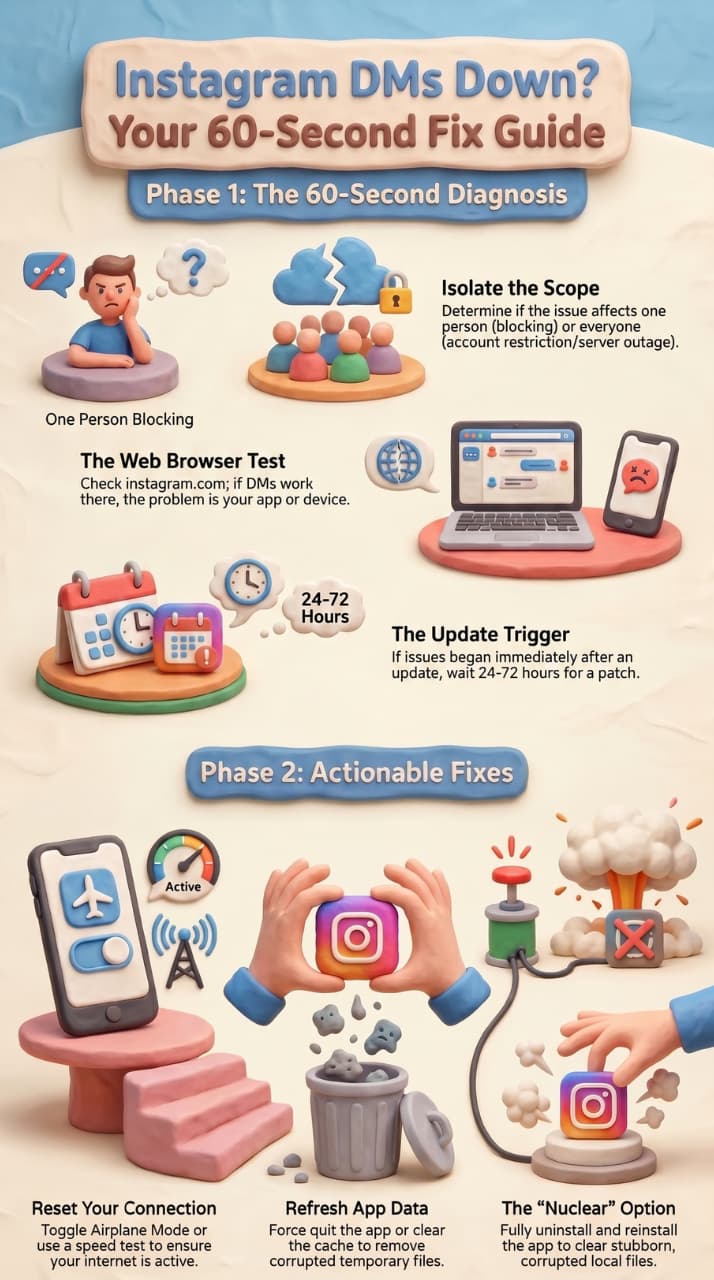
- The 60-Second Test: Try logging into instagram.com on a web browser.
- If DMs work on the web: The issue is your phone's app or local storage.
- If DMs are broken on the web too: Your account is likely facing an intentional "Action Block" restriction from Meta's spam AI.
Top 4 Quick Fixes
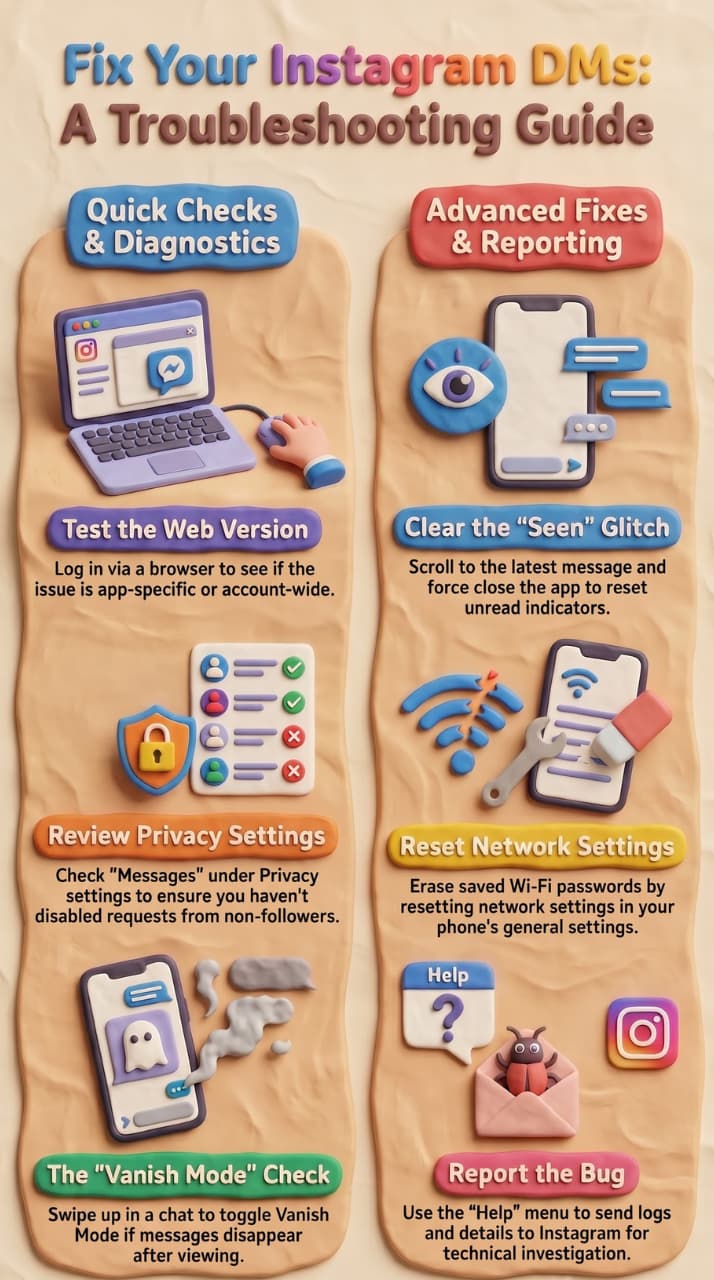
- Force Quit & Relaunch: Completely swipe the app closed from your phone's recent app tray and re-open it to clear minor sync freezes.
- Clear the App Cache:
- Android: Go to Settings > Apps > Instagram > Storage > Clear Cache.
- iPhone: Go to Settings > General > iPhone Storage > Instagram > Offload App, then reinstall it.
- Log Out and Back In: Open your profile, tap the `≡` menu, go to Settings & Privacy, scroll down, and tap Sign Out. Close the app, re-open, and log back in.
- Check Account Status: If you suspect a temporary ban for sending too many messages (the safe limit is roughly 50–70 DMs per day), go to Settings > Account > Account Status to check your restrictions.
1. What Is an Instagram DM Glitch? Why Are Your Instagram Messages Not Showing or Working?
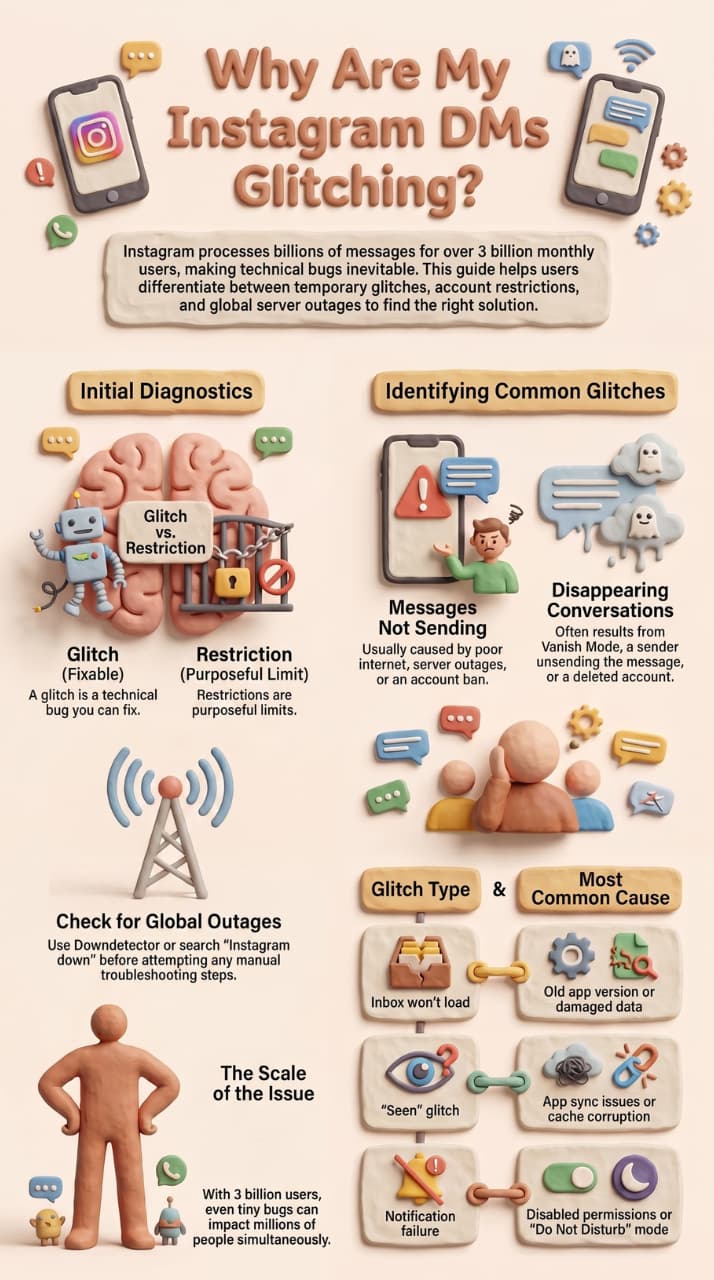
An Instagram DM glitch is any unintended bug in Instagram's Direct Message system — your instagram messages not showing, messages won't send, your inbox freezes, messages disappear with no warning, or you never get notifications for new DMs. Some users also report that ig direct message not working issues show up right after an app update, while others find they suddenly can't open messages on Instagram with no clear reason.
Instagram's DM feature is used by a staggering 3 billion+ monthly active users, processing billions of messages per second. Even tiny bugs at that scale affect millions of people at the same time — from a single conversation failing to load earlier messages on Instagram, to thousands of accounts hitting the same freeze simultaneously.
Important Note: The difference between a glitch and a restriction is important. A glitch is a technical bug that you can fix yourself, while a restriction is Instagram purposely limiting your account. This guide covers both.
Before spending 30 minutes troubleshooting, ask yourself: is Instagram messaging down right now? Check Downdetector or search "Instagram down" on X (Twitter) before changing any settings. If it's a global outage, no fix on your end will work — you just have to wait it out.
2.What Are the Most Common Instagram DM Glitches - Failed Messages, Missing Icons, and More?
Not all Instagram DM problems look the same. One user might find their instagram messages not showing at all, while another sees their instagram message stuck on sending for hours with no resolution. Before jumping into fixes, it helps to know exactly which glitch you're dealing with — because each one has a different root cause.
Here are the most common Instagram DM glitches users report in 2026:
1. Instagram Messages Not Showing
Your inbox loads but specific conversations are missing, or new messages from certain people never appear. This is usually a sync issue, a privacy setting blocking incoming messages, or messages silently routed to your hidden Message Requests folder.
Check Requests, Hidden, and General before you reinstall
A large share of “Instagram messages not showing” reports are not a glitch. Messages from people you do not follow sit in Requests. Hidden Words and spam filters move more into Requests - Hidden. Creator and business accounts also split mail into Primary and General.
Open Messages -Requests - Hidden. Accept the thread if it belongs in your inbox. If you use a professional account, swipe between Primary and General. Do this before clearing cache — reinstalling will not move a request into Primary for you.
How to check:
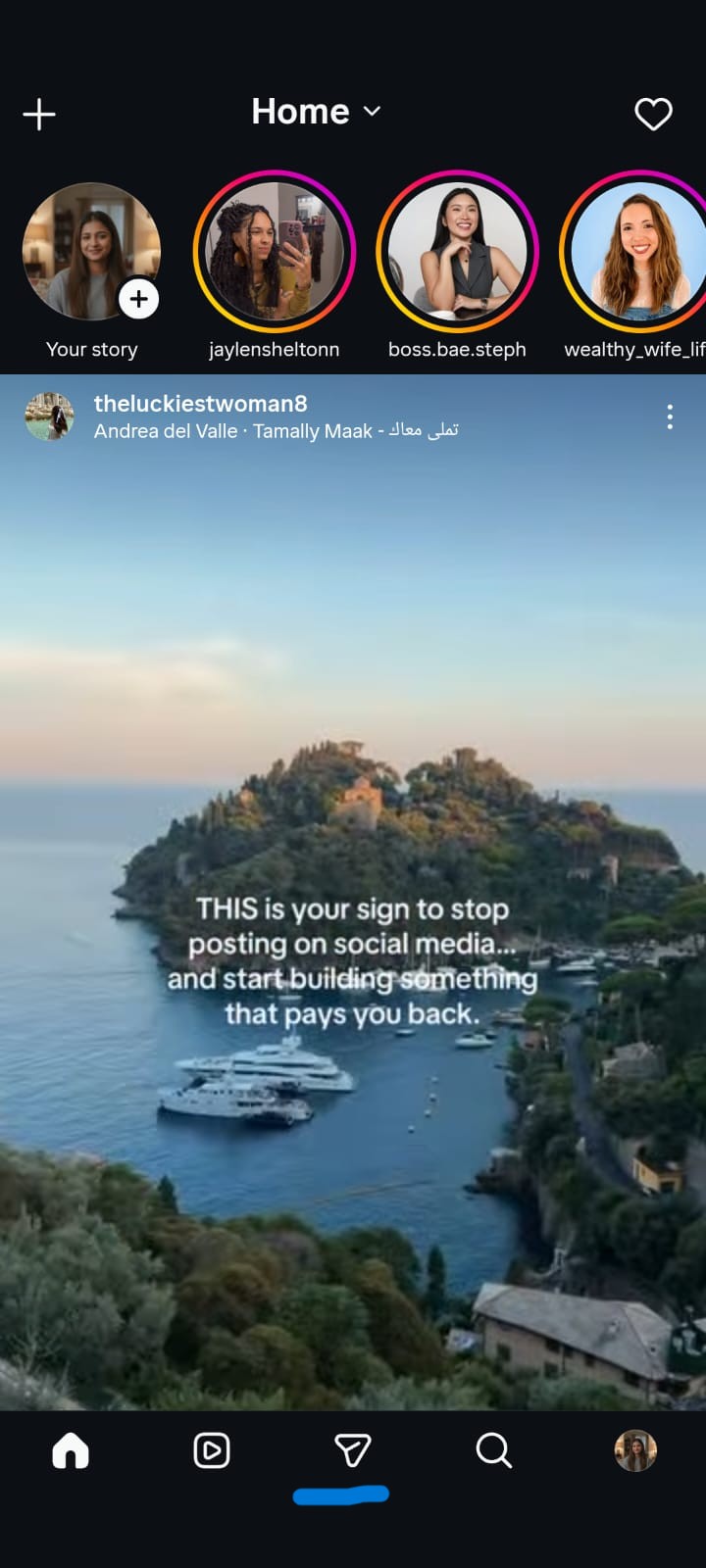
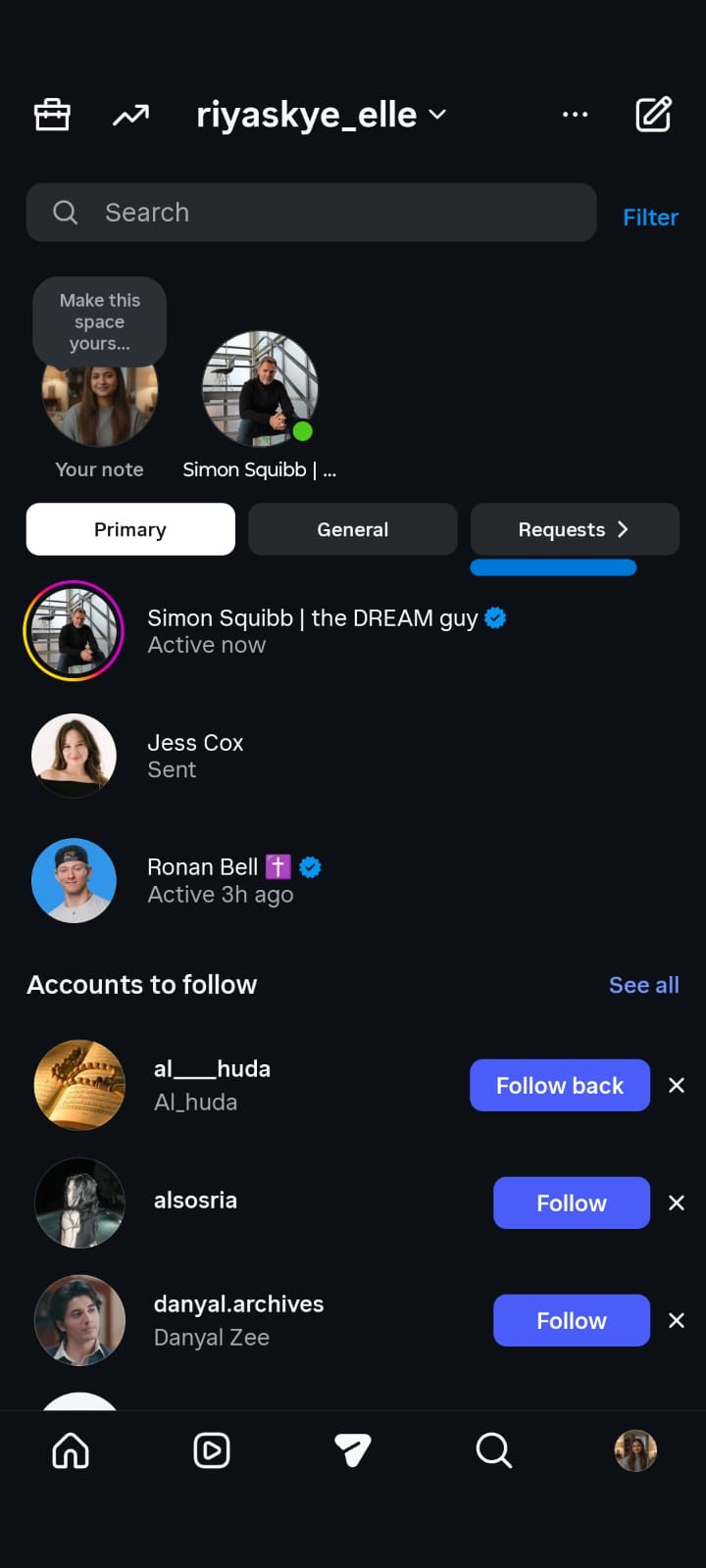
- Open Instagram - tap Messages.
- Tap Requests at the top of the inbox.
- Open Hidden (sometimes labelled Hidden Requests or Spam).
- If you have a creator or business account, also check Primary and General.
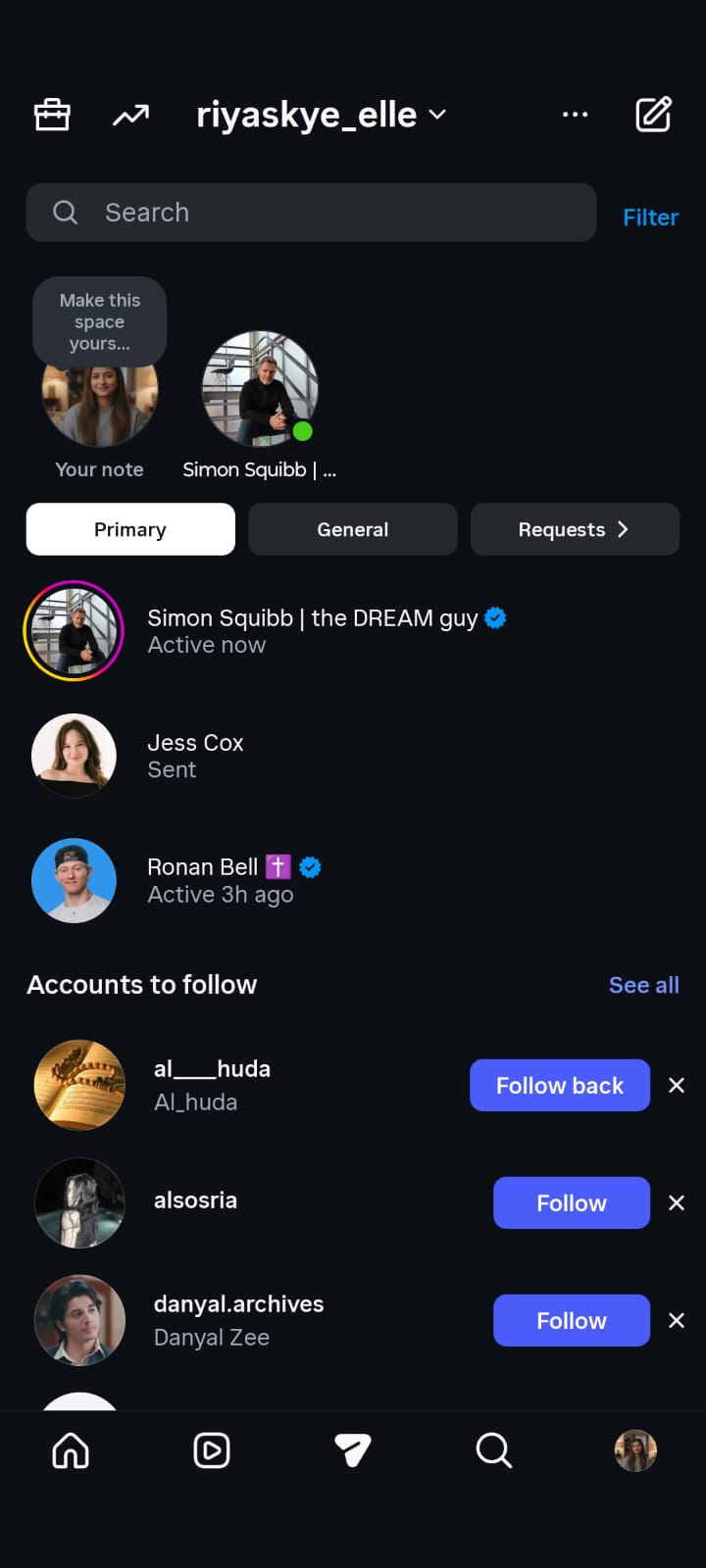
- Accept the conversation you expected to see. It will then appear in your main inbox.
If the message is in Hidden because of Hidden Words, go to Profile - Menu - Settings and privacy - Hidden Words and review the filter list. A word you added can send real DMs out of the main inbox without the app being broken.
2. Instagram Message Failed to Send
You type a message, hit send, and it just sits there — no "Delivered," no progress. An instagram message failed to send error typically points to a weak internet connection, a temporary server issue, or an account-level DM restriction placed by Instagram's spam detection system.
3. Failed to Load Earlier Messages on Instagram
You open an old conversation and see a loading spinner that never stops — or a blank screen where your chat history should be. This failed to load earlier messages instagram error is one of the most commonly searched DM problems and is almost always caused by a corrupted cache or an unstable internet connection.
4. Instagram Message Stuck on Sending
The message shows a rotating send icon and never moves past it. An instagram message stuck on sending is different from a failed message — it means Instagram is actively trying but can't complete the request. This usually means your connection dropped mid-send, or Instagram's servers are under load.
5. Instagram Can't Open Messages
You tap the DM inbox icon and nothing happens — the app freezes, crashes, or shows a blank white screen. Users who can't open messages on Instagram are usually dealing with an app-level bug, a RAM issue on older devices, or a corrupted local data file that needs a cache clear or reinstall.
6. IG Direct Message Not Working for One Specific Person
Everything else works fine, but ig direct message not working with one particular account. This almost always means one of three things: they've blocked you, they've restricted you (sending your messages to their hidden requests), or their account has been deactivated.
7. Instagram Message Icon Missing
You open Instagram and the paper plane icon — your shortcut to DMs — has vanished from the top right of your home screen. The instagram message icon missing issue is typically triggered by an app update that reset your UI, a display glitch, or in rare cases, a temporary feature restriction on your account.
What does each Instagram DM error actually mean?
Name the failure first. Inbox, one thread, history, and media are four different faults.
What you see | What is broken | First fix |
Inbox spinner / “There was a problem loading your messages” | Connection or Instagram chat servers | Switch Wi-Fi to mobile data, then check Downdetector |
Chat list opens, every thread is empty | Stale session | Log out and back in, then test instagram.com |
One conversation spins, others work | That thread or the other account | Open the same chat on web; check if they restricted you |
“Failed to load earlier messages” | History fetch or cache | Clear cache (Android) or offload the app (iPhone) |
Text sends, photos or videos do not | Media upload or Data Saver | Turn Data Saver off, switch network, send a new image |
Requests folder will not open | Same as inbox load | Try web, then clear cache |
Message stuck on sending | Mid-send drop or action block | Force-close the app; if it also fails on web, check Account Status |
Notification arrives but the inbox looks empty | Requests, Hidden, or the sender unsent it | Open Messages > Requests > Hidden |
Why won’t my Instagram messages load?
Instagram messages usually fail to load because the app cannot finish the request to Meta’s chat servers. The cause is almost always a weak or switching connection, a stale app session, a corrupted cache, or an Instagram-side outage. If the rest of the app works but the inbox spins, it is a chat-server or local-session problem — not a deleted conversation.
Do this in order:
- Switch Wi-Fi to mobile data, or the reverse. Wait 10 seconds. Open Messages again.
- Force-close Instagram and reopen it.
- Open instagram.com in a browser. If DMs load on the web, the phone app is the fault. If they also fail on the web, check Downdetector — it may be an outage, not your account.
- Android: Settings Apps > Instagram >Storage >Clear Cache. iPhone: Settings > General >iPhone Storage > Instagram >Offload App, then reinstall.
If only one thread spins and every other chat opens, the problem is that thread or the other person’s account — not your whole inbox.
3.How Do You Diagnose Why Instagram Messages Are Not Showing or Sending in 60 Seconds?
Before running through 14 fixes, spend 60 seconds answering these three questions. Your answers will tell you exactly what category your problem falls into — and cut your troubleshooting time in half.
Question 1: Does This Affect Everyone or Just One Person?
The fastest way to narrow down why your instagram messages are not showing is to check if the problem is isolated to one conversation or happening across your entire inbox.
If you can't DM anyone at all:
- Your internet connection may have dropped
- Instagram's servers may be down (check Downdetector)
- Your account may have an active DM restriction
- An app bug is preventing messages from sending or loading
If ig direct message not working with just one specific person:
- They have likely blocked or restricted you
- Their account may have been deactivated or deleted
- Their privacy settings may be preventing your messages from reaching them
Question 2: Do Instagram Messages Work on Instagram Web?
Open instagram.com on any browser and try sending a DM there. This single test tells you more than almost anything else.
Question 3: Did This Start Right After an App Update?
If your instagram messages not showing or ig direct message not working issue appeared immediately after updating the app, the new version likely introduced a bug.
If yes — here's what to do:
- Check Reddit (r/Instagram) or search X for reports of the same issue
- If others are reporting it too, Instagram typically patches it within 24–72 hours
- In the meantime, use Instagram Web as a workaround
- If the problem is severe, roll back to the previous app version (Android only, via APK)
If no — the update is not the cause:
- Move on to the connectivity and cache fixes in the next section
4. How Do You Fix Instagram DM Glitches When Messages Are Not Sending or Not Loading? (14 Solutions)
These fixes are ordered from fastest to most involved. Whether your instagram messages not showing, your ig direct message not working, or you're seeing an instagram message stuck on sending — start from Fix 1 and work your way down until your DMs are back to normal.
Fix 1: Could a Bad Internet Connection Be Why Your Instagram Messages Are Not Sending?
This is the #1 reason why messages fail to send or instagram messages not showing in your inbox. Before blaming the app, rule out your connection first:
- Toggle Aeroplane Mode on and off to reset your network connection
- Turn Wi-Fi and mobile data off, then back on
- Run a speed test — even full signal bars can hide a dead connection
- Open another data-heavy app like YouTube or WhatsApp. If those are broken too, your internet is the problem, not Instagram
Fix 2: Does Force-Closing Instagram Fix Messages Stuck on Sending or Not Loading?
If you leave Instagram running in the background for hours, it accumulates sync errors — which is one of the most common reasons for instagram message stuck on sending or a frozen inbox.
iPhone (iOS): Swipe up from the bottom → find Instagram → swipe it up to close → reopen
Android: Tap the recents button → swipe Instagram off the screen → OR go to Settings > Apps > Instagram > Force Stop > reopen
This instantly clears most minor freezes, notification glitches, and messages not sending on instagram issues caused by background sync failures.
Fix 3: Does Logging Out and Back Into Instagram Fix DMs Not Showing or Failing to Send?
Logging out forces Instagram to establish a fresh connection with its servers. This is especially effective when instagram messages not showing on one device but loading fine on another.
- Open your Profile - tap the ≡ menu (top right corner)
- Tap Settings & Privacy
- Scroll to the bottom - tap Sign Out
- Close the app completely
- Reopen Instagram and log back in
Tip: If you use multiple accounts, sign out of all of them at the same time for a full session reset.
Fix 4: How Does Clearing Instagram's Cache Fix Messages Not Showing or Not Loading?
Over time, Instagram's cached data corrupts — and corrupted cache is one of the top causes of failed to load earlier messages on instagram, the "Seen" glitch, and instagram messages not showing after they've been sent.
Android (manual cache clear): Settings - Apps - Instagram - Storage & Cache -Clear Cache (Do not tap "Clear Data" unless you want to be logged out)
iPhone (iOS — no one-tap option): Settings - General - iPhone Storage - Instagram - Offload App This removes the app but keeps your login data. Reinstall from the App Store for a clean cache without losing your account settings.
Fix 5: Can an Outdated Instagram App Cause Messages to Fail to Send or Not Show?
Yes — older app versions frequently have unpatched bugs that cause ig direct message not working, instagram messages not showing, and send failures. Instagram pushes updates multiple times per month specifically to fix these.
iPhone: App Store → search Instagram → tap Update if available
Android: Google Play Store → search Instagram → tap Update if available
Once updated, go straight to your DMs to check if the issue is resolved. Enable auto-updates so you never fall behind.
Note: Occasionally a new update itself introduces a bug. If your instagram messages not showing issue started right after an update, check Reddit (r/Instagram) or X for reports. Instagram typically patches confirmed bugs within 24–72 hours.
Fix 6: Does Restarting Your Phone Fix Instagram DMs That Are Stuck or Not Sending?
A full device reboot clears RAM, resets network configurations, and resolves system-level issues that app fixes can't touch — including persistent instagram message stuck on sending errors.
iPhone X and above: Hold Side Button + Volume Down → slide to power off → wait 30 seconds → press Side Button to restart
Android: Hold Power button → tap Restart (or Power Off, then back on after 30 seconds)
Fix 7: When Should You Reinstall Instagram to Fix Messages Not Showing or Loading?
A clean reinstall is the nuclear option. It wipes all of Instagram's local files — including deeply corrupted data that a cache clear alone won't remove. Use this when instagram can't open messages, failed to load earlier messages instagram persists after Fix 4, or the app crashes every time you open the inbox.
- Uninstall: Tap and hold the Instagram icon → Remove/Uninstall
- (Optional) Restart your device to fully clear app memory
- Reinstall: Search "Instagram" on the App Store or Google Play → install fresh
- Sign in and go directly to your DMs
This resolves stubborn glitches that have survived every other fix.
Fix 8: Can Instagram Web Fix Messages Not Sending When the App Is Glitching?
Yes — and it's one of the most underused workarounds. Instagram Web now supports all DM features including text, photos, voice messages, and reactions.
Open instagram.com in any browser, log in, and tap the paper plane icon at the top. If your messages not sending on instagram through the app but work fine on web, the problem is app-side — not your account. This also lets you keep communicating while you work through the remaining fixes.
Fix 9: Can Privacy Settings Cause Instagram Messages to Stop Showing or Sending?
Surprisingly, many instagram messages not showing complaints are not bugs at all — they're caused by privacy settings silently filtering or blocking incoming DMs. Go to Settings > Privacy > Messages and check the following:
- "Others on Instagram" — if set to "Don't Receive Requests," non-followers literally cannot DM you, which explains why can't i message people on instagram from their end
- Message Requests → Hidden Requests — Instagram auto-filters suspicious messages here; real DMs from real people may be buried here
- Blocked Accounts — check you haven't accidentally blocked someone you're trying to reach
- Muted Conversations — muted chats receive messages silently; you won't see new message notifications, making it look like instagram messages not showing
Fix 10: Why Can't I See My DMs on Instagram? How to Tell If You're Blocked or Restricted
If ig direct message not working with one specific person, it's rarely a technical glitch — it's almost always a block or restriction:
- Can't find their profile at all → you've been blocked
- Messages show "Sent" but never "Delivered" and you can still view their profile → you've been restricted (your messages go to their hidden request folder silently)
- Their name shows as "Instagram User" → their account has been deactivated or permanently deleted
Being blocked has no technical fix — that's the other person's choice.
Fix 11: Why Are Instagram Messages Not Showing as Read? The "Seen" Glitch Explained
If a conversation keeps showing as unread even after you've opened it, this is a known sync bug where Instagram displays an older message as the most recent one:
- Open the conversation
- Scroll all the way down to the actual latest message
- Force-close the app completely
- Reopen — the unread indicator should be gone
If it keeps happening, run Fix 4 (clear cache) and Fix 5 (update app). Instagram patches this particular sync bug periodically.
Fix 12: Why Are Instagram DMs Disappearing or Failing to Load Earlier Messages?
Before assuming it's a glitch, check these three things first:
- Vanish Mode is on — when enabled, messages auto-delete after the recipient sees them. To disable: open the chat → swipe up on the screen → tap "Disable Vanish Mode"
- Messages were unsent — senders can delete their own messages at any time; you'll see "This message is no longer available" where it used to be
- Entire chat thread is gone — the person likely blocked you or deactivated their account, which hides the full conversation thread from your inbox
For the failed to load earlier messages instagram error specifically, this is almost always a cache or connection issue — run Fix 4 and Fix 1 in that order.
Fix 13: Should You Reset Network Settings When Instagram Messages Are Not Sending?
If messages not sending on instagram from the app but working fine on Instagram Web, your device's stored network configuration may be corrupted — not Instagram itself.
iPhone: Settings → General → Transfer or Reset iPhone → Reset → Reset Network Settings (This erases saved Wi-Fi passwords — have them ready before you proceed)
Android: Settings → General Management → Reset → Reset Network Settings
Restart your device, reconnect to Wi-Fi, and reopen Instagram to check if your DMs are back.
Fix 14: How Do You Report Instagram Messages Not Showing or Failing to Send?
If you've tried every fix above and instagram messages not showing, ig direct message not working, or instagram can't open messages is still happening — report it directly to Instagram so their engineering team can investigate:
- Profile → ≡ menu → Settings & Privacy
- Help → Report a Problem
- Select "Something isn't working"
- Describe the issue in detail: when it started, what you've already tried, any error messages you saw, and whether the problem happens on Instagram Web too
- Toggle on "Include Logs" — this automatically sends technical diagnostic data to Instagram's engineers
You likely won't receive a personal response, but mass reports from multiple users directly accelerate official patches from Instagram's team.
Fix 15: Turn off VPN, proxy, and private DNS
A VPN can make Instagram treat the session as a new country and freeze chat sync. Disable VPN and any private DNS, then reopen Messages.
Fix 16: Fix the phone’s date and time
If date and time are set manually and are wrong, Instagram’s session tokens fail and the inbox never finishes loading. Set date and time to automatic.
Fix 17: Check device storage and Low Power / Data Saver
A full disk and system Data Saver both block the media cache that DMs need. Free at least 1 GB, turn those modes off, and reopen the app.
Why are my Instagram DMs not loading or sending pictures?
When text sends but photos, videos, or voice notes sit on a spinner, the chat connection is alive and the media upload is not. Instagram compresses and uploads media on a separate request. Data Saver, a weak connection, full device storage, or a stuck media cache will block pictures while text still goes through.
Fixes that apply to media:
- Turn off Data Saver in Instagram: Profile > Menu > Settings and privacy > Data usage and media > Data saver > Off. Also disable Low Data Mode on iPhone and Data saver on Android.
- Confirm the device has free storage. Instagram cannot cache a photo if the phone is full.
- Switch from Wi-Fi to mobile data. Public or hotel Wi-Fi often allows text and blocks larger uploads.
- Turn off any VPN, then retry the photo.
- Send the same image compressed, or as a smaller file. If that works, the original file is too large or in an unsupported format.
- Clear cache (Android) or offload the app (iPhone), then send a new photo — do not keep retrying the same stuck bubble.
- Test on Instagram Web. If the photo sends on desktop, the mobile media pipeline is the problem.
If no media loads in old threads either (grey boxes, infinite spinner), that is the same “failed to load earlier messages” cache or outage issue, not a send limit.
5. Why Can't I Message People on Instagram? DM Restrictions and Temporary Bans Explained
If your ig direct message not working and no technical fix has helped, your account likely has an intentional restriction — not a bug. Instagram's AI flags spammy behavior like sending 50+ DMs rapidly, messaging non-followers repeatedly, using unauthorized bots, sharing suspicious links, or getting reported as spam by multiple users. Sudden activity spikes after a dormant period and VPN usage also trigger blocks.
When restricted, you'll see "Action Blocked" or "You can't send messages right now." This is why your instagram messages not showing as delivered — Instagram has paused your DM ability while Stories, Reels, and posts continue working normally.
What Should You Do When Instagram Blocks You From Sending Messages?
- Stop all DM activity immediately — continuing extends the block
- Go to Settings > Account > Account Status to see the restriction details
- If it's a mistake, tap Request Review and write a brief, polite explanation
- Wait — restrictions lift automatically, typically within 24–72 hours
- Never create a new account, use a VPN to bypass, or spam the appeal system
Pro Tip: Instagram's safe daily limit is roughly 50–70 DMs, but this varies by account age, follower count, and activity history. To safely scale your messaging without risking your account, recover first and stop unofficial bots. If a lock or restriction came from a login-based bot, see what Instagram actually permits. If you later automate, use only Meta’s official API — not tools that log in as you.
How can I update or troubleshoot Instagram Messenger integration?
Instagram DMs and Facebook Messenger share Meta’s messaging backend. If you linked accounts, a broken Messenger session, a revoked Connected tools permission, or an outdated Facebook app can stop Instagram messages from loading or sending even when the feed looks fine.
Work through this:
- Update both apps: Instagram and Facebook / Messenger, from the App Store or Google Play. Do not update only Instagram.
- In Instagram go to Profile - Menu - Settings and privacy - Messages and story replies - Connected tools. If a connected inbox is listed, toggle message access off, wait 30 seconds, then on again.
- On Facebook: Settings - Accounts Center — confirm the same Instagram account is still linked. If the link expired, reconnect it.
- Log out of Instagram, log out of Facebook, force-close both, then log into Instagram first.
- If you use a third-party inbox, open Connected tools again after an app update. Meta sometimes drops that permission silently, which looks exactly like “DMs not loading.”
- Try Messages on instagram.com. If web works and the app does not, the problem is the device session, not the account.
Business and creator accounts should also check Messages → Primary / General / Requests. Synced Messenger threads sometimes land in General, which looks like DMs disappeared.
Login-based bots and bulk-send tools are one of the fastest ways to turn a small glitch into an Action Block. If you need comment-to-DM or story replies, use a tool that talks to Meta’s official API and queues sends instead of firing them from your phone session. That is the difference between a temporary “can’t send” warning and a multi-day restriction — the official API tools compared here show which ones stay inside those limits.
6. Is Instagram Messaging Down? How to Check If the App Is Broken
If you are staring at your inbox and noticing that Instagram messages are not showing up, you aren't alone. When the app experiences server-side issues, there is nothing you can do on your end to fix it. If you are wondering, "Is Instagram messaging down, or is it just me?" here is how you can quickly check the status:
- Check Downdetector: Head over to Downdetector and search “Instagram.” A massive spike in user reports confirms a widespread platform failure.
- Search X (Twitter): Look up hashtags like
#InstagramDownor phrases like "IG direct message not working." During a major outage, you will see thousands of users posting about the same issue within minutes. - Look for Specific Error Patterns: If your app keeps saying failed to load earlier messages on Instagram, or if you find that you can’t open messages on Instagram at all while the rest of your feed loads, it's a classic sign of a targeted chat server malfunction.
- Meta’s Status Page: Meta occasionally posts official updates on their developer or business status channels during major, platform-wide downtime.
- Ask a Friend: Reach out to a contact on a different internet network or device. If their DMs are completely frozen too, the issue is definitely on Meta's server side.
Recent loading outages (2026)
Blank inboxes and “failed to load earlier messages” have hit users in clusters this year, including a March 2026 wave where the messages page opened empty on both app and web, and a July 2026 stretch where sends sat unsent while older messages refused to load. If Downdetector spikes and your web inbox is also blank, wait. Reinstalling during a server incident does nothing.
7. How Instagram DMs behave differently on iPhone and Android
The fixes are mostly the same, but the process varies by operating system.
1. Android users have more direct control—you can clear cache on your own without reinstall.
2.iPhone users will have to delete or offload the app to do the same.
"If your interface remains completely unresponsive, you must run through a systematic hardware and network check. You can watch this video guide outlining how to fix Instagram not working on iPhone [00:00] to test everything from VPN interference to localized device power cycles."
8. How to Avoid Instagram DM Glitches Going Forward
These habits can help avoid most recurring DM problems:
- Update Instagram as needed - Please note that you won’t have bug fixes and performance improvements if you don’t have the latest version.
- Avoid mass messaging — stay well below Instagram’s daily DM limits and vary your message body
- Clear cache every now and then – every few weeks if you are an Instagram addict
- Do not use unofficial third-party tools – Only use apps that connect through Instagram’s official API
- Continue the same level of activity — sudden spikes in follows, likes or DMs are a trigger for Instagram spam detection
- Verify your account info — a linked phone number and verified email address boost your trust score for your account
- Use the official Instagram app only – modified APKs and unofficial versions bypass security checks and often result in limitations
- Periodically check your Message Request settings so you don’t miss out on Real non-follower DMs
Conclusion:
Instagram DM bugs can range from minor sync issues that you can fix by restarting the app to account-level restrictions that require a multi-day block to wait out. In the vast majority of instances, the fix is one of: check your internet, clear cache, update the app or wait for an Instagram outage to fix.
The most important diagnostic step is to first check Instagram Web. If DMs work there, the problem is the app on the phone. If they don’t work there either, your account or the servers of Instagram are the problem. Go through the fixes one by one and you’ll likely be back in your DMs in minutes.
Next Steps and Related Content
- How to Unlock an Instagram Account
- Instagram Comments Couldn't Load Error
- Instagram Profile Does Not Exist Fix