last updated: 20 September 2026
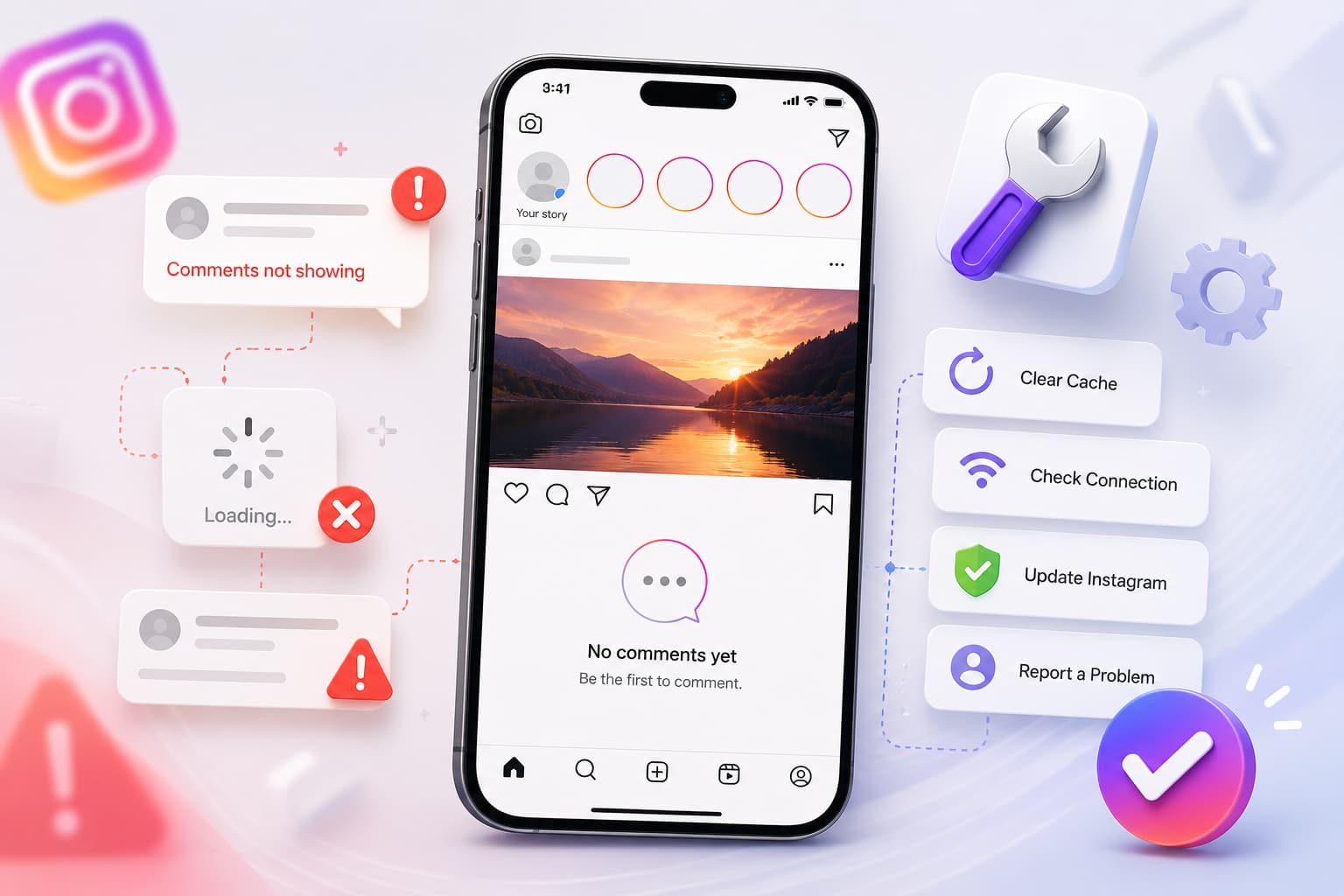
Quick Answer: Instagram comments not showing, not loading, or “couldn’t load” is usually a filter or a fetch fail — not deleted comments. Hidden Words, Comment Limits, “Allow comments from,” and Most Relevant sorting hide rows. A dropped comment request leaves a count with a blank thread. Refresh the post, switch to Most Recent, open View hidden comments, set comments to Everyone, turn off Limits and VPN, then clear cache. If only your comments vanish after posting, that is a shadowban (Fix #10), not a load error.
Can’t See Comments on Instagram? Here’s all the fixes.
15 step-by-step fixes for every reason, from shadowbans and comment filters, to app bugs and glitches on the desktop. Works on iPhone, Android and the Web.
■ Fast Self Diagnosis
- See comment count but no comments? Fix #4 or #5
- Your own comments disappear after posting? Fix #10 (Shadowban)
- Works on mobile, not desktop? Fix #14
- No response to your own post? Patch #9 or #8
Underlying Causes
Why Instagram Hides or Blocks Comments

Even on your own posts, Instagram doesn’t display all comments. The platform is actively filtering content. There are different reasons why this happens.
- Search Comments Triggered / Instagram’s Secret Words: Automatically filter offensive and spam. Too aggressive settings can pick up on real comments also, removing them.
- Privacy Options Limitations: Your “Allow Comments From" setting may restrict who can add comments. Options like “People I Follow" silently blocked comments of non followers.
- Leave a Reply / Comments Off in the Post: You (or others) may have intentionally disabled comments for a certain post. All comments disappear when this is turned on.
- Sort by: Best Match: Instagram algorithm only shows 'top' comments. Recent or upcoming less engaged comments from strangers may be hidden behind this filter.
- Restrict or Block In Action: Blocked accounts comments disappear completely. Restricted accounts comments turn into not seen by everyone except for the one who wrote ’em.
- Shadowban on Your Accountability: If your own words vanish in a flash after posting, Instagram can have marked you as robot-like behaviour.
- Bad Internet Source: Comments load from Instagram servers. A poor connection means that the fetch request fails — you look at the count, not the actual remarks.
- Server Error or App Error Issue: Occasionally Instagram has bugs or is down. If the problem was noticed suddenly without changes on your end, this often is the reason.
- Desktop/Web Limitations: The web version of Instagram loads slower and comments often misses nested comments. Mobile is the sole full reliable way to view all remarks.
Why won’t Instagram let me see comments?
Instagram is not always broken when comments vanish. The app hides or delays comments on purpose through Hidden Words, “Allow comments from,” Comment Limits, restricted accounts, and “Most Relevant” sorting. It also fails silently when the comment API call drops — photos can load while comments stay blank.
If Instagram “won’t let you see comments,” check which of these is true:
- You see a count but an empty thread > sort filter or Hidden Words.
- Comments work on some posts only > that post has commenting off, or that owner restricted/blocked you.
- Your comments vanish after you post > shadowban or spam filter, not a load error.
- Nothing loads on any post > network, cache, outdated app, VPN, or an Instagram outage.
Instagram comments not loading or “couldn’t load comments”
“IG comments not loading” and “comments couldn’t load” are fetch errors, not deleted comments. Instagram stores comments on its servers. Your app makes a separate request for the thread. If that request times out, you get a spinner, a blank box, or the couldn’t-load message — even when the comment count is correct.
Fix the load error in this order:
- Toggle Airplane Mode for 10 seconds, then reopen the post.
- Switch Wi-Fi to mobile data. Comments fail on flaky Wi-Fi more often than the feed does.
- Force-quit Instagram and reopen it.
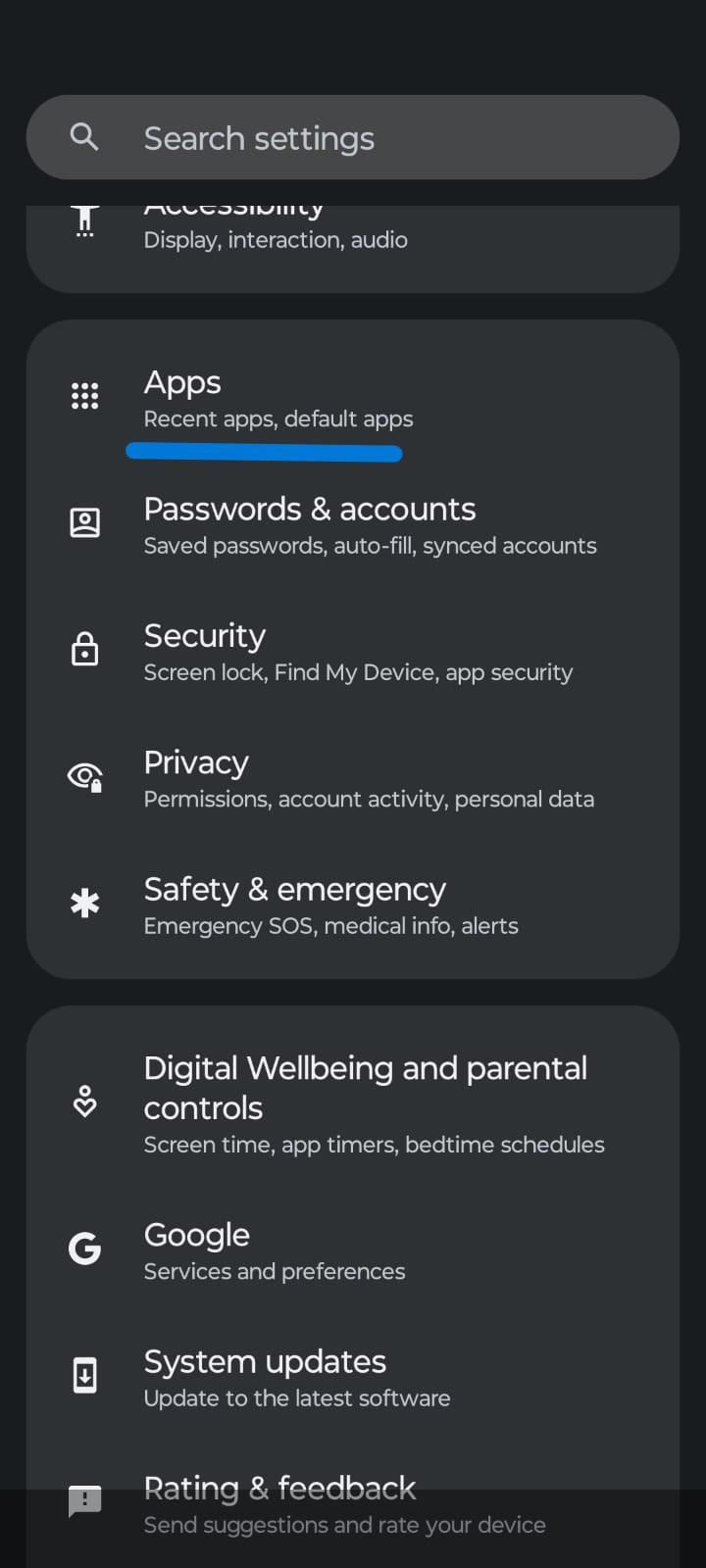
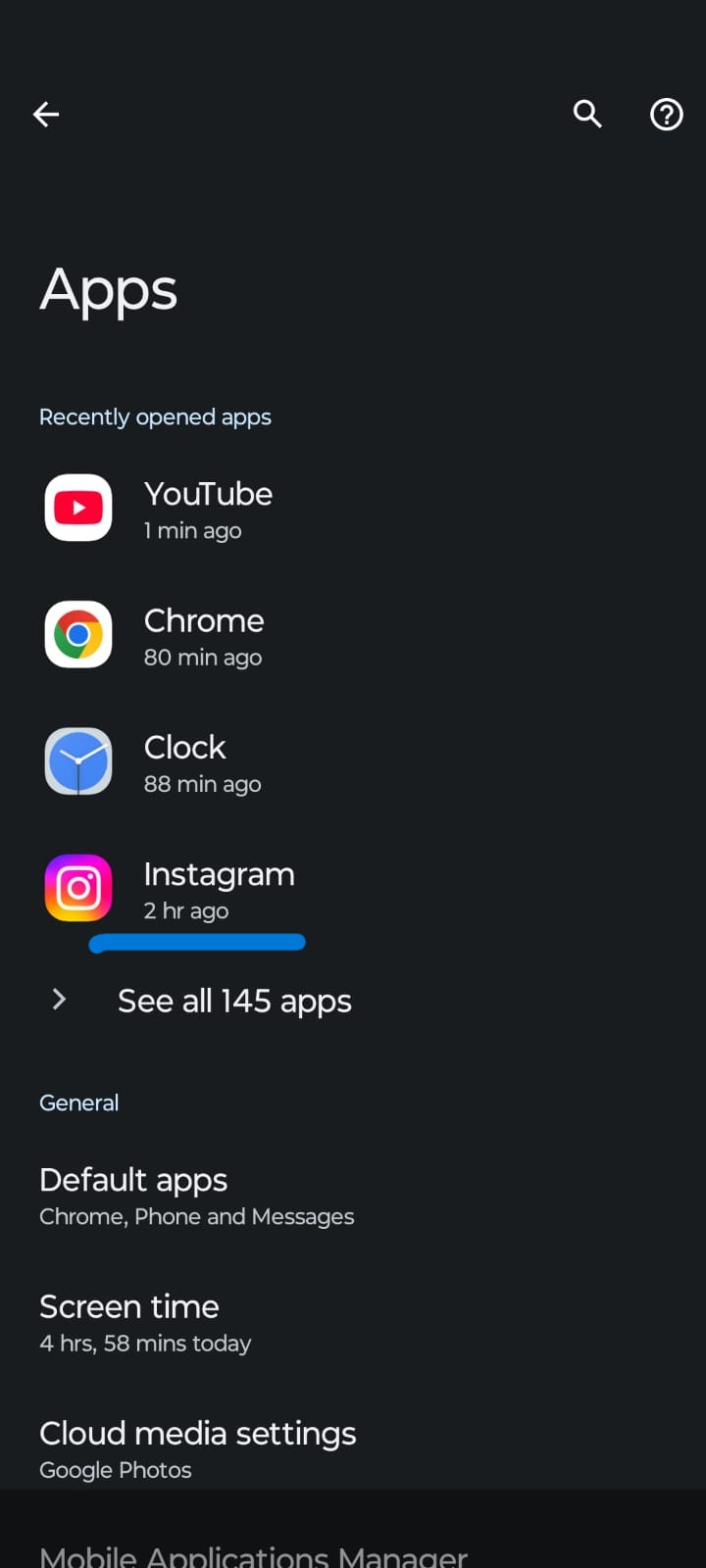
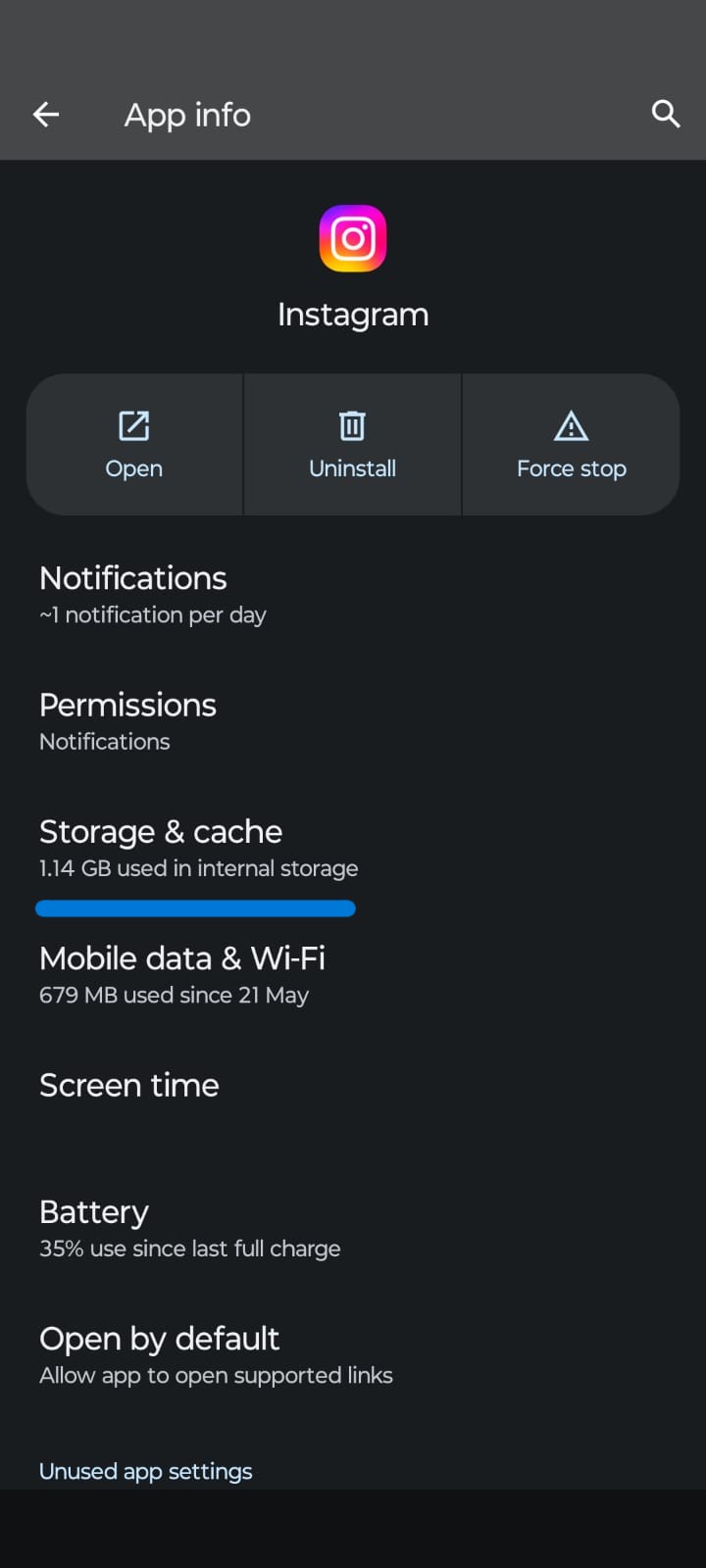
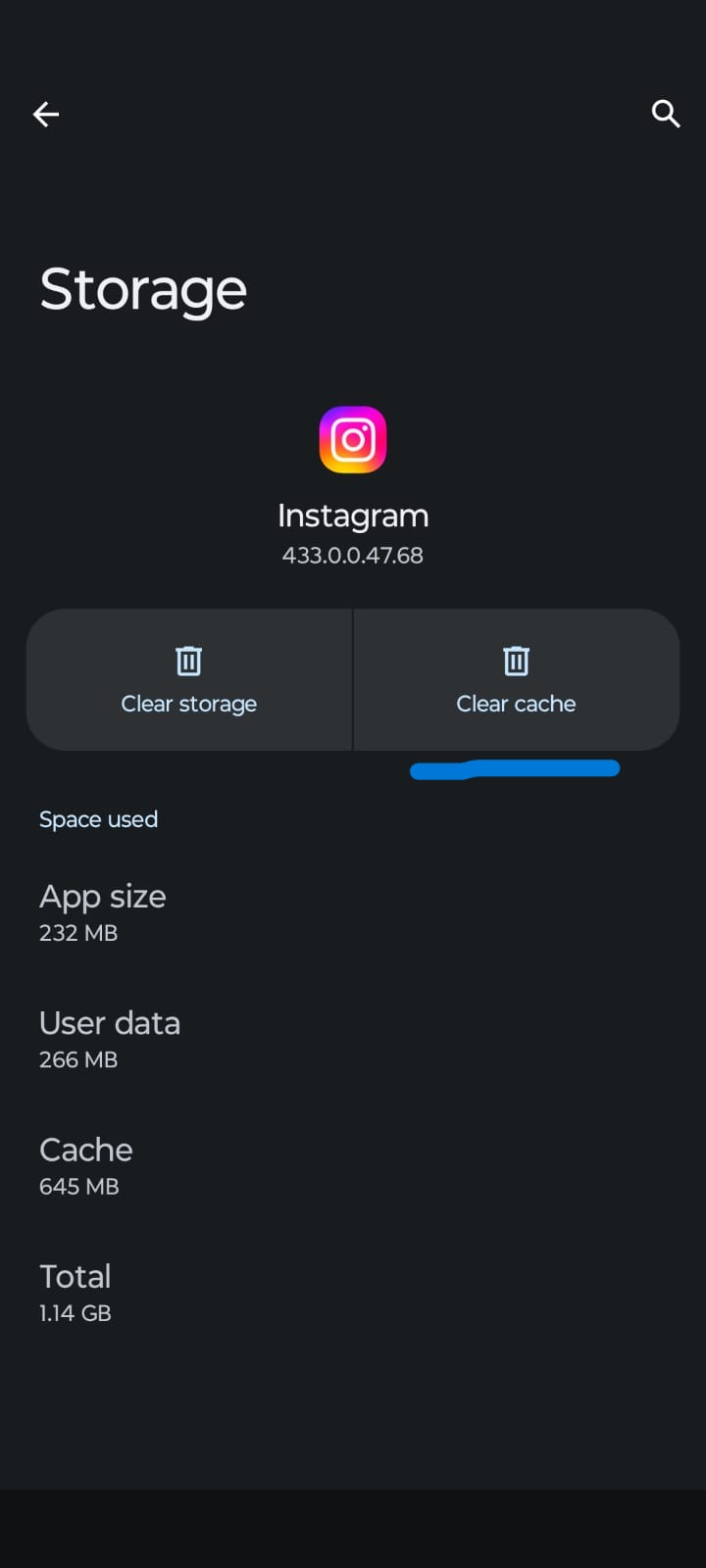
- Android: Settings > Apps > Instagram > Storage > Clear cache. iPhone: Settings > General > iPhone Storage > Instagram > Offload App, then reinstall.
- Turn off VPN / proxy and any “Use less mobile data” or Low Data Mode toggle.
- Update Instagram, then check Downdetector if the error is happening for everyone.
What should I do if I can’t see comments on Instagram?
Do this first, in order, before changing account settings:
- Pull down to refresh the post.
- Open the same post from another account or in a browser incognito window. If comments appear there, the problem is your app or filters — not the post.
- Switch the comment sort from Most Relevant / Top comments to Most Recent.
- Scroll to the bottom of the thread and tap View hidden comments.
- Settings > Privacy > Comments > set “Allow comments from” to Everyone.
- Settings > Privacy > Hidden Words > turn off Advanced comment filtering and remove words like price, free, link, DM.
- Settings > Privacy > Limits — review held comments from new followers and turn Limits off if you want every comment public.
- Only then clear cache, log out, update, or reinstall.
If the same comments are missing for everyone on every device, the owner turned commenting off or Instagram is filtering that thread.
Diagnosis First
What Is Your Circumstance?
One symptom is not proof of one cause. Use this table to jump quickly to the right fix. If your Instagram comments are not showing on multiple posts, the problem is likely account-wide (settings, shadowban, or app issue). If comments disappeared on just one post, it's probably a post-specific setting or filter issue.
Symptom | Likely cause | Do this |
Count shows, thread empty | Sort filter or Hidden Words | Most Recent + View hidden comments |
Comments won’t load / “couldn’t load” | Network, cache, VPN, outage | Airplane Mode → clear cache → off VPN |
Only one post blank | Comments off on that post | Three-dot menu → Turn On Commenting |
Your comment vanishes after posting | Shadowban or spam filter | Stop commenting 24–48 hrs (Fix #10) |
Works on phone, not desktop | Web comment limits | Use the mobile app (Fix #14) |
Notifications but few public comments | Comment Limits + Hidden Words | Review Limits queue + Hidden Words |
15 Fixes to Try – in Order
Work through these in order. Fix #1 to #6 solves most of the comment issues. The latter fixes are for the less common or more severe causes.
1. Verify Your Internet Connection

Most common | Most missed. Comments are loaded from remote servers, not your device.
- Open another app (YouTube, browser) just to check that your internet is working in general.
- To refresh your network connection: switch Aeroplane Mode ON for 10 sec, then OFF.
- Toggle Wi-Fi and mobile data (or vice versa) and re-launch Instagram.
- If on Wi-Fi, power cycle your router (unplug for 30 sec).
■ TIP: If photos do load but comments do not, this is a partial connectivity issue. Instagram comment fetch is a separate API call -- more prone to connection drops than loading images.
2. Force quit and restart Instagram
Eliminates temporary display glitches in less than 30 seconds.
- iPhone: swipe up from bottom to open app switcher navigate to then swipe up on Instagram’s card.
- Android: hit Recent Apps then swipe Instagram away. Please wait 5 seconds.
- Go back to Instagram and open the post where your comments are gone.
- If it still doesn't work: Do a full restart of the device (power - Restart) to flush more caches.
3. Review your comment privacy settings
One wrong setting here can silently block hundreds of comments.
- Tap your profile navigate to menu navigate to Settings and privacy navigate to Comments.
- Make sure 'Allow comments from' is checked — choose Everyone for maximum visibility.
- Make sure no accounts are added to ‘Block comments from’ by mistake.
- Save your changes and return to the offending post.
■■ NOTE: Business or creator Always set “Allow comments from” to Everyone. Settings such as “People I follow" silently blocks non-followers (including new customers) from commenting.
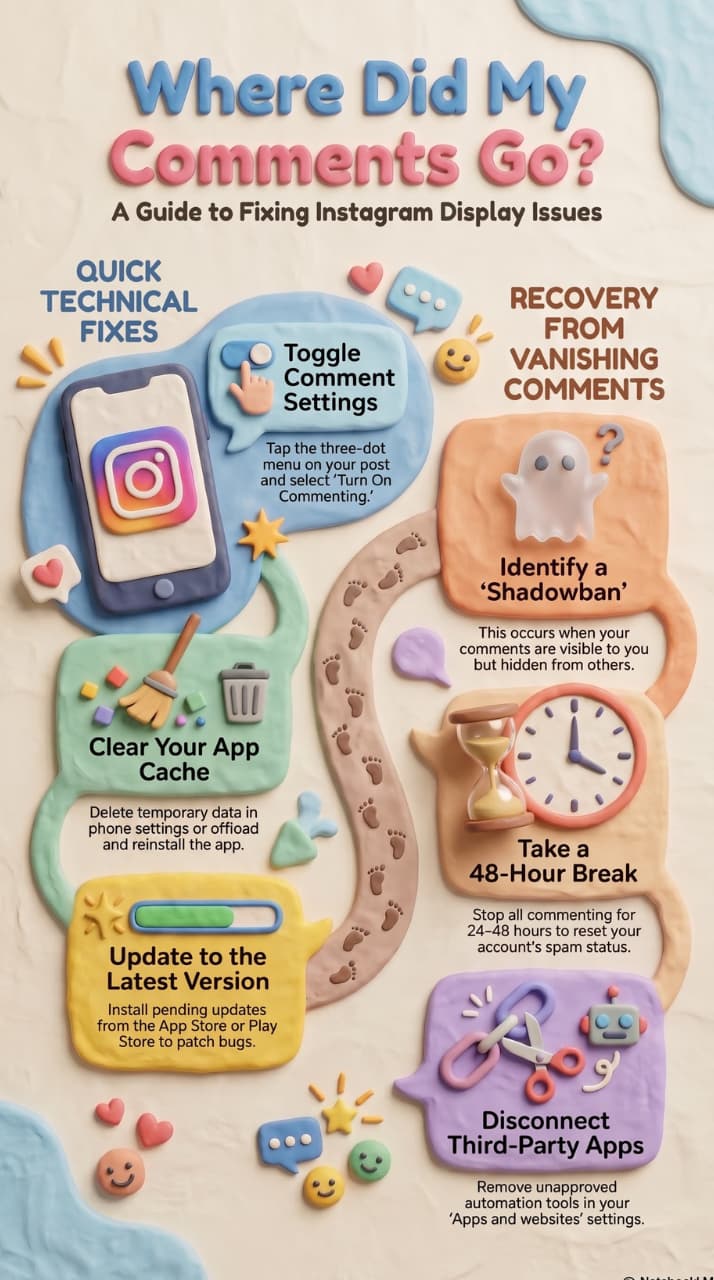
4. Uncover Your Hidden Comments - 'Comments For You'
- Open the post that appears to have no comments.
- Click on the comment bubble icon to see the full comment section.
- Scroll to the bottom of the comment list.
- Tap ‘View Hidden Comments’ or ‘Comments for You’ — tap it.
- Please review the contents. For the legit ones just tap 'Show Comment' to reveal.
■ ATTENTION: If you are still seeing real comments here, your Hidden Words filter is set too aggressively. Many businesses discover that they have not answered customer questions for weeks due to over-active filtering. Adjust it, go to Fix #6.
5. Switch Sort from 'Most Recent' to 'Most Relevant' Comment
Instagram’s algorithm hides new comments by default. That leaves them all open.
- Click on the comment icon on the post.
- At the top of the comment section, look for a small icon to sort or filter.
- Hit that, and choose 'Most Recent'.
- Now all comments are in chronological order – even those previously hidden.
■ HINT: The sort preference does not always persist across sessions. Make it a habit to look at the sort order when you open a post you want to monitor it fully.
6. How to Turn Off or Adjust Instagram's Hidden Words Filter
The most powerful - and most over aggressive - comment filter on instagram.
- Head to profile navigate to Settings and privacy navigate to Hidden Words.
- First, try turning off 'Advanced comment filtering' — it's usually over-sensitive.
- Carefully review your Custom words and phrases list.
- Delete words like ‘free’, ‘price’, ‘cost’ or ‘link’ that can stop customer questions.
- Save your changes and see if any previously hidden comments are now showing up on your posts.
■■ TRADE-OFFS: Turning off all filters means you’ll need to manually moderate spam. For busy accounts, keep ‘Hide offensive comments’ enabled to filter out offensive comments, or disable ‘Advanced comment filtering’ to balance protection and visibility.
Check Instagram Comment Limits (often missed)
Comment Limits are separate from Hidden Words. When Limits are on, Instagram holds comments from new followers and accounts that do not follow you back. You may see a lower public count, and those people think their comment “never posted.”
Path: Settings and privacy - Limits (sometimes listed under Hidden Words / Comments depending on app version).
- Review the held-back list and approve real comments.
- Turn Limits off on a campaign or launch post if you want every reply public.
- Remember: Limits + “People I follow” + Hidden Words stacked together can hide almost all new customer comments.
This is one of the most common reasons a business account “has 40 comments” in notifications and only 8 on the post.
7. Find Blocked or Restricted Accounts
Blocked accounts are hidden. Replies from limited accounts are visible only to the account owner.
- Settings navigate to Privacy navigate to Blocked Accounts. Review and unblock people added by mistake.
- Go to Settings then Privacy then Restricted accounts. Review and unrestrict as appropriate.
- How to know if you are restricted by someone: leave a comment from another account — if other people can see it but not your main account, you have been restricted.
8. Enable Comments for the Individual Blog Post
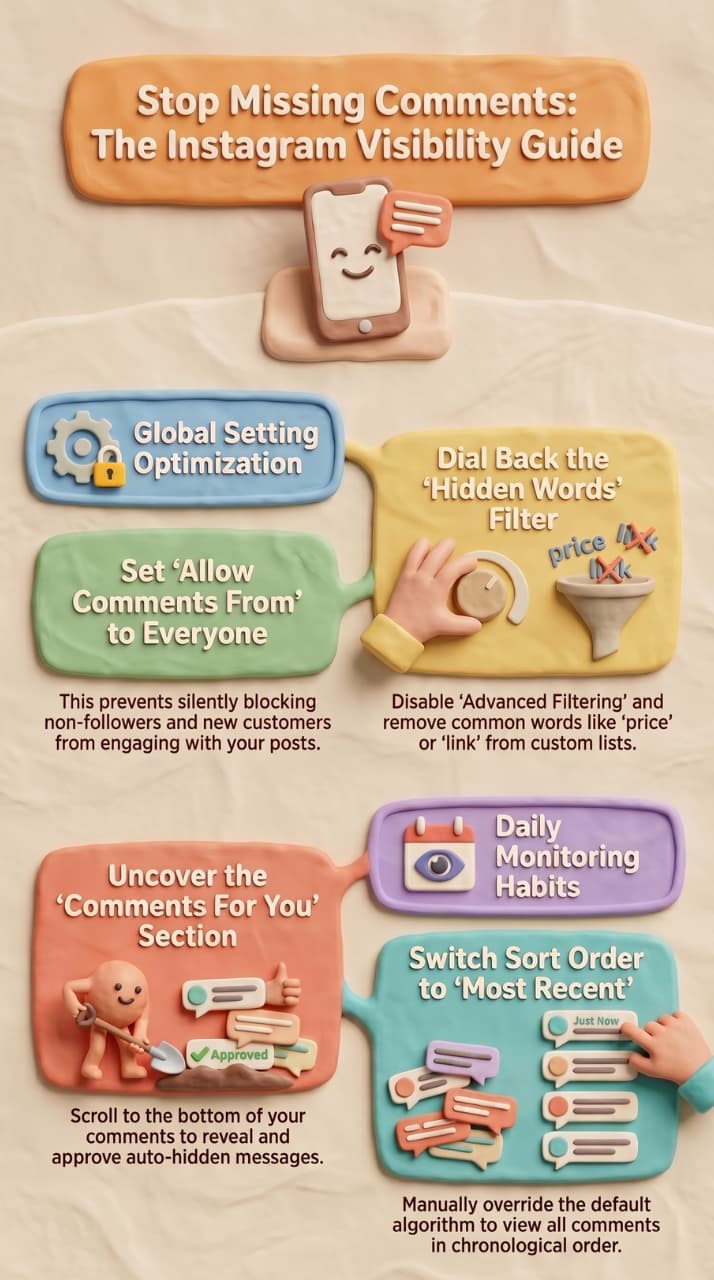
- Go to the post where the comments aren’t appearing.
- Tap the three-dot menu (■) in the upper right corner of the post.
- If you see 'Turn On Commenting' tap it. Comments are closed.
- All previous comments will immediately reappear.
CHECK! If it says 'Turn Off Commenting' on the menu, comments are already on — this is not your problem. Go to Fix #9.
Fix your decreasing follower count and audit your content strategy by reviewing these core platform maintenance steps right now.
9. Clear Cache Instagram
Silent display glitches (corrupted temporary data).
- Android: Open Settings, tap Apps, select Instagram, tap Storage & Cache, then tap Clear Cache.
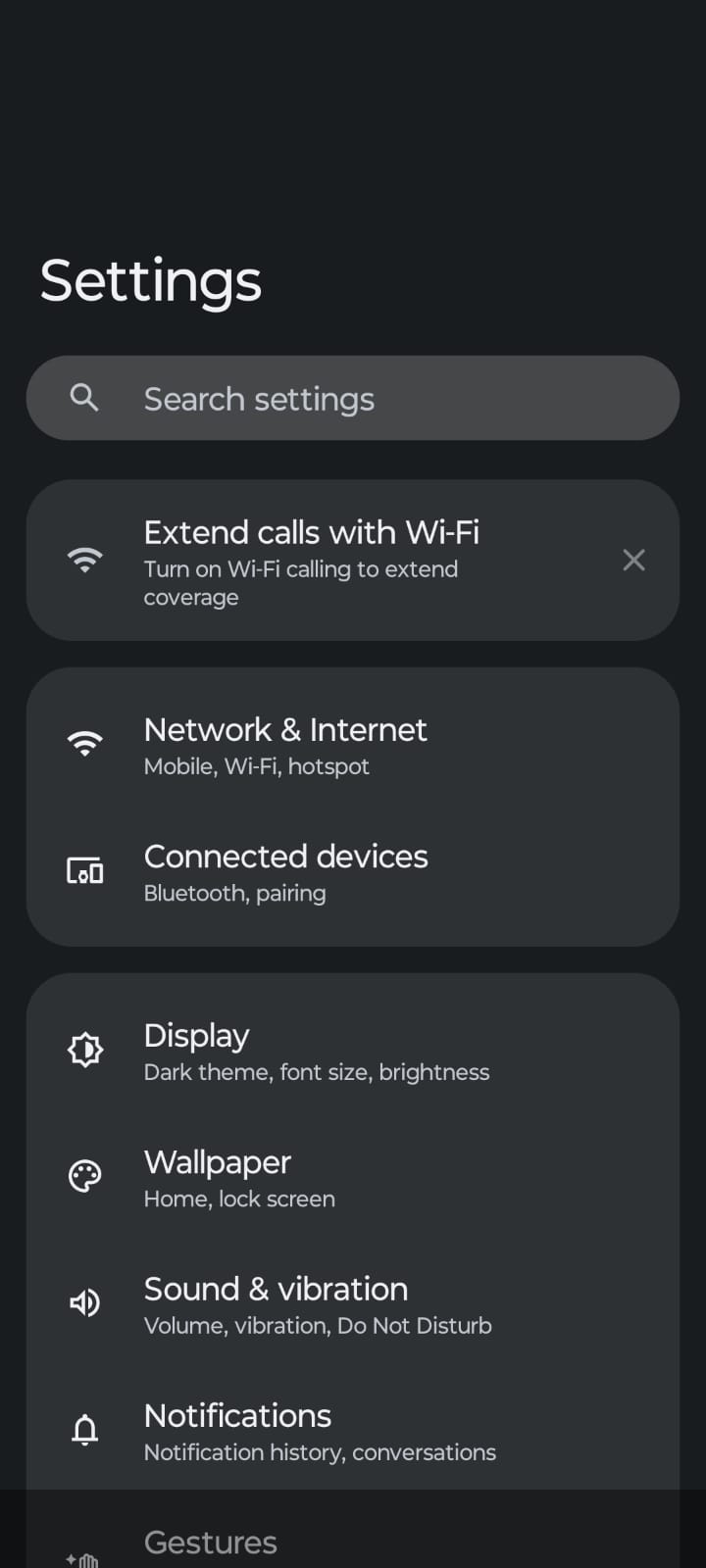
- iPhone: Open Settings, tap General, select iPhone Storage, choose Instagram, tap Offload App, and then reinstall Instagram from the App Store.
- Reopen Instagram and go to the problematic post.
- Note: Clearing the cache does not delete your account, posts or messages.
Your Comments will Vanish After Posting
Fix 10 – Remove a Shadowban
“Shadowban" is Instagram’s way of quietly punishing accounts for behaviour that comes off as spam. You can still comment — but what you write no one else can see. Your comments are the best clue: They seem to you right away but looking from another account they are gone.
- ■ Immediate comment deletion: You post a comment and it shows up for you but checked from another account it vanished.
- ■ Engagement drop out of the blue: Post reach and comments have decreased tight with no change in content.
- ■ Comments Copy & Paste: You have been posting the same comment text on multiple posts.
- ■■ Using third-party tools: You have used unapproved automation apps to like, comment or follow in droves (classic bot signal). Unofficial bots are a common cause of comment hiding and account flags — see what Instagram actually permits.
How to Remove a Shadowban:
- Stop ALL commenting for 24-48 hours completely. This is not up for debate. Continuing extends the restriction.
- Turn off third-party apps: Settings then Apps and websites then Active. Cancel anything unofficial.
- After the break, start commenting naturally again – mix your words up, slow your pace.
- If the ban persists after 72 hours, open Instagram Settings, tap Help, select Report a Problem, and provide a detailed explanation of the issue you are experiencing.
■ IN CRITICAL: Shadow bans can be for 24 hours to a few weeks depending on how bad they are. The only sure cure is to quit the flagged behaviour and hang out. There is no ‘quick unlock’ – anyone saying otherwise is providing misinfo
Comments Disappeared:
Why Did My Instagram Comments Disappear? Instagram comments disappearing is different from comments not loading. If your comments vanished after you posted them, here's what happened:
Your comment was filtered: Instagram's automatic spam filter flagged your comment. This happens when you use words in Instagram's hidden blocklist, post too quickly, or include links. Check your "Comments for You" folder (Fix #4) to see if it's there.
You're shadowbanned: If every comment you post disappears immediately, you're likely shadowbanned. See Fix #10 for the full removal process.
The post owner deleted it: Post owners can delete any comment on their posts. If your comment disappeared on someone else's post, they may have removed it.
Instagram comment glitch: Sometimes Instagram comments disappear due to a temporary app glitch. Force quit the app, clear cache, and check again. If the comment count shows but comments aren't visible, this is a display bug — not deletion. Account restriction: If the post owner restricted your account, your comments are hidden from everyone except you. You'll see your comment, but no one else will. Test this by checking the post from a different account.
11. Sign out and Sign back in
It resets your account session and fixes authentication level glitches.
- Profile then ■ menu then Settings and privacy
- Scroll down and tap on Sign Out.
- Close the app completely (swipe from recents), reopen and log back in.
- Head to the post in question and see if the comments load.
12. Update Instagram to the Newest Version
Old versions have known bugs in comment loading, already patched.
- Open the App Store (iPhone) or Google Play Store (Android).
- Find Instagram and check if there’s an Update button.
- Install the update and then wait for it to fully complete before you open again.
- Turn on auto updates so this doesn’t happen again.
13. Reset Instagram Completely
A full reinstall clears local app data that cannot be cleared any other way.
- iPhone: Long press Instagram icon then Remove App then Delete App. Android: Long press then Uninstall.
- Reboot your device (important – don’t skip this step).
- Reinstall Instagram from the App Store or Play Store.
- Sign back in. Your posts, DMs and profile are safe, sitting on Instagram’s servers.
■ NOTES: Removing the app will not delete your account or content. All you need to restore all is your login credentials.
Instagram.com Comments
Fix 14 — Desktop & Web Specific Fixes
If you’re on instagram.com in a browser, and you can’t see comments, that’s partly by design. The desktop web version loads less comments, misses nested replies, and is slower to reflect new live-blogging.
- Hard refresh the page — Ctrl+Shift+R (Windows) / Cmd+Shift+R (Mac) to force a full reload bypassing the browser's cache.
- Clear browser cache – Chrome: Settings then Privacy and Security then Clear browsing data then Cached Images and Files.
- Use a different browser – If comments aren’t loading in Chrome, try Firefox or Safari. Browser extensions may conflict with Instagram.
- Open a Private/Incognito window — Open instagram.com in a private/incognito window. If comments load, a browser extension is the culprit – disable it there.
■■ DESKTOP REALITY CHECKS: To reliably see all comments, switch to the mobile app. The desktop web version will never match the mobile app's comment loading; this is an instagram infrastructure limitation, not a fixable bug.
VPN, Data Saver, Instagram Lite, and Android display bugs
If the usual cache/network fixes fail, check these 2026-specific causes:
- VPN or proxy. Instagram often stalls comment loading on VPN IPs. Turn the VPN off, or use split tunneling and exclude Instagram.
- Data Saver / Low Data Mode. iPhone: Settings → Cellular / Wi-Fi → Low Data Mode off. In Instagram: Settings → Data usage → turn off “Use less mobile data.”
- Instagram Lite or an old Beta build. Lite skips some comment UI. Install the full Instagram app and test again.
- Android QHD+ blank comments. On some Samsung flagship screens, the comment sheet renders empty while the same post looks fine on desktop or a tablet. Drop display resolution from QHD to FHD as a temporary test, then update the app.
- Supervised / parental accounts. A linked parent account can restrict interactions. Check Family Center / Supervision if the account belongs to a teen or a managed profile.
None of these delete comments. They only stop your device from drawing the thread.
Instagram Comments Problem
Common Instagram Comments Problems in 2026
Here are the most reported Instagram comments problems this year and their quick fixes:
1. Comment Count Shows but No Comments Are Visible
This is usually a display bug. Try switching the comment sort option to "Most Recent" or check whether comments are hidden by Instagram's filters. If the issue persists, clear the Instagram app cache and reopen the app.
2. Instagram Comments Not Loading on One Specific Post
Comments may be disabled for that particular post. Tap the three-dot menu on the post and check whether "Turn On Commenting" appears. If commenting is already enabled, the post may have a large number of comments that take time to load. Scroll slowly and wait for Instagram to populate the comment section.
3. Can't Post Comments on Instagram
If Instagram won't let you post comments, several factors could be responsible. The account owner may have blocked you, comments may be disabled on the post, or your account may be temporarily restricted due to spam-like activity. Also check your internet connection and make sure you're using the latest version of the Instagram app.
4. Instagram Comment Section Not Working on Business Accounts
Business accounts often have stricter comment filtering settings. Go to Settings then Privacy then Comments and verify that "Allow Comments From" is set to "Everyone" rather than "People I Follow." This setting can prevent some users from commenting on your posts.
5. Instagram Comments Showing the Wrong Count
Incorrect comment counts are commonly caused by cached data. Clearing the Instagram app cache or signing out and signing back into your account can refresh the comment data and resolve the issue.
15. Check Server Status & Reach out to Instagram Support
If nothing works, it might be an Instagram problem.
- Visit downdetector.com and enter 'Instagram' to see if other people are having issues.
- For live user reports see ‘Instagram down’ on X (Twitter).
- If this is a general outage: hang tight – these are typically resolved within a few hours.
- To contact support: Settings navigate to Help navigate to Report a Problem navigate to Something Isn’t Working.
- Please explain the issue in detail, let us know which posts are affected and attach screenshots.
Precaution
How to Avoid This Going Forward

- ■ Keep Instagram Up to Date: Turn on automatic updates. Each edition fixes known bugs - keeping up to date is the easiest method of prevention.
- ■ Quarterly Audit Filters: Periodically, check your list of Hidden Words every few months. Remove words that may snare engagement, especially legitimate ones on a business account.
- ■ Comment Naturally: Change your comment. Don’t copy-paste the same remarks. Take your time. These habits keep Instagram’s spam detection from flagging you.
- ■ Utilise the Mobile App: Use the application for anything other than casual browsing. There is no other completely safe way to view all comments, replies and hidden comment folders.
- ■ Turn on comment notifications: Enable push notifications for comments. When someone comments you will know right away, and can detect visibility issues before it gets to be a pattern.
- ■ Review access to third-party apps: Review periodically which apps have access to your profile. Cut unused ones – unauthorised tools are the number one cause of shadow bans.
Stories or posts not loading at the same time?
The same network, cache, VPN, and outage issues that block comments also block Stories and posting. If Stories sit on a spinner or a post will not upload, run the same first five steps: Airplane Mode, switch network, force-quit, clear cache / offload, turn off VPN and Data Saver.
Stories use a different media endpoint than comments, so one can fail while the other works. If only Stories fail, check storage space (keep 2–3 GB free) and camera permissions. If you use Stories for sales replies, a dedicated Story automation setup is covered in our Instagram Story automation for sales guide — fix the load error first, then automate the replies you were missing.
If comments load but you still miss buyer replies
Hidden Words and Limits often bury comments like “price,” “link,” and “DM me.” Check View hidden comments and the Limits queue daily. If those comments are sales questions, move them to a DM before the thread goes cold. That is what official-API Instagram DM automation tools are built for. Unofficial comment bots are a common path to Fix #10 (shadowban).
Conclusion:
If you don’t see your comment problem here then the next best step is Instagram’s own Help Center at help.instagram.com. This guide is regularly updated to reflect the most recent interface changes on Instagram.
If your comments still aren't loading after trying every fix, the issue may be on Instagram's end. Check for platform-wide outages and report the problem through Settings then navigate to Help navigate to Report a Problem within the Instagram app. To minimize future issues, keep Instagram updated, review your comment filtering settings regularly, and use the mobile app for the most reliable commenting experience.
As Instagram continues to introduce new features and interface updates, comment-related settings can change over time. This guide is regularly updated to reflect the latest Instagram comment management and filtering features in 2026, making it a useful resource whenever your comments disappear, fail to load, or stop working as expected.