
Quick answer
To reset your Instagram algorithm, go to your profile in the app, tap the menu, then Settings and activity, Content preferences, Reset suggested content. That clears the recommendations in Explore, Reels and Feed, and Instagram relearns your taste from what you do next. It doesn't touch followers, posts or ads, and creators get no equivalent button for reach.
- The official name is Reset suggested content. Instagram announced it on November 19, 2024, and it only exists in the iPhone and Android apps.
- It wipes what Instagram has learned about your interests for recommendations. Who you follow stays the same unless you unfollow people on the review screen.
- You can't undo it, and Instagram hasn't said how long the rebuild takes. It only says recommendations personalize again "over time".
- For most people the smaller tool is better: Your Algorithm lets you remove or add single topics, and since June 2026 it covers Feed, Reels and Explore (English only).
- Ads are separate. Change those in Accounts Center under Ad preferences.
- If you're a creator hoping to reset a reach drop, the place to look is Account Status. No reset exists for how your posts are distributed.
Menu names move around between app versions. The steps below follow Instagram's own announcements and help pages as of October 2026, so if your app shows a different label, go with the app.
How do you reset suggested content on Instagram?
The reset lives in Content preferences, and the steps are the same on iPhone and Android. Instagram's help page for resetting suggested content notes the feature isn't available on computers, so do this on your phone.
- Open Instagram and tap your profile picture in the bottom right.
- Tap the menu (three lines) in the top right.
- You're now in Settings and activity. Scroll to the section called What you see and tap Content preferences.
- Tap Reset suggested content.
- Read the explanation screen and tap Next.
- Instagram shows you the accounts you follow, including the ones that appear most in your feed. Unfollow any you're tired of, or skip this. The help page says the same screen offers a look at your ad topics, if Instagram shows you ads.
- Tap Reset suggested content again to confirm.
Don't rush past step 6. The reset has no effect on posts from accounts you follow, so if half of what annoys you comes from people you followed in 2019, unfollowing them is the fix.
What does the reset clear, and what does it keep?
It clears recommendations and nothing else. In Instagram's announcement the wording is that you can "clear your recommended content across Explore, Reels and Feed and start fresh".
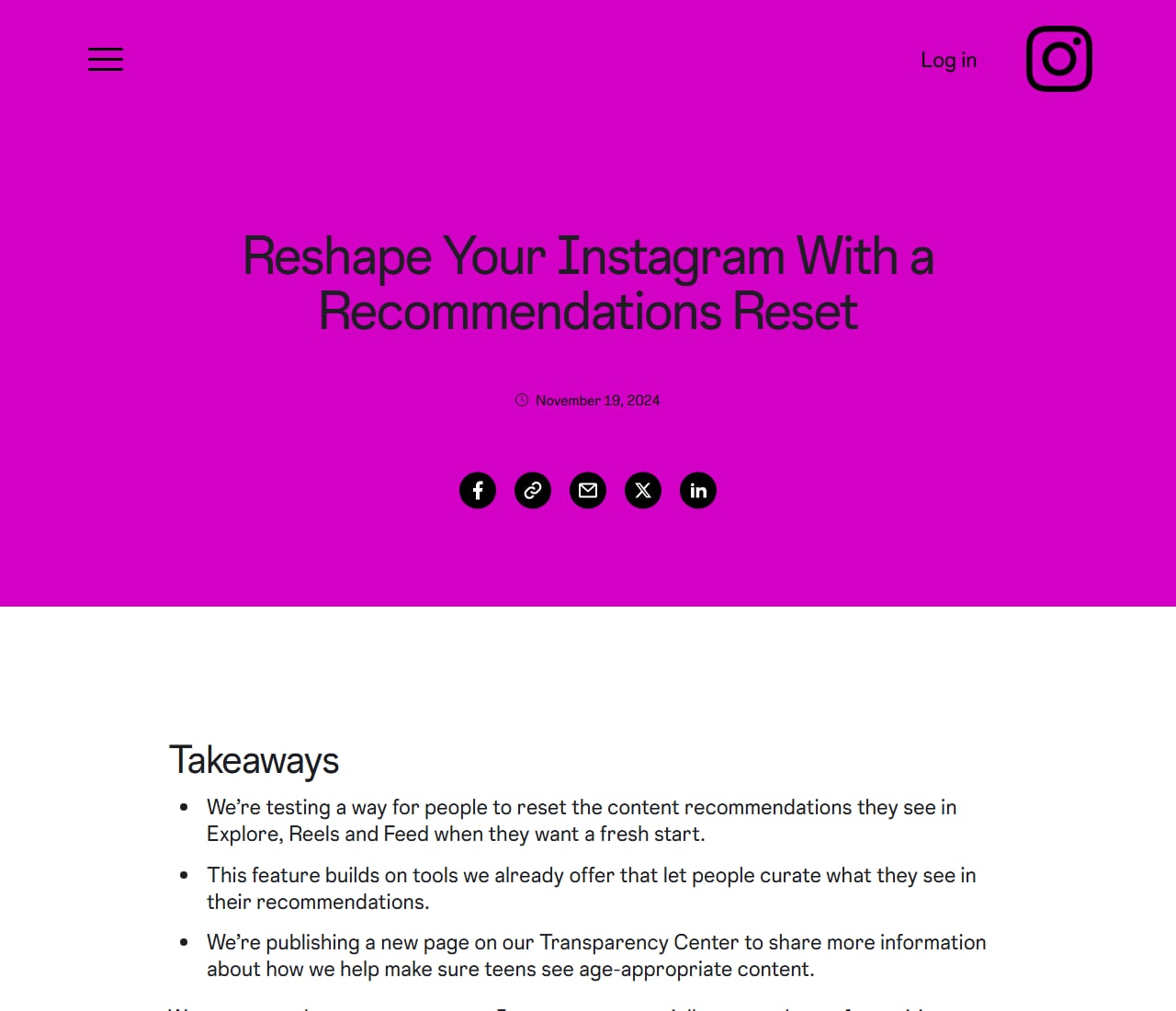
Instagram's announcement of the recommendations reset. Screenshot of about.instagram.com taken October 9, 2026.
"Recommended content" means posts and reels from accounts you don't follow, picked for you because of what you've watched and liked before. That covers the whole Explore grid, most of the Reels tab, and the suggested posts mixed into your home feed.
Since Instagram describes the reset as touching recommendations only, the rest of your account stays as it was:
- Your followers and the accounts you follow (unless you unfollow some on the review screen).
- Your posts, reels, stories and highlights.
- Saved posts and collections.
- DMs and Close Friends.
- The ads you see.
So no, resetting doesn't delete followers or posts.
Your home feed has two ingredients, though: posts from people you follow, and suggested posts from the recommendation system. The reset is about the second kind. Expect Explore and Reels to change a lot and the top of your home feed to change less.
How long does Instagram take to rebuild your recommendations?
Instagram hasn't published a number. The announcement says your recommendations "will start to personalize again over time, showing new content based on the content and accounts you interact with", and that's the full official statement.
Adam Mosseri, who runs Instagram, was blunter when he introduced the feature in November 2024. He warned that a reset makes Instagram a lot less interesting at first, because the app treats you as someone whose interests it knows nothing about.
That matches what people describe afterwards: an Explore page of broadly popular stuff (sports clips, celebrity news) that sharpens as you use the app. Other guides quote "a few days" or "two weeks". Those are users' estimates, and Instagram has confirmed neither.
You'll also read about a "48-hour window" or a "72-hour window" after a reset. Instagram has never described one. Your first few actions after a reset do carry weight, but only because they're all the history Instagram has to go on.
What should you do right after you reset?
Spend your first session or two giving Instagram the signals it says it ranks on, and nothing else. The ranking explainer names them for each tab, so you can be deliberate about it.
- Search for three or four topics you want back. Open a few results in each and follow a couple of accounts.
- On Explore, like, save or share the posts you want more of. Instagram says the most important actions it predicts there "include likes, saves, and shares".
- On Reels, watch the good ones to the end and send one or two to a friend. For Reels the predictions Instagram lists first are whether you'll reshare a reel and whether you'll watch it all the way through.
- Tap the three dots on a recommended post and choose Interested or Not interested.
- If you have Your Algorithm, open it and type in the topics you want.
- Swipe past everything else quickly. Lingering on something out of curiosity counts as a signal.
Keep those sessions short, and close the app when you catch yourself half-watching whatever autoplays. That kind of scrolling is how most people end up with the feed they just wiped.
To check how it's going, open Your Algorithm a few days later. The topic list is Instagram's own summary of what it thinks you like, which makes it a better progress report than squinting at Explore.
Can you undo a reset, and how often can you do it?
You can't undo it. Instagram's help page puts it in a note under the last step: resetting "can't be undone". Once you tap the second Reset suggested content, the old recommendations are gone.
That's the cost. If your Explore page was 80% right and 20% irritating, a reset throws out the good 80% too, and you spend a while earning it back. That trade makes sense when your recommendations are a mess. For one annoying topic it's a waste.
On frequency, Instagram's public pages don't mention a cooldown or a cap on resets, and we couldn't confirm one either way. Resetting repeatedly wouldn't help anyway, since each one puts you back at zero.
What is Your Algorithm, and is it better than a full reset?
Your Algorithm is a newer screen that shows the topics Instagram thinks you like and lets you change them one at a time. For most people it's the better tool, because you keep what works and remove what doesn't.
The rollout came in three steps, all listed on Instagram's Your Algorithm announcement:
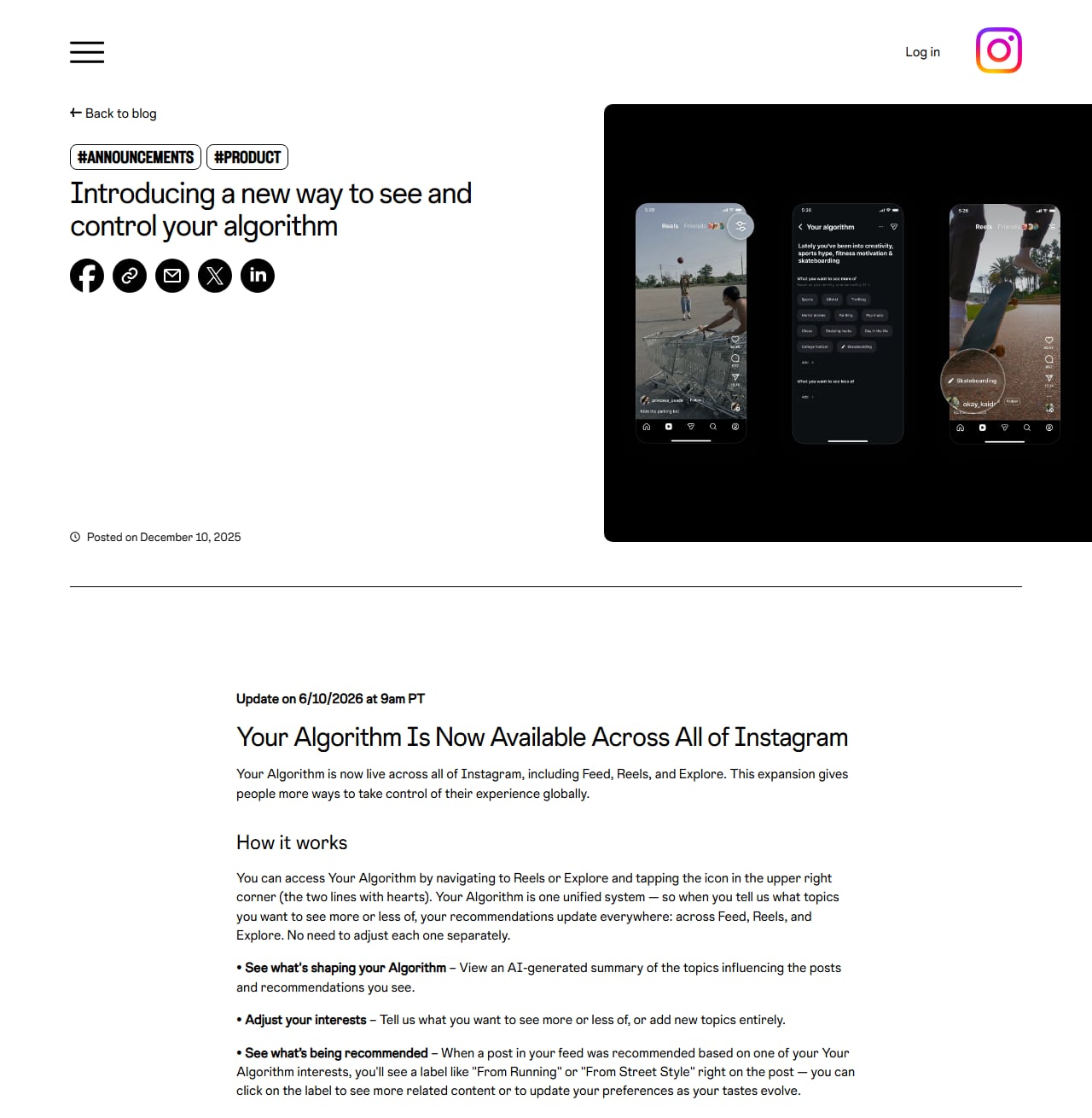
Instagram's Your Algorithm announcement, including the June 2026 update. Screenshot of about.instagram.com taken October 9, 2026.
- December 10, 2025: launched for Reels in the US, with a global English rollout to follow.
- April 15, 2026: extended to Explore.
- June 10, 2026: live across Feed, Reels and Explore.
As of October 2026 it works in English only. If your app is set to another language, or the rollout hasn't reached your account, you won't see it yet.
How to open Your Algorithm
- Go to the Reels tab or the Explore tab.
- Tap the icon in the top right corner. It looks like two lines with hearts on them.
- In the list of topics Instagram has picked for you, tap one to see less of it, or type in a topic you want more of.
You can also get there the long way: profile, menu, Settings and activity, Content preferences, Your algorithm.
Instagram calls this "one unified system", so a change you make from Reels also applies to Feed and Explore. On Explore you can add or remove interests from the topic pills at the top of the page. In Feed, recommended posts carry a small label such as "From Running" naming the interest that put them there. Tap it if you never asked for running.
We'd open Your Algorithm before considering a reset. If the list is mostly right with a few strange entries, remove those and you're finished. If it reads like a stranger's account, reset.
Can you reset only your Explore page, or only Reels?
No. Reset suggested content clears Explore, Reels and the suggested posts in Feed together, and there's no switch for doing one tab at a time.
Your Algorithm doesn't split by tab either, as of October 2026. Many guides still describe it as a Reels-only feature. That was true at launch in December 2025 and stopped being true in 2026, when Instagram extended it to Explore in April and to Feed in June. Remove a topic from the Reels tab and it goes from all three.
What you can do per tab is smaller:
- Explore: add or remove interests from the topic pills at the top, and use Not interested on individual posts.
- Reels: use Not interested from the three dots on a reel.
- Feed: snooze suggested posts for 30 days, or switch to the Following view.
How do you tell Instagram "less of this" without resetting everything?
Instagram has several smaller controls, and each fixes a different complaint. The table shows which is which.
| Control | What it changes | Where it is | Reversible? |
|---|---|---|---|
| Reset suggested content | All recommendations in Explore, Reels and Feed | Settings and activity, Content preferences | No |
| Your Algorithm | Single topics, added or removed | Icon at top right of Reels or Explore | Yes, edit the list any time |
| Not interested | Posts similar to the one you flagged | Three dots on any suggested post or reel | Not directly |
| Hidden words for suggested posts | Suggested posts whose caption or hashtags contain your words | Content preferences, Specific words and phrases | Yes, delete the word |
| Snooze suggested posts | All suggested posts in the home feed, for 30 days | Three dots on a suggested post, or Content preferences | Yes, and it expires by itself |
| Mute an account | Posts, stories or notes from one account you follow | Following button on their profile, then Mute | Yes, unmute any time |
| Sensitive content control | How much borderline content from accounts you don't follow appears | Content preferences, Sensitive content | Yes |
| Following and Favorites feeds | Removes recommendations from the view completely | Tap the Instagram logo on the home screen | Yes, it's only a view |
Not interested
Tap the three dots on a suggested post (on a reel they sit at the bottom right) and choose Not interested. Instagram hides the post and shows less like it. The reset announcement describes the same three-dot menu on Explore posts, with an Interested option for the opposite signal.
It works one post at a time, so expect to flag several posts on a theme before the theme fades.
Hidden words for suggested posts
A reset doesn't block a topic for good. Watch that topic again and it comes back. A word list is the nearest thing to a block, and it suits a show you haven't finished or a diet trend you're sick of. After tapping Not interested, choose "Don't suggest posts with certain words", type the words, phrases or emojis separated by commas, and tap Done.
Instagram's help page on hiding suggested posts by word lists the limits, and they're worth knowing:
- It can take up to 24 hours to take effect.
- It checks captions and hashtags only. A post with your word in the comments or spoken in the video still gets through.
- It never hides posts from accounts you follow.
- It's only in the iPhone and Android apps.
You can edit the list later under Content preferences, in Specific words and phrases.
Snooze suggested posts for 30 days
If you'd like a home feed with only the people you follow, snooze the suggestions. Instagram's ranking explainer confirms you can "snooze all suggested posts in your feed for 30 days". Depending on your app version, the option appears after you tap Not interested on a suggested post, or as a switch inside Content preferences.
It runs out after 30 days and you have to turn it on again. It also only covers the home feed. Reels and Explore are made of recommendations, so there's nothing there to snooze.
Sensitive content control
This one decides how much borderline material (violence, suggestive posts, that sort of thing) Instagram is willing to recommend to you. Per the Sensitive Content Control help page, it applies to Explore, Search, Reels, comments, suggested accounts and feed recommendations, and only to accounts you don't follow.
Find it under Content preferences, then Sensitive content. Adults start on Standard and can move to Less or More. Teen Accounts have their own stricter content setting with different labels, and loosening it needs a parent's approval.
How do you reset your Instagram algorithm manually, without the button?
Do the clean-up yourself, in this order. It suits you if Reset suggested content isn't in your app, or if you'd like to keep the recommendations that are working.
- Fix the follow list first. Open your profile, tap Following, and unfollow accounts you've lost interest in.
- Mute the ones you can't unfollow: the cousin, the client. On their profile tap Following, then Mute, and switch on Posts, Stories or both. From the feed it's quicker: tap the three dots on one of their posts, then Hide, then Mute. Both routes are in Instagram's help page on muting.
- Remove unwanted topics in Your Algorithm, if you have it.
- On Explore and Reels, tap Not interested on every post from the theme you're tired of, several in a row and in one sitting.
- Add hidden words for anything that keeps slipping through.
- Clear your search history if a search started it (steps in the next section).
Neither muting nor unfollowing sends a notification. The ranking explainer says of muting that "people don't know you've muted them", and of unfollowing that people "won't be notified".
Instagram hasn't said how many Not interested taps it takes to retire a topic, and the "30 posts" some guides quote has no source. Judge it by your Explore page after a few days.
Does clearing your search history or cache reset the algorithm?
No. Clearing search history tidies your recent searches, and clearing the app cache frees storage on your phone. Neither resets your recommendations.
Search history is still worth clearing if a one-off search started the problem. In the current app, tap the search bar, tap See all next to your recent searches, then Clear all. Instagram's search history help page warns that searches you clear can reappear once you search for them again.
The cache tip shows up in a lot of "reset your algorithm" guides, and it's wrong. Cached data is thumbnails and temporary files on your device. Recommendations are worked out on Instagram's side from your account activity, which is why they follow you to a new phone. Clear the cache, reinstall the app, log out and back in, and your Explore page will look the same.
The same goes for any outside app or website that offers to reset your algorithm. The reset is a setting inside Instagram's own app, so a service asking for your password to do it can't deliver, and you shouldn't hand the password over.
Starting a new account is the other workaround people suggest. It does begin with no history, and also with no followers, posts or messages. The reset button gets you the clean slate without that loss.
How do you get an Instagram feed with no algorithm at all?
Use the Following or Favorites view. On the home screen, tap the Instagram logo in the top left and pick one. Both show posts in chronological order with no suggested posts mixed in.
- Following shows posts from everyone you follow, newest first. Instagram's explainer says it covers the last 30 days.
- Favorites shows only the accounts you've starred. Per Instagram's Favorites and Following announcement, you can add up to 50 accounts and nobody is told when you add or remove them.
Favorites does a second job. Accounts on the list also rank higher in your normal home feed, so you stop missing posts from the ten people you care about most. Instagram tells creators to ask their fans to add them for that reason.
Does the reset change the ads you see?
No. Ads are picked separately, using things like advertiser targeting and your activity across Meta's apps (Instagram explains the inputs on its page about how it decides which ads to show you). A recommendations reset leaves that alone.
The one overlap is the review step. Instagram's help page says you'll "be given the option to review who you follow and your ads topics (if we show you ads on Instagram)". That's an offer to go and edit them yourself. Some guides read it as the reset refreshing your ad topics, which Instagram doesn't say anywhere.
To change ads, use ad preferences:
- Go to your profile, tap the menu, and open Settings and activity.
- Tap Accounts Center at the top.
- Tap Ad preferences, then Ad topics.
- Pick a topic and choose to see less of it.
Instagram's ad topic preferences page names alcohol, parenting and pets among the topics you can turn down, and admits you may still see some ads on a topic afterwards. If your Instagram and Facebook accounts are linked in Accounts Center, the choice applies to both.
Why does your feed drift back to the same content?
Because the reset erased what Instagram knew about you, and then you used the app the same way you always do.
Instagram's ranking explainer (written by Mosseri in 2023, and still the most detailed official account) says what it watches. For Reels, the top signal is your activity: which reels you've "liked, saved, reshared, commented on, and engaged with recently". For Feed, it names five predictions it leans on most: how likely you are to spend a few seconds on a post, comment on it, like it, share it, and tap through to the profile.
Spending a few seconds on a post is first on that list, and it catches people out. You don't have to like the outrage clip or the car crash compilation. Watching it to the end, or twice because you couldn't believe it, is enough. We go deeper on this in our piece on why skip rate matters so much to Reels ranking.
Your follow list plays a part as well. The reset doesn't touch it, and followed accounts fill a large part of the home feed. So do the reels friends send you: watching a DM'd reel is watching a reel. If the drift bothers you, swipe away fast.
Why can't you find Reset suggested content?
Usually because you're on a computer or an old app version. Work through these in order:
- You're on instagram.com in a browser. The reset is app-only. Switch to your phone.
- The app is out of date. Update it from the App Store or Google Play, then force-close and reopen.
- You're looking in the wrong menu. It's under What you see, inside Content preferences. Older versions labelled this area Suggested content. The search bar at the top of Settings and activity finds it if you type "reset".
- You have several accounts. The reset applies to the account you're logged into at that moment, so switch to the right one first.
If you did reset and nothing seems different, check which tab you're judging. The home feed is mostly accounts you follow, so open Explore or Reels to see the effect. Instagram's reset is also described for Instagram's own Explore, Reels and Feed. Threads and Facebook have separate settings.
If it's the Your Algorithm icon that's missing, that's most likely the English-only rollout. Check your app language in Settings and activity, under Language.
A worked example: cleaning up after a wedding-planning binge
This case is invented, but you'll recognise it. Priya spent four months planning her sister's wedding. She saved 200 decor posts, followed 30 vendors, and watched bridal reels most evenings. The wedding was in August. In October her Explore page is still wall-to-wall lehengas, and she wants her cooking and travel content back.
A full reset would work, but it would also wipe the cooking and travel history she built up over years. The cheaper route:
- Open Your Algorithm from the Reels tab and remove the wedding and decor topics.
- Unfollow the 30 vendors from the Following list on her profile.
- Add two hidden words for suggested posts ("bridal", "lehenga") to catch stragglers.
- Leave the 200 saved posts alone. Instagram hasn't said whether removing old saves changes recommendations, so deleting them is a guess.
That's five minutes, and the parts of her feed she liked survive. Save the full reset for an account you've inherited, or a phone your kid used for six months.
Can creators reset how Instagram treats their account?
No. There's no button, setting or support request that resets how Instagram distributes your posts. Reset suggested content changes what you see as a viewer, and Instagram's announcement and help page describe nothing about your own posts.
So if you're a creator wondering whether the viewer reset is safe to try, it shouldn't affect your reach. Going by Instagram's ranking explainer, your posts are ranked for each viewer from that viewer's activity and how the post is doing. Your own Explore page isn't on the list of signals.
The same holds for a brand or business account. Its recommendations come from whatever the person logged in has been browsing, competitors included, so a brand's Explore page says little about how its posts are doing. Reset it if the feed annoys whoever runs the account, and read Insights for the rest.
Plenty of folklore exists about "resetting" a creator account after a reach drop: switching between creator and business account types, going private for 24 hours, archiving old posts, deleting low performers, taking a two-week break. We found no Instagram source describing any of these as a reset. Most are harmless. Deleting posts isn't, because you lose the content for an effect nobody at Instagram has confirmed.
The things Instagram does say affect distribution are duller. Its tips for improving your reach cover these:
- Eligibility. Content that breaks the Recommendation Guidelines can still reach your followers but won't be recommended to non-followers.
- Originality. Reposts, content with visible watermarks from other apps, and accounts that mostly reshare other people's work are less likely to be recommended.
- Length. Reels have to be three minutes or less to be recommended.
- Early response. How many people like, comment, share and save, and how quickly.
Every new post is ranked on its own response, and that's as close to a reset as a creator gets. The six metrics that determine your reach in 2026 are covered in a separate post, along with five content mistakes that quietly cut reach.
If you want to change direction without confusing the audience you have, look at how trial reels work. They go to people who don't follow you first, so you can test a new topic before your followers see it.
What should you check after a reach drop instead?
Check Account Status first, because it's the one place Instagram tells you directly whether something is limiting your account.
- Go to your profile and tap the menu in the top right.
- In Settings and activity, scroll to More info and support and tap Account Status.
- Look at three sections: Removed content, What can't be recommended, and Features you can't use.
- If a post is listed, open it. You can edit it, delete it, or ask for a review if you think Instagram got it wrong.
Instagram's Account Status help page covers the screen, and our guide on how to check your Instagram Account Status walks through what each message means.
The reason to start there is one line in Instagram's ranking explainer: if an account repeatedly posts content that goes against the Recommendation Guidelines or Community Standards, "none of their posts will be eligible for recommendation for a period of time". That limit covers the whole account, and Account Status is where you'd see it. Instagram's advice is to edit or delete the flagged content, or request a review.
If Account Status is clean, look at the content. Open Insights and compare your last ten posts by non-follower reach and watch time. Our Instagram Insights guide shows where those numbers are. Something may also have changed on Instagram's side. We track that in Instagram algorithm updates for 2026, and Mosseri's own explanations are summarised in how Instagram's head says the algorithm works.
If Account Status shows something worse, such as features you can't use, deal with that before anything else. We have separate guides on protecting an account from being disabled and recovering a suspended or disabled account.
Can you keep reaching people while recommendations are down?
Yes, through the people who already respond to you. Recommendations decide whether strangers see a post. What happens after someone comments or messages you is up to you.
When a follower comments asking for a link or a price, you can answer in their DMs. That conversation sits in the inbox, so it works the same in a week when Explore ignored you as in a week when a reel took off. Instagram's API lets a business or creator account send that reply automatically when a comment contains a word you choose, which is how comment-to-DM automation works.
InstantDM is one tool for this. It has quick automations and a flow builder in one tool, with phone apps for iOS and Android. It's an official Meta Business Partner, runs on Instagram's official API, and connects through Instagram or Facebook login, never a password. Setup is covered in how to set up auto DM on Instagram.
None of this resets or repairs reach. Automated replies only go to people who commented or messaged first, and Instagram's messaging limits still apply. We wrote about how replies relate to ranking in our post on automated replies and the algorithm.
Set up replies before your next post
Explore may or may not pick up your next post. The people who comment on it will be there either way. Create an InstantDM account, connect Instagram through the official login, and attach a keyword reply to your next post. Plans are on the pricing page.
Instagram and Meta are trademarks of Meta Platforms, Inc. InstantDM is not affiliated with Meta beyond the partner program named above.

.jpg)