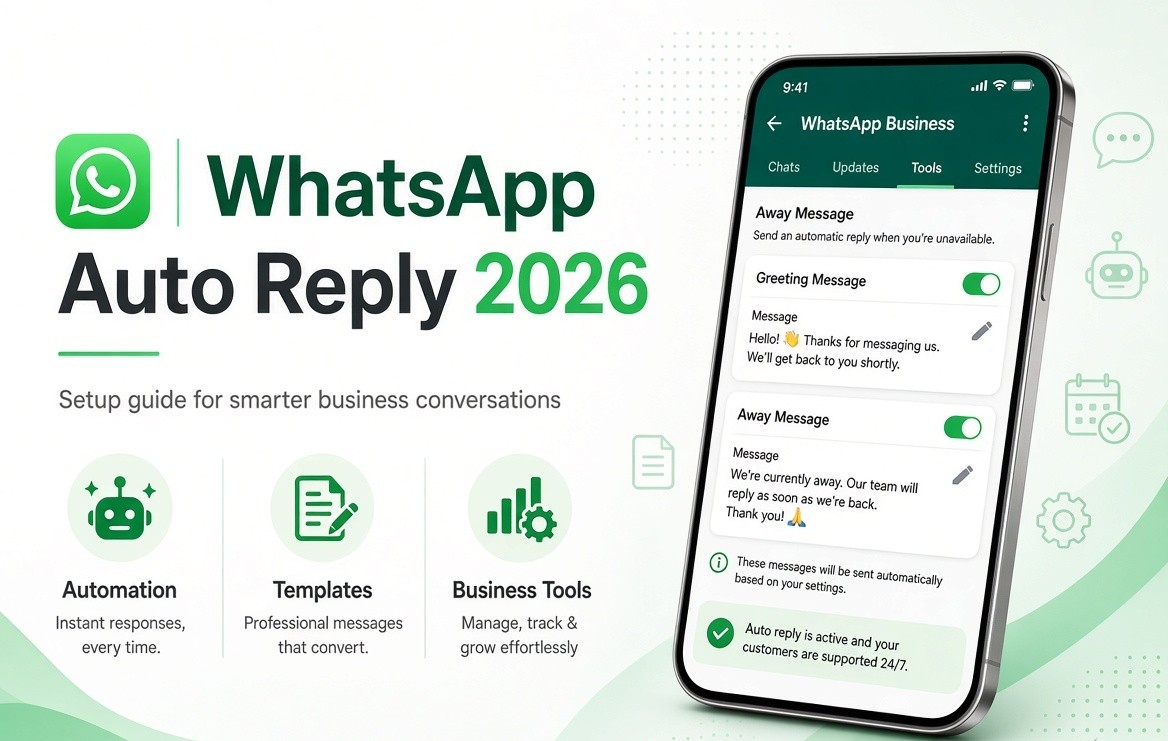
Last updated: 31 October 2026
How to set auto reply on WhatsApp Business: open the WhatsApp Business App, go to Settings then Business tools, and turn on Greeting message and Away message. Personal WhatsApp has no official auto reply. Greeting fires on a first chat, or after 14 days of silence in that chat. Away fires when you are closed or busy. The phone needs an active internet connection. Unofficial Android apps that read notifications can get the number banned. Keyword bots, team inboxes, and CRM replies need the official Business API.
What is WhatsApp auto reply?
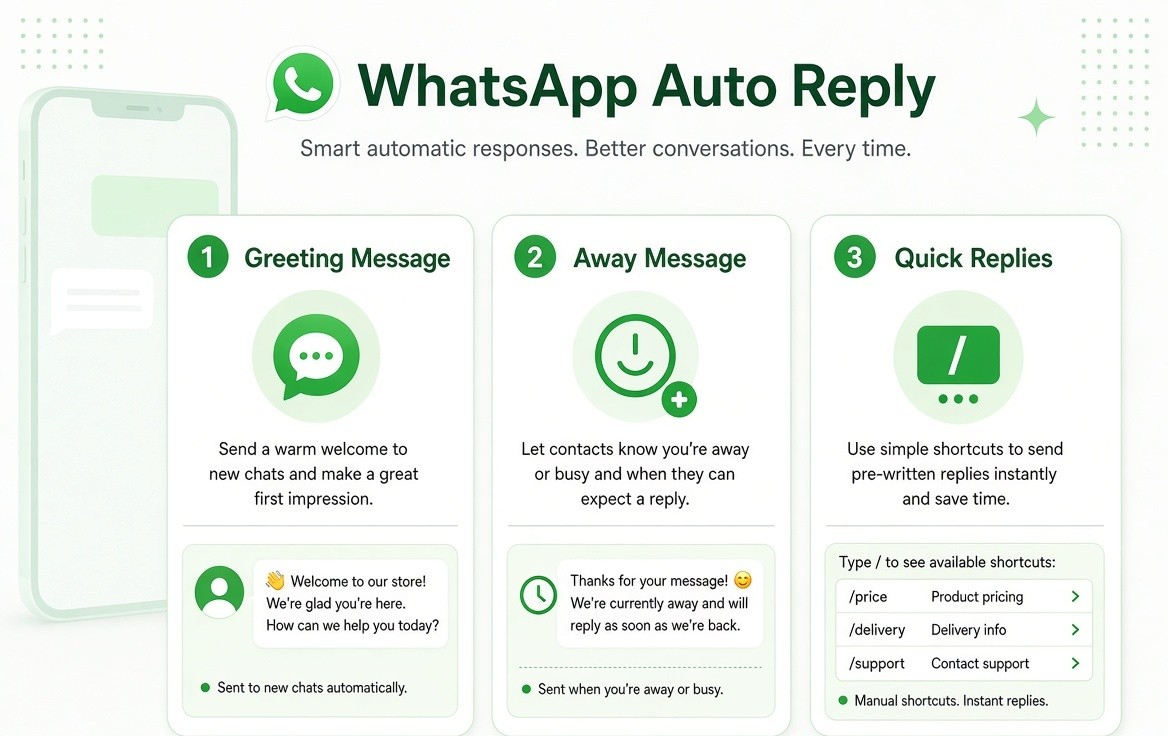
A WhatsApp auto reply is a pre-written message WhatsApp sends for you when someone writes in. It is not a full chatbot on its own. On the free WhatsApp Business App it is three separate tools that people often mix up:
Greeting message: Welcomes a new chat, or a chat that went quiet for 14 days. Auto-sends: yes.
Away message: Replies when you are closed, busy, or on a custom schedule. Auto-sends: yes. WhatsApp’s Help Center covers how to use away messages.
Quick replies: Saved shortcuts you trigger with / inside a chat. Auto-sends: no. You still tap send.
Quick replies save typing. They are not auto reply. Greeting and away messages are the only official auto-send options inside the Business App.
Businesses use this to:
- Acknowledge the message before a human is free
- Set a clear reply window (“we answer before 11 AM IST”)
- Point people to a catalog, price list, or booking link
- Catch after-hours leads instead of losing them to the next seller
It does not replace a person for refunds, complaints, or custom quotes. Set the free official tools first. Move to the API only when the App stops being enough.
How do I set auto reply on WhatsApp Business?
Open WhatsApp Business, tap Settings, open Business tools, then enable Greeting message and Away message. You need the WhatsApp Business App, not personal WhatsApp.
Before you start
- Install WhatsApp Business from the official App Store or Play Store.
- Complete the business profile: name, category, description, and address if relevant.
- Set business hours in the profile. Away messages that fire “outside business hours” will not work until those hours exist.
- Keep the phone on a working internet connection. Greeting and away messages need an active connection.
How to set a greeting message
A greeting message is sent when someone messages you for the first time, or when they message you again after 14 days of inactivity in that chat.
Android
- Open WhatsApp Business.
- Tap the three dots → Settings → Business tools.
- Tap Greeting message.
- Turn on Send greeting message.
- Tap the message field, write your text, tap OK.
- Tap Recipients and pick who gets it.
- Tap Save.
iOS
- Open WhatsApp Business.
- Go to Settings → Business tools.
- Tap Greeting message.
- Enable it, edit the text, choose recipients, save.
Recipient options on both platforms:
- Everyone
- Everyone not in address book
- Everyone except…
- Only send to…
For most local businesses, Everyone not in address book is the clean default. Saved contacts (family, staff, suppliers) do not need a sales greeting.
What to put in the greeting
- Business name
- What you do in one line
- When a human replies
- One next step (reply 1/2/3, or a catalog link)
Example:
Hi, this is Priya at Maple Interiors. We design home offices in Chennai. A designer replies within 2 hours, Mon–Sat 10 AM–7 PM IST. Reply 1 for a quote, 2 for our catalogue, 3 to book a visit.
How to set an away message
An away message fires when you cannot talk.
- Open Business tools → Away message.
- Turn on Send away message.
- Edit the text.
- Tap Schedule: Always send, Custom schedule, or Outside of business hours (only if hours are set on the profile).
- Choose recipients.
- Save.
Use Outside of business hours for normal evenings and Sundays. Use Always send only for leave, festivals, or a full shutdown. If you leave “Always send” on while you are working, customers get the away text and your live reply.
How to set quick replies (related, not automatic)
Quick replies live in the same Business tools menu. You save a shortcut such as /price or /hours. In a chat you type / and send the saved text. That is manual speed, not auto reply. Keep 10–15 shortcuts for FAQs you still answer yourself: pricing, hours, location, refund policy, catalog.
Can you set auto reply on personal WhatsApp?
No. Personal WhatsApp has no official greeting message, away message, or auto-reply bot.
Workarounds you will see online:
- iOS Shortcuts can auto-reply to Apple Messages and SMS. They do not control WhatsApp chats.
- Android auto-responder apps read WhatsApp notifications and send a reply through accessibility or notification access. They sit outside WhatsApp’s terms, have no official support, and are a common path to a restricted or banned number.
- A status such as “busy, call later” is visible. It is not an auto reply.
If you need auto reply, move that number to the free WhatsApp Business App. You keep the same number. You gain greeting messages, away messages, quick replies, a catalog, and a business profile. You do not need a GST number or a paid platform to do this.
If the number must stay personal for family use, do not install a notification-reader bot on it. Use a second number for business.
Does WhatsApp auto reply work when the phone is off?
On the WhatsApp Business App: not reliably. Greeting and away messages need the device to have an active internet connection. If the phone is off, in airplane mode, or has been offline for hours, new chats can sit unread with no auto reply.
On the WhatsApp Business API: yes. Replies are sent from Meta’s cloud, not from your handset. That is the practical reason growing teams leave the App. The phone no longer has to stay awake.
| Setup | Works when phone is off? | Team inbox | Keyword rules | Status |
| Personal WhatsApp + unofficial app | Maybe, until the account is restricted | No | No | Unofficial. Not allowed |
| WhatsApp Business App | No if the device is offline | No multi-agent inbox | No | Official |
| Meta Business Agent on the App | Depends on availability in your country | Limited | Limited AI | Official where rolled out |
| WhatsApp Business API through an official provider | Yes while the phone is off | Team inbox | Keyword rules | Official |
WhatsApp Business App vs API for auto reply
Stay on the WhatsApp Business App if you:
- Handle fewer than about 20–30 customer chats a day
- Are a solo founder or a two-person shop
- Only need “we got this, we reply at 10 AM”
- Can leave the business phone charged and online
Move to the WhatsApp Business API if you:
- Need different replies for “price,” “delivery,” “refund,” or “demo”
- Have more than one person answering
- Need Shopify, CRM, or ticket sync
- Cannot keep a phone online all day
- Want buttons, lists, Flows, or approved outbound templates
The API is the correct upgrade when those needs show up. What to know before you pay:
- The App is enough for many small shops and solo creators
- API cost is the provider’s subscription plus Meta conversation fees
- Service replies inside the customer care window are treated differently from marketing templates
- The API does not support WhatsApp groups
- Template messages used to start a chat outside the customer window need Meta approval
Setup, verification, and provider choice live in How to Get WhatsApp API in 2026: Setup, Pricing & Verification. When you outgrow one greeting and one away message, pick from Top 5 WhatsApp Automation Tools for 2026 (Selection Guide).
Meta Business Agent
Meta also offers Meta Business Agent, an official AI layer on WhatsApp Business in limited countries. It can answer new 1-to-1 chats, chats except contacts, or chats that start from ads.
One caveat before you turn it on: greeting messages are automatically disabled when Meta Business Agent is connected. If your greeting stops sending, check the Agent first. That conflict is in WhatsApp’s own Help Center.
Why your WhatsApp auto reply is not sending
Most “broken” greetings are a recipient filter, a 14-day rule, an offline phone, or Meta Business Agent. Work through this list in order:
- Confirm you are on WhatsApp Business, not personal WhatsApp.
- Confirm the greeting or away toggle is on.
- If you chose “outside business hours,” open the business profile and check that hours are saved.
- Check Recipients. If you picked “Only send to…” and the test number is not on that list, nothing fires.
- The greeting may already have been sent. WhatsApp will not send it again until 14 days of silence in that chat.
- The phone has no data, Wi-Fi is off, or the device has been offline.
- Meta Business Agent is enabled, which turns greeting messages off.
- You tested from the same phone. Use a second number.
- The chat is a group. Greeting and away messages are built for 1-to-1 business chats.
- The app is outdated. Update WhatsApp Business and try again.
If every item is clean and it still fails, do not install an unofficial Play Store bot. Reinstall WhatsApp Business on a stable connection, or move to an official API setup if the phone itself is the bottleneck.
Limitations of WhatsApp Business App auto replies
The App is good. It is not a bot platform. Limits that show up in daily use:
- One greeting, one away message. No “if they say price, send the rate card.”
- Text only. No buttons, in-message catalogs, or PDF attachments on those two messages.
- No follow-up. The App will not send a second message two hours later.
- No analytics beyond basic delivery on the phone.
- No multi-agent inbox. Two people sharing one Business App will miss chats.
- Device-dependent. Offline phone, no auto reply.
- Weak personalization. You cannot insert a first name or order ID the way an API template can.
When those limits start costing leads, you have outgrown the App. That is the upgrade trigger, not “buy a chatbot on day one.”
WhatsApp Click to Chat Links
Auto reply only helps after the chat exists. A lot of missed leads never open the chat.
A click-to-chat link is a URL that opens WhatsApp with your business number already selected. The customer does not search for you. They tap, the thread opens, they hit send. WhatsApp documents how to use click to chat.
Official formats:
text
https://wa.me/9198XXXXXXXX
https://wa.me/9198XXXXXXXX?text=Hi%20I%20want%20the%20price%20list
Rules that matter:
- Use the country code, with no +, no spaces, and no dashes
- text= is optional. If you add it, encode spaces as %20
- The prefilled line sits in the composer. The customer still taps send
- The same link works from an Instagram bio, Stories, YouTube descriptions, email signatures, QR codes, Google Business Profile, and ads
Put the click-to-chat link and the auto reply on the same number:
- The customer taps the link from Instagram or your site.
- WhatsApp opens with a prefilled line such as “Hi, I saw the reel, send the price list.”
- They send it.
- Your greeting message fires on a new chat, or your away message fires after hours.
- A human, or an official API bot, takes the next turn.
Without the link, auto reply waits for people who may never write. Without auto reply, the link dumps people into silence.
Paid ads that open a chat are a different setup. That path is Click to WhatsApp Ads: Setup, Cost, and the Post-Click Funnel (2026).
Are there any tools to customize WhatsApp chat links for business?
Yes. You do not need a developer.
What you can customize
- Phone number with country code
- Prefilled first message
- A different first line per campaign, so you can see the source in the inbox
- A short branded redirect in front of wa.me (your domain → wa.me)
- QR codes that encode the same link
- Placement: bio, buttons, ads, email, packaging
What a link cannot do
- Send the first WhatsApp message with no customer tap
- Auto-add the customer to a broadcast list
- Change the look of the WhatsApp chat itself
Free official path
- Build https://wa.me/?text=
- Or use a generator so you do not hand-encode characters. A no-signup builder is the WhatsApp Link Generator.
The Business App is still what adds auto replies on the other side of that tap.
How to customize links for campaigns
Use a different prefilled message per source so you can see origin inside the chat, even without a CRM.
Instagram bio: Hi, I came from your Instagram bio. I want details on [offer].
Reel CTA: Hi, I watched the reel on [topic]. Send the price list.
YouTube description: Hi, I came from the YouTube video. I have a question on [topic].
Google Business Profile: Hi, I found you on Google. Are you open for a booking this week?
Email signature: Hi, I am writing from your email signature about [product].
Packaging insert: Hi, I bought [product]. I need help with setup.
Those strings are readable labels, not tracking pixels. When the greeting message fires, your team already knows the source.
If you later put a short domain in front (go.yourbrand.com/wa), keep the destination as official wa.me. Do not route clicks through unofficial blasting tools.
How to create a WhatsApp click to chat link with a prefilled message
- Take the business number in international format. India example: 9198XXXXXXXX.
- Write the first line you want the customer to send. Keep it under 80 characters. One intent, not a paragraph.
- Encode spaces and line breaks. A generator does this for you.
- Test the link on Android and iPhone.
- Turn on the WhatsApp Business greeting message on that same number.
- Add the link to your bio, site header, and ads.
That is the stack a solo shop needs: a customized click-to-chat link plus official auto reply. No API invoice.
30 WhatsApp auto reply templates you can paste today
Swap the bracketed text. Keep messages short. State a time window. Give one next action.
Greeting messages
- GeneralHi, you have reached [Business]. We reply within [2 hours] during [hours]. How can we help today?
- MenuWelcome to [Business]. Reply with a number:1 Product / pricing2 Existing order3 Book a call4 Something else
- Local servicesHi, this is [Name] at [Business] in [City]. We are on site most afternoons. Tell us the issue and your area. We reply before [time] on working days.
- Creator / coachHey, thanks for writing. I read every message. I reply between [hours] IST. If you already know the offer you want, send the name and I will send the next step.
- EcommerceWelcome to [Store]. Browse the catalog here: [link]. Or send the product name and your pincode. We reply with price and delivery time.
- Hindi + EnglishNamaste! Welcome to [Business]. You can write in Hindi or English. Hum [hours] mein reply karte hain. Reply 1 for price, 2 for delivery, 3 to talk to the team.
Away / after-hours messages
- Standard after hoursThanks for the message. We are offline now. Hours: [Mon–Sat, 10 AM–7 PM IST]. We reply first thing when we open. For urgent orders, call [number].
- Sunday / weekendThanks, the desk is closed until Monday [10 AM IST]. Your message is saved. Order tracking: [link].
- High volumeWe have your message. The team is in other chats and will reply within [30 minutes] during working hours.
- DiwaliHappy Diwali from [Business]. We are closed [dates]. We reply on [return date]. Track an order here: [link].
- EidEid Mubarak. Our team is away [dates] and back on [date]. For order status use [link].
- PongalHappy Pongal. [Business] is closed [dates]. We open again [date], [time] IST.
- Vacation with backupI am away until [date]. [Teammate] is covering on this number and replies within [2 hours] on working days.
Lead capture
- QuoteThanks for writing. To quote fast, send: 1) what you need 2) city 3) timeline. We reply with a range the same working day.
- AppointmentWant to book? Send three preferred slots and your area. We confirm one slot within [2 hours].
- Real estateThanks for reaching [Name], [Brokerage]. Send the locality, budget, and BHK. A matching list goes out during business hours.
- Course / cohortYou are in the right place. Next batch starts [date]. Reply YES for the syllabus and fee, or CALL if you want a counsellor callback.
Ecommerce and support
- Price requestSend the product name or a photo. We reply with price, GST, and delivery to your pincode.
- Order statusSend your order ID. Tracking link: [link]. If the ID does not match, we will check manually when we are back online.
- Delivery / CODWe deliver to [cities / nationwide]. Share your pincode. COD is available above ₹[amount].
- ReturnsReturns are accepted within [N] days for unused items. Send the order ID and a photo of the issue. Policy: [link].
- SupportWe have logged your message. A teammate replies during [hours]. If this is an outage or a payment failure, type URGENT.
Creators and agencies
- Collab inboundThanks for the collab note. Send: platform, audience size, timeline, and whether this is paid or barter. We reply in [2 working days].
- Agency retainerHi, we take a limited number of retainers. Send your site and the channel you want help with (Instagram, WhatsApp, ads). We reply with fit / not-fit by [day].
- Instagram to WhatsAppYou came from Instagram. This WhatsApp is for orders and bookings. Reply 1 for the current offer, 2 for support, 3 for something custom.
Short lines that still set a time
- Got it. Human reply before [time] IST.
- Message received. Catalog: [link]. We write back during [hours].
- Thanks. If this is about an existing order, send the ID. Otherwise tell us what you need in one line.
- We reply in [language 1] and [language 2]. Send your question in either.
- After hours, saved. Next reply window: [day, time] IST.
Best practices
State a clock, not a vibe. “We will get back to you shortly” trains people to chase. “We reply before 11 AM IST” lets them wait.
Give one next step. A greeting that asks four questions gets silence. A greeting that says “reply 1, 2, or 3” gets a number.
Do not run a greeting and an always-on away message together unless you are truly shut. Two stacked autos feel like a bot that is not listening.
Match the link to the message. If the click-to-chat prefill says “send the price list,” the greeting should not say “how can we help?” It should say the price list is coming, or send it.
Keep a human door. Add “type HUMAN” or “type URGENT.”
Write like a person in that city. A Chennai interiors shop should not sound like a generic onboarding email.
Test from a second phone every time you edit. The 14-day greeting rule fools people into thinking the feature is broken.
Review after every festival shutdown. The away text from Diwali should not still be firing in January.
Official auto reply vs unofficial apps
WhatsApp allows auto replies through:
- The WhatsApp Business App (greeting, away, quick replies)
- The official WhatsApp Business Platform / API, reached through a verified Business Solution Provider
- Meta Business Agent, where Meta has rolled it out
WhatsApp does not allow apps that sit on the phone, scrape notifications, and send replies as you. Those tools advertise “personal and business,” “no API fees,” and “AI inside WhatsApp.” Accounts that grow on them often get restricted.
If the number matters, and a business number is an asset, do not point it at a notification-reader. Use the Business App or an official API provider.
How creators move a lead from Instagram to WhatsApp
Most creator and DTC chats do not start on WhatsApp. They start on Reels, comments, and DMs. WhatsApp is where the order closes.
A clean official stack:
- Reply in public and in DMs to people who comment on Instagram, using Meta’s official messaging APIs.
- In the DM, send one next step: a WhatsApp click-to-chat link with a prefilled line.
- On the WhatsApp side, turn on greeting and away messages in the Business App.
- When volume crosses the App’s ceiling, move that same number to an official WhatsApp provider. In many setups you can keep the App and the API on one number.
What it costs in 2026
- WhatsApp Business App greeting and away messages: free
- Click-to-chat wa.me links: free
- Unofficial Play Store auto-reply apps: free until the number is restricted
- WhatsApp Business API: provider monthly fee plus Meta’s per-conversation charges on the WhatsApp Business Platform Pricing page
On Meta’s current model, utility and service replies inside an open customer care window are treated differently from marketing templates used to start a conversation. Public rate cards change. Confirm on Meta’s rate card and your provider’s invoice before you budget. India-specific conversation rates are in WhatsApp Business API Pricing 2026: Meta Rates, India Cost & October Changes.
Key takeaways
- Auto reply on the official Business App is a greeting message plus an away message. Quick replies are not automatic.
- Personal WhatsApp has no official auto reply. Unofficial Android apps risk the number.
- Auto replies on the App need the phone online. The API does not.
- Greeting messages stop if Meta Business Agent is connected.
- A customized wa.me link with prefilled text is what puts people into that auto reply.
- Upgrade to an official API when you need keyword replies, a team inbox, or a phone that can sleep.