

Ready to Automate Your Growth?
Join 30,000+ creators and brands using InstantDM today.
Get Started NowAny support required, we're just one click away.
Meta Business Partner
100% Official API
Drop in a plain screenshot and get a share-ready image with a gradient background, padding, rounded corners, and drop shadow. Nothing is uploaded; everything runs in your browser.
How do you make a screenshot presentable? Put it on a gradient or solid background, add 8-12% padding, round the corners, and apply a soft drop shadow. Those four steps turn a raw capture into a share-ready graphic, and this screenshot background generator does them in one pass.
Drag & drop, click to browse, or paste with Ctrl+V • PNG, JPG, WebP
Raw screenshots look flat and get scrolled past. Give the same capture a background, padding, and a shadow and it reads like a designed asset: the style you see in product launch posts, changelogs, and tech threads. This generator is part of our free Instagram tools and never uploads your image.
Drag in any screenshot, browse for a file, or just press Ctrl+V after taking a screenshot. The image loads straight into your browser and is never sent to a server.
Choose from 15 background presets: gradients, mesh-style blends, and solids. Or build your own two-color gradient, then adjust padding, corner radius, and shadow with a live preview.
Auto hugs your screenshot, or pick 1:1 and 4:5 for Instagram, 9:16 for Stories, and 16:9 for X, LinkedIn, and blog posts. The screenshot stays centered and uncropped.
Export a crisp PNG at double resolution. It stays sharp on retina screens and is large enough for social feeds, decks, docs, and app store listings.
Use the custom gradient picker to build backgrounds from your brand palette. Consistent colors across posts make your feed and docs instantly recognizable.
Cramped screenshots feel cluttered. A padding of 8-12% gives the image room to breathe and lets the shadow read clearly against the background.
The macOS-style title bar signals "this is an app" at a glance. It works especially well for SaaS product screenshots, dashboards, and tutorials.
Instagram feed favors 4:5, Stories and Reels are 9:16, and X or LinkedIn preview cards crop closest to 16:9. Export one version per platform, then check the crop in our Instagram post preview tool.
InstantDM, a Meta Business Partner, auto-replies to comments and sends a DM the moment someone types your keyword. More than 30,000 creators use it. The free plan includes 500 DMs a month, and paid plans start at $9.99/month.
Write, style, and export 10-slide swipe posts as PNGs.
Drag and drop upcoming posts to preview your 3-column grid.
Split a single photo into 3, 6, or 9 tiles for your profile.
Compress JPG, PNG, SVG, and GIF images with quality control.
No. Everything happens locally in your browser using the HTML canvas. Your screenshot never leaves your device, which makes the tool safe to use even for screenshots containing private data.
Downloads render at 2x the preview resolution as a PNG. A typical export is around 2400 pixels on the longest edge, sharp enough for retina displays, social feeds, blogs, and presentation slides.
Use 1:1 or 4:5 for Instagram feed posts (4:5 takes up more screen space), 9:16 for Stories and Reels covers, and 16:9 for X/Twitter, LinkedIn, and blog headers. Auto simply wraps the screenshot with your chosen padding.
Yes. Copy a screenshot to your clipboard (Cmd+Shift+4 on Mac, Win+Shift+S on Windows) and press Ctrl+V or Cmd+V anywhere on this page to load it instantly.
Yes. It is completely free with no watermark, no sign-up, and no usage limits. InstantDM builds free tools for creators; our paid product automates Instagram DMs and comment replies.
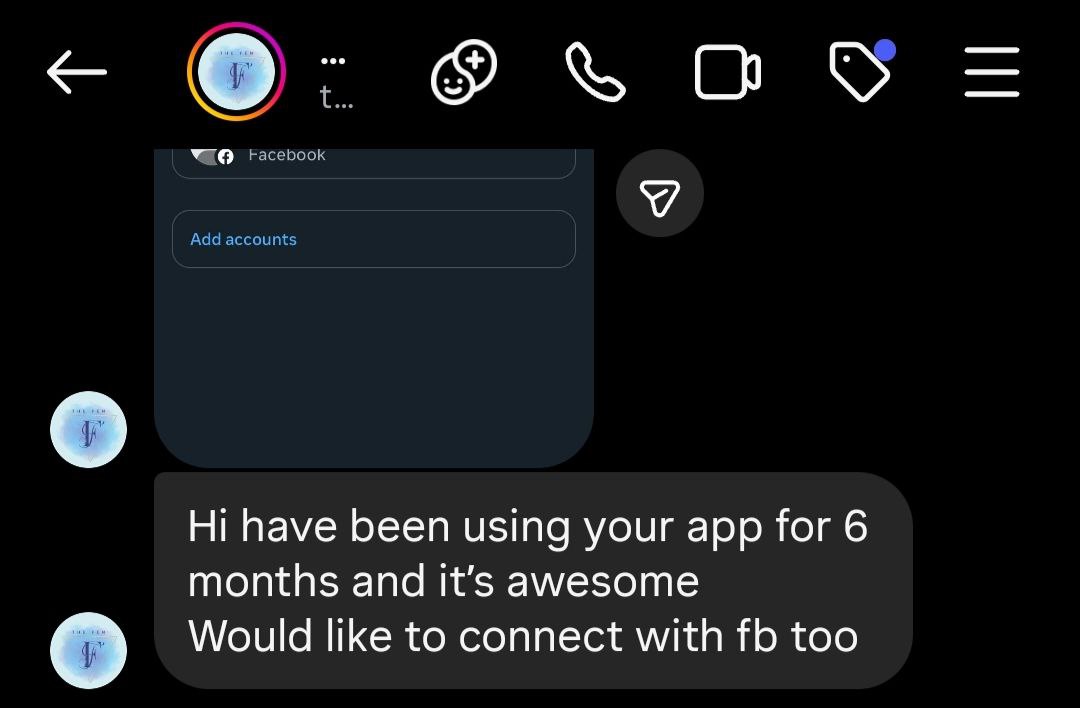
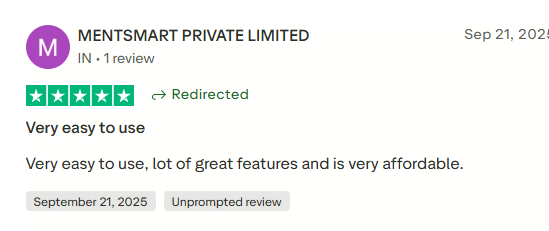
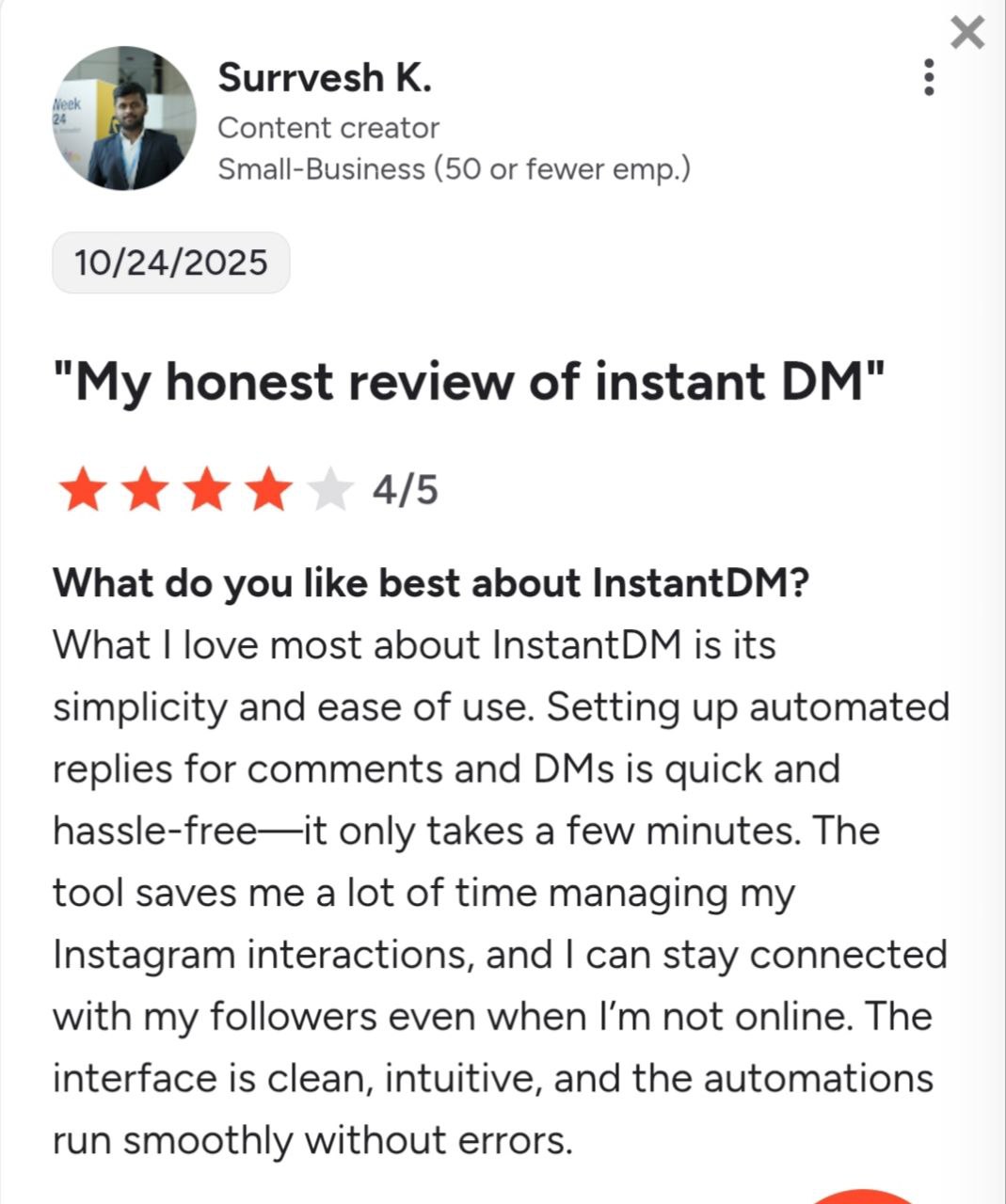
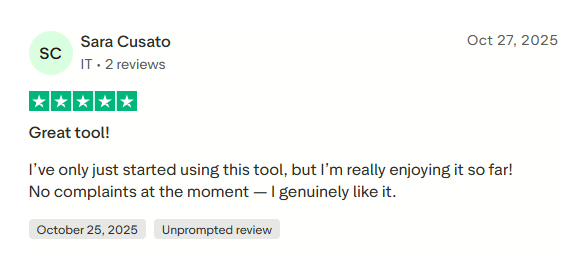
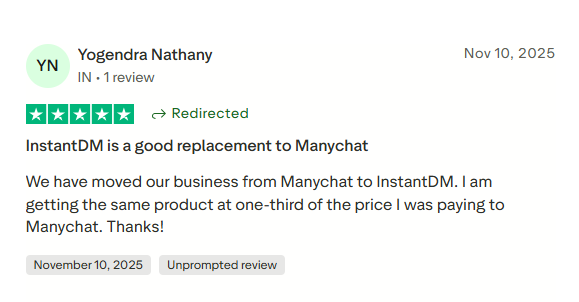
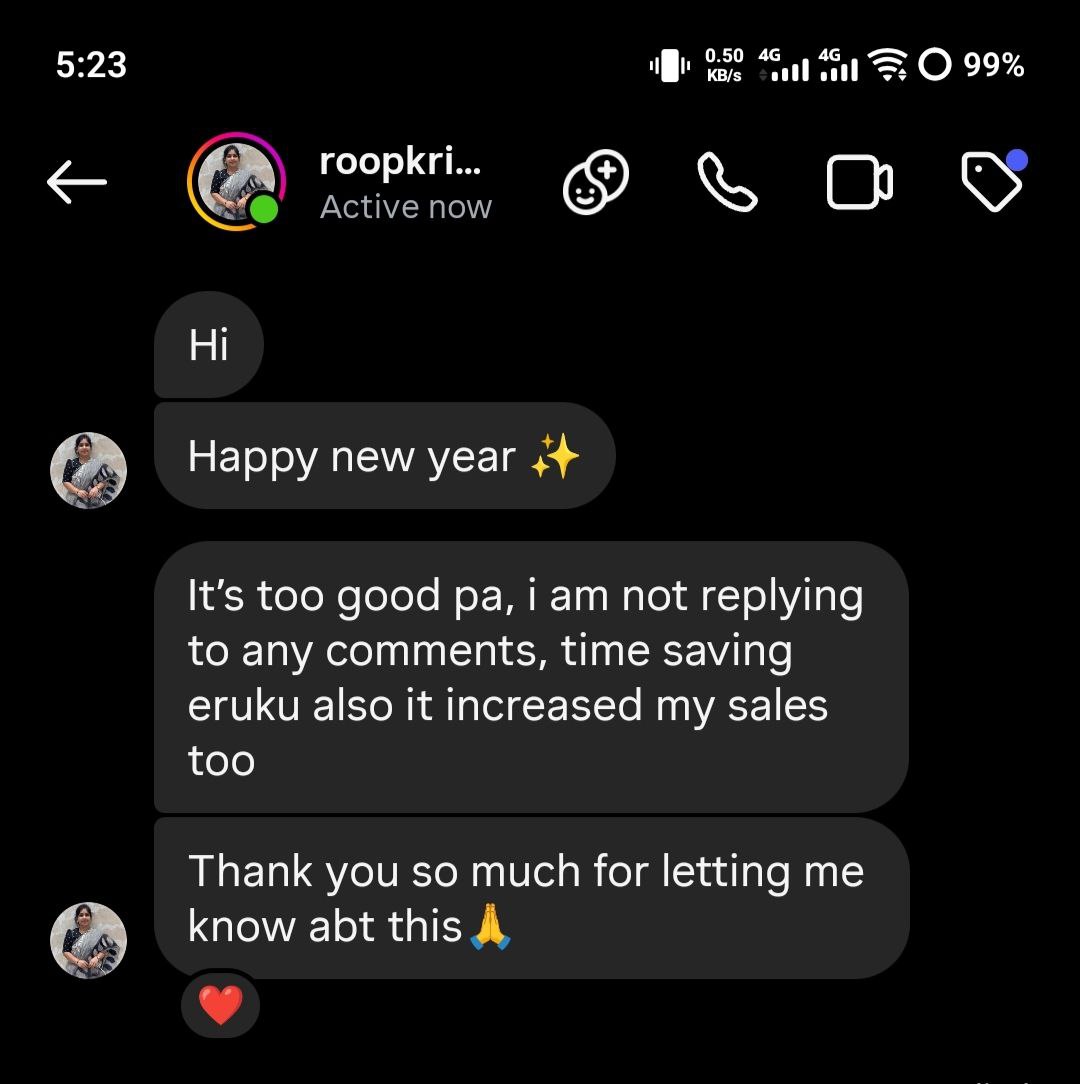
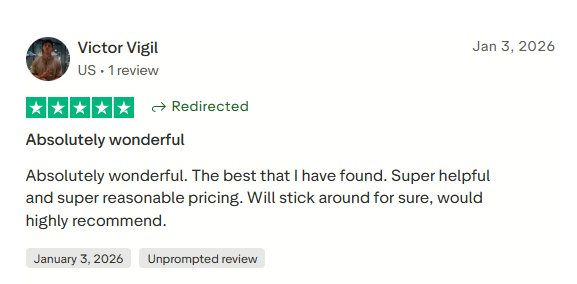
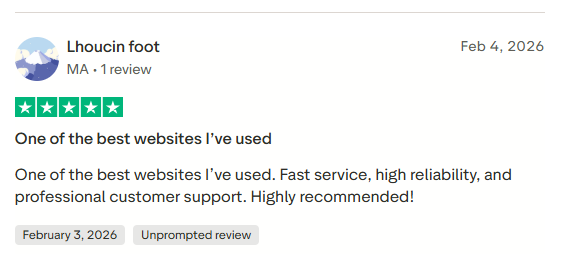
See what creators and brands are saying about InstantDM
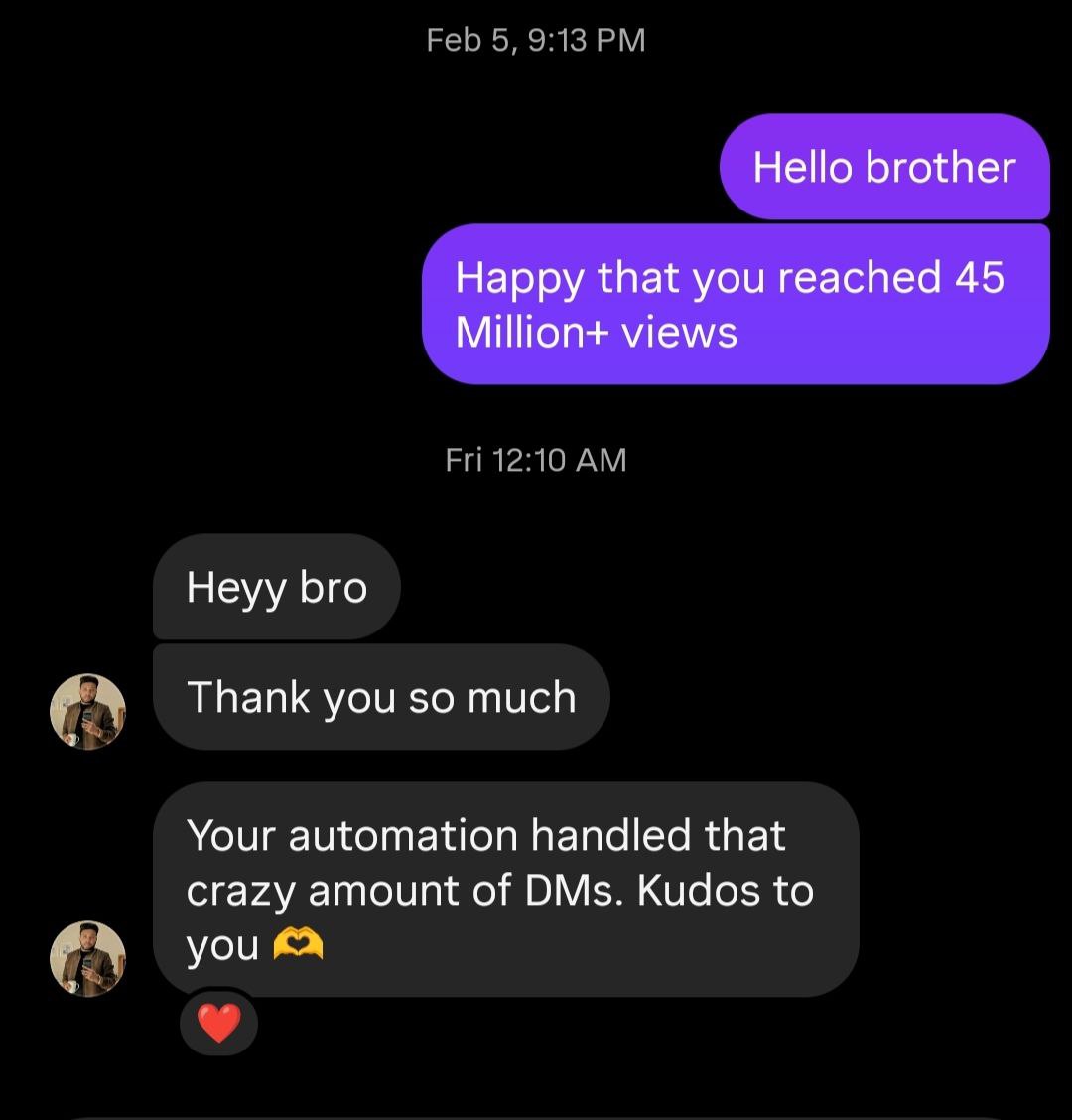
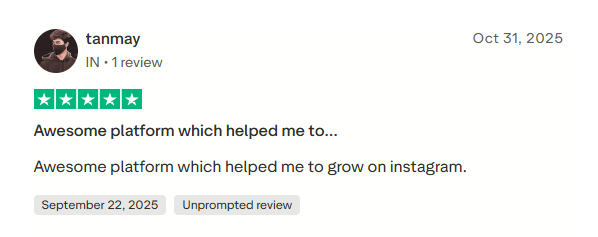
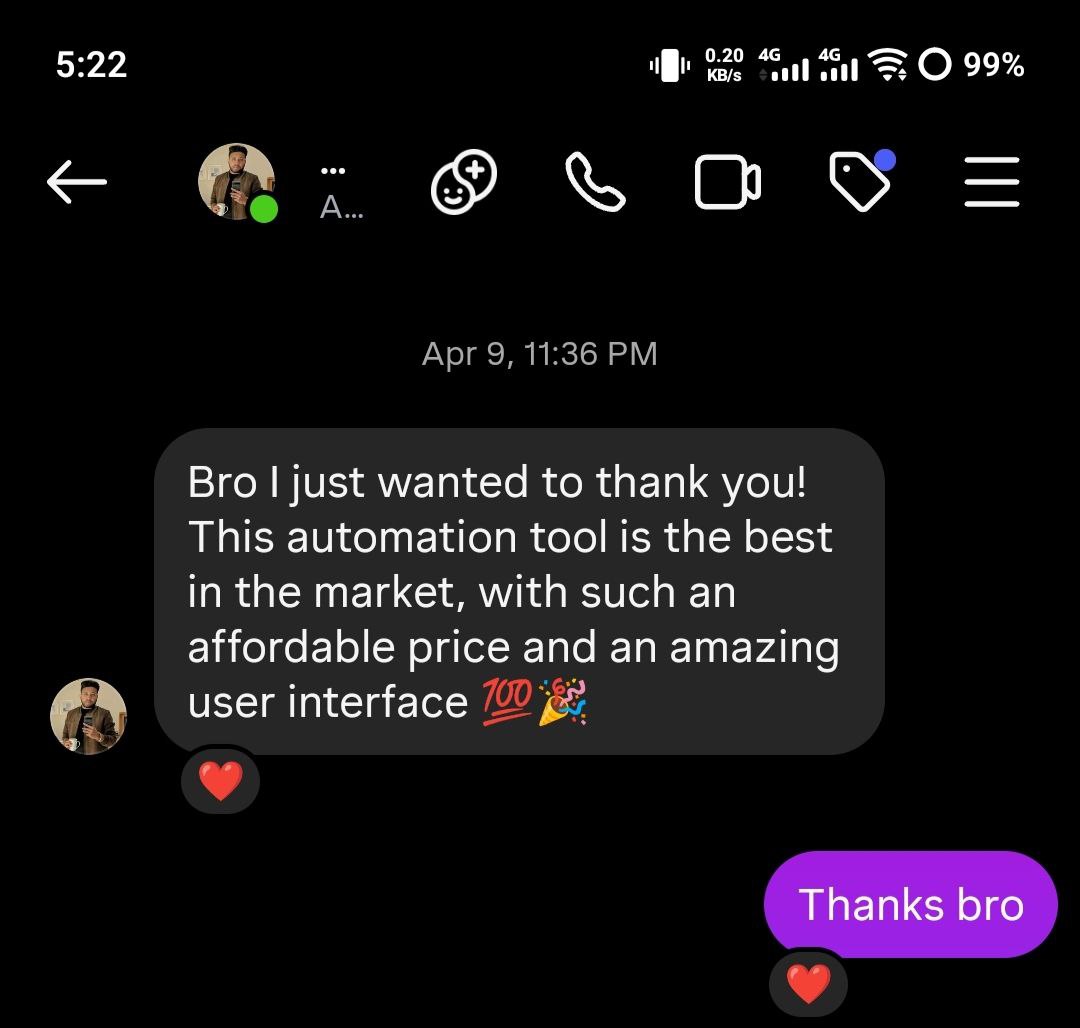
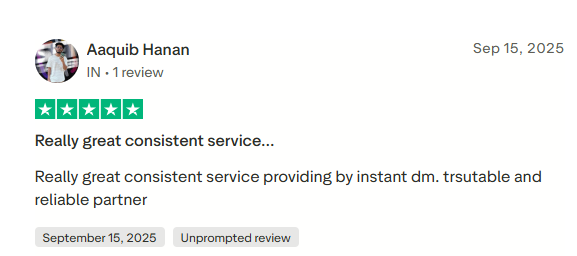
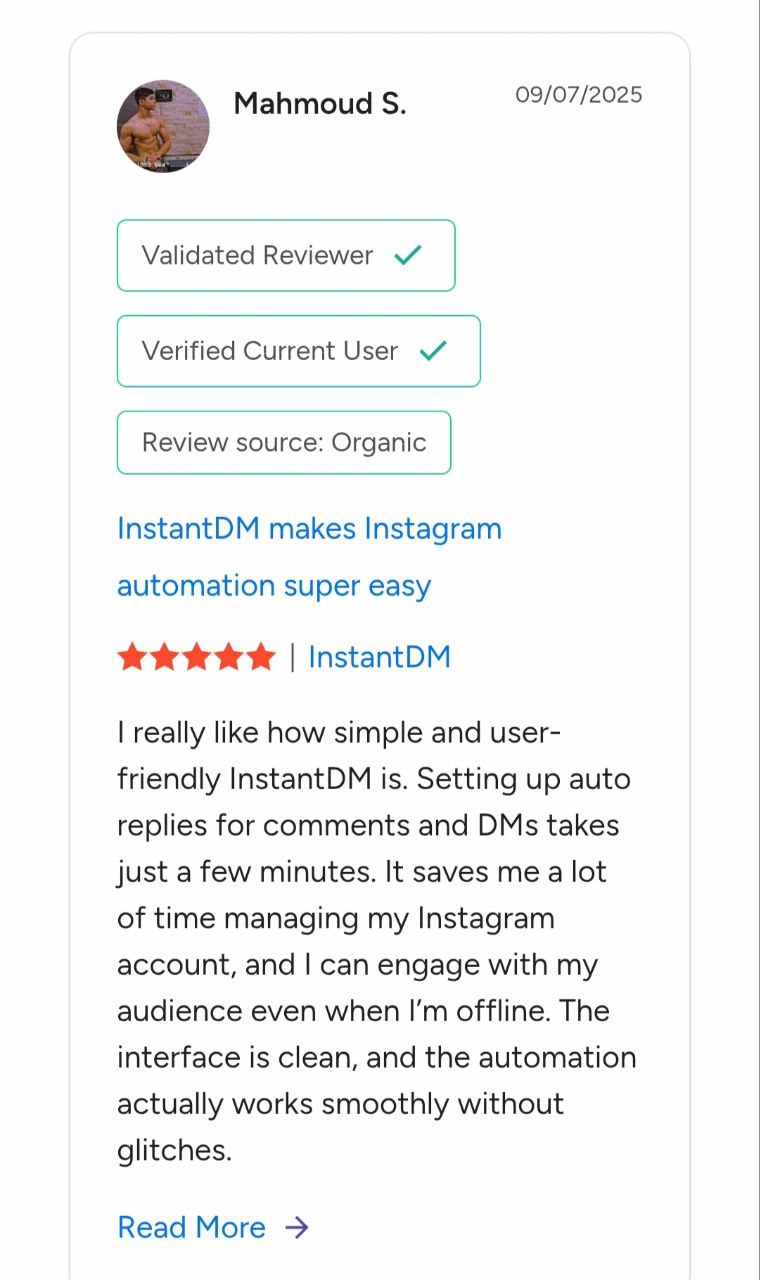
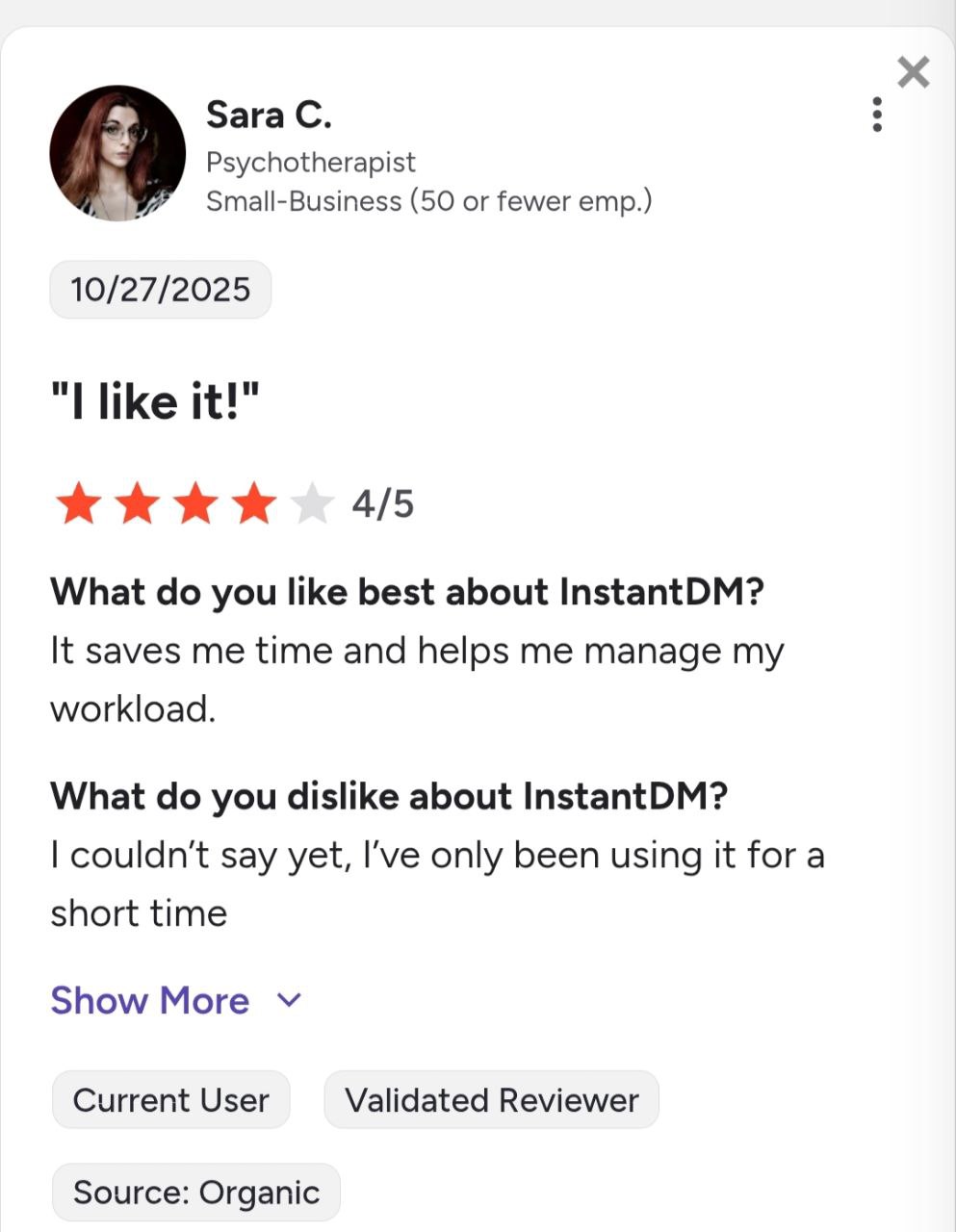
Join 30,000+ creators and brands using InstantDM today.
Get Started NowAny support required, we're just one click away.
