
TL;DR: The Quick Summary
Switching your Instagram to a Business Account takes less than 2 minutes and is 100% free, but it unlocks critical tools you need to grow a brand: Advanced Analytics (Insights), Profile Contact Buttons, Instagram Ads, Shopping Tags, and automated DM scheduling tools.
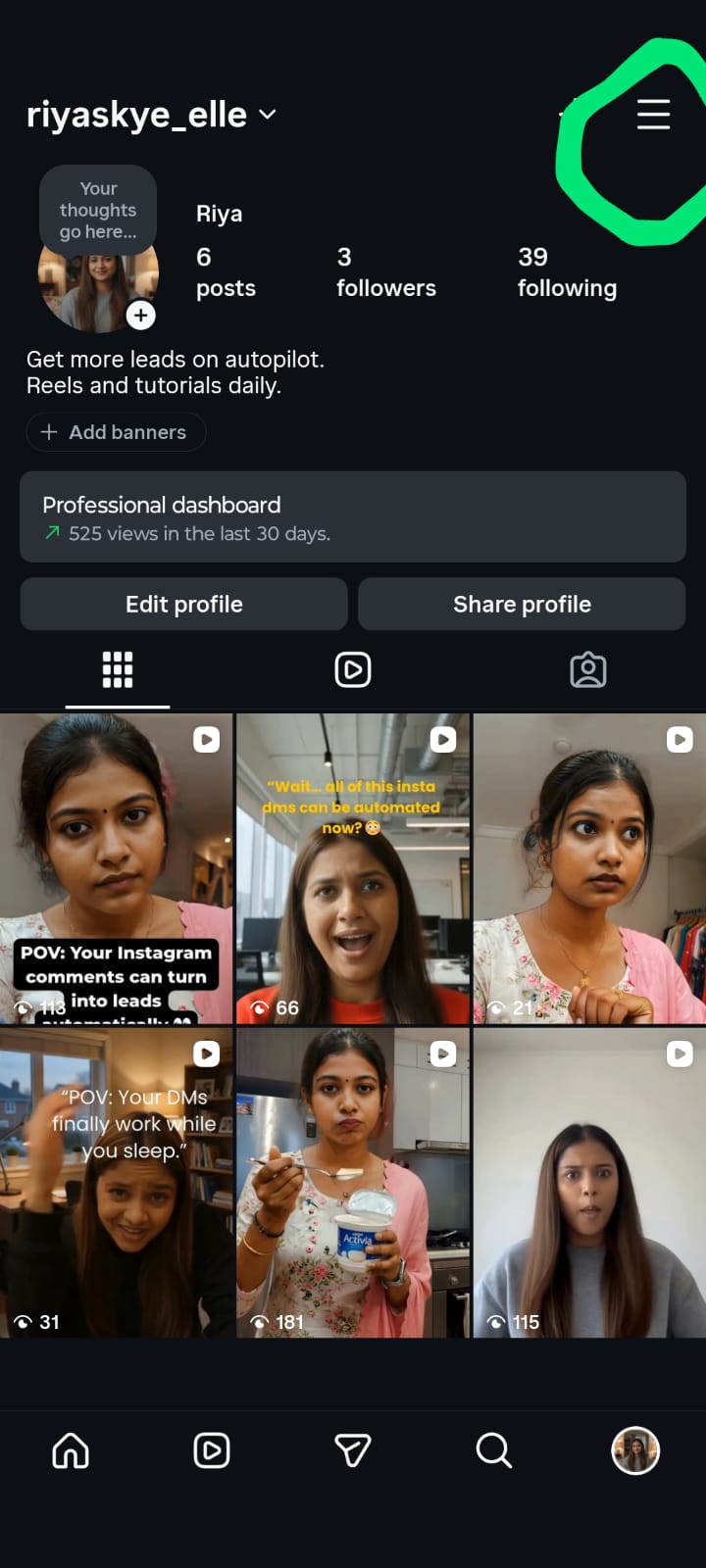
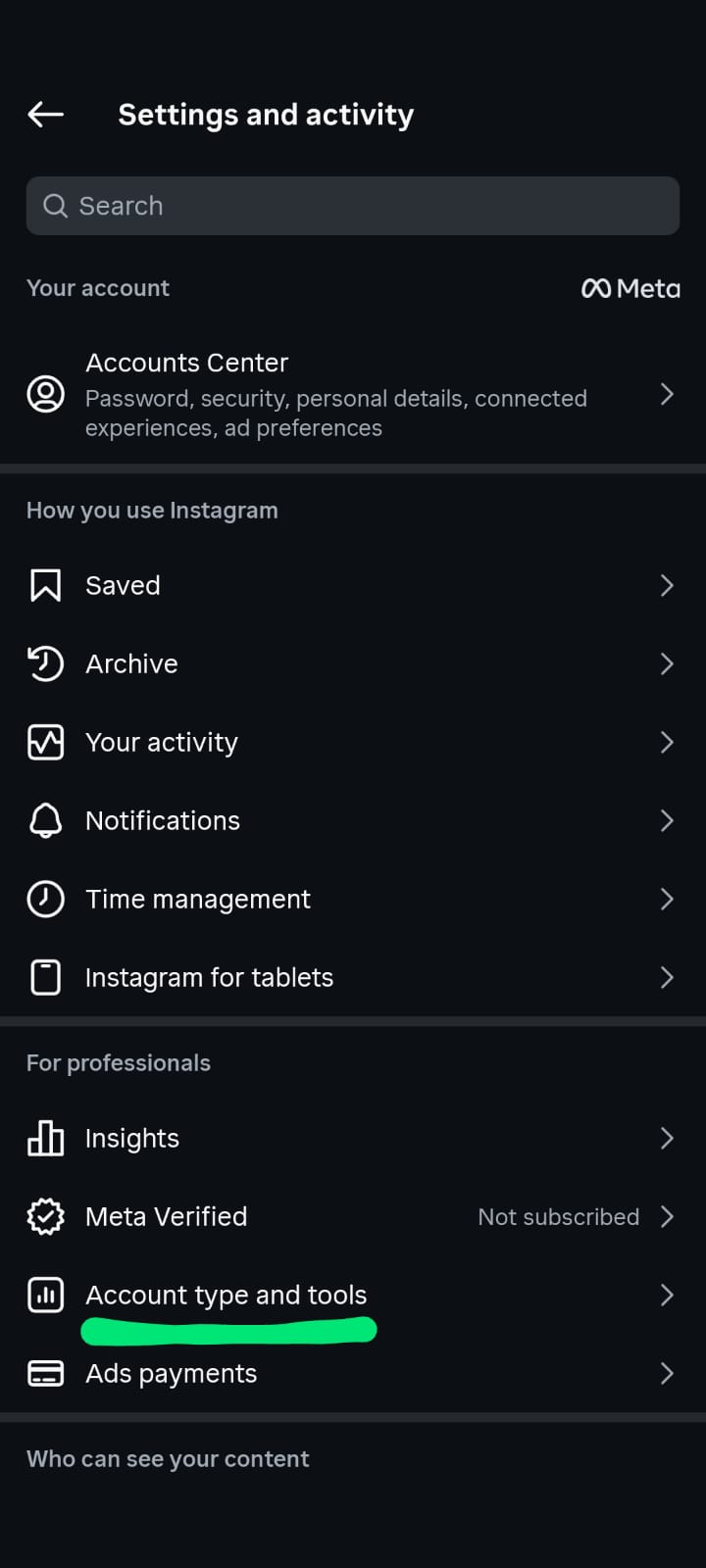
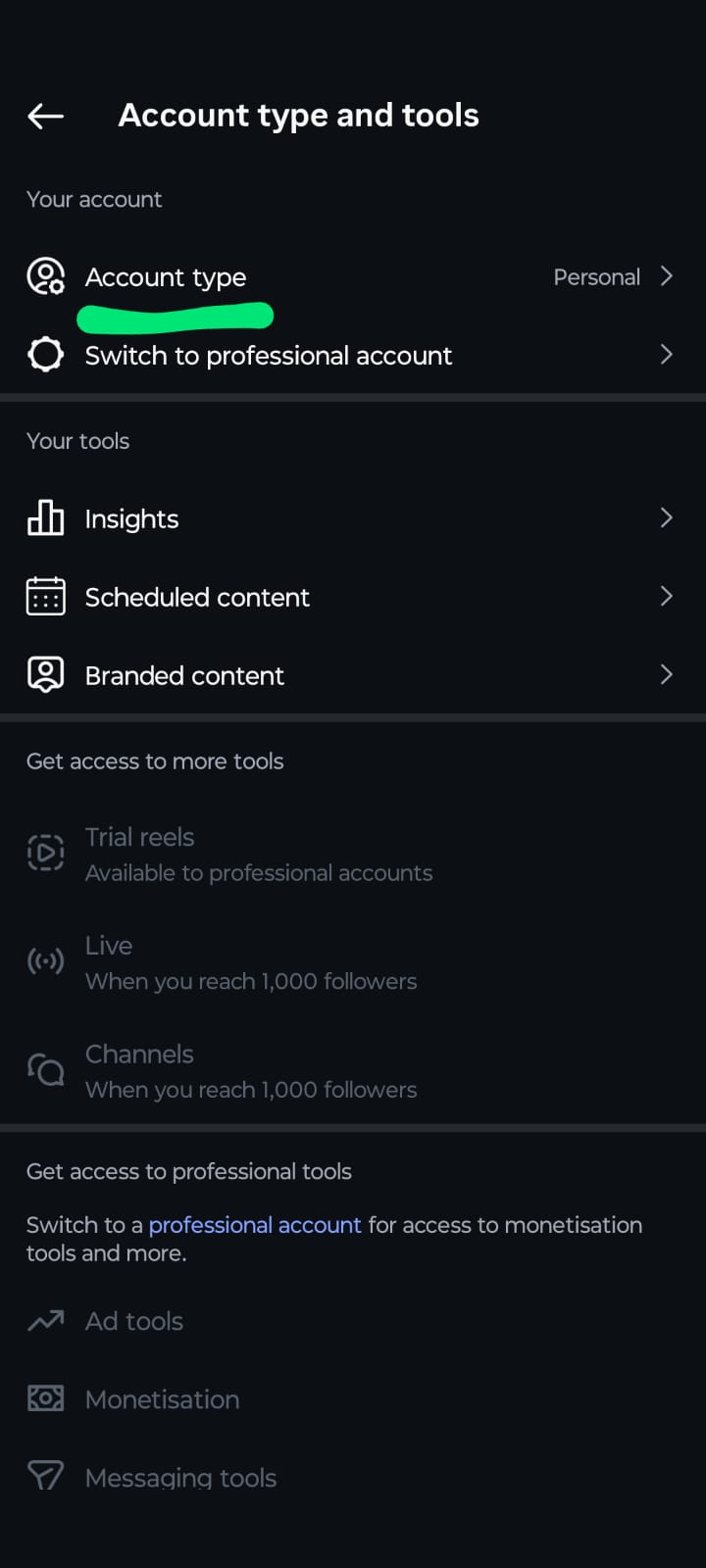
- How to switch (Mobile): Open your profile, tap the Menu (☰), select Settings and privacy, tap Account type and tools, choose Switch to Professional Account, and select Business.
- The Golden Rule: Business accounts cannot be private. If you sell physical products or need team management for high-volume DMs, pick Business. If you are an individual influencer building a personal brand, pick Creator.
- First Move Post-Switch: Instantly fill out your contact buttons and link your account to a Facebook Page to unlock Meta Business Suite.
Introduction:
How do I switch my Instagram account to a business account? This step-by-step guide covers everything – from what you gain, to the exact steps on mobile and desktop, to what to do after switching.
Why Make Your Instagram a Business Account Is a Game Changer
If you’re using Instagram to promote a product, service, brand or side hustle and you’re still on a Personal Account, you’re leaving real money and opportunity on the table.
Switching to a Business Account on Instagram takes less than 2 minutes. But what it unlocks can change your whole approach to growing, engaging and selling on the platform.
In this guide you get:
- Clear explanation of all types of Instagram accounts
- All benefits of a Business Account (with specific use cases)
- Simple step-by-step instructions for mobile AND desktop
- What to do right after switching (most guides don’t touch on this)
- Frequently asked questions and their answers
This is going to be fun.
What kind of Instagram account do you have?
Today, there are three kinds of accounts on Instagram. That difference helps you decide right.
1. Personal Profile
Made for the everyday person who wants to share photos, Reels and Stories with friends and family. You can be public or private. No analytics, no tools for ads, no buttons for business contacts.
- Best for: Casual users who want no monetisation or brand building.
2. Creator Account
For artists, content creators, public figures and influencers. See audience insights, get a creator marketplace to strike brand deals, and flexibly display your contact info.
- Best for: Influencers, content creators and public figures building a personal brand.
Important note: Creator Accounts with more than 500,000 followers will no longer have access to the Instagram Direct Message API. If you’re handling large scale customer conversations, you’ll need a Business Account.
3. Empresarial (Business)
Specifically designed for companies, brands, retailers, service providers and entrepreneurs. You get all the professional tools: analytics, advertising, shopping, booking buttons and API access to manage high volumes of customer messages.
- Best for: Instagram users selling, advertising, providing customer service, or growing a brand professionally.
7 Advantages of Converting Your Instagram to a Business Account
The moment you switch, here’s what you unlock:
1. Instagram Insights (Analytics Dashboard)
When you switch over, Instagram gives you access to a native analytics dashboard called Insights. You see:
- The number of people who viewed your posts, Reels and Stories
- Your follower demographics (age, gender, location)
- The content that receives the most reach and engagement
- When your audience is most engaged (best times to post)
This data is critical for any brand that wants to scale with purpose and not guess what works.
2. Contact and Action Buttons in Your Profile
Bio links are only available on personal accounts. With business accounts, you can add dedicated buttons right to your profile, including:
- Email: allows visitors to email you with one tap
- Call: button for direct phone call
- Directions: displays your business location on a map
- Action Buttons: Book Now, Reserve, Order Food, Get Tickets and more (via third-party integrations such as OpenTable, Mindbody etc.)
This makes your profile a lead-generating landing page.
3. Instagram Ads
Running paid ads is only available to Business (and Creator) Accounts. With a Business Account linked to Meta Ads Manager, you can:
- Promote existing posts to get more people to see them
- Target advertisements by location, age, interest, and behaviour
- Make Click-to-Instagram-Direct ads – ads that start a DM conversation right away when clicked (huge for lead generation)
- Re-target visitors to your website or people who interacted with your profile
4. Shopping on Instagram
When you're selling physical products, Instagram Shopping allows you to tag products in posts, Reels, and Stories. Customers can tap a tag and be taken directly to a product page. In some areas they can scan out completely in the app.
To create an Instagram Shop, you’ll need a Business Account linked to a Meta Commerce catalogue.
5. Schedule Posts Using Third Party Tools
Business Accounts can be connected to scheduling tools like Buffer, Later, Hootsuite and Meta Business Suite, which allow you to schedule posts ahead of time and save tonnes of time. Most of these integrations aren’t usable natively by personal accounts.
6. Access to Instagram Direct Message API
If your business gets a lot of DMs, the Instagram DM API allows you to integrate up to CRM tools and messaging platforms to handle conversations at scale — with automation, routing, and team inboxes. This is only available for Business Accounts (and Creator Accounts with less than 500k followers).
Pro Tip: If your DMs are starting to blow up after switching, try a tool like InstantDM. It plugs directly into Instagram’s API to instantly reply to customer inquiries, send product links automatically when people comment, and manage all your chats in one clean dashboard so you never miss a lead.
Adding a category label (e.g. “Clothing Brand”, “Restaurant”, “Consultant”) under your name gives an impression of professionalism and instills instant trust among first visitors to your profile.
How to switch to a business account on Instagram (mobile app)
This is the most used method. That is exactly how it is done:
- Time required: less than 2 minutes
- Requirements: An existing Instagram account (Personal or Creator)
- Step 1: Go to Your Profile – Go to your profile page in the Instagram app by tapping your profile picture in the bottom-right corner.
- Step 2: Open Menu – Tap the three horizontal lines ☰ in the top right corner of your profile.
- Step 3: Navigate to Settings & Privacy – Tap Settings and privacy on the menu that appears.
- Step 4: Type of Account – Scroll down, then tap Account type and tools.
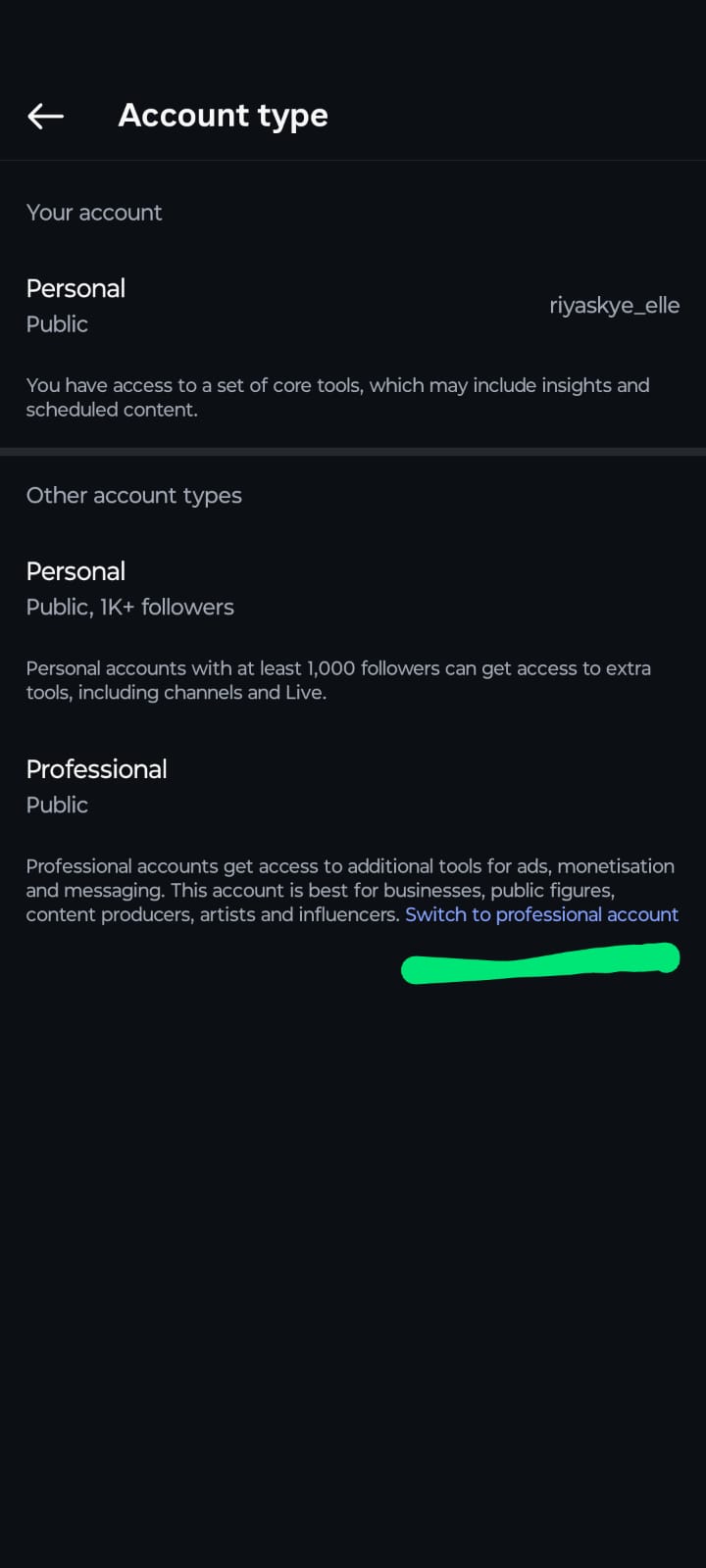
- Step 5: Change to a Professional Account – Tap Switch to Professional Account, and then tap Continue through the intro screens.
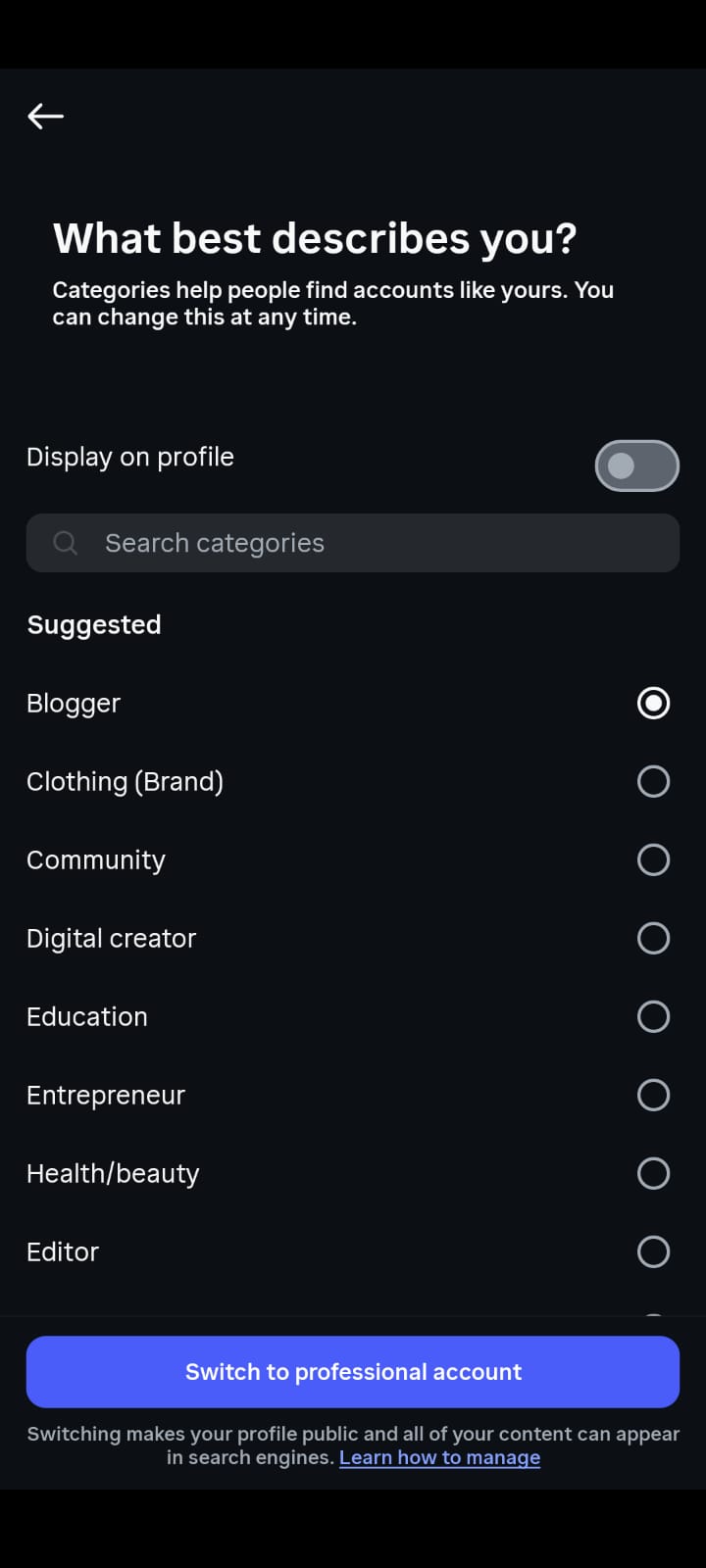
- Step 6: Select your business category – Instagram will prompt you to select a category that best describes your business (i.e. Entrepreneur, Local Business, Clothing Brand, Restaurant, etc.) Tap Done and choose the most appropriate one.
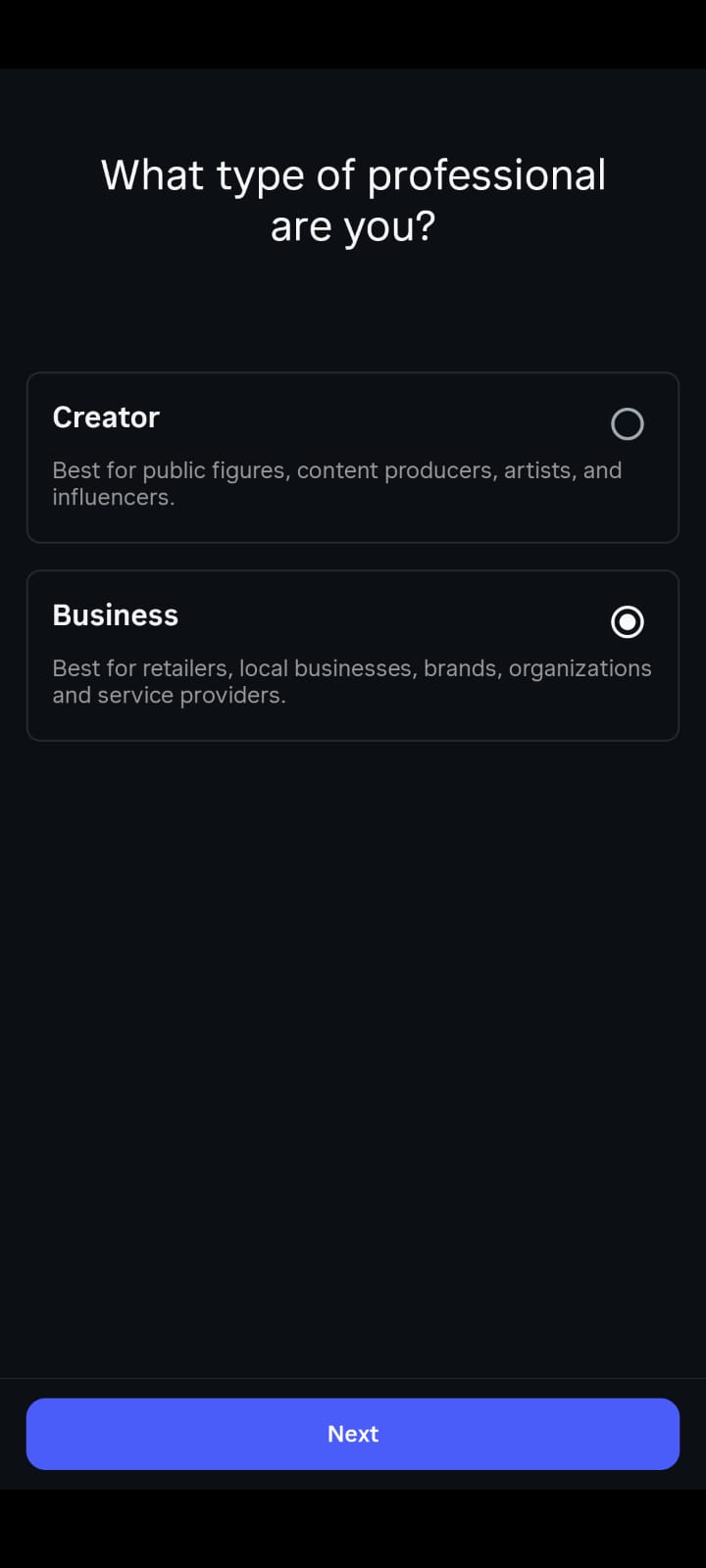
- Step 7: Choose “Business” (Not Creator) – You will be asked to select Creator and Business. Tap Business, then tap Next.
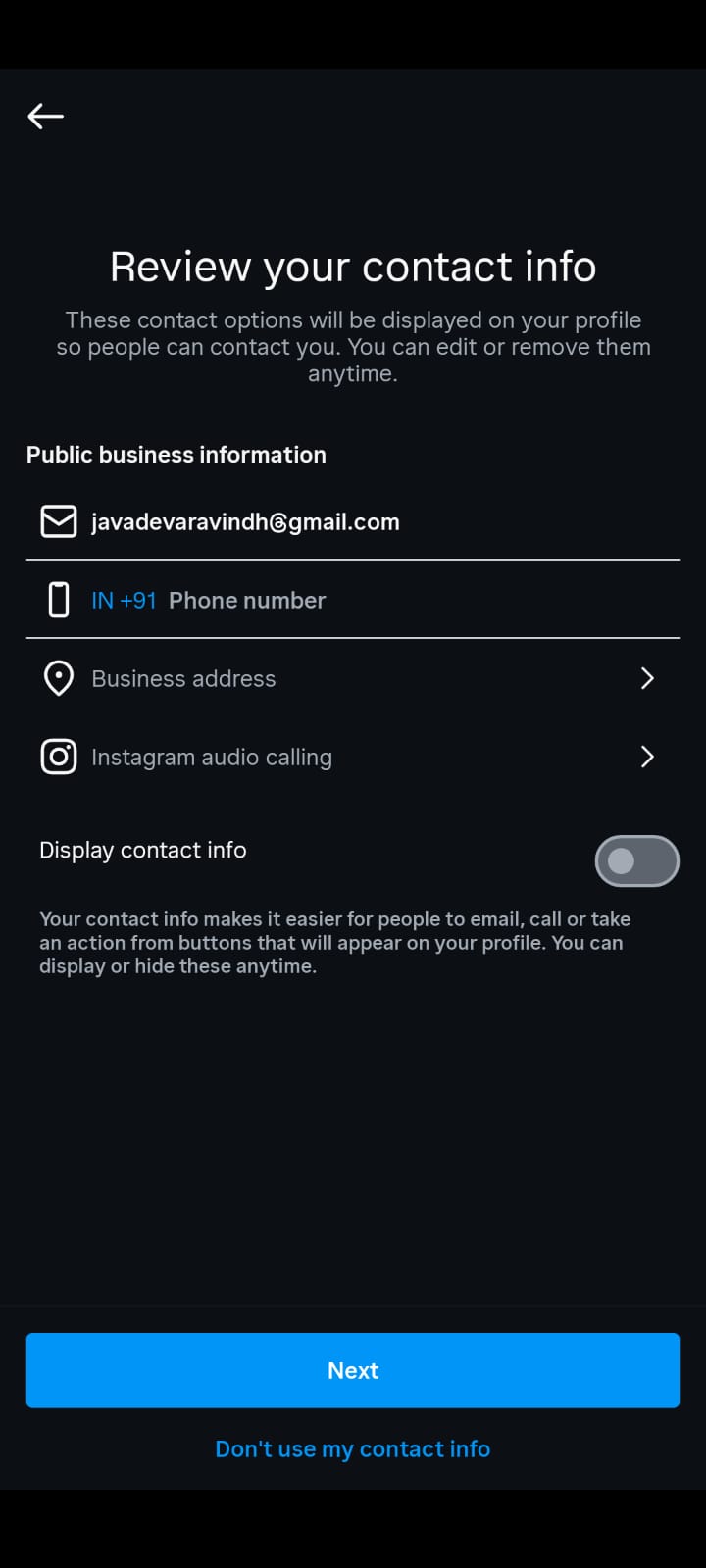
- Step 8: Check and Verify Contact Information – Instagram will auto-fill your contact info. Please check them and ensure they are correct. Tap Next to confirm.
- Step 9: Optional – Link to Facebook – Instagram will ask if you want to connect to a Facebook Page. Recommended if you have a Facebook Page for your business – cross-posting and access to Meta Business Suite and Meta Ads Manager. If you don’t have one, you can omit this step.
- Step 10: All done – In the setup wizard, press X to exit and return to your profile. Your account is now a Business account. You’ll notice the category label is now beneath your name.
- Z
How to switch your Instagram to a business account on desktop
 You can also do this from a computer browser at instagram.com.
- Step 1: Sign in – Log In to Your Account. Go to instagram.com.
- Step 2: Visit your Profile – Click on your profile picture in the top right corner and select Profile, then click the Edit Profile button or go to Settings.
 Step 3: Tap “Switch to Business Account” – In the Settings find the option Switch to Professional Account and click on it.
 Step 4: Choose Business – Select Business and click Next when asked to select an account type.
 Step 5: Choose a category – Select the category that best fits your business and click Done.
 Step 6: Check Your Information – Check your contact details are correct and click Save then Done.
 Your Instagram is also a Business Account on Desktop now.
What To Do Right After You Switch (Don't Skip This)
Most guides end at the switch. Here’s what to do right after to actually get value from your Business Account.
- ✅ 1. Fill Out Your Business Profile
- Create a compelling, keyword-rich bio (say what you do & who you serve)
- Upload a professional photo or logo to your profile.
- Insert your website link
- Make the Email / Call / Directions buttons visible (Settings > Edit Profile > Contact Options)
- ✅ 2. Link Facebook Page
Even if you’re not actively posting on Facebook, connecting a Facebook Page unlocks Meta Business Suite, where you can run ads across both platforms and receive more comprehensive analytics. Link by going to Settings > Linked Accounts > Facebook.
- ✅ 3. Configure Instagram Shopping (if applicable)
If you sell products, you can connect your product catalogue in Meta Commerce Manager in Settings > Business > Set Up Instagram Shopping.
- ✅ 4. Get to Instagram Insights
To begin exploring your audience data, tap Insights on your profile. View your top performing posts and when your audience is most active.
- ✅ 5. Post Frequently and Use Relevant Hashtags
Your Insights will be empty to begin with. Start posting regularly – at least 3-5 posts per week – and use relevant hashtags to maximise reach.
- ✅ 6. Pin Your Top Posts
As a Business Account, you can pin up to 3 posts to the top of your grid. Pin your best performing or most important content (eg a product showcase or intro post) using this.
Can You Switch Back to Your Personal Account?
Yes. It is reversible to switch. If you want to get back into a Personal Account, go to:
Switching back means you will lose access to all Business features (Insights, ads, action buttons, shopping, etc). Your current posts and followers will not be affected.
Business Account or Creator Account: Which One Should You Choose?
Not sure yet? Here’s a quick comparison:
- Select Business Account if: You sell products or services, you run a brand, you need shopping capabilities, you want to run customer support at scale, or you plan to advertise heavily.
- Select Creator Account if: You’re primarily a content creator, influencer or public figure, building a personal brand around yourself and not a company.
Final Thoughts: Switch Your Instagram To A Business Account Present
One of the fastest wins any brand or entrepreneur can get on Instagram is switching your Instagram to a Business Account. Within two minutes you get analytics, advertising, shopping, professional contact buttons and a credibility boost that no amount of posting can give you.
The Instagram Business Account is for you whether you are a lone freelancer, a growing e-commerce brand, or a local business trying to get more foot traffic.
Switch today, fill out your profile and start leveraging the data Instagram gives you to grow smarter.