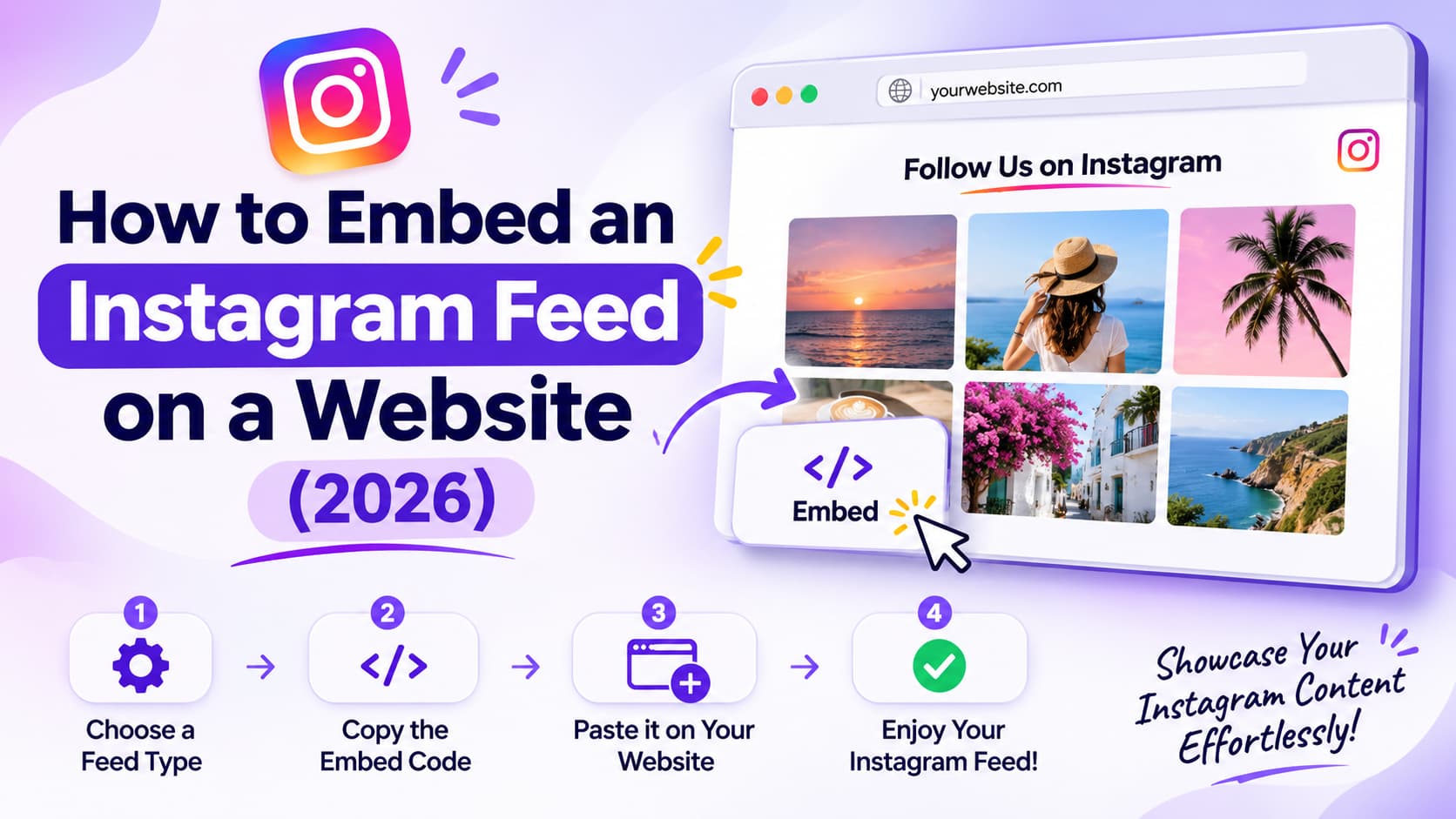
How to embed an Instagram feed on a website in 2026: copy Instagram's native embed code for one public post, or connect a professional Instagram account to a feed widget and paste that widget into your page. I keep seeing people paste five native embeds and call it a feed. It isn't. Instagram does not ship a live grid. A feed that adds new photos when you publish is a widget or a custom API build.
TL;DR
- Native embed = one public post or Reel. Free. It does not refresh when you publish the next one.
- Live feed = a widget (or a WordPress plugin) that talks to Instagram's professional APIs. Free plans exist. They keep branding and they refresh slower.
- WordPress can use a plugin or a Custom HTML block. Wix, Squarespace, Webflow, and HTML sites paste the same embed code. Shopify is an app block or Custom Liquid, not a native theme section.
How I Checked These Options
I didn't install every widget on a client site this week. I pulled vendor pricing pages, Instagram Help, and Meta's developer docs on October 21, 2026, then compared them against the public how-tos those vendors publish.
What I scored:
- Can you finish it without a developer? Paste-an-embed beats Graph API tokens.
- Does it stay live? A widget that pulls new posts beats a static blockquote that dies when you archive the photo.
- What is actually free? Branding, refresh speed, and view caps. "Free" that blanks the grid at 200 views is not free for a homepage.
- Will it wreck mobile speed? Cached images and lazy load beat five copies of embed.js.
- Does it survive 2026 API rules? Personal-account Basic Display tokens are a dead path. Live feeds need a professional account.
Verified October 2026 from public pricing and Help pages. Plan names move. Recheck the listing before you pay.
What Counts as an Embedded Instagram Feed?
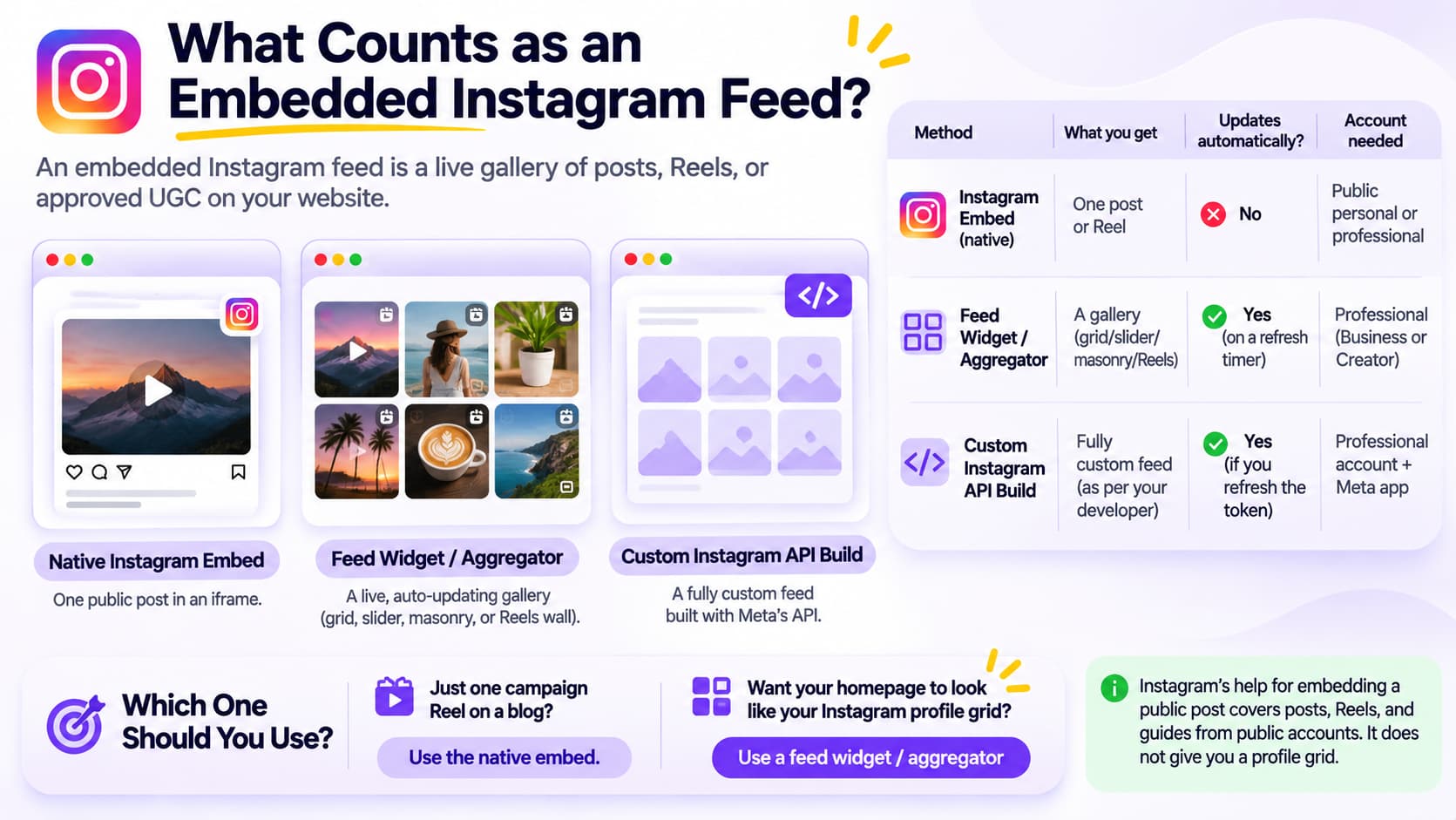
An embedded Instagram feed is a live gallery of posts, Reels, or approved UGC on your website. A native Instagram embed is one public post in an iframe. People search the same phrase for both. One post is not a live grid.
Instagram's own Embed code: one post or Reel. Does not update when you publish. Works on a public personal or professional account.
Feed widget / aggregator: grid, slider, masonry, or Reels wall. Updates on that tool's refresh timer. Needs a professional account (Business or Creator).
Custom Instagram API build: whatever your developer ships. Stays live if you refresh the token. Needs a professional account plus a Meta app.
If you only needed one campaign Reel on a blog, stop at native embed. If you wanted the homepage to look like your profile grid, you need a widget.
Instagram's help for embedding a public post covers posts, Reels, and guides from public accounts. It does not give you a profile grid.
What Are the 3 Ways to Add Instagram to a Website?
There are three practical ways: Instagram's native single-post embed, a no-code feed widget, or a custom build on the Instagram API with Instagram Login. I would start with native embed only if you need one post. Everyone else should use a widget.
Native Instagram embed: best for one campaign post or Reel. Not a live feed. Cost: free. No developer.
Feed widget (Juicer, Elfsight, Curator, Behold, EmbedSocial): best for most sites, any CMS that accepts HTML. Live feed. Free plans exist; paid from $5 to $29/month. No developer if you can paste code.
WordPress plugin (Smash Balloon Instagram Feed): best for WordPress sites that want a plugin, not a hosted script. Live feed. Basic lists $49/year for 1 site on a sale price (normally $98). No developer.
Custom API: best for headless, a weird CMS, or you already have a Meta app. Live if you maintain it. Cost is dev time. Developer needed.
Juicer Forever costs $0 with 1 source, a 24-hour refresh, and Juicer branding, per Juicer's pricing page as of October 2026.
Elfsight Instagram Feed Free is $0/month forever with Elfsight branding; Basic is $5/month billed yearly ($6/month billed monthly) on the Instagram Feed pricing page, October 2026.
Curator Free is $0/month; Pro is $25/month; Business is $59/month (pricing page, October 2026).
Behold Free is $0/month (1,200 views, daily updates, logo on hover); Starter is $10/month (pricing page, October 2026).
EmbedSocial Free is $0/month; Pro is $29/month (pricing page, October 2026).
Smash Balloon Instagram Feed Basic lists $49/year for 1 website (normally $98) on the Instagram Feed pricing page, October 2026.
Flockler Basic is $129/month billed monthly (plans page, October 2026). That is multi-site social infrastructure, not a $10 homepage grid.
Don't start on the API path because a tutorial from 2022 said "just use Basic Display." That API is gone. Meta's replacement is Instagram API with Instagram Login.
How Do I Embed a Single Instagram Post With Native Code?
You embed a single Instagram post by opening it on instagram.com in a desktop browser, choosing Embed from the three-dot menu, and pasting the HTML into your page. Use this for a press story, a founder Reel, or a lookbook moment. Don't use it as your site's Instagram feed.
- Open the public post or Reel on instagram.com. The Instagram app does not give you Embed.
- Click the three dots.
- Click Embed.
- Copy the code. You get a blockquote.instagram-media plus Instagram's embed script.
- Paste it into a Custom HTML / Embed / Code block on your site.
- Publish. Load the page on your phone.
What breaks, because I have watched it break:
- The account goes private, the post is deleted, or the creator turns embeds off. You get a hole.
- You stack five native embeds. Each one loads Instagram's script. The page feels drunk.
- You wanted the grid to update tomorrow. This post will still be this post in December.
Public accounts can turn embeds off in Instagram settings. If a client's "Embed" button is missing, that setting is usually why.
How Do I Embed a Live Instagram Feed With a Widget?
You embed a live Instagram feed by connecting a Business or Creator account to a widget tool, picking a layout, copying the embed code, and pasting it into your CMS. That is the method I use on brochure sites, blogs, and most marketing homepages.
Step 1: Switch the Instagram account first
Connect fails for a boring reason. The profile is still personal. Switch it before you open the widget dashboard. The in-app path is Settings and privacy > Account type and tools > Switch to professional account, then Business or Creator. The longer walkthrough is in How to Change Instagram to Business Account (2026 Full Guide).
A personal profile is enough for a single native embed. A live multi-post feed needs a professional Instagram account.
Step 2: Create the feed in the widget tool
Keep the first feed boring on purpose.
- Source: your own handle. Not a hashtag. Hashtag walls need a rights check and a moderation queue.
- Layout: grid, 6 or 9 posts. Slider on mobile if the tool offers it.
- Click: open a lightbox, or send people to the Instagram post.
- Hide the vendor logo if the Free plan allows it. Juicer Forever does not. Elfsight Free does not. Behold Free shows a logo on hover.
If the preview is empty, the token failed. Stop. Don't paste a blank widget onto the homepage.
Step 3: Copy embed code, not a screenshot
You want an iframe or a small script plus a container div. Prefer iframe when the CMS strips script tags (Squarespace and some Shopify Custom Liquid setups do this).
Step 4: Paste it where the CMS expects HTML
HTML / custom site: paste the script before the closing body tag, and the container where the grid should sit.
WordPress: Custom HTML block, or a plugin (see the WordPress section).
Wix: Add > Embed Code.
Squarespace: Edit a page > Embed block. Iframe survives more often than a script.
Webflow: Embed element. Put the script in Project Settings > Custom Code if the embed element strips it.
Google Sites: Embed URL / embed code. Test it. Google Sites is picky.
Shopify: Custom Liquid section, or an App Store gallery app. Themes no longer ship a native Instagram section.
Save. Open the live URL on a phone. If the editor preview looks fine and the live page is blank, the CMS ate the script. Switch to iframe.
How Do I Embed an Instagram Feed on WordPress?
You embed an Instagram feed on WordPress with a plugin, or by pasting widget code into a Custom HTML block. I use a plugin on WordPress when I want updates inside wp-admin. I paste a hosted widget when the same feed already lives on Webflow or a static site.
Plugin path (Smash Balloon-class)
- Plugins > Add New. Search the exact plugin name. "Instagram Feed" returns more than one listing. Smash Balloon Instagram Feed is the one most WordPress people mean. Widgets for Social Photo Feed is a different hosted widget wrapped as a plugin.
- Install, activate.
- Connect a professional Instagram account through the plugin's Connect button. Don't paste an old Basic Display token.
- Add the block or shortcode to the page.
- Set 6 or 9 posts, grid, lazy load on.
Smash Balloon Instagram Feed Basic lists $49/year for 1 website (normally $98) on the Instagram Feed pricing page, October 2026. Plus is $99/year for 5 sites. There is a free version with Smash Balloon branding. Paid removes the branding and unlocks more layouts.
Custom HTML path (Juicer / Elfsight / Curator)
- Build the feed in the widget tool.
- In the WordPress editor, add a Custom HTML block.
- Paste the iframe.
- Update.
Elementor, Gutenberg, and classic widgets all accept Custom HTML. If Elementor sanitizes the script, use an HTML widget or the iframe-only embed.
Can you do it without a plugin? Yes. A Custom HTML block is enough. A plugin is nicer when a non-developer has to reconnect Instagram after a password change.
Can I Embed an Instagram Feed for Free?
Yes. You can embed an Instagram feed for free with Instagram's native post embed, or with a widget Free plan. Native embed is free and static. Widget Free plans are free and live, with branding and a slow refresh.
What "free" meant on October 21, 2026:
Instagram native embed: free. One public post. No grid, no auto-update.
Juicer Forever: $0 forever. 1 source, unlimited site embeds, 24h refresh. Branding, no extra admins.
Elfsight Instagram Feed Free: $0/month forever. Widget with Elfsight branding, 5 sources. Branding, low-traffic intent.
Curator Free: $0/month. Try-out feed, 1,000 posts max. Powered-by link, slower than Pro.
Behold Free: $0/month. 1,200 views/month, 1 source, daily updates. Logo on hover, 6 posts max.
EmbedSocial Free: $0/month. 1 source. Paid starts at $29/month.
Smash Balloon free plugin: $0. WordPress grid with plugin branding. Layouts and branding sit on paid.
Free widgets still refresh. They keep branding and they refresh slower. That is the trade. If the homepage does 50,000 widget loads a month, read the view cap before you celebrate $0. Behold Free stops at 1,200 views. Elfsight's all-apps Free plan is view-capped too. The Instagram-specific Free card is the one to read, not a random review from 2024.
I would ship Juicer Forever or Smash Balloon's free plugin on a brochure site. I would not ship a view-capped Free widget on a newspaper homepage.
Do I Need a Business Account to Embed Instagram on My Site?
You need a professional Instagram account, Business or Creator, for any live multi-post feed that uses Meta's API. A personal profile is enough for a single native embed of a public post, and that is about it.
Why widgets nag you:
- Live feeds pull media through Instagram's professional APIs.
- Hashtag and tagged-UGC sources are pickier than "my own grid."
- Older Facebook Login paths still want a Page linked to the Instagram account. Newer apps use Instagram API with Instagram Login and skip some of that. Follow the in-app screen.
Instagram's help for a professional Instagram account is the switch. Creator vs Business is a labeling fight, not a widget fight. Most feed tools accept either. If connect fails with "not a business account," switch to Business and retry. Setup for a new profile is in How to Create a Professional Instagram Account: The Complete Guide 2026.
A personal profile is enough for a single native embed. A live multi-post feed needs a professional Instagram account. I'm repeating that because half the "widget is broken" tickets I see are still personal profiles.
Does an Embedded Instagram Feed Update Automatically?
A widget feed updates automatically on a timer. A native Instagram embed does not. Free plans often refresh every 24 hours. Paid plans refresh hourly or faster.
Native embed: you published post #2. The website never shows it unless you paste a new embed.
Juicer Forever: within 24 hours.
Juicer Lite ($15/month): about 60 minutes.
Behold Free: once a day.
Behold Starter ($10/month): once an hour.
Elfsight (cached widget): after that app's cache window, often hours not seconds.
If you post twice a day and the homepage still shows yesterday, you are on a daily Free refresh. That is not a bug. Pay for a faster plan or wait.
When a feed that used to update goes blank, it is usually a dead token, not a CSS issue. Reconnect Instagram in the widget. If the password changed, Meta 2FA nagged, or someone switched the account back to personal, the token dies. Reconnect. Don't rebuild the page.
Will an Instagram Feed Slow Down My Website?
It can. One cached widget with lazy load is usually fine. Five native embeds plus autoplay Reels is how you ruin LCP.
What I check after paste:
- Images lazy load below the fold. If the feed sits under the hero, it should not download 12 full-size JPEGs before the headline paints.
- The embed is one iframe or one script, not a copy-paste of 12 blockquotes.
- Width is max-width 100%. A 1200px grid on a 390px phone is a horizontal scroll.
- Autoplay video is off on mobile. A Reels wall that screams on first paint will get deleted by whoever runs ads on that site.
Hosted widgets cache Instagram media so your server is not hammering Meta on every page view. That cache is also why "I posted 4 minutes ago and the site is stale" happens. Cached and live are a trade.
Can I Embed a Private Account, a Hashtag, or Someone Else's Posts?
Private accounts cannot be embedded as a live public feed. Native embed only works on public posts. Hashtag and UGC walls are allowed by some widgets, and they are a rights problem, not a layout problem.
Rules I actually use:
- Your own public grid. Default. You already published it.
- Private account. No. Switch it to public or don't embed it. Widgets that claim otherwise are lying or they are showing cached leftovers.
- Hashtag wall. Only if you moderate. Someone will tag your brand on a photo you don't want on the homepage.
- Tagged / mentioned UGC. Same as hashtag. Approve posts. Don't auto-publish the firehose.
- A creator's posts on your brand site. Get permission. Embedding a public post is not the same as claiming you have a usage right in ads.
Stories are the other trap. Most "Instagram feed" widgets don't mean Stories. They mean feed posts and Reels. If you needed a Story sticker that sends people somewhere, use How to Add Links to Instagram Stories (Even With Fewer Than 10K Followers).
Which Instagram Feed Widget Should I Use?
Use Juicer if you want a real $0 live feed and you can live with a logo. Use Elfsight if you want a template-heavy widget and you will hit a paid plan anyway. Use Smash Balloon if the site is WordPress and you want the feed inside wp-admin. Use Behold if you need a JSON feed for a custom front end. Use Flockler only if you are aggregating many sources across a company.
Verified October 2026 from public pricing pages. I'm mapping price to the job.
Juicer: Forever $0 (1 source, 24h, branding). Lite $15/month; Starter $25/month; Pro $99/month. Use it when the same embed has to live on more than one CMS.
Elfsight Instagram Feed: $0/month with branding. Basic $5/month billed yearly; Pro $10; Premium $20. Use it when you want templates and you will pay to kill the logo.
Curator: $0/month. Pro $25/month; Business $59/month. Use it when you need pin/edit/moderate, not just a dump of the grid.
Behold: $0/month (1,200 views). Starter $10/month; Pro $30/month. Use it when you want JSON, not a boxed widget.
EmbedSocial: $0/month. Pro $29/month; Pro Plus $49; Premium $99. Use it when you also want reviews / UGC tools later.
Smash Balloon (WordPress): free plugin with branding. Basic $49/year (sale from $98) for 1 site. Use it on WordPress when you want plugin updates and no extra hosted account.
Flockler: 14-day trial. From $129/month billed monthly. Use it for agencies / multi-property walls, not nine squares.
Pros I actually care about:
- Juicer Forever is an honest free live feed. Rare.
- Smash Balloon lives in WordPress. Reconnect is a plugin screen, not a third dashboard your client will lose.
- Behold's JSON path is the one I'd hand a Next.js person.
Cons:
- Juicer Forever branding and a 24h refresh. Fine for a studio site. Soft if you post twice a day.
- Elfsight Free is a trial of the real product. Budget Basic.
- Flockler at $129/month looks absurd next to a $15 Juicer bill if all you needed was a homepage grid.
- Behold Free's 1,200 view cap will surprise anyone who puts it on a busy blog.
Where Should the Feed Sit, and What Should It Show?
Put the Instagram feed on the homepage below the first real content, on an About or Community page, or on a campaign landing page. Don't put it above the fold on a site whose job is to sell or book. People came for the thing you sell.
Show your last 9 posts, cropped the way you crop on Instagram. If the grid looks messy, the problem is usually the Instagram profile, not the widget. Plan the next nine posts before you obsess over border radius. Use The Ultimate Instagram Feed Planner Guide: From Aesthetic to Conversion for that grid. Why the grid sells (or doesn't) is Why Your Instagram Feed Design Is the Silent Salesperson You're Ignoring.
Click behavior:
Lightbox on a brand site. The visitor stays.
Link out to Instagram if the goal is follow growth.
Don't send a tap to a bio tool unless that is the point of the page. Bio vs website is a different surface. If you needed the profile link, not the homepage grid, see 10 Best Free Link-in-Bio Tools for Creators in 2026.
Captions on Instagram are not clickable the way a website is. If the post itself had to carry a URL, that limitation is explained in How to Post a Hyperlink on Instagram (2026 Guide). The website widget is how you get a real click.
Crop and aspect: feed posts still want 1080 × 1350 if you care how the tile looks. Sizes are in Instagram Post Size Guide 2026 (Feed, Grid, Reels). A widget cannot save a 4:5 photo you shot as a 9:16 Reel screenshot.
What Mistakes Break Instagram Embeds?
The feed is blank, stale, illegal, or slow because of a short list of mistakes. I see the same five.
- Calling five native embeds a feed. It will never add post number six.
- Connecting a personal profile to a live widget. The OAuth screen fails, or it works once and dies.
- Pasting a 2022 Basic Display token. That API is off. Use Instagram API with Instagram Login, or let the widget's Connect button do it.
- Hashtag firehose with no moderation. Your homepage will eventually show a photo you cannot defend.
- Autoplay Reels in the hero. Pretty in the editor. Brutal on mobile data.
Honorable mention: putting the grid in the checkout, the password page, or a popup that covers the form. Social proof under the fold. Not on the pay button.
About the Author
Aravindh Kumar is an ecommerce and Instagram growth expert with 8+ years of experience in online selling. He has worked with 500+ brands, including Forbes-listed companies, helping them build profitable Instagram sales channels. He has helped 200+ Instagram businesses grow their online presence.